
If you want to make your videos more engaging, adding the right background music is just as important as using cool visual effects. Music sets the mood and creates a special atmosphere for your viewers.
When searching for the perfect music, Spotify is the go-to platform for most creators. As the world’s largest streaming service, it provides over 100 million songs. Once you find the perfect track, you might wonder how to add Spotify music to a video.
Because Spotify tracks are protected, doing this directly can be an uphill task. In this guide, we will walk you through the easiest ways to add music from Spotify to any video editor.
- Part 1. Can You Add Spotify Music to Video Officially
- Part 2. Add Spotify Music to Video App – Tool Required
- Part 3. How to Add Spotify Music to Video
- Part 4. How to Use Video Editor with Spotify Music
- Part 5. FAQs About How to Add Spotify Music to Video
Part 1. Can You Add Spotify Music to Video Officially
Have you ever tried using a video editor with Spotify music? If yes, you probably already know that adding music from Spotify to a video directly is impossible. When you search the Spotify community for the answer to whether Spotify users can move Spotify songs as background music to video projects, the official announcement may be disappointed. You are able to play and use Spotify songs and playlists within the Spotify app itself only.
As a matter of fact, other popular streaming services are no exception, even subscribing to premium plans. They are protected by digital rights management, including Spotify songs and playlists. Spotify music is encoded in unique Ogg Vorbis format, which can be used in its official app and authorized devices.
Therefore, even if you can enjoy offline playback, downloaded Spotify music is cached files rather than local ones. You can’t locate Spotify music download files locally. So, you can’t add Spotify music to video apps for editing and mixing.
Part 2. Add Spotify Music to Video App – Tool Required
To add music from Spotify to a video, the premise is to download Spotify music to computers locally. Besides, not any video editor app is compatible with Ogg Vorbis files. It’s highly recommended to convert Spotify songs and playlists to common formats, like MP3.
To satisfy the above two conditions at the same time, you can draw support from AudFun Spotify Music Converter. It’s a professional Spotify music downloader and converter for both free and premium Spotify users. It is designed to download and convert Spotify music to MP3, FLAC, WAV, and other common audio formats that all popular video editing apps can recognize. Without a doubt, all Spotify music files are local tracks, and you can find them on your computer.

AudFun Spotify Music Converter
- Download Spotify music and playlists locally for free
- Convert Spotify to video editor-supported audio tracks
- Add Spotify music to video editing tools
- Lossless audio-quality background music for videos
Part 3. How to Add Spotify Music to Video
Before getting started to download and add Spotify music to video apps, please install the Spotify app and AudFun Spotify Music Converter on your computer ahead of time. No need to upgrade to the Spotify Premium subscription, you can just sign in to your Spotify free account. But it’s better to purchase the full version of AudFun Spotify Music Converter to unlock file conversion length.
Step 1 Add Spotify music to download locally
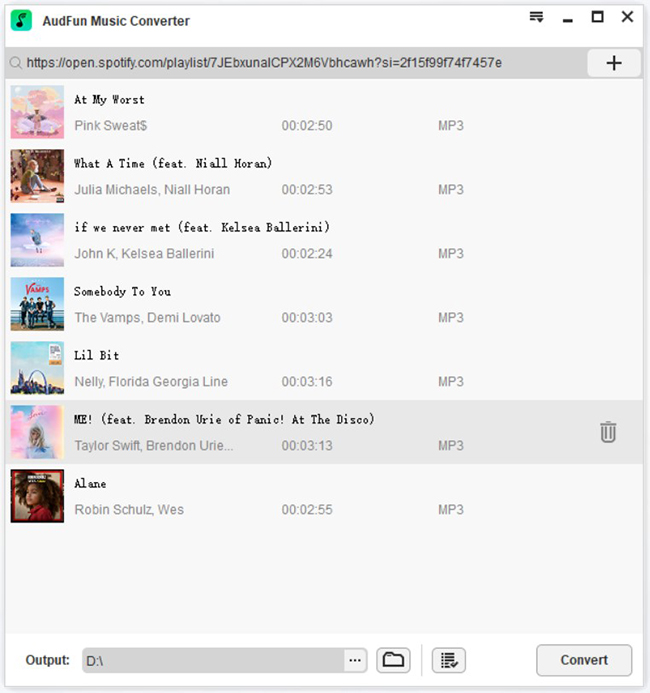
First of all, please start AudFun Music Converter for Spotify on your Mac or Windows computer. Then you need to import the Spotify music or playlists from the opening Spotify app into AudFun Software. To do this, you can either drag and drop Spotify music directly into the conversion window or copy and paste Spotify’s URL into AudFun’s search box and click the ‘+‘ button to upload them.
Step 2 Customize Spotify output format for a video editor
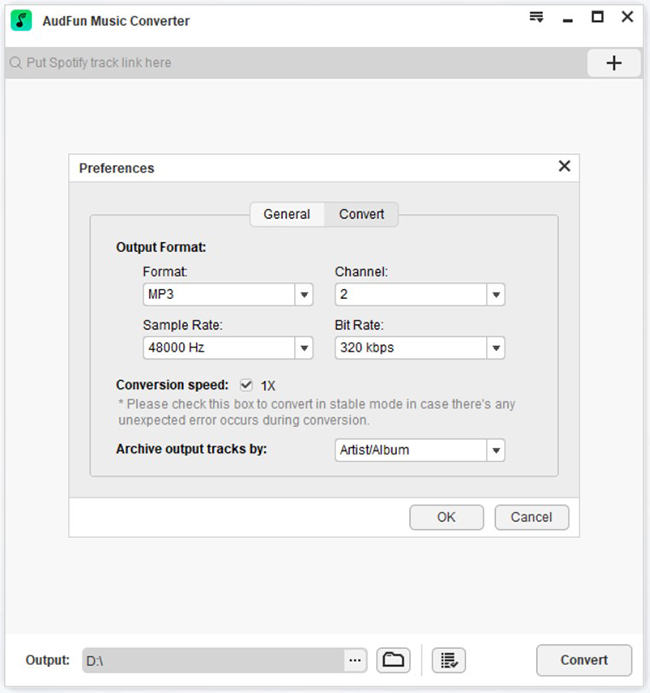
AudFun Spotify Music Converter supports multiple output formats, including M4A, MP3, FLAC, WAV, AAC, and M4B. With this feature, it couldn’t be easier to add Spotify music to videos. Hit on the top menu bar -> Preferences -> Convert button to set the correct output format according to video editor compatibility. In addition, you can customize other audio parameters, like bit rate, sample rate as needed.
Step 3 Download and convert Spotify music for the video editor
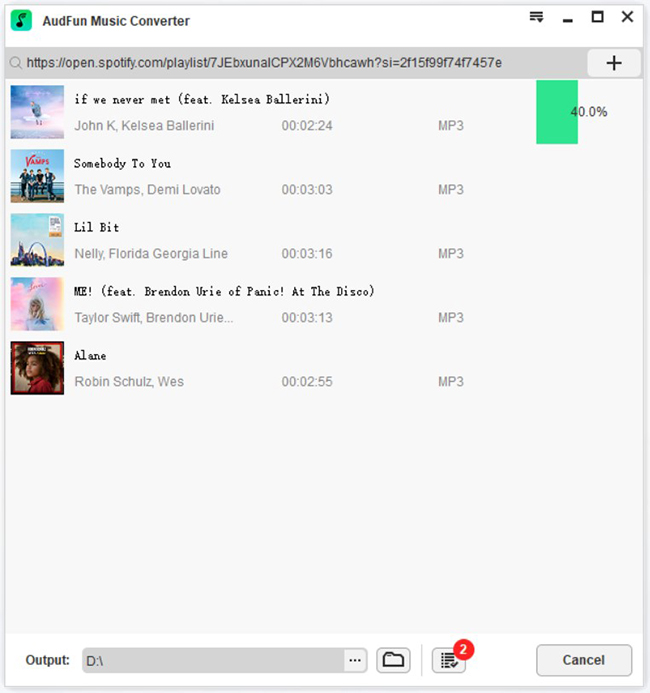
When all the settings are in place, simply press the Convert button in the lower right corner of AudFun’s main screen. The real-time conversion process will show a percentage. Typically, it can work up to 5X faster conversion speed without losing mass.
Step 4 Add Spotify music to video on the phone
Connect your phone to the computer via the network connection or a USB cable. To add Spotify music to videos on iPhone, you can use iTunes as the bridge. Please upload and transfer Spotify playlists to the iTunes library on your computer firstly. And then you can access Spotify music via iTunes on iPhone with the same Apple ID.
For Android users, you can directly copy and paste your Spotify music to your phone. When you’re done, you can easily add music from Spotify to the video app for setting as background music for videos on your phone.
Part 4. How to Use Video Editor with Spotify Music
All common Spotify MP3 files are saved in the target folder. You now have the freedom to import local Spotify music downloads to video editors and make them as background music.
Then, what’re the complete steps for using the video editor app with Spotify music? Here, we will take Splice and iMovie as examples to explain clearly the detailed tutorial.
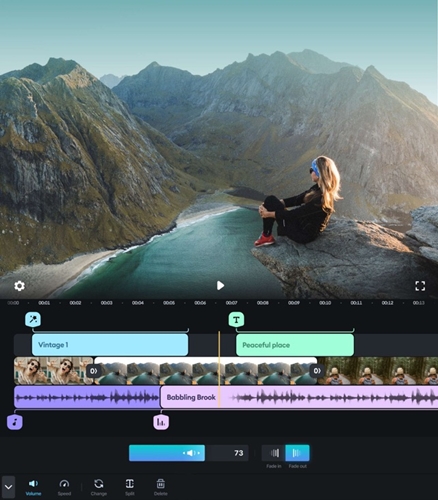
How to Import Music from Spotify to Splice
Step 1. Choose the converted Spotify music and add Spotify music to Splice, and then open the Sharing option.
Step 2. Choose the Copy to Splice button and then you can find the Music option.
Step 3. Please navigate to this section and go to the Imported Music option to find Spotify music for editing on Splice.
How to Add Music to iMovie from Spotify
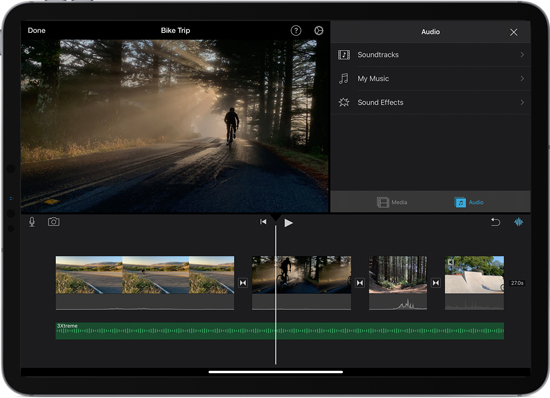
Step 1. Please transfer Spotify music to your iTunes library in advance. Open iMovie from your computer or iPhone and launch your iMovie video project.
Step 2. Hit on the Add Media option to select Spotify music from your iTunes library for a review.
Step 3. To add Spotify music to iMovie video projects, please press the Plus button next to each Spotify song.
How to Add Spotify Music to CapCut
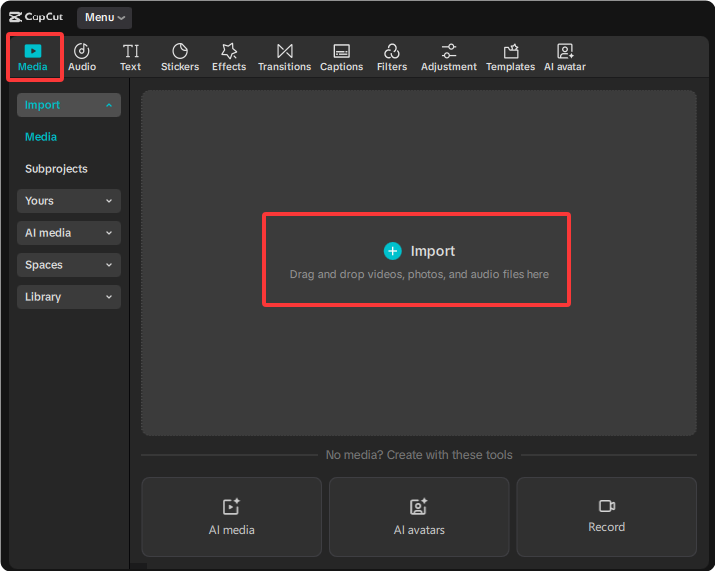
CapCut is currently the most popular video editor for TikTok and Instagram Reels. Here is how to import your tracks to Capcut for TikTok video creating:
Step 1. Ensure your converted Spotify MP3 files are transferred to your phone.
Step 2. Open the CapCut app, tap New Project, and add your video clips.
Step 3. Tap on Media at the top menu, then select Improt.
Step 4. Locate your converted Spotify track and tap the + button to add it to your video timeline.
Part 5. FAQs About How to Add Spotify Music to Video
Is it legal to use Spotify music in my YouTube or TikTok videos?
Using copyrighted music from Spotify in your videos can be tricky. If you are making a private video for personal memories (like a family slideshow), it is generally fine. However, if you upload the video publicly to platforms like YouTube, TikTok, or Instagram, the platform’s copyright detection system may mute your audio, block the video, or issue a copyright strike. For commercial projects, you must obtain the proper licensing from the copyright holder.
Can I add Spotify music to a video on my iPhone or Android directly?
No, you cannot import songs directly from the Spotify app into a mobile video editor. Because of DRM protection, downloaded Spotify tracks are encrypted cache files. To use them on your phone, you must first use a desktop tool like AudFun Spotify Music Converter to save the songs as MP3 files, and then transfer those MP3s to your iPhone or Android device.
Why can’t I just screen record a Spotify song for my video?
While screen recording your phone while a Spotify song plays might seem like a quick workaround, it is highly discouraged. Screen recording significantly reduces the audio quality, often captures unwanted background notifications or mic noises, and creates unnecessarily large video files. Converting the track to a local MP3 file ensures you get crisp, lossless background music for your video edits.
What video editors support converted Spotify MP3 files?
Once you convert your Spotify music to MP3 format, it becomes universally compatible. You can import these audio files into almost any video editing software, including CapCut, iMovie, Splice, InShot, Adobe Premiere Pro, Final Cut Pro, and KineMaster.
Conclusion
Adding your favorite Spotify songs to a video doesn’t have to be a frustrating experience. While Spotify’s official DRM restrictions prevent you from directly importing songs into video editors, using a reliable workaround makes it entirely possible.
By utilizing the AudFun Spotify Music Converter, you can easily download and convert any Spotify song, playlist, or podcast into a high-quality, DRM-free MP3 file. Whether you are editing a cinematic vlog on iMovie, a quick TikTok on CapCut, or a professional project on Premiere Pro, you now have the freedom to use the perfect background music. Follow the steps above, unleash your creativity, and make your videos stand out today!
