
Quick Answer
- Connect your iPhone using an MFi-certified USB cable or pair via Bluetooth and 5GHz Wi-Fi, then launch Spotify directly from your car display.
- Ensure Siri is enabled under iOS Settings along with Allow CarPlay While Locked, as CarPlay requires voice framework permissions to initialize.
- Keep your active driving playlists under 150 tracks to prevent library indexing timeouts and blank screen errors.
- Export your favorite playlists to a USB drive in universal MP3 format using a desktop converter to bypass cellular dead zones, forced shuffle, and playback drops.
Playing Spotify through Apple CarPlay integrates your music, podcasts, and audiobooks into your vehicle’s dashboard. When functioning properly, it provides responsive touch targets and hands-free Siri commands, allowing you to manage audio safely while keeping your attention on the road.
However, projection systems occasionally fail. Drivers frequently encounter failed wireless handshakes, missing dashboard icons, silent audio channels, and library indexing timeouts that produce blank screens. Weak cellular reception can also stall playback unexpectedly, even when tracks are supposedly cached on your phone.
This guide details the required iOS settings, wired and wireless connection procedures, and practical solutions for common CarPlay glitches. It also explains how to establish an offline USB audio backup for uninterrupted listening in remote areas.
Part 1. Set Up and Configure Spotify on Apple CarPlay
Configure Essential iOS and Siri Permissions
Before connecting your iPhone to your car, ensure your device permissions permit CarPlay to broadcast media. Disabled voice features or restricted privacy settings will prevent the dashboard projection from starting.
- Enable Siri by navigating to Settings > Siri & Search and toggling on Listen for “Hey Siri” and Press Side Button for Siri. The CarPlay interface depends on iOS voice architecture to run.
- Turn on Allow CarPlay While Locked under Settings > General > CarPlay > [Your Car] so that music does not cut out when the phone display sleeps.
- Check Settings > Screen Time > Content & Privacy Restrictions > Allowed Apps and verify that the switch for CarPlay is enabled.
- Go to Settings > Spotify and ensure both Cellular Data and Background App Refresh are active to avoid mid-drive playback stops.
Connect via Wired USB Data Port
A wired connection provides low latency, stable audio transmission, and consistent phone charging during long drives.
- Connect an MFi-certified Lightning or USB-C cable to your iPhone.
- Insert the other end into your vehicle’s designated USB data port, typically identified by a smartphone icon or white outline rather than a standard charging symbol.
- Tap Allow on your iPhone when prompted to grant CarPlay access while locked.
- Select the CarPlay icon on your infotainment screen if the interface does not launch on its own.
- Tap Spotify on the dashboard home screen to view your music library and start playback.
Pair via Wireless Bluetooth and Wi-Fi Handshake
Wireless CarPlay streams audio and navigation without requiring physical cables. Your vehicle establishes an initial Bluetooth handshake to authenticate the device, then switches data transmission to a local 5GHz Wi-Fi link.
- Turn on both Wi-Fi and Bluetooth on your iPhone, and place your car stereo into wireless pairing mode.
- Go to Settings > Bluetooth on your iPhone and select your vehicle from the available list.
- Confirm that the pairing PIN shown on the dashboard matches the prompt on your phone, then tap Pair.
- Allow contact synchronization if desired, and tap Use CarPlay when prompted by iOS.
- Once your iPhone joins the vehicle’s wireless network, tap Spotify on your infotainment display to begin streaming.
Part 2. Fix Common Spotify Apple CarPlay Issues and Playback Freezes
Fix “Nothing Here” Errors and Buffer Freezes
When CarPlay launches Spotify, the head unit requests an index of your playlists over the local connection. If your profile contains massive playlists or damaged local cache files, this request can time out, leaving a blank display or a “Nothing Here” notification. Disabling local device file scanning and trimming large playlists prevents these sync errors.
- Open Spotify on your iPhone and tap your Profile icon in the upper-left corner.
- Go to Settings and privacy > Local Files, and toggle off Show audio files from this device.
- Navigate to Your Library and examine large collections, particularly your Liked Songs folder.
- Split oversized collections into smaller driving playlists containing 50 to 100 tracks each.
- Force-quit Spotify on your phone, reconnect your device to CarPlay, and reload the app.
Unhide Missing Spotify App Icons on Dashboard
Spotify may disappear from your vehicle screen following an iOS update or head-unit reset. You can restore and reorganize dashboard apps directly within your iPhone settings.
- Park your vehicle and open the Settings app on your iPhone.
- Select General, then tap CarPlay.
- Select your vehicle under My Cars, then tap Customize.
- Scroll to the More Apps section to verify whether Spotify is listed with a red minus or green plus.
- Tap the green Plus (+) button next to Spotify to return it to the active screen layout.
- Drag the three horizontal bars next to Spotify toward the top of the list so it appears on your first home screen page.
Resolve Silent Playback with Moving Progress Bars
If a song shows an advancing timeline on your dashboard display but produces no sound, iOS may be routing audio to an inactive channel or another background application.
- Switch your vehicle’s audio input away from AM/FM or auxiliary sources and return to the designated CarPlay channel.
- Open the iPhone App Switcher and swipe away video streaming apps, social media feeds, or secondary navigation tools holding silent audio priority.
- Turn your car’s physical volume dial during active playback, confirming you are adjusting the media volume rather than navigation prompts.
- Open Control Center on your iPhone, tap the AirPlay icon inside the media card, and ensure the checkmark is assigned to CarPlay rather than the internal phone speaker.
Force Strict Offline Mode for Cellular Dead Zones
CarPlay playback can stall because Spotify continuously requests track artwork, dynamic canvas elements, and online recommendations while driving. When driving through rural stretches, mountains, or tunnels, these background requests delay local playback. Enabling strict offline mode stops background polling and plays directly from saved storage.
- Open Spotify on your iPhone before driving into poor reception zones.
- Tap your Profile picture and select Settings and privacy.
- Tap Playback.
- Enable the Offline switch at the top of the menu.
- Open Spotify on your dashboard and choose tracks directly from Your Library.
Part 3. Play Spotify in the Car via USB Drive Using AudFun Spotify Music Converter
Apple CarPlay remains dependent on your iPhone’s battery health, operating system stability, and cellular reception. Even when tracks are downloaded inside the mobile app, Spotify still verifies licensing tokens online, causing sudden pauses when traveling through poor service zones. Furthermore, Spotify Free accounts are restricted by forced shuffle, track-skip caps, and audio advertisements.
Transferring your audio to a standard USB flash drive bypasses phone projection problems entirely. AudFun Spotify Music Converter allows you to convert driving playlists into standard audio files compatible with any vehicle’s built-in USB media port.
Why Use AudFun Spotify Music Converter for In-Car Playback
Using AudFun Spotify Music Converter provides clear advantages for in-car listening:
- Zero network reliance: Saving songs on a flash drive eliminates buffering in cellular dead zones, prevents mobile data usage, and removes cable connection glitches.
- Preserved sound quality and ID3 tags: The software outputs tracks up to 320 kbps MP3 or lossless FLAC while retaining song titles, artists, album information, and cover art for clear display on your car screen.
- Unrestricted playback for Free accounts: Users without a Premium subscription can organize custom driving playlists without forced shuffle, skip limits, or commercial interruptions.
Step-by-Step Tutorial: Convert and Play Spotify via Car USB Drive
Follow these steps to convert your driving playlists and play them using your vehicle’s media port:
Step 1. Launch AudFun Spotify Music Converter
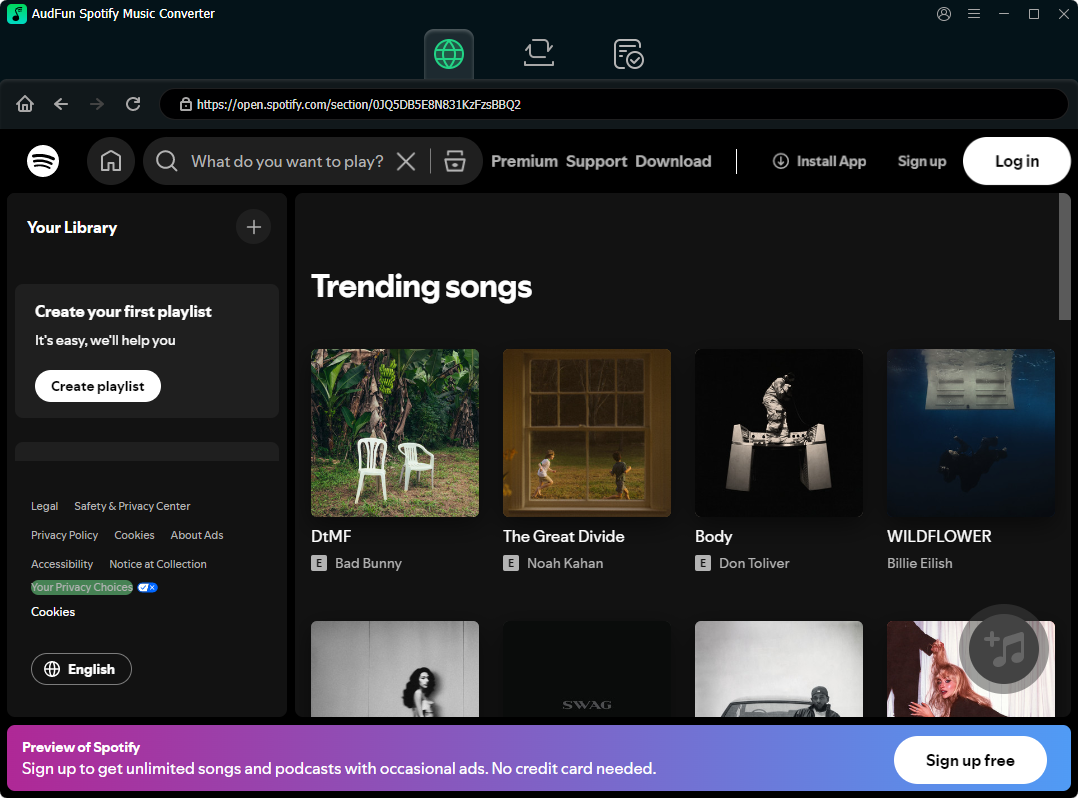
Download, install, and run AudFun Spotify Music Converter on your Mac or Windows computer. The Spotify desktop app will open alongside the converter. Ensure your Spotify account is signed in.
Step 2. Add Desired Driving Playlists to the Conversion Queue
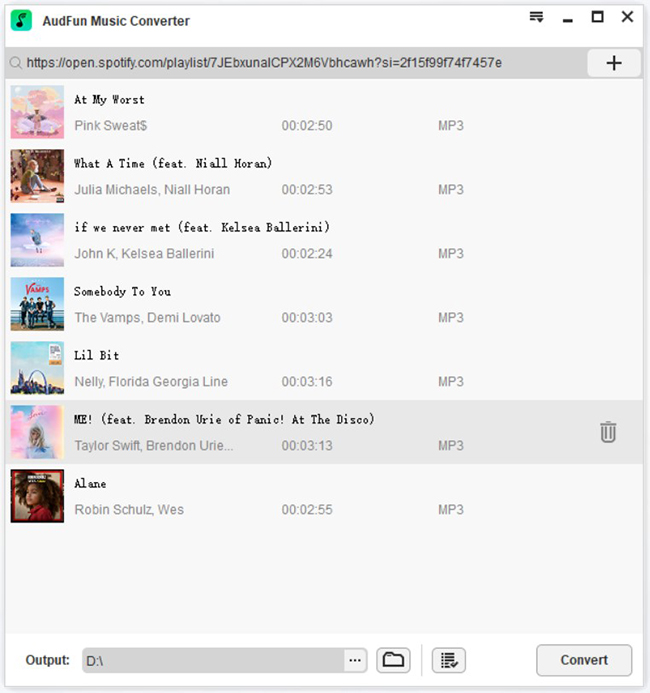
Locate the playlists or albums you wish to use. Click the three dots next to the item, choose Share > Copy Spotify Link, paste the URL into the search bar inside AudFun Spotify Music Converter, and click the + button. Alternatively, drag and drop tracks directly into the conversion window.
[Image: Adding Spotify playlist links into the AudFun Spotify Music Converter main interface]
Step 3. Set Audio Format to 320 kbps MP3
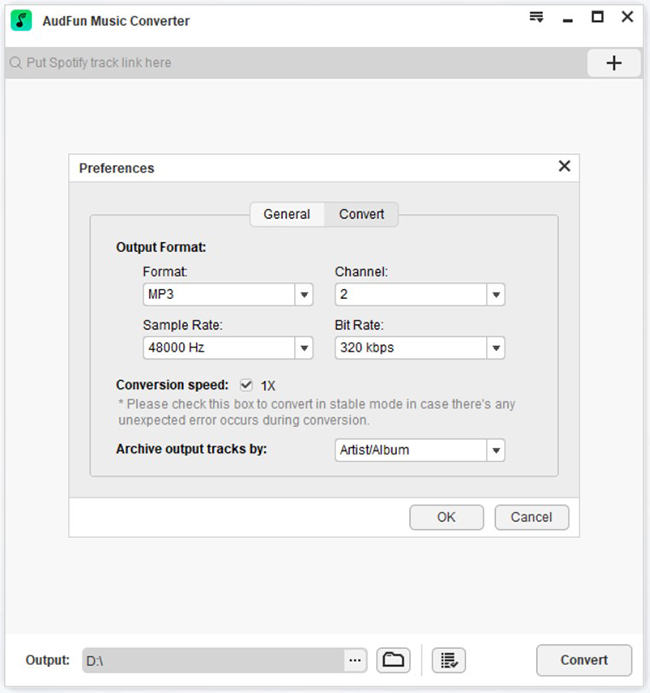
Navigate to the top menu and select Preferences > Convert. Standard vehicle stereos feature broad support for MP3 files. Set the output format to MP3, pick a sample rate of 44.1 kHz, and select a bit rate of 320 kbps for crisp in-car audio. Click OK to apply the configuration.
Step 4. Convert and Transfer Tracks to a USB Flash Drive
Click the Convert button in the lower-right corner to initiate batch processing. The software downloads the songs at 5X speed while keeping all track metadata intact. Once the process finishes, locate the converted files in your local output folder.
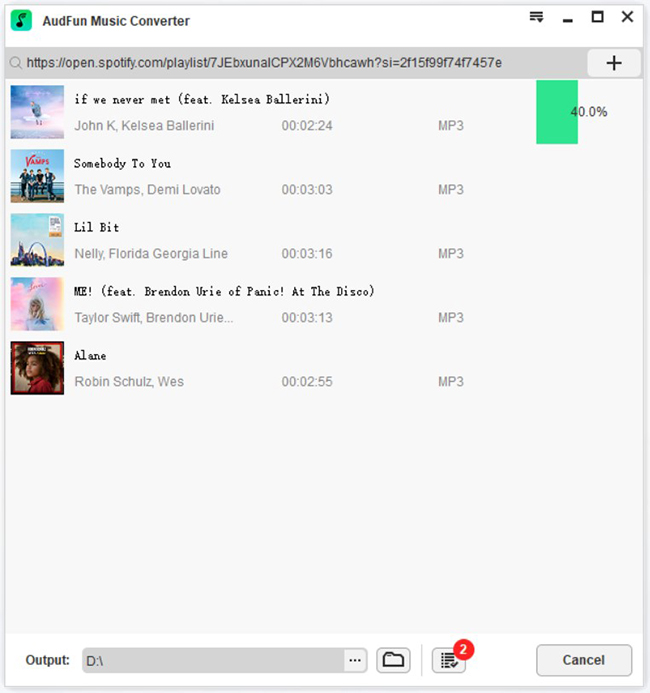
Format your USB flash drive to FAT32 or exFAT on your computer, then copy the music folder onto the drive. Safely eject the drive, insert it into your car’s USB port, switch your head unit’s source to USB Media, and navigate your tracks using steering wheel controls or dash dials.
This software is intended for personal backups of authorized audio. Users must adhere to local copyright regulations and platform service agreements.
Part 4. Comparing Apple CarPlay Streaming vs. In-Car USB Drive Playback
Deciding between streaming through Apple CarPlay and using a dedicated USB drive comes down to online flexibility versus absolute playback reliability. Apple CarPlay integrates communications, navigation, and live catalog streaming into your car’s display. In contrast, USB drive playback operates as a standalone media solution independent of mobile reception or phone hardware.
| Comparison Metric | Apple CarPlay Streaming | In-Car USB Drive Playback |
|---|---|---|
| Cellular Data Consumption | High; requires active streaming or frequent license checks | Zero; plays entirely offline from local flash memory |
| Audio Quality Stability | Variable; bitrates decrease when cellular signals drop | Fixed; preserves consistent 320 kbps MP3 or lossless quality |
| Account Tier Limitations | Free tier is limited to shuffle mode and includes ads | Unrestricted; full track selection and zero ad interruptions |
| Hardware & Connection Stability | Susceptible to cable disconnects, wireless dropouts, and iOS bugs | Direct playback from vehicle stereo without phone connection |
Streaming via CarPlay remains practical for metropolitan commutes where cellular networks are reliable and Siri voice navigation adds convenience. However, on long road trips, in rural areas, or on car stereos with unstable projection software, network dead zones frequently lead to buffering stalls and system timeouts. A dedicated USB drive offers a reliable backup that plays continuously without draining your phone’s battery.
FAQs About Playing Spotify on Apple CarPlay
Why does Spotify display a blank screen or “Nothing Here” on CarPlay?
This issue occurs when Spotify times out trying to index large playlists or conflicts with local device files. Open Spotify on your iPhone, turn off “Show audio files from this device” under Local Files, restart the app, and reconnect your phone.
Why is the Spotify icon missing from my CarPlay dashboard?
CarPlay requires functional Siri permissions to operate. Ensure Siri is turned on under Settings > Siri & Search. Then open Settings > General > CarPlay > [Your Car] > Customize, and verify that Spotify is positioned in your active app list.
Can I select specific songs on CarPlay using a Spotify Free account?
No. Free accounts are restricted to shuffle mode and experience periodic advertisements on CarPlay. To pick specific tracks offline without a subscription, convert your playlists to a USB drive using AudFun Spotify Music Converter.
How can I fix Spotify playing silently while the progress bar advances?
This typically occurs when iOS directs the audio output to an inactive channel. Open Control Center on your iPhone, tap the AirPlay icon in the media module, and confirm that CarPlay is selected as your active audio output.
Conclusion
Enjoying reliable Spotify playback on Apple CarPlay depends on proper device configuration and manageable playlist sizes. Ensuring your iPhone has an active Siri configuration, using an MFi-certified cable or stable 5GHz Wi-Fi link, and trimming massive playlists will prevent the majority of dashboard crashes and blank screens.
When traveling through cellular dead zones or using car audio systems lacking CarPlay integration, a dedicated USB drive provides an uninterrupted listening experience. Storing your audio on a flash drive via AudFun Spotify Music Converter guarantees steady playback free from buffering stalls, forced shuffle rules, or unexpected signal loss.
By taking a few minutes to configure your device settings and preparing a local media backup, you can ensure a smooth, distraction-free soundtrack for every drive.