
Quick Answer
To play Spotify music on the Raspberry Pi, select the method that matches your hardware setup, audio gear, and account type:
- Turn the Pi into a headless Spotify Connect endpoint with Raspotify: Install the lightweight daemon on Raspberry Pi OS Lite to stream directly from official mobile or desktop apps to your speakers.
- Stream via browser or specialized audiophile operating systems: Enable Widevine support in Chromium on desktop models, or flash dedicated distributions like Volumio to integrate high-resolution playback with dedicated DAC HATs.
- Download tracks locally for offline, subscription-free playback: Use a dedicated desktop audio converter on your computer to export playlists into standard formats like MP3 or FLAC, then play them locally via MPD or VLC without network reliance.
Setting up Spotify playback on a Raspberry Pi can be surprisingly tricky. Spotify does not offer an official native desktop client for ARM-based Linux distributions, and opening the web player inside Chromium often results in playback errors because ARM-compatible Widevine DRM modules are missing by default. Furthermore, many online tutorials still recommend legacy packages that stopped working when Spotify retired older connection protocols.
Fortunately, several dependable methods exist depending on your specific board, audio hardware, and account tier.
This guide explores the best hardware configurations, explains why you should replace the noisy onboard 3.5mm analog jack with a USB DAC or I2S HAT, and details four working playback paths: headless streaming via Raspotify, desktop streaming in Chromium, high-fidelity playback using Volumio, and local offline playback without requiring an active Spotify Premium subscription.
- Part 1. Compare Hardware Requirements and Playback Methods for Raspberry Pi
- Part 2. Three Ways to Stream Spotify Music on Raspberry Pi Online
- Part 3. How to Play Spotify Music Offline on Raspberry Pi with AudFun Spotify Music Converter
- Part 4. Fix Common ALSA Audio Routing and Raspotify Connection Errors
- Frequently Asked Questions About Playing Spotify on Raspberry Pi
- Conclusion
Part 1. Compare Hardware Requirements and Playback Methods for Raspberry Pi
Selecting the right setup depends on your board’s computing power, your sound hardware, and your subscription tier. Minimal boards like the Raspberry Pi Zero 2 W or Pi 3B handle lightweight headless daemons easily, but lack the resources for modern web browsers. Conversely, running the official web player inside a full desktop interface demands a Raspberry Pi 4B or Pi 5 with at least 4GB of RAM to prevent severe interface lag and audio stuttering.
Audio output quality requires careful planning as well. The onboard 3.5mm analog jack on older Raspberry Pi models relies on pulse-width modulation (PWM), which creates audible background hiss, ground hum, and dynamic compression. For clean playback, route your sound through an external USB DAC or mount an I2S DAC HAT, such as a HiFiBerry board, directly to the GPIO pins.
| Playback Method | Recommended Pi Hardware | Audio Output Setup | Account Tier | Best For |
|---|---|---|---|---|
| Raspotify (Connect) | Pi Zero 2 W / 3B / 3B+ | USB DAC / I2S HAT | Premium Required | Headless smart speaker setups |
| Chromium Web Player | Pi 4B / Pi 5 (4GB+) | HDMI / USB Audio | Free & Premium | Desktop multitasking and visual control |
| Volumio Audiophile OS | Pi 3B+ / 4B / 5 | I2S HiFiBerry DAC | Premium (Plugin) | Dedicated Hi-Fi home stereo systems |
Older guides often recommend discontinued distributions such as Pi MusicBox or libraries built on libspotify. Spotify permanently retired that library in 2022, meaning those packages will not authenticate on modern Debian Bookworm installations. Stick to modern librespot-based tools or Widevine-enabled web environments instead.
Part 2. Three Ways to Stream Spotify Music on Raspberry Pi Online
Set Up a Headless Spotify Connect Receiver with Raspotify
Raspotify transforms your Raspberry Pi into an efficient Spotify Connect receiver powered by the open-source librespot engine. It operates smoothly in the background on headless systems, making it an excellent choice for turning vintage stereo receivers into wireless streaming hubs without needing an attached monitor or keyboard.
- Open your terminal and install Raspotify by running the official deployment script:
curl -sL https://dtcooper.github.io/raspotify/install.sh | sh
2. Open the daemon configuration file in a text editor:
sudo nano /etc/raspotify/conf
3. Customize your speaker settings:
- Uncomment
LIBRESPOT_NAMEto give your receiver an identifiable name on your network. - Adjust
LIBRESPOT_BITRATEto 160 or 320 to balance bandwidth and fidelity.
4. Save your changes, exit the editor, and restart the service:
sudo systemctl restart raspotify
5. Open the Spotify app on your phone, tablet, or desktop, navigate to Available Devices, and select your Raspberry Pi to initiate playback.
Stream via Chromium Browser with Widevine DRM Enabled
If you use a Raspberry Pi 4B or Pi 5 as a desktop computer, running the Spotify Web Player inside Chromium offers a familiar, visual interface. Because ARM Linux installations omit proprietary digital rights management libraries by default, streaming requires installing the native Widevine package.
- Open a terminal prompt and refresh your package indexes:
sudo apt update
2. Install the necessary Widevine content decryption module:
sudo apt install libwidevinecdm0
3. Launch Chromium, navigate to https://open.spotify.com, and sign in to your account.
4. Open the browser menu, select Settings > Privacy and security > Site settings > Protected content, and confirm that Sites can play protected content is enabled.
5. Select any playlist or track, and ensure your audio output is directed to your preferred speakers by right-clicking the volume icon on the Raspberry Pi desktop taskbar.
Build an Audiophile Streaming Station Using Volumio
Volumio is a dedicated Linux distribution engineered specifically for high-fidelity audio reproduction on single-board computers. It bypasses conventional desktop overhead, interfaces directly with high-end DACs, and serves an intuitive browser-based control dashboard accessible across your local network.
- Download the Volumio system image and flash it to an SD card using Raspberry Pi Imager.
- Insert the card into your Pi, boot the system, and connect your phone or laptop to the temporary Wi-Fi network named Volumio.
- Launch your browser, visit
http://volumio.local, and follow the configuration wizard to attach the Pi to your primary home network. - In the side navigation menu, navigate to Plugins > Search Plugins > Music Services, and install the Spotify plugin.
- Open the plugin settings, authenticate your Spotify account, and set your hardware output under Playback Options to match your connected I2S HAT or external DAC.
Part 3. How to Play Spotify Music Offline on Raspberry Pi with AudFun Spotify Music Converter
While streaming via Raspotify or web browsers is practical, it relies entirely on a persistent internet connection and valid streaming licenses. Network interruptions, server downtime, and Spotify Free tier restrictions can interrupt your listening. Playing standard audio files directly from local storage avoids these obstacles completely.
Downloading tracks to local storage on your primary workstation lets you transfer standard audio files to an SD card or USB flash drive, turning any Raspberry Pi into an autonomous offline media player.

AudFun Spotify Music Converter
- Preserves high audio quality output Spotify songs, albums, playlists, etc.
- Supports the conversion of Spotify music files at a high speed of X5 rate
- Listen to Spotify offline without premium on multiple devices and platforms
- Converts Spotify music to several formats like FLAC, M4A, MP3, etc.
Why Choose AudFun Spotify Music Converter for Raspberry Pi Offline Audio
AudFun Spotify Music Converter provides an effective way to prepare tracks for offline listening on ARM Linux boards. Because Spotify lacks an official Linux client capable of offline syncing on the Raspberry Pi, saving local copies eliminates network dependency.
- Broad format output: AudFun Spotify Music Converter exports tracks, albums, and curated playlists to standard MP3, FLAC, WAV, and AAC formats directly on Windows or macOS.
- Hardware-friendly offline playback: Converted files can be stored on local drives and played back on any board model without keeping a Spotify Premium subscription active.
- Full ID3 tag preservation: The software preserves critical metadata including track titles, album names, artists, and cover art, ensuring that lightweight Linux players like MPD or VLC catalog your library accurately.
Note: This tool is intended for personal backup of content you have the right to access. Users must comply with local copyright laws.
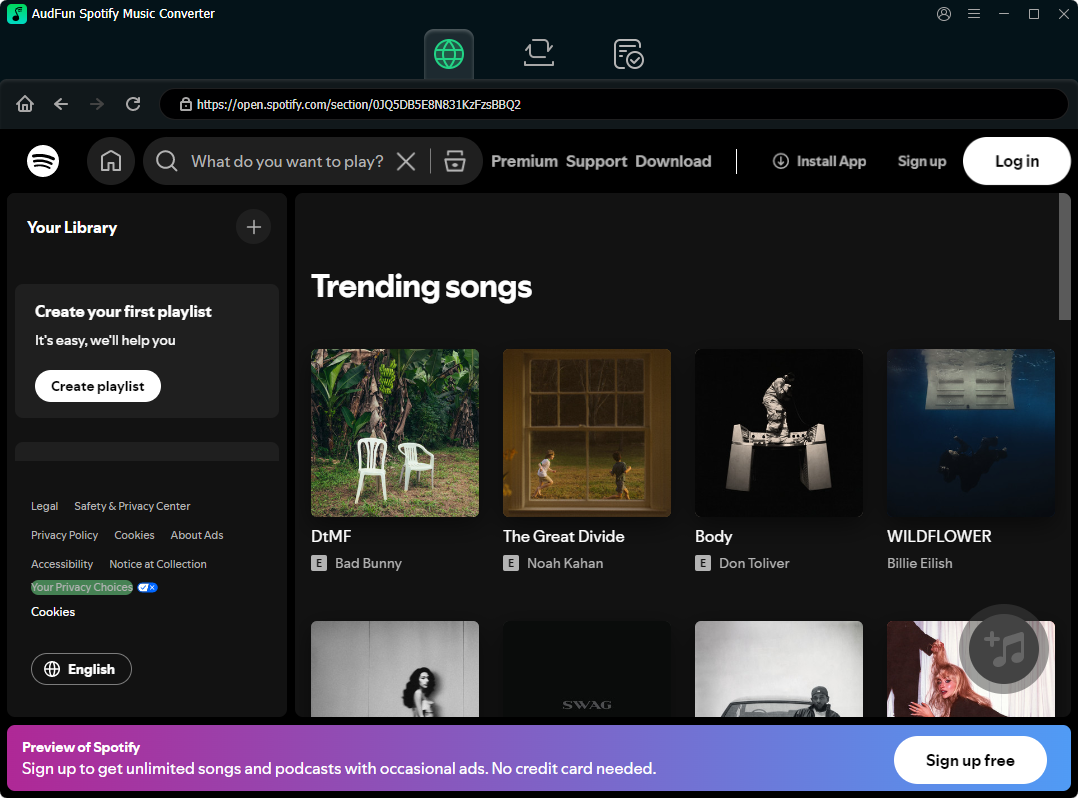
Step-by-Step Tutorial: Download and Play Spotify Music on Raspberry Pi Locally
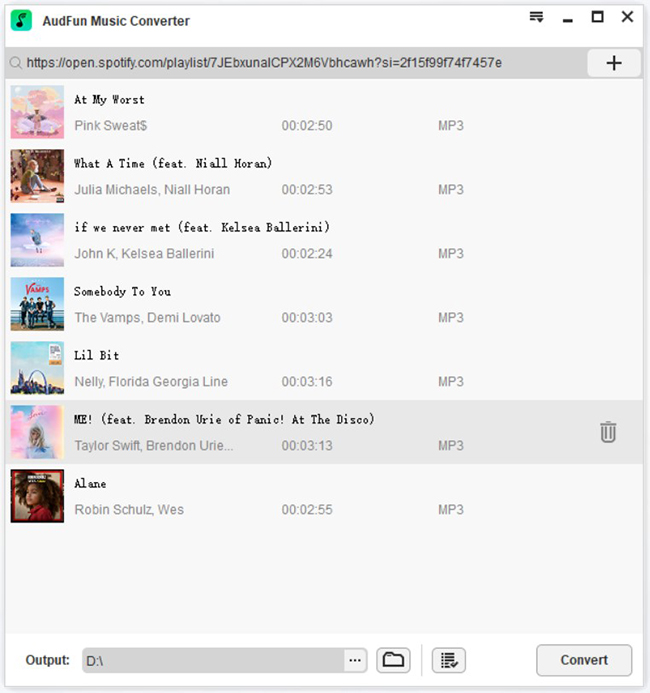
Step 1. Launch AudFun Spotify Music Converter and Import Music
Install and open AudFun Spotify Music Converter on your computer. Open your Spotify app, copy the URL of your chosen album or playlist, and paste it into the converter’s search bar. Alternatively, drag tracks directly into the interface and click the + button to import them.
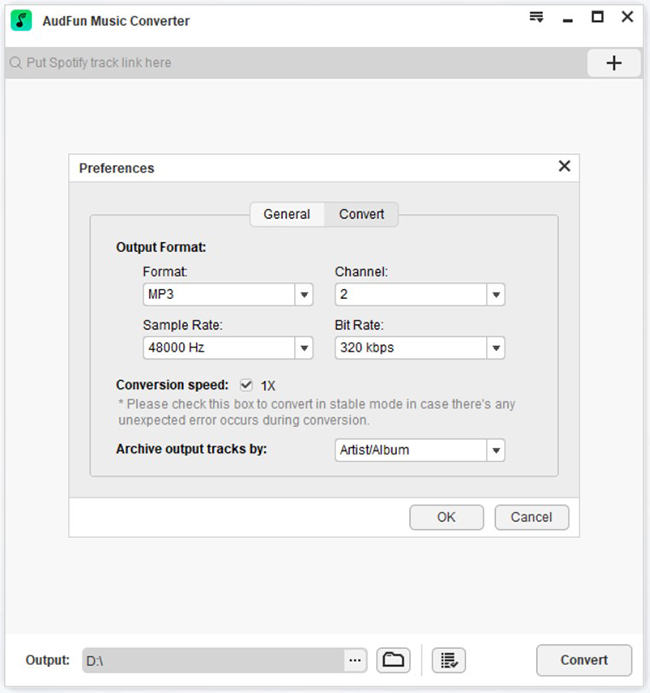
Step 2. Select Output Audio Parameters
Open the Preferences menu and select the Convert tab. Choose MP3 or FLAC as your output format. For optimal audio quality through Raspberry Pi DACs, choose a bit rate of 320 kbps and set the sample rate to 48 kHz. Click OK to confirm your preferences.
Step 3. Convert Spotify Playlists to Local Storage
Click the Convert button to begin downloading and encoding your selected music. The utility processes your queue at accelerated speeds while keeping all ID3 tags intact. When the conversion completes, click the folder icon to access your output files.
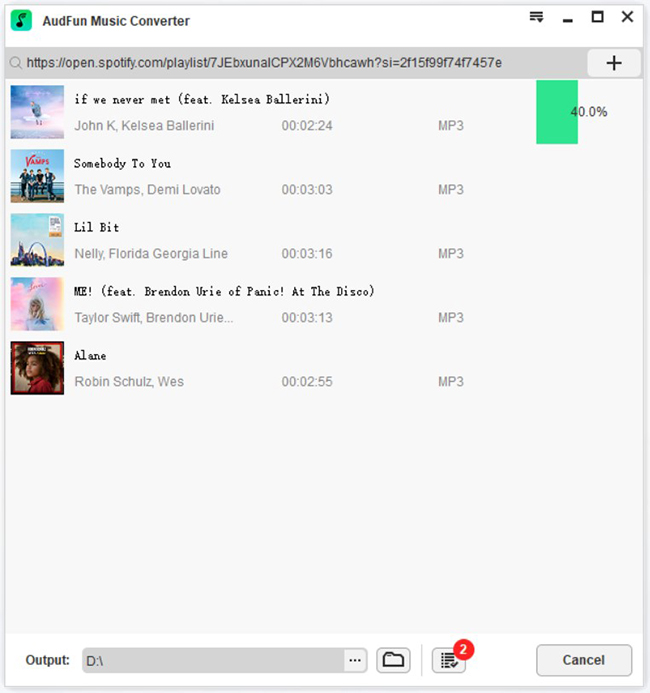
Step 4. Transfer Files and Play Locally on Raspberry Pi
Copy the converted audio files to a USB flash drive or transfer them directly over SSH using SCP (scp -r ./Music [email protected]:/home/pi/Music). Connect the drive or open your local directory on the Raspberry Pi, and use a terminal player such as VLC to enjoy gapless playback:
cvlc /home/pi/Music/sample-track.mp3Part 4. Fix Common ALSA Audio Routing and Raspotify Connection Errors
Detect and Enumerate Available Audio Hardware
When your receiver appears connected but produces no sound, the operating system may have mapped your external audio device to an unexpected card index. Checking how the kernel detects your sound card prevents misconfigured daemon setups.
- Open your terminal or log in over SSH.
- Run
aplay -lto view all detected digital audio playback devices along with their assigned card numbers. - Check
/proc/asound/cardsusingcat /proc/asound/cardsto view the kernel-level driver naming strings for your audio devices. - Verify that your USB DAC or I2S HAT is visible alongside the onboard bcm2835 audio controller.
Route Default System Audio Output in ALSA Configuration
Raspberry Pi OS typically assigns card index 0 to the built-in analog jack. To ensure all audio streams target your external DAC automatically, configure the Advanced Linux Sound Architecture (ALSA) subsystems accordingly.
- Open the global ALSA configuration file:
sudo nano /etc/asound.conf
- Add the following definitions to route default system output to your dedicated sound card:
pcm.!default {
    type hw
    card 1
}
ctl.!default {
    type hw
    card 1
}
(Replace card 1 with the card index identified during your hardware scan.)
- On minimal distributions lacking
asound.conf, open/usr/share/alsa/alsa.confand updatedefaults.ctl.cardanddefaults.pcm.cardto your designated card index. - Press Ctrl + O followed by Enter to save, then press Ctrl + X to exit.
Inspect and Restart Raspotify System Daemon
If the Spotify app fails to detect your Raspberry Pi on your local network, the daemon may have encountered a configuration error or dropped its network binding.
- Restart the background service to load any updated settings:
sudo systemctl restart raspotify
- Check the daemon status:
sudo systemctl status raspotify
Ensure the output indicates active (running) in green text.
- If errors persist, view recent operational logs:
journalctl -u raspotify -b -e
- Look for ALSA device allocation conflicts or network discovery issues, then refresh the device picker in your mobile or desktop Spotify app.
Frequently Asked Questions About Playing Spotify on Raspberry Pi
Can you play Spotify music on a Raspberry Pi using a Free account?
Yes. While Raspotify and Volumio plugins require a Premium account, Free users can stream directly through the Chromium web player or convert playlists to standard MP3 files using AudFun Spotify Music Converter for local playback.
Why does the Spotify Web Player fail to play audio in the Raspberry Pi Chromium browser?
Spotify requires Google’s Widevine CDM library to decode encrypted media streams. If playback fails in Chromium, install the module via sudo apt install libwidevinecdm0 in the terminal and restart the browser.
How do you fix audio crackling and static hiss from the Raspberry Pi 3.5mm jack?
The onboard 3.5mm jack uses PWM circuits that introduce static and electrical hum. Connect an external USB DAC or an I2S DAC HAT like HiFiBerry, then set it as the default output in your ALSA configuration.
Can a Raspberry Pi play Spotify music without an active internet connection?
Yes. Because there is no official Linux client supporting offline downloads on ARM boards, you can download tracks to MP3 or FLAC using a desktop converter on your computer, transfer them to the Pi, and play them offline with VLC.
Conclusion
Streaming Spotify on a Raspberry Pi provides a flexible way to repurpose single-board computers into capable audio hubs. Lightweight daemons like Raspotify are ideal for minimalist smart speaker endpoints, while Volumio delivers an audiophile-grade interface tailored for high-end home sound systems. In all streaming configurations, pairing the board with an external USB DAC or I2S HAT eliminates the electrical hum inherent to the onboard 3.5mm jack.
For users wanting offline reliability or streaming on a Spotify Free account, converting your music library to local files with AudFun Spotify Music Converter offers an effective alternative. By loading standard audio tracks onto an SD card or USB drive, you can maintain continuous, high-resolution playback across any Raspberry Pi model without relying on network connections.