
“How do I add music from Spotify to PicsArt?” This is a frequently asked question in the PicsArt Community. As a powerful mobile photo and video editing tool, PicsArt allows you to engage in multiple creative activities. You can add filters, apply effects, and even insert background music from its default library or your local device.
However, what frustrates most users is the lack of official PicsArt Spotify integration. Due to DRM protection, you cannot directly import Spotify songs into this video editing app. If you are struggling with this issue, don’t worry. This post will walk you through a 100% feasible workaround to add Spotify music to PicsArt videos or photos for FREE.

- Part 1. FAQs about PicsArt Spotify Integration
- Part 2. Download Spotify Music for PicsArt
- Part 3. Add Spotify Music to PicsArt Video/Photo
- Part 4. Final Words
Part 1. FAQs about PicsArt Spotify Integration
Q1: Can You Add Spotify Music to Photo/Video in PicsArt Directly?
A: No. As stated above, Spotify doesn’t natively integrate with PicsArt. You cannot use Spotify tracks on the editing tool as background music directly due to copyright protections. All songs downloaded from Spotify are encrypted in a specific OGG Vorbis format, which is not recognized by PicsArt.
Q2: What Format Files Does PicsArt Use?
A: You can check the enabled file formats of the editing app from the following table:
| PicsArt Supported Audio Formats | MP3, WAV, M4A, AAC |
| PicsArt Supported Image Formats | JPG, JPEG, PNG, WEBP, HEIC |
| PicsArt Supported Video Formats | MOV, MP4, FLV, WEBM, AVI |
Part 2. How to Download Spotify Music to PicsArt-Supported Files
Since Spotify restricts its audio files from being accessed outside its official app or web player, you must convert Spotify’s OGG Vorbis songs to MP3 or other PicsArt-compatible audio formats before importing them into the video editor.
To do this effortlessly, AudFun Spotify Music Converter is your best choice. It empowers both Free and Premium Spotify users to download playlists, albums, songs, and podcasts as local files. This all-around software supports converting Spotify content to FLAC, WAV, MP3, AAC, and M4A, while preserving 100% original audio quality and complete ID3 tags (such as title, artist, and cover art).

AudFun Spotify Music Converter for PicsArt
- Download Spotify Ogg Vorbis Files to MP3/FLAC/WAV/AAC/M4A/M4B
- Convert Spotify music at a 5X speed rate in batches
- Customize output parameters for Spotify songs to your preferences
- Retain lossless audio quality and metadata info for Spotify conversions
- Enable to add Spotify to PicsArt, Canva, iMovie, and more Editors
How to Download Spotify Music to MP3
You can first download and install the AudFun Spotify Music Converter on your PC or Mac computer to test its main features with its free version. If you hope to access the complete functions of this tool, it is recommended to upgrade to its full version. Once upgraded, then go to the ‘Menu‘ tab > click on the ‘Register‘ option and then fill in your licensed email address and codes to fully activate AudFun.
Afterward, refer to the stepwise guide to download your liked songs from Spotify to MP3 or other PicsArt-enabled files.
Step 1 Add Spotify Tracks into AudFun Spotify Music Converter
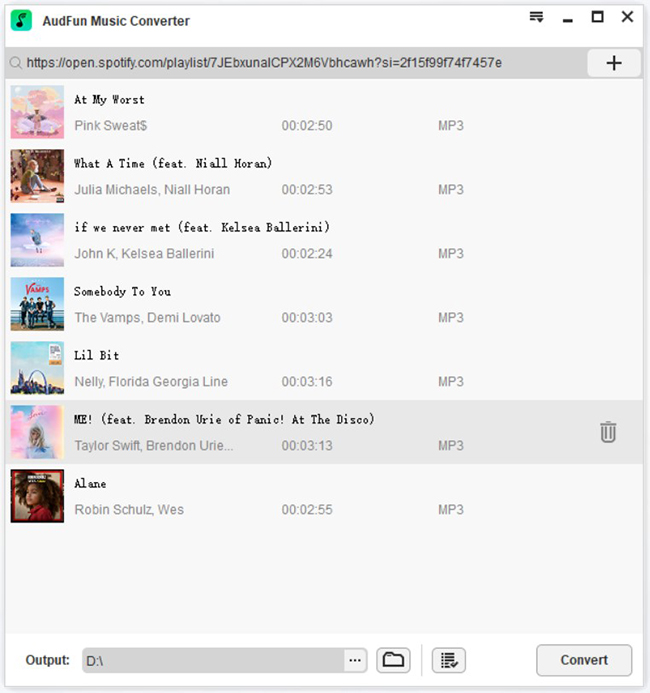
Please fire up the AudFun Spotify Music Converter. Then the Spotify app will automatically open at once. On Spotify, discover and find the tracks or playlists you wish to add for conversion. Once found, click the three-dot icon > ‘Share‘ > ‘Copy Song Link‘ to copy the Spotify track’s URL. Next, paste the link to top AudFun’s Search bar and click on the ‘+‘ tab to load the tracks. Or, please drag and drop your Spotify music into the AudFun’s interface directly.
Step 2 Adjust the Output Audio Format and Quality of Spotify
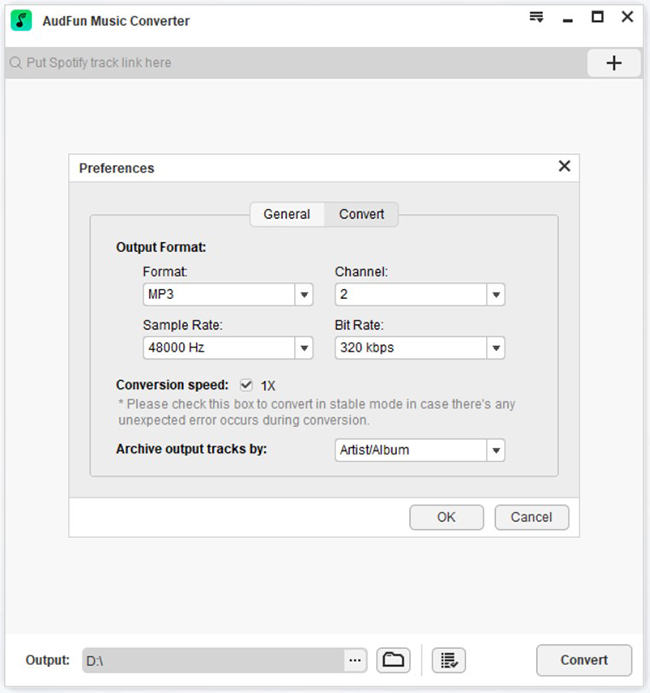
Click on the top-right ‘Menu‘ tab which is like three horizontal lines on the converter. From the pull-down lists, choose the ‘Preferences‘ > ‘Convert‘ option. Once the settings window opens, start to adjust the output format of Spotify to MP3, FLAC, changing Spotify bitrate, channel, sample rate, and so on to your needs. Later, click on the ‘OK‘ button to confirm your entries.
Step 3 Download and Convert Spotify Tracks for PicsArt
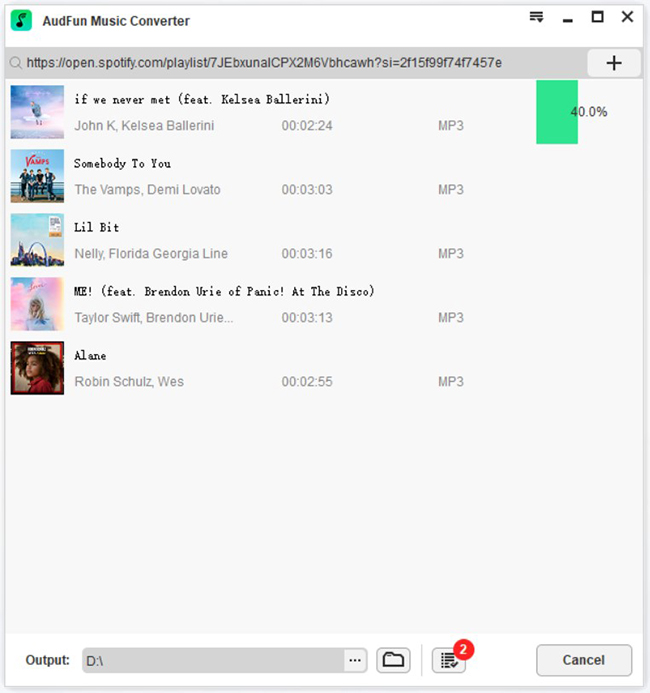
Proceed to hit the ‘Convert‘ tab to kick off the conversion process. The feature-rich Spotify downloader will start at a 5X speed to convert and download Spotify music to computer in the format you selected before. Then tap on the File icon at the bottom to locate them from your computer’s local folder to use them in PicsArt editor.
Part 3. How to Add Spotify Music to PicsArt Video/Photo
Once your Spotify playlists are free from restrictions and converted to MP3, adding them to your edits is a breeze. Here are the step-by-step instructions to insert Spotify background music into your PicsArt projects via the mobile app and the online web editor.
Method 1: Put Spotify Downloads on PicsArt Mobile App
Since many creators prefer designing directly on their smartphones, let’s look at how to import your newly converted Spotify tracks into the PicsArt mobile app (available on iOS and Android).
📲 Note: Before adding, please transfer the Spotify conversions from your computer to an Android or iOS phone. To make it, please connect your phone to your computer via a USB cable. Next, drag and drop the converted folder that contains the Spotify downloads to your phone’s icon on the computer screen. Once done, proceed to take a look at the following steps:
Step 1. Launch the PicsArt app on your mobile device.
Step 2. Tap the middle ‘+’ button at the bottom navigation bar to import the video or photo you wish to edit.
Step 3. For a video, tap the ‘Audio’ and then the ‘Music’ button from the bottom toolbar. Select your device’s local files to browse and add the converted Spotify tracks. For a photo, you can utilize the ‘Stickers’ or slideshow features to combine audio with your image.
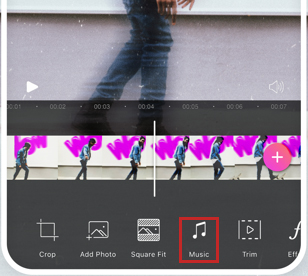
💡 Pro Tip: To make your social media posts more engaging, use PicsArt’s audio tools to trim the Spotify song so the beat drops exactly when your video transitions or when a specific photo filter appears!
Method 2: Add Spotify Music to PicsArt Web Editor Online
If you prefer editing on a desktop, you can easily upload your converted Spotify music to PicsArt’s online website by following this quick guide:
Step 1. Visit the PicsArt website and log in to your account.
Step 2. Hover over the ‘Editing Tools‘ option on the top navigation bar and select ‘Video Editor‘.
Step 3. Click the ‘Upload‘ button at the bottom left to import your source video or picture.
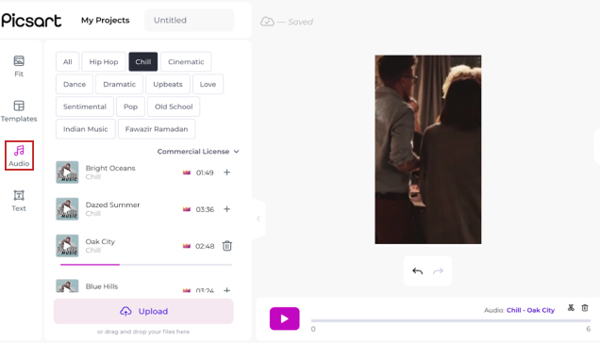
Step 4. Tap the ‘Audio‘ option from the left sidebar, navigate to the folder where you saved the converted MP3s, and add the Spotify music to your video timeline.
Part 4. Final Words
It is such a cool experience to add music from Spotify to PicsArt for outsdtanding video output. Give the AudFun Spotify Music Converter a shot to make it a reality to download Spotify music without Premium and put those songs to PicsArt pictures or videos as BGM, which can attract more viewers on social media. If you have any questions, please leave your comments at the below area.
