
Amazfit watches are celebrated as a series of feature-rich and affordable smartwatches developed by Huami. Including popular models like the Amazfit GTR 4/3/2, GTS 4/3, Stratos, Bip, and T-Rex, these wearables offer excellent fitness tracking, GPS, and local music playback.
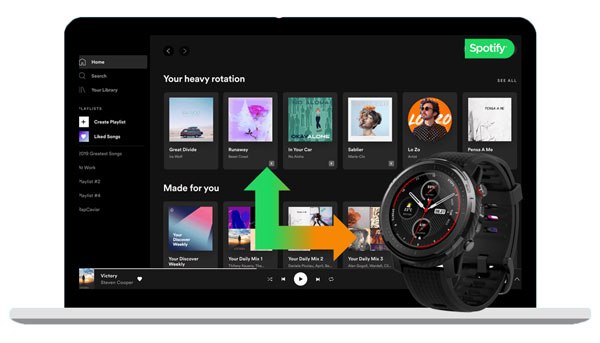
It can be frustrating to discover that top-ranked streaming services like Spotify are not natively supported on Amazfit watches. Fortunately, we have the perfect workaround. In this guide, we will show you exactly how to bypass DRM limitations and successfully play Spotify on Amazfit watches offline.
- Part 1. Amazfit Spotify Integration: Best Tool You Need🔥
- Part 2. How to Download Spotify Music for Amazfit Watch
- Part 3. How to Connect Spotify to Amazfit Watch without Phone
- Part 4. FAQs about Amazfit with Spotify
- Part 5. Conclusion
Part 1. Amazfit Spotify Integration: Best Tool You Need
Amazfit smartwatches support local music playback, but they only recognize common, unprotected audio formats like MP3 and M4A. Because Spotify encrypts its streaming audio in a protected Ogg Vorbis format, you cannot simply drag and drop downloaded Spotify cache files onto your watch.
To bridge this gap, you need a reliable third-party tool. This is where AudFun Spotify Music Converter comes in. Designed to solve user pain points, it seamlessly downloads and converts encrypted Spotify tracks into standard MP3, FLAC, or WAV files. It operates at 5X speed on Windows, preserves the original 320kbps lossless audio quality, and retains all essential ID3 tags (artist, title, album cover) so your Amazfit music player displays your songs perfectly.
AudFun Spotify Music Converter is a clean, ad-free software designed strictly for personal, offline listening. Please ensure you comply with local copyright laws and do not distribute converted music files commercially.

Key Features of AudFun Spotify Music Converter
- Convert Spotify to WAV, MP3, ACC, FLAC, M4A, and M4B
- Download Spotify songs without Spotify Premium
- Play Spotify on Amazfit watches, Realme Watch, and other devices
- Bulk converting Spotify tracks in a 5X faster speed
- Keep lossless audio quality and ID3 tags
Part 2. How to Download Music from Spotify for Amazfit Watch
To play Spotify music on Amazfit smartwatches, you need to convert Spotify songs to MP3 or M4A formats that are supported by this wrist. Then you can add these common Spotify music files to Amazfit for playing anywhere.
Follow the steps below to use AudFun Spotify Music Converter to easily download your liked songs from Spotify to MP3/WAV for Amazfit. Please click the Download button above to install the AudFun program on your computer in advance.
Step 1 Add Spotify music to AudFun
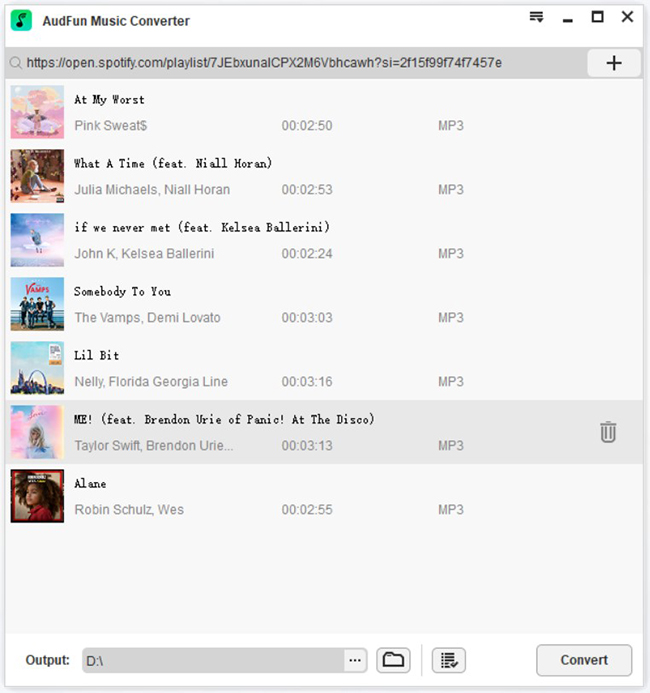
Launch AudFun Spotify Music Converter on your computer and the Spotify app will be opened by itself. Drag and drop your favorite music tracks from the Spotify app directly to the AudFun interface. After that, all the Spotify songs you want to play on the Amazfit watch will be added to the AudFun program.
Step 2 Choose output format as MP3 or M4A for Spotify Amazfit Integration
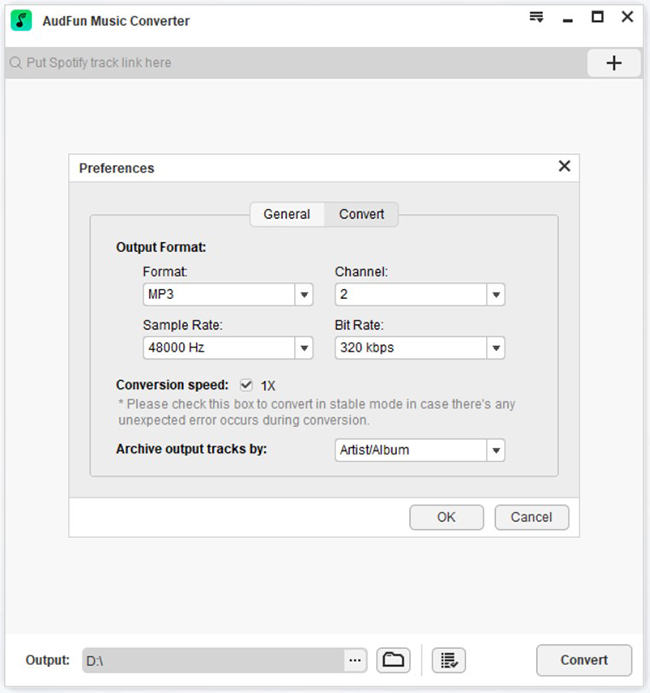
For Mac users, please find the ‘AudFun Spotify Music Converter‘ on your laptop system to open the Settings window while for Windows users, go to the menu tab in the upper right corner. After that, select ‘Preferences‘ > ‘Convert‘. Here, you can choose the output format of Spotify Amazfit Stratos as MP3 or M4A.
To save storage space, we recommend that you choose MP3. You can also define other output parameters as needed, such as Spotify bit rate and sample rate.
Step 3 Download Spotify for Amazfit smartwatch
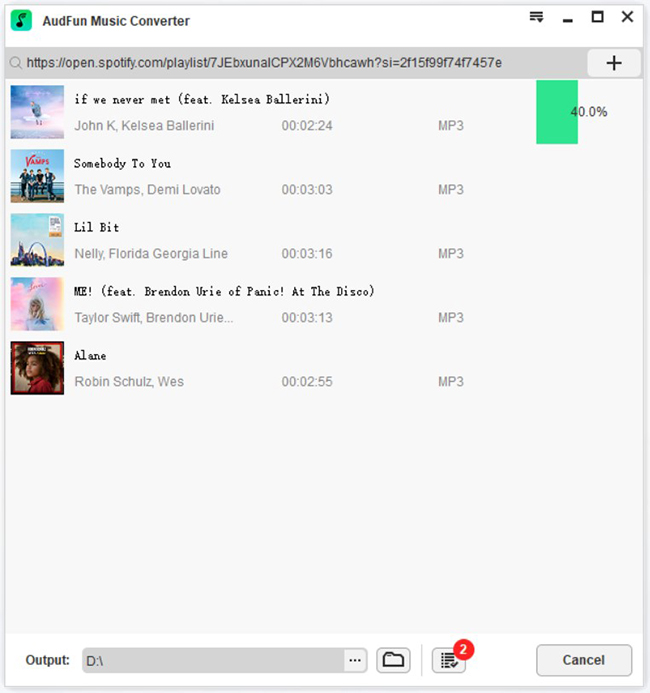
Click the Convert button, and the AudFun program will start running at high speed to download Spotify songs and convert them to MP3 or M4A. Wait for it to complete, and then open the history list and find the downloaded Spotify music files in the output folder. Afterward, you can play Spotify on multiple devices at once.
Part 3. How to Transfer Local MP3 Music to Amazfit via Zepp App
Before transferring, it helps to know your watch’s capacity. Here is a quick reference table for popular Amazfit models that support local music storage:
| Amazfit Model | Internal Music Storage | Supported Formats |
|---|---|---|
| Amazfit GTR 4 / GTS 4 | ~2.3 GB (approx. 400 songs) | MP3, M4A |
| Amazfit Stratos 3 | ~1.9 GB (approx. 380 songs) | MP3, M4A |
| Amazfit Pace | ~2.0 GB | MP3, M4A |
You can transfer your newly converted MP3 files to your Amazfit watch either directly via a computer or wirelessly using the Zepp mobile app.
Now all your favorite Spotify songs are in MP3 formats, and you are ready to transfer those Spotify downloads to Amazfit. In this part, we’d like to cite the Amazfit GTR 4 and Amazfit Space as a cast and show how to bring Spotify downloads to your portable watch. Please take the two preparatory works done before transferring:
- Install the Amazfit Zepp app on your mobile device.
- Please connect the Amazfit GTR 4 with your mobile using a USB cable.
Next, follow the steps below to transfer Spotify songs to Amazfit Stratos for playing.
Transfer Spotify Conversions to Amazfit GTR 4/Space
On PC/Mac (Amazfit Space)
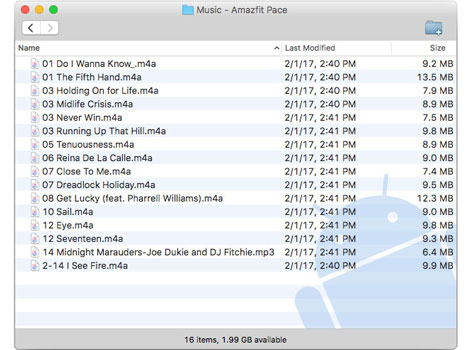
Connect your computer to your mobile using a USB cable, after which copy and paste the Spotify conversions from the desktop folder to the mobile folder.
On Windows PC: Power the Amazfit watch. Once it is recognized by your computer, open the ‘Music‘ > ‘Amazfit Space‘ folder on the File Folder Manager. Copy and paste the Spotify downloads directly into this folder. Then disconnect your device from your computer properly.
On macOS: You need to download and install ‘Android File Transfer‘ for your Mac. Then set up the Android File Transfer from the ‘Applications‘ folder and find the ‘Music‘ folder displayed. Copy and paste/drag Spotify music files directly to the ‘Music‘ folder.
On Android/iPhone
Step 1. Press and hold the Power button of your Amazfit watch and choose a language to open a QR code.
Step 2. On the Zepp mobile app, click on the ‘Profile‘ tab from the bottom navigation bar.
Step 3. Under the ‘My devices‘ section, tap on the ‘Add device‘ button and choose ‘Watch‘ > ‘Watch with a QR code‘.
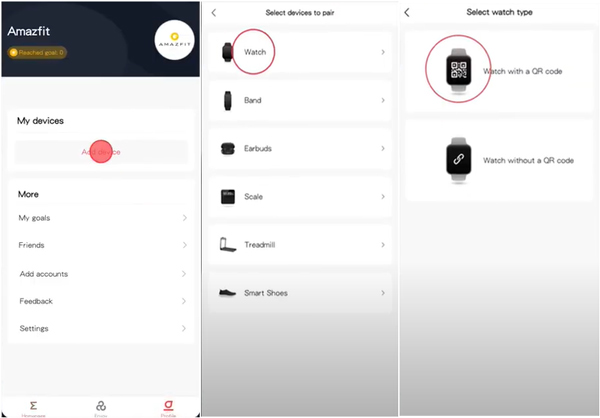
Step 4. Scan the QR code on your GTR 4 and tick the ‘Accept pairing request‘ option on the watch to confirm binding your watch.
Step 5. Go back to the Zepp app, and choose ‘Profile‘ > ‘My devices‘ > ‘Amazfit GTR 4‘ > ‘Music‘ to select and add the Spotify conversions stored on your mobile to the watch.
After the transfer is complete, you can adjust the volume and playback mode through the playback settings of the Amazfit watch and Bluetooth headset.
Part 4. FAQs about Amazfit with Spotify
Now, let’s take a look at more relevant information In this part, you’ll learn more relevant information that you may be interested in Amazfit Stratos and other Amazfit smartwatches.
Q1: Is there an official Spotify app for Amazfit?
No. Currently, Zepp OS does not support an official Spotify application. The only way to listen to Spotify on an Amazfit watch without your phone is by converting the tracks to MP3 and utilizing the watch’s built-in local music player.
Q2: Can I control Spotify music on my phone using my Amazfit watch?
Yes. Even though you cannot install the Spotify app on the watch, if your watch is connected to your phone via Bluetooth, you can use the watch’s music widget to play, pause, or skip tracks that are actively streaming from the Spotify app on your phone.
Q3: Will converting Spotify to MP3 ruin the audio quality?
Not if you use a professional tool. AudFun Spotify Music Converter supports downloading at up to 320kbps, which perfectly matches Spotify Premium’s highest streaming quality, ensuring excellent sound on your workout headphones.
Part 5. Conclusion
While the lack of an official app might seem like a setback, you can still easily play Spotify on Amazfit smartwatches offline. By leveraging the AudFun Spotify Music Converter, you can legally and safely extract your favorite running playlists as high-quality MP3s.
This method not only saves your phone’s battery life during workouts but also gives you true phone-free freedom. Download the free trial of AudFun today, convert your favorite tracks, and take your Amazfit fitness experience to the next level!
