
Quick Answer
To listen to Spotify together, you can choose between native real-time sync features, party apps, or local offline sharing depending on your devices and subscription status:
- Spotify Jam: Spotify’s built-in group session tool allows Premium hosts to invite friends (both Free and Premium users) to join a shared playback queue in real time, whether remotely or in the same room.
- Discord Listen Along: Gamers and communities can sync live playback directly within text or voice channels, though this feature requires every listener to have an active Spotify Premium account.
- Collaborative Playlists: Ideal for asynchronous listening, letting friends co-curate tracks and update a shared playlist over time on any device.
- Listen Together Without Premium: If you or your friends lack Spotify Premium, using a dedicated third-party music converter allows you to export tracks into universal audio files (like MP3) to share and listen simultaneously across any media player or device without playback restrictions.
Do you wish to be together with friends and family in several ways? Well, there is no need for boredom anymore with Spotify. You can easily listen to Spotify together despite the long distance. Unlike simply sharing asynchronous collaborative playlists, Spotify lets you enjoy real-time synchronized playback with friends via Spotify Jam, Discord, or tools like AudFun Spotify Music Converter. Let’s explore several practical ways to listen together on both Premium and Free accounts.
- Part 1. Listen to Spotify Together – Discord
- Part 2. Listen Together on Spotify – Spotify Group Session
- Part 3. Listen to Music Together on Spotify – Festify
- Part 4. Listen to Spotify Together without Premium – Best Way
- FAQs About Listening to Spotify Together
- Part 5. Conclusion
Part 1. How to Listen to Spotify Together on Discord
In this part, you can find out how to listen to Spotify together on Discord in simple steps. You can play Spotify tracks and invite your friends to enjoy your music as well with the “Listen Along” feature. Now, let’s check out how to play Spotify on Discord with your friends.
Step 1. First, choose which Spotify song to listen to. Then click on the “+” icon in your text box to invite your friends to join you as the Spotify song is already playing.
Step 2. Preview the message being sent as an invite to your friends. You can add a comment as well.
Step 3. Wait for your friends to click on the “Join” icon to enable them to listen to your tunes.
Step 4. Check the bottom left of the Discord app to see what your friends are listening to with you.

Part 2. How to Listen Together on Spotify via Spotify Group Session
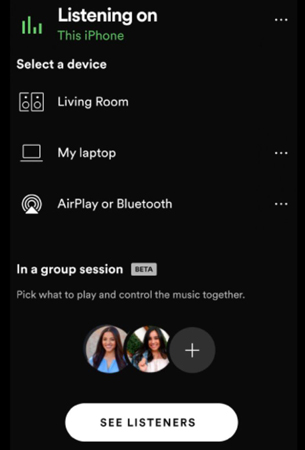
To listen to Spotify together in real time, you can use Spotify Jam (formerly Group Session). Unlike asynchronous options like Collaborative Playlists, Jam lets you and up to 32 people tune in simultaneously and contribute to a shared queue. A Spotify Premium subscription is required to host a Jam, but Free users can also join in person under specific conditions. Here are the steps to set it up with Spotify Premium.
Step 1. First, open the “Spotify” app and start to play Spotify tracks.
Step 2. Then tap on the “Connect to a device” icon.
Step 3. Next, click on the “Start Session” located under the “Start a group Session” option.
Step 4. Tap on the “Invite Friends”, then share the link using the available apps listed. Alternatively, you can click on the “Copy Link” option and use other available methods of sharing music with friends.
Part 3. How to Listen to Music Together on Spotify by Festify
Here in this section, you will learn how to listen on Spotify together by Festify. This is a free web-based party app that uses a democratic voting system for your track queue. Note that while guests can join and vote for songs completely for free without a Spotify account, the party Host still requires a Spotify Premium subscription for playback streaming.
Step 1. Go to “festify.rocks” and click on the “Create A Party” tab. You’ll then automatically be given a party code.
Step 2. Next, send the party code to your friends to join the party.
Step 3. Once members join, they can freely vote for songs that they want to be played as all members enjoy the hits.

Official Free Alternative: Spotify Collaborative Playlists
If neither you nor your friends have a Premium account to host a Festify party, you can use Spotify Collaborative Playlists. This is an official, 100% free feature that allows both Free and Premium users to build shared music queues together on mobile or desktop without paying.
Step 1. Open the Spotify app on your mobile device or desktop and select the playlist you want to share.
Step 2. Click or tap the Three dots (…) icon (or the Add user icon beneath the playlist title).
Step 3. Select Invite collaborators to generate a shareable link. Send this link to your friends (note that the invitation link is valid for 7 days). Once they join, everyone can freely add, remove, or reorder tracks in the playlist.
Part 4. How to Listen to Spotify Together without Premium – Best Way
The first two options above require you to have the Spotify Premium version. However, there is an easy way to listen to Spotify together using AudFun Spotify Music Converter. This program will easily convert and download Spotify playlists and songs to common output formats like FLAC, WAV, MP3, etc. You can then listen to those Spotify music on multiple devices and players offline without further limits.
AudFun works at a high speed of 5X rate, enabling batch conversion of your files. It also manages to save 100% original ID3 tags and other metadata information. It’s the best option to enjoy Spotify songs, audiobooks, podcasts, and tracks offline together with your friends.
Key Features of AudFun Spotify Music Converter
- Support to listen to Spotify podcasts, radios, etc. offline
- Convert Spotify music tracks to formats like MP3, FLAC, and more
- Save lossless ID3 tags and metadata information of Spotify songs
- The conversion speed of X5 rate, save your time
How to Convert and Download Spotify Music without Premium with AudFun Spotify Music Converter
Firstly, download the AudFun software on your computer. You’ll then click on the “Open when done” option to install and launch it from your computer. Also, ensure that you have installed the official Spotify app onto your computer. After then, please go on to see how to use AudFun Spotify Music Converter to convert Spotify music for listening together.
Step 1 Upload Spotify songs into AudFun
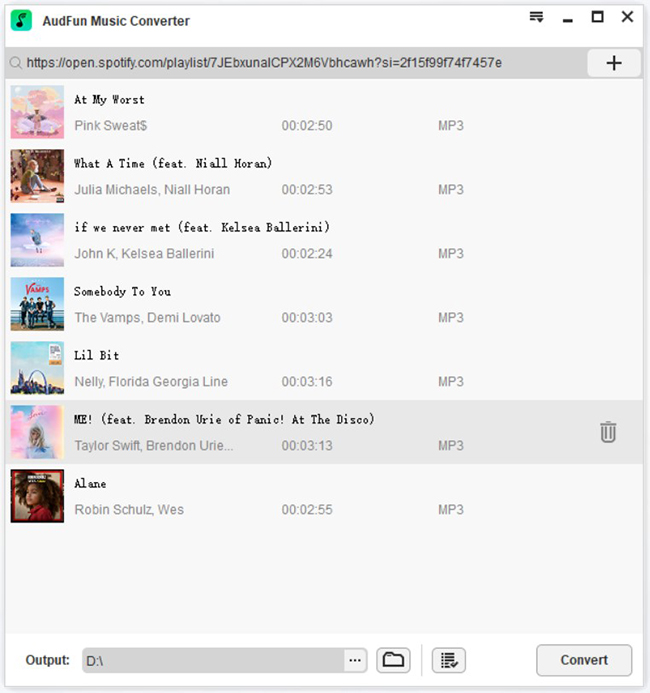
Check the pop-up Spotify app and find the songs you wish to download and convert. Then tap on the song and choose the “Share” > “Copy Spotify Link” option to copy the URL link. Next, paste it into the AudFun interface address bar and tap the “+” button to load your Spotify songs.
Step 2 Customize output audio formats for Spotify audio
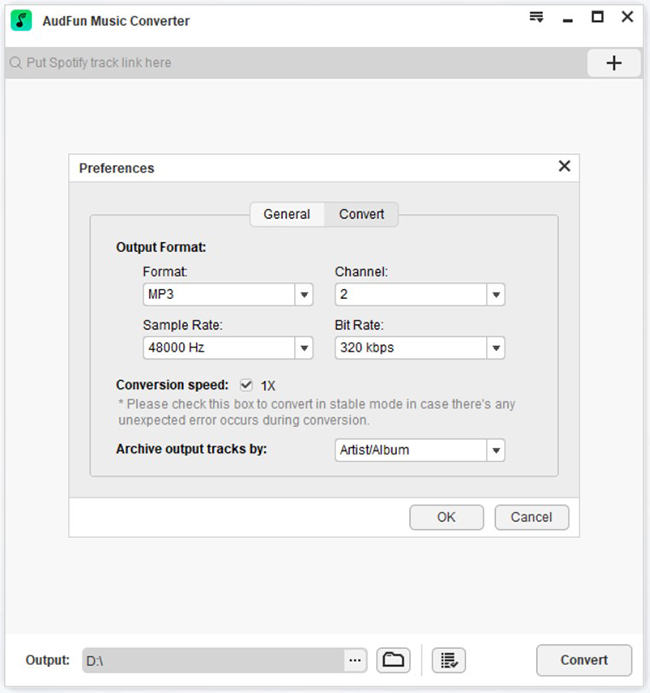
In AudFun, you can easily specify the output audio formats and parameters for your Spotify music tracks. Just click on the “Menu” bar and go to the “Preferences” > “Convert” tab in the new window. Next, choose the output format for Spotify to WAV, FLAC, AAC, etc. and set other parameters like bit rate, sample rate, and channel for Spotify audio files.
Step 3 Convert Spotify songs and save them as local files
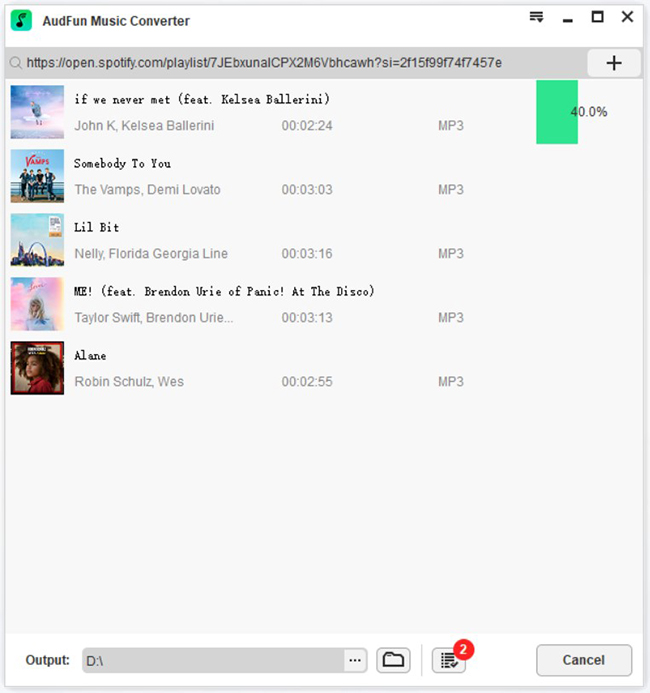
Finally, press the “OK” tab to confirm all the output settings. Then proceed to the “Convert” button to start the downloading process. Your Spotify songs will be downloaded and added to the target folder. You can then locate the converted songs on your computer’s local disk to share with friends.
How to Share and Listen to Spotify Together with Others
Once the Spotify playlist has been converted, you can now listen to music together without Spotify Premium.
Step 1. Locate the converted Spotify playlist on your computer.
Step 2. Then transfer the songs to your mobile phone.
Step 3. Next, share your files with friends on media sites like WhatsApp, Twitter, Facebook, etc.
Step 4. Your friends can then play the songs on any device after a successful download.
FAQs About Listening to Spotify Together
1. How can we listen to Spotify together without Premium?
If neither you nor your friends have a paid subscription, you cannot host a remote Spotify Jam. However, you can join an in-person Jam over the same Wi-Fi network if the host has Premium, use Discord’s screen-sharing feature to broadcast your desktop audio, or convert tracks into local MP3 files with AudFun Spotify Music Converter to share and play anywhere without subscription limits.
2. What is the difference between Spotify Jam and Group Session?
Spotify Jam is the upgraded replacement for the older Group Session feature. While both allow real-time collaborative listening, Jam introduces a cleaner queue management interface, personalized song recommendations based on all participants’ tastes, and the ability for Free users to join in-person sessions locally via Bluetooth or shared Wi-Fi.
3. How many people can join a Spotify Jam session?
Up to 32 people can actively participate in a single Spotify Jam session at the same time. Anyone in the session can add tracks to the shared queue, see who added which song, and receive tailored recommendations.
4. Why can’t I Listen Along on Spotify via Discord?
The native “Listen Along” feature on Discord requires both the host and the listener to have active Spotify Premium accounts. If it still fails to work with Premium, check that your Spotify account is properly linked in Discord User Settings > Connections, verify that “Display current activity as a status message” is enabled, and ensure the host isn’t using a private listening session.
Part 5. Conclusion
These four ways are how to listen together on Spotify with friends. You don’t need to be bored anymore. Simply use any of the above modes to share your music with your friends. And if you are not on the Spotify Premium version, then AudFun Spotify Music Converter will immediately stand in the gap. It will let you download and convert your Spotify music in simple steps for offline playback.

1 reply on “How to Listen to Spotify Together in 4 Ways”
Great write-up.This content has stopped my search on the web which has be unfutile for a while now, thank you.