
Have you ever noticed that Spotify’s shuffle plays the same few songs from your massive playlists? Many users think the feature is broken, but it is actually intentional. Spotify’s shuffle is deliberately not random. The platform manipulates track order because true mathematical randomness often creates a jarring listening experience, occasionally clustering the same artists or genres together.
In this guide, we explore the science behind Spotify’s algorithm and why this smart shuffle exists. We will also provide practical solutions to help you regain control over your music, including how to convert Spotify playlists into MP3s for ultimate playback control.

- Part 1. The Science Behind the Spotify Shuffle Algorithm
- Part 2. Why Your Spotify Shuffle Feels Repetitive Today
- Part 3. How to Make Spotify Shuffle Truly Random
- Part 4. How to Convert Spotify Playlist to MP3 via AudFun Spotify Music Converter
Part 1. The Science Behind the Spotify Shuffle Algorithm
To understand why your playlists feel repetitive, we have to look back at the history of digital music and how human beings perceive probability.
True Randomness vs. Perceived Randomness
In the early days of Spotify, the platform actually used a “true random” algorithm known as the Fisher-Yates shuffle. In a truly random system, every single song has an equal mathematical probability of playing next, regardless of what just played.
However, true randomness creates a psychological problem known as the “clustering illusion.” If you flip a coin 100 times, you will inevitably get sequences where it lands on heads four or five times in a row. When this mathematical reality was applied to music, users would frequently hear three songs by the exact same artist back-to-back.
Listeners complained, insisting the algorithm was broken. They didn’t want true randomness; they wanted perceived randomness—a mix that evenly distributed artists and genres so it felt random to the human brain.
How Spotify’s Algorithm Works
To solve the clustering problem, Spotify abandoned true randomness in 2014. They adopted a new system based on a “dithering” algorithm.
Instead of pulling songs blindly out of a hat, the Spotify shuffle algorithm now looks at the artists and genres in your playlist and intentionally spreads them out. If you have 10 songs by Taylor Swift in a 100-song playlist, the algorithm will mathematically space them out so they play roughly every 10 songs.
While this prevents you from hearing the same artist three times in a row, it also means the algorithm is heavily curated. It is a controlled distribution, not a random draw.
Part 2. Why Your Spotify Shuffle is Noto Random Today
While the dithering algorithm explains why the shuffle is controlled, it doesn’t fully explain why you keep hearing the exact same subset of songs. For that, we have to look at specific features within the Spotify ecosystem.
The Hidden Role of Spotify Automix
One of the biggest culprits behind a repetitive shuffle is a feature called Automix. Enabled by default on most accounts, Automix is designed to make transitions between songs seamless.
When Automix is turned on, the Spotify shuffle algorithm actively looks for songs in your playlist that have similar tempos, beats, and moods, and blends them together. While this creates a smooth listening experience, it completely destroys randomness. Spotify ensures that certain tracks in your playlist will play constantly, while outlier tracks that don’t “fit the vibe” will rarely play.
App Cache and Offline Listening Limitations
Another major reason your Spotify shuffle is not random comes down to device memory. When you listen to music, Spotify stores temporary data (cache) on your phone or computer to make songs load faster.
If you have a poor internet connection, Spotify’s algorithm will default to the path of least resistance. It will prioritize shuffling songs that are already cached on your device because they require zero buffering time. This is why you often hear the exact same 30 songs on your morning commute.
Part 3. How to Make Spotify Shuffle Truly Random
If you want to stop hearing the same tracks and breathe new life into your massive playlists, follow these proven in-app solutions.
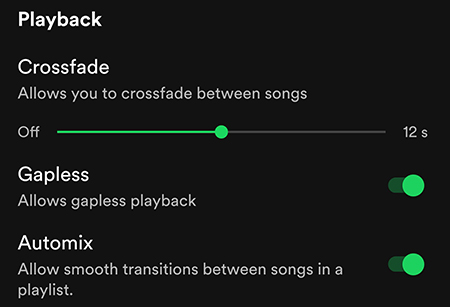
1. Disable the Automix Feature
Turning off Automix is the most effective way to stop Spotify from curating your shuffle based on song similarity.
- Open the Spotify app and tap your profile picture.
- Select Settings and privacy, then tap on Playback.
- Scroll down until you find Automix.
- Toggle the switch to the Off position.
2. Clear Your Spotify App Cache
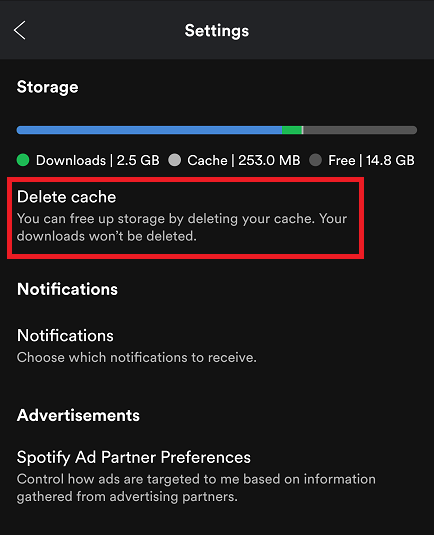
Clearing your cache will force the app to pull fresh tracks from its servers rather than recycling downloaded data.
- Go to Settings and privacy in your mobile app.
- Scroll down to the Storage section.
- Tap Delete cache.
- Restart the app, pick your playlist, and hit shuffle.
Part 4. How to Convert Spotify Playlist to MP3 via AudFun Spotify Music Converter
For listeners who want absolute, uncompromising control over their music library and shuffle experience, the ultimate solution is to move your playlists outside of the Spotify ecosystem entirely. By exporting your library, you can use generic media players that feature true, mathematically random shuffle algorithms.
To bypass Spotify’s format limitations, you can use the AudFun Spotify Music Converter. This professional desktop tool allows both free and premium users to download and convert Spotify playlists directly to MP3. AudFun stands out because it operates at up to 5X conversion speed and preserves 100% lossless audio quality alongside essential ID3 tags (like artist name and album art).

Main Features of AudFun Spotify Music Converter
- Download Spotify music as local files on a Windows/Mac computer
- Convert Spotify songs to MP3, WAV, M4A, or other iMovie-enabled files
- Add Spotify music to videos via iMovie, CapCut, and more video editors
- Work at 5X faster speed while converting Spotify music
Here is the step-by-step guide to downloading your music:
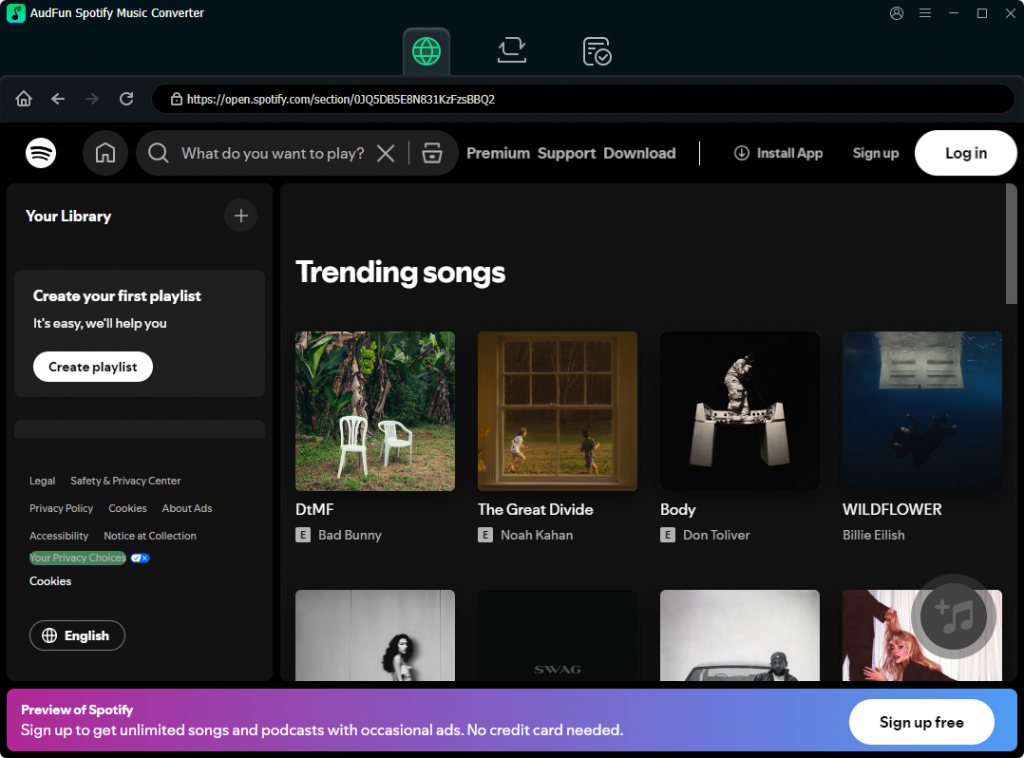
Step 1: Install and Launch AudFun
First, download the AudFun Spotify Music Converter on your Mac or Windows PC. Once installed, launch the software. Note that the free trial limits conversions to the first minute of each track, so you may want to register and activate the full version via the menu bar to unlock complete downloads.
Step 2: Upload Your Spotify Playlist
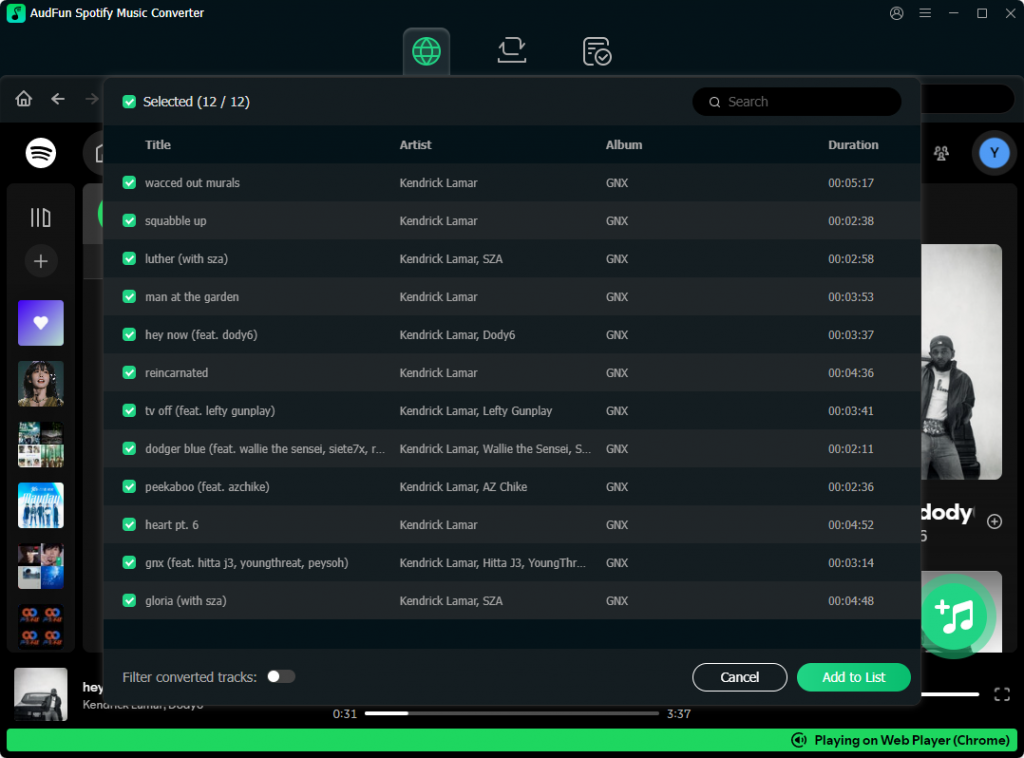
Open your Spotify desktop app and find the playlist you want to convert. Click the three-dot menu (…), select Share, and click Copy Spotify Link. Paste this URL into the search box at the top of the AudFun interface and click the “+” button to load your tracks. Alternatively, you can simply drag and drop the playlist directly into the software’s main screen.
Step 3: Set the Output Format to MP3
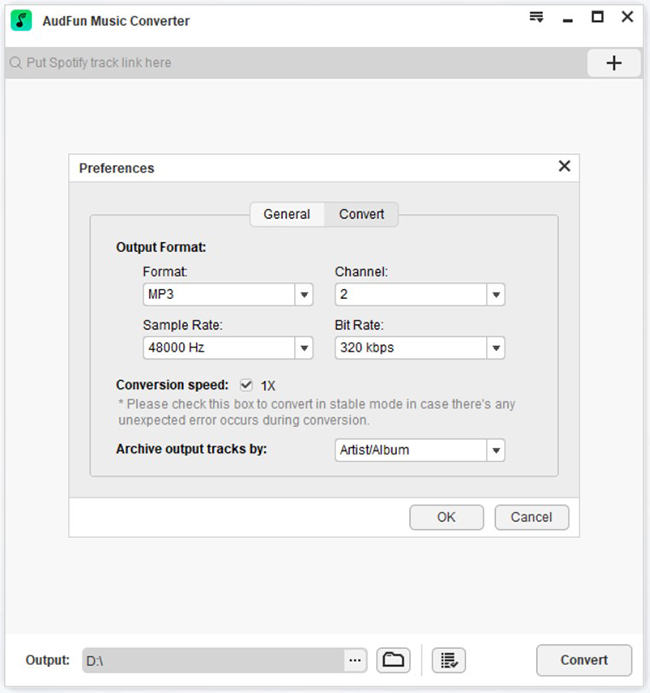
To ensure your files can be played on any device, you need to configure the audio settings. Click the menu bar at the top right and navigate to Preferences > Convert. In the settings window, change the Output Format to MP3. For the best listening experience, you can also adjust the Bit Rate to 320kbps to match Spotify Premium’s highest quality. Click OK to save your settings.
Step 4: Convert and Download to Your Computer
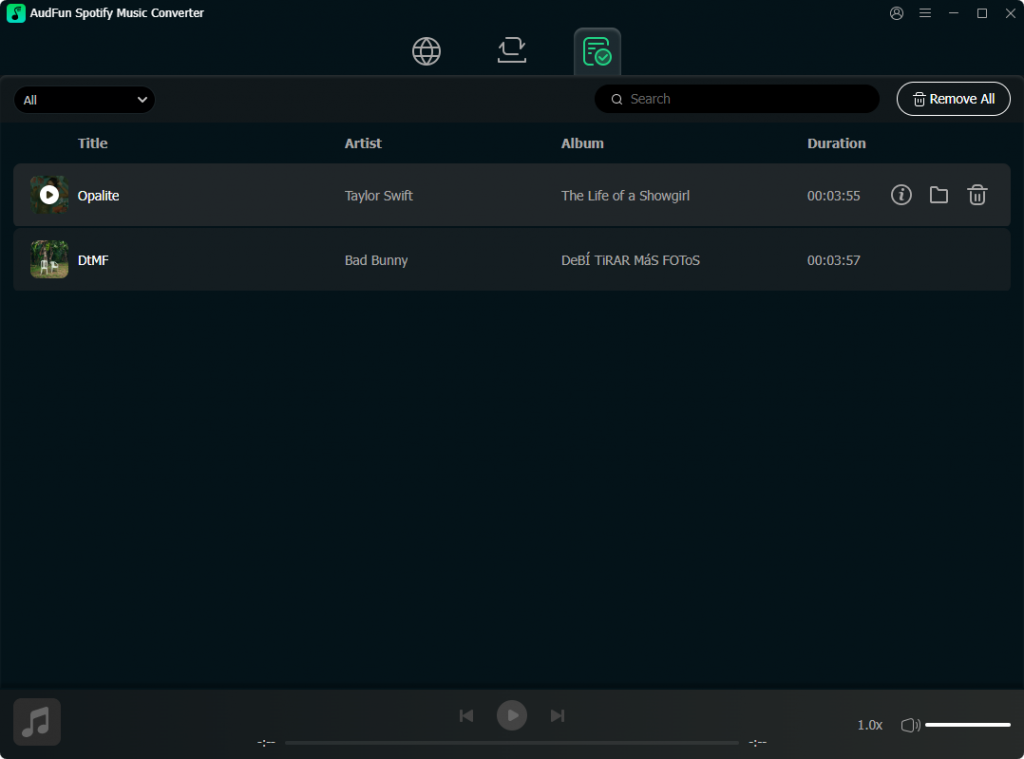
Finally, click the large Convert button located in the bottom right corner of the screen. AudFun will begin extracting the audio and converting your Spotify playlist to MP3 format at high speed. Once finished, you can locate your DRM-free MP3 files in your computer’s destination folder, ready to be transferred to any device or media player for a truly random offline listening experience.
Conclusion
It is frustrating to realize Spotify’s shuffle isn’t truly random. By prioritizing seamless transitions over true variety, the algorithm often creates repetitive loops that alienate heavy listeners trying to rediscover hidden gems. Fortunately, you can easily improve your in-app experience by simply disabling the Automix feature and clearing your cache.
For ultimate control, consider converting your Spotify playlists to MP3 using the AudFun Spotify Music Converter. This ensures total freedom to enjoy your music on your own terms with a genuinely random shuffle. Adjust your settings or export your tracks today to finally experience the true variety of your curated library.