
Music and gaming are an inseparable duo. Whether you are grinding through a competitive ranked match or exploring the open world of Forza Horizon, a curated playlist elevates the experience. While linking accounts on the Xbox console is straightforward, many PC gamers struggle with the interface on Windows.
If you are wondering how to link Spotify to Xbox you are not alone. The integration exists, but it isn’t always where you expect it to be. This guide will walk you through the exact methods to bridge your music and gaming worlds, troubleshoot common “white screen” login errors, and introduce a unique method to play Spotify tracks on Xbox without any playback limitations.
- Part 1. Can You Link Spotify to Your Xbox Account on PC Directly?
- Part 2. How to Link Spotify to Xbox
- Part 3. Troubleshoot: How to Fix Unable to Link and White Screen Issue
- Part 4. Download Spotify Songs to Xbox via AudFun Spotify Music Converter🔥
- Part 5. FAQs About How to Link Spotify to Xbox Account
Part 1. Can You Link Spotify to Your Xbox Account on PC Directly?
The short answer is yes, but it requires a specific distinction.
Many users mistakenly look for a “Link Account” button inside the standard Xbox App on Windows (the one used to download Game Pass titles). However, Microsoft has integrated Spotify directly into the Xbox Game Bar, the overlay utility built into Windows 10 and 11, rather than the desktop app itself.
On an Xbox Series X/S or One console, the linking process happens via the main settings or the Spotify app installed on the console. On PC, the integration is designed to be a “widget” that floats over your game. This allows you to control music without Alt-Tabbing out of your gameplay session.
Therefore, to “link” the accounts on PC effectively means logging into the Spotify Widget within the Xbox Game Bar. Once linked, your Xbox profile (visible to friends) can show what you are listening to, and you gain full control over playback via the overlay.
Part 2. How to Link Spotify to Xbox
There are two primary ways to utilize Spotify with your Xbox ecosystem while using a PC. The first is for PC gamers who want music while they play on Windows. The second is for users who want to use their PC as a remote control for their Xbox console.
Method 1. Link Spotify via Xbox Game Bar
This is the standard method for PC gamers. The Xbox Game Bar comes pre-installed on almost all modern Windows machines.
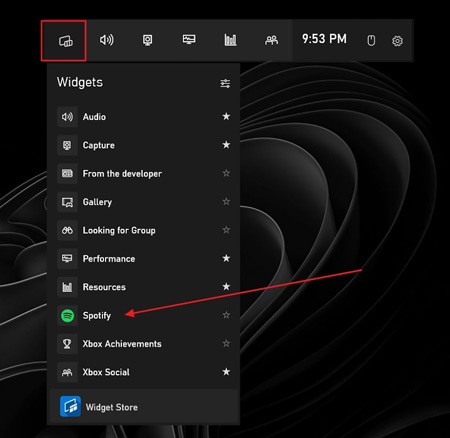
Step 1. Press the Windows Key + G on your keyboard to open the overlay.
Step 2. Click on the Widget Menu icon in the main toolbar.
Step 3. Find Spotify in the list. If it isn’t there, visit the “Widget Store” within the bar to add it.
Step 4. When the Spotify widget pops up, click the Link Account button.
Step 5. A browser window or a pop-up will appear asking for your Spotify credentials. Log in and click Agree to authorize the Xbox Game Bar to access your Spotify account.
Once connected, you can play, pause, skip, and adjust volume directly from the overlay while running any game in full-screen mode.
Method 2. Use Spotify Connect for Controlling Xbox Console
If your goal is to play games on your Xbox Console (TV) but control the music using your PC (so you don’t have to open the Xbox guide constantly), you should use Spotify Connect.
Step 1. Ensure the Spotify app is open on your Xbox console and logged in.
Step 2. Launch the Spotify desktop app on your computer. Ensure both devices are connected to the same Wi-Fi network.
Step 3. On your PC Spotify app, look for the Connect to a device icon in the bottom right corner.
Step 4. You should see your “Xbox [Name]” listed. Click it.
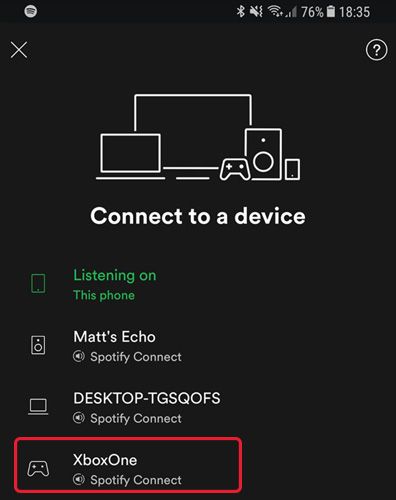
Your PC now acts as a remote. The music will play through your TV/Xbox sound system, but you can manage the playlist comfortably from your computer.
Part 3. Troubleshoot: How to Fix Unable to Link and White Screen Issue
A very common frustration among users is the “White Screen of Death.” This happens when you attempt to link Spotify via the Xbox Game Bar; the login window pops up but remains blank or white, preventing you from entering your password.
Here are three proven fixes for this issue:
Fix 1: Reset the Xbox Game Bar App
Corrupted cache files often cause the widget to fail.
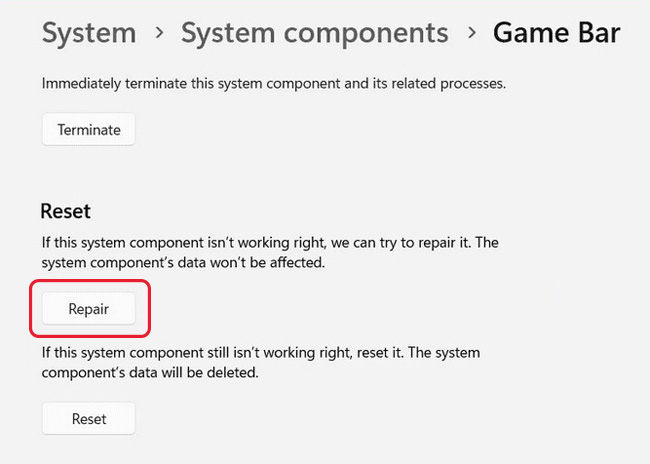
Step 1. Go to Windows Settings > Apps > Installed Apps.
Step 2. Search for “Xbox Game Bar”.
Step 3. Click the three dots (…) and select Advanced Options.
Step 4. Scroll down and click Repair. If that fails, click Reset.
Fix 2: Link Via Browser/Social
Sometimes the embedded browser in Game Bar fails.
Step 1. Open your default web browser and log in to Spotify.
Step 2. If you usually use Facebook or Google to log in to Spotify, try using your email and device password instead inside the Game Bar popup.
Part 4. Download Spotify Songs to Xbox via AudFun Spotify Music Converter
While linking accounts is convenient, it has drawbacks. Streaming music while gaming online consumes bandwidth (causing lag), and the Xbox Spotify app creates CPU overhead. Furthermore, if you are a Spotify Free user, ads will interrupt your gaming sessions.
The best workaround is to download Spotify songs to MP3 and play Spotify songs offline on your Xbox via a USB drive. Since Spotify songs are protected, you need a tool like AudFun Spotify Music Converter.

AudFun Spotify Music Converter Key Features:
- Download Spotify music, podcasts, and playlists with free accounts.
- Batch convert entire playlists in minutes without quality loss.
- Converts Ogg Vorbis to Xbox-compatible formats like MP3, FLAC, or WAV.
- Preserves ID3 tags inlcuding title, artist, album art, and track number.
How to Use AudFun to Play Spotify on Xbox:
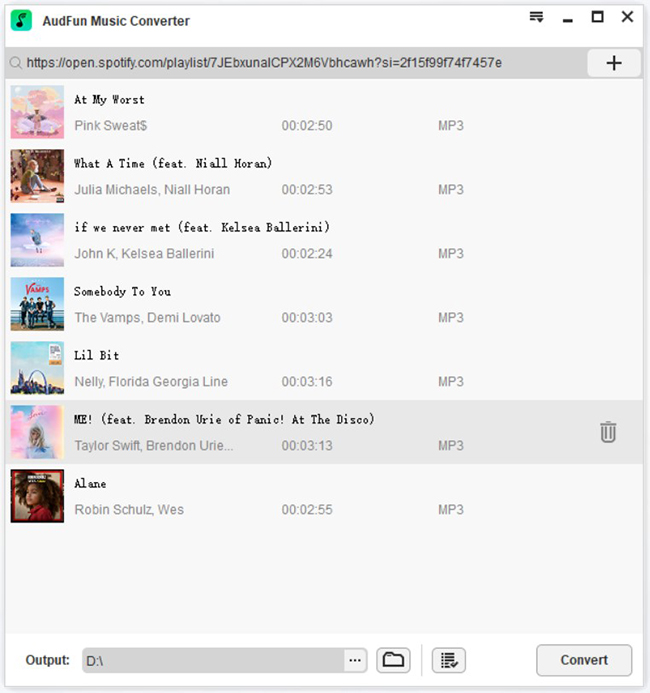
Step 1. Add Songs to Spotify Music
To begin with, download and install AudFun Spotify Music Converter to your computer. When the program is installed successfully, launch it. You can now drag and drop your playlist to AudFun Spotify Music Converter. Besides, you can also paste the songs’ url to the program and click on the + button.
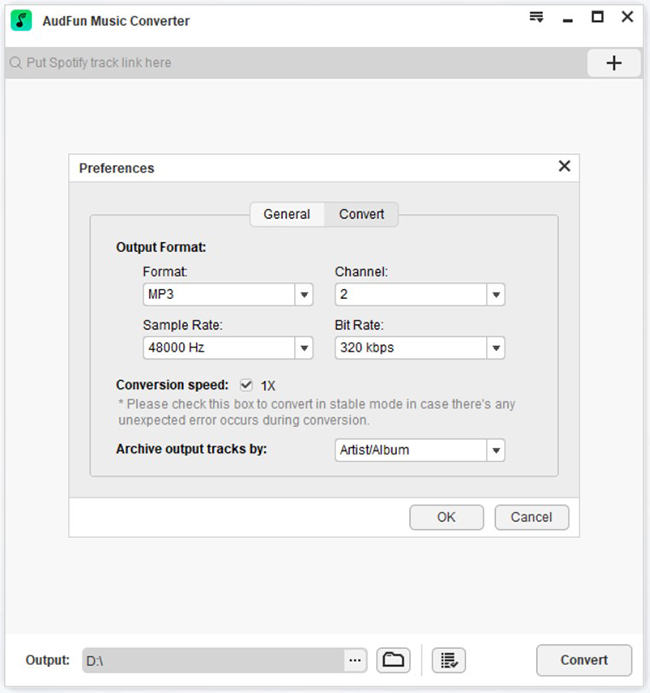
Step 2. Set Output Format
Before downloading Spotify music to you computer, you can set the output format for better audio quality. Just click on the Menu icon, select Preference, and go to the Convert section. In most cases, select MP3 is the common choice.
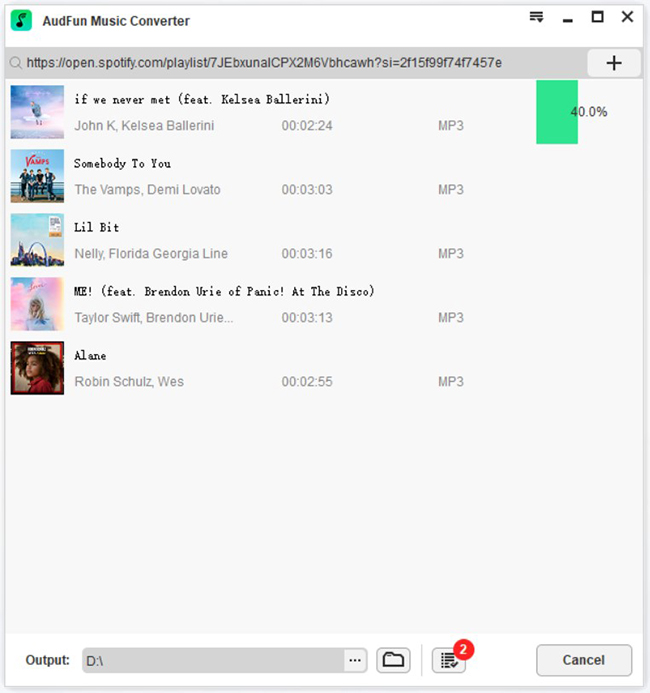
Step 3. Convert Spotify Music
Then, you can click on the Convert button to convert and download the Spotify music to your computer. After conversion, you can find them in the Converted folder.
Step 4. Transfer to USB
Once the download is complete, locate the local folder containing the MP3 files. Plug a USB flash drive into your PC and copy the music files onto it.
Step 5. Play Spotify Music on Xbox
Plug the USB drive into your Xbox console. Download the Media Player app from the Microsoft Store on Xbox. Open the app, select your USB drive, and start playing your Spotify music in the background.
Part 5. FAQs About How to Link Spotify to Xbox Account
Q1: Do I need Spotify Premium to link to Xbox?
No. You can link a Spotify Free account to Xbox. However, you will hear audio advertisements between songs, which can be distracting during gameplay.
Q2: Can I listen to Spotify while broadcasting via Twitch on Xbox?
Generally, no. Due to copyright restrictions (DMCA), the Xbox broadcasting feature automatically mutes music from the Spotify app so it doesn’t appear in your stream. To bypass this, streamers often use external capture cards.
Q3: Will playing Spotify affect my FPS (Frames Per Second)?
On the Xbox Console, the impact is negligible. On PC, the Xbox Game Bar overlay is optimized, but running the Spotify widget can consume a small amount of RAM and CPU. If you have a low-end PC, the offline method (Part 4) is recommended.
Q4: How do I unlink Spotify from Xbox?
Open the Xbox Game Bar (Win+G), go to the Spotify widget settings, and click “Sign Out.” Alternatively, go to the Spotify Account page in a web browser, look for “Apps,” and remove access for Xbox.
Conclusion
Linking Spotify to your Xbox account on PC is a fantastic way to customize your gaming atmosphere. Whether you choose the seamless overlay of the Xbox Game Bar, the remote control features of Spotify Connect, or the performance-saving offline method using AudFun Spotify Music Converter, the choice depends on your specific needs.
If you struggle with the technical integration or simply want an ad-free experience without a monthly subscription, the AudFun method provides a permanent solution to keep your gaming playlist accessible anytime, anywhere. Happy gaming and listening!
