
Q: “Is there a way to cut music from Spotify? Metallica’s song ‘One’ has a full minute of ‘nothing’. Here’s an introduction to some gunshots and other things. I want to cut the first minute of this song until the instrument starts.”
There are many other examples where songs feature long, silent pauses or strange sound effects before the actual beat drops. For instance, Oasis’ song “D’You Know What I Mean” has around 30 seconds of digital noise before the music truly begins. These long intros can break your immersion and negatively affect your listening experience.
Whether you want to skip a boring intro, extract a catchy chorus to make a Spotify ringtone, or use a specific audio clip for your video edits, you will need a reliable way to trim these tracks. In this guide, we will walk you through simple yet effective methods on how to cut songs on Spotify using your iPhone, Android, or computer.
- Part 1. Can You Cut Songs on Spotify
- Part 2. How to Convert Spotify Music for Cutting without Limits
- Part 3. How to Cut a Song from Spotify on iPhone/Android
- Part 4. How to Shorten Songs on Spotify on Mac/Windows
- Part 5. FAQs About Cutting Spotify Music
Part 1. Can You Cut Music from Spotify
Spotify songs are encoded in a special OGG Vorbis format. Even if you are a Spotify Premium user, the songs you download for offline listening are saved as encrypted cache files, not standard audio files. Because of this, there is no built-in “cut” or “trim” option within the Spotify app.
However, this doesn’t mean it is impossible to shorten songs on Spotify. The most effective workaround is to download and convert Spotify tracks into unprotected formats like MP3 or WAV using a third-party tool. Once converted, you can easily trim them using any free audio cutter.
Part 2. How to Convert Spotify Music for Cutting without Limits
As mentioned above, you must save Spotify music as local files before you can edit them. Since Premium downloads are just cache files, you need a dedicated tool like the AudFun Music Converter for Spotify.
This smart downloader is designed for both Spotify Free and Premium users. It allows you to download and convert Spotify songs to MP3, AAC, WAV, FLAC, and other common audio formats. Thanks to its advanced decryption technology, it preserves 100% lossless audio quality and retains all original ID3 tags (like artist name and album cover). Once converted, you can freely trim these tracks on your PC, Mac, or mobile device.

AudFun Spotify Music Downloader for Mac & Windows
- Download Spotify songs without Premium to a local computer
- Convert Spotify music to WAV, MP3, FLAC, M4A, etc.
- Save Spotify files locally for cutting in a wanted way
- Run at a 5X faster conversion speed with zero quality loss
How to Download Spotify Songs to MP3 for Trimming on Any Audio Cutter
AudFun Spotify Music Converter is worth a try. Just get it installed on your Windows or Mac computer by tapping on the above Download button. Now let’s follow the below tutorial to download songs from Spotify for shortening step by step. We’d like to cite MP3 as a case.
Note: The free version of this smart software only provides 1 minute of conversion per Spotify song. To cut unwanted music on Spotify, you’d better purchase the full version to unlock this limitation.
Step 1 Add Spotify Songs to AudFun Music Converter
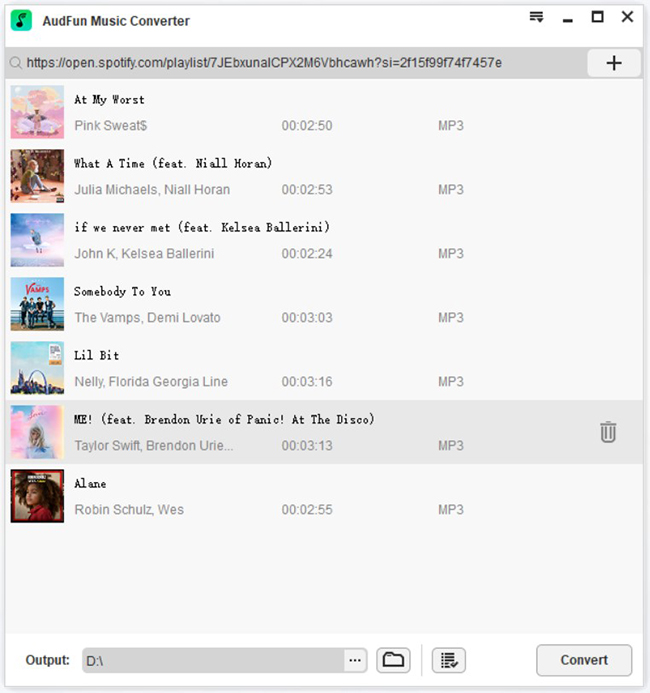
Boot up the AudFun Spotify Music Downloader on your laptop. Please find the songs you want to cut from Spotify and drag them to AudFun’s main screen. Alternatively, you can copy the URL links of Spotify songs or playlists, paste them into the search bar on AudFun, and then click the ‘+‘ icon next to the search bar to load them automatically.
Step 2 Change Spotify Output Format for Compatibility with Audio Cutters
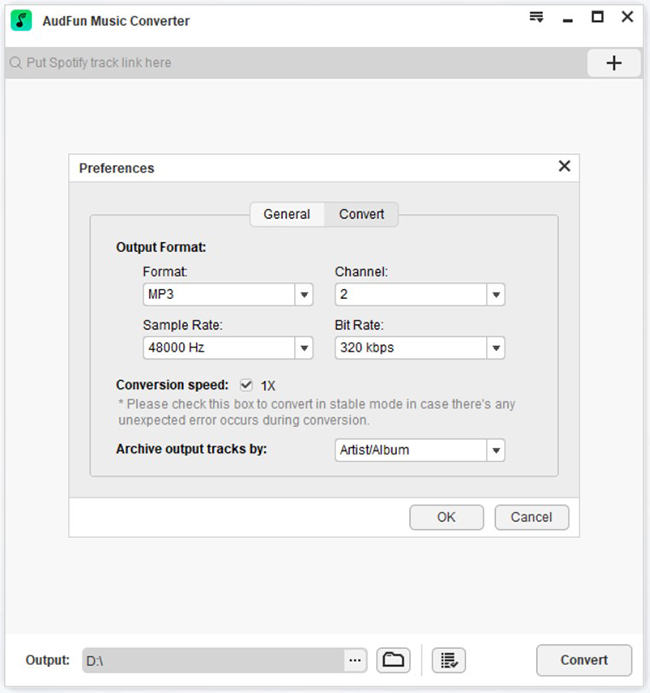
Please click on the upper-right menu tab (like a three-line icon) and choose the Preferences > Convert button from the pull-down menu. In the opening window, there are five output options to choose from: format, channel, sample rate, bit rate, and conversion speed. It is recommended to set the output parameters as MP3 at 320 kbps/48000 Hz to make Spotify music sound louder or better.
Step 3 Download and Convert Spotify Songs to MP3 for Cutting
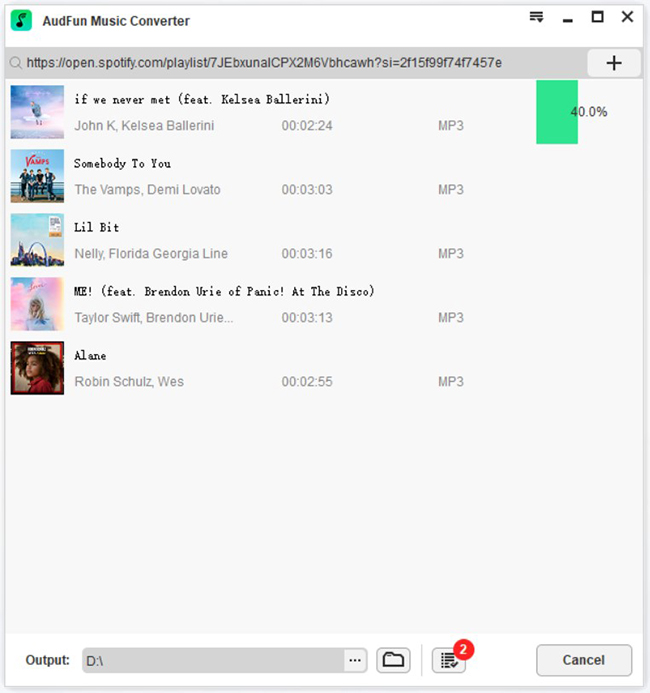
Click the Convert button at the bottom-right corner to activate the download process. When all songs have been converted, you can locate your local Spotify MP3 files by clicking on the File icon at the bottom of AudFun.
Part 3. How to Cut Music from Spotify on iPhone/Android/iPad
Now that your Spotify songs are downloaded and stored on your computer as standard audio files, they are completely unprotected. You can use any media editor to trim them.
Since many users prefer to edit audio directly on their smartphones, this section will demonstrate the best apps to shorten Spotify songs on iOS and Android devices.
Cut a Song from Spotify via MP3 Cutter
MP3 Cutter serves as an Android app that can cut and merge a variety of audio files (like MP3, WAV, FLAC, M4A, etc.) more conveniently to high-quality audio. Besides, it can be used as a ringtone maker to use Spotify songs as ringtone on your Android or iPhone or set them as alarms, notifications, etc.
However, the MP3 will be unplayable after editing tags. Also, an ad image will be attached and unable to be removed from the MP3 files after cutting.
If you don’t care about its downsides, please refer to the following user guide:
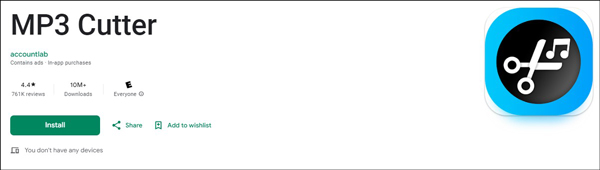
Step 1. Transfer your Spotify conversions to your mobile phones via a USB cable.
Step 2. Install the MP3 Cutter from the Google Play Store on your Android and launch it then.
Step 3. Tap on the ‘Allow‘ tab to grant permission to this app to access your local media files on mobiles.
Step 4. Once allowed, it will show all local Spotify audio files you download. Open one audio and drag the slider to start cutting the track.
Cut a Song from Spotify via Garageband
GarageBand is designed by Apple for iOS and macOS device users to create music or podcasts, edit or mix audio tracks including Spotify music as alarms or ringtones, loop songs for users to practice, and more features. This intelligent tool supports uploading and editing MP3, AAC, WAV, and other files for free without technical skills. It’s popular among musicians, podcasters, and other audio creators on account of its user-friendly interface and powerful capabilities.
Please look into the stepwise guide to shorten songs from Spotify as ringtones, alarms, and the like:
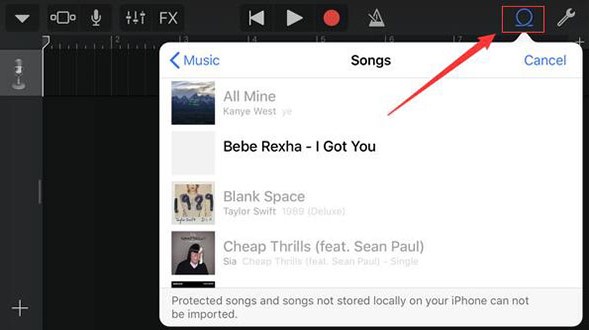
Step 1. Transfer your converted Spotify tracks to iTunes and sync them to iOS devices via the iTunes app or a USB cable.
Step 2. Install the GarageBand app from the App Store on your iPhone or iPad and open it.
Step 3. On your iPhone or iPad, click on the top-right Loop Browser icon and select ‘Music‘ or ‘Audio Files‘ from the pull-down list.
Step 4. Find your Spotify downloads and choose one of them to edit. Then the selected track will be put onto the timeline.
Step 5. Click on the timeline and pick the ‘Cut‘ option from a popup toolbar to begin trimming Spotify songs.
Part 4. How to Cut a Song from Spotify on Mac/Windows
Some users would rather cut songs from Spotify on their computers. Here are some powerful tools available on both Mac and Windows to make it.
Trim Spotify Songs via TunesKit Video Cutter
Here we’ll try a free audio cutter – TunesKit Video Cutter and show you how to cut music from Spotify.
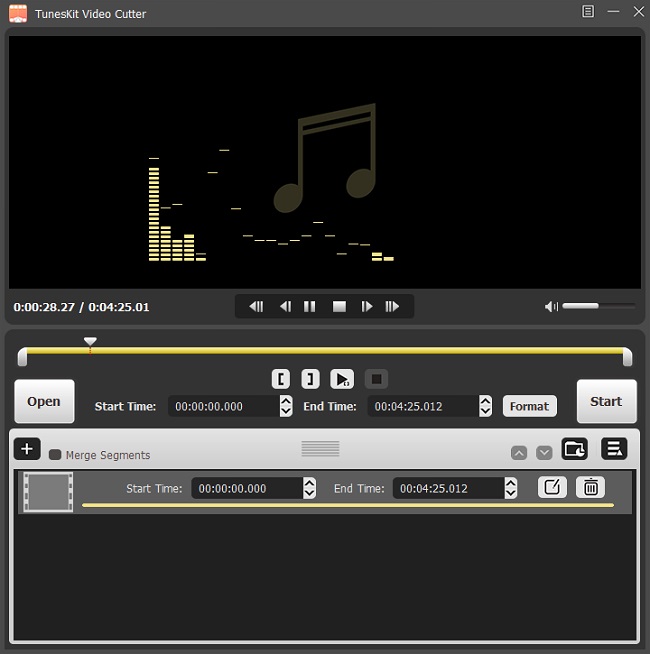
Step 1. Import converted Spotify songs into TunesKit. After installing TunesKit Video Cutter, you can click the Open button to add your target Spotify music files to it.
Step 2. Select output audio format. TunesKit will start playing your songs once it’s loaded successfully. Then click the Format button to choose the output format you want. To keep the lossless quality, you’d better choose the “High-Speed Mode” here.
Step 3. Cut music from Spotify. Now click the Start button and TunesKit will start cutting the music files for you. When it finishes, you can get your desired files immediately.
Trim Spotify Songs via Audio MP3 Cutter
Audio MP3 Cutter is a free and online trimmer that can cut any audio such as MP3, WAV, FLAC, and more files online without installing extra applications. This audio trimmer supports cutting and exporting multiple audio to 6 files: MP3, FLAC, WAV, M4A, and M4R.
Now, let’s walk you through how to crop Spotify songs using the Online Audio MP3 Cutter:
Step 1. Head to the website of Audio MP3 Cutter on a browser.
Step 2. Hit the center ‘Open file‘ button to browse and add your converted Spotify tracks.
Note: Also, you can drag and drop those files from the converted folder to the audio cutter directly.
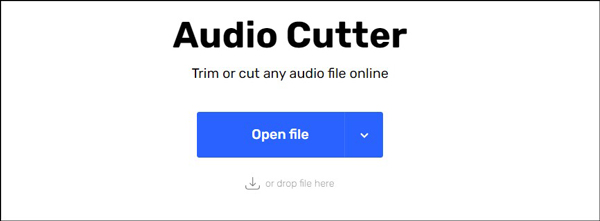
Step 3. On the new editing page, you can click on the upper-right ‘Trim‘ tab and start editing songs. Plus, it allows you to select an output format, adjust the volume level, change Spotify music playback speed, add pitches, equalize songs, etc.
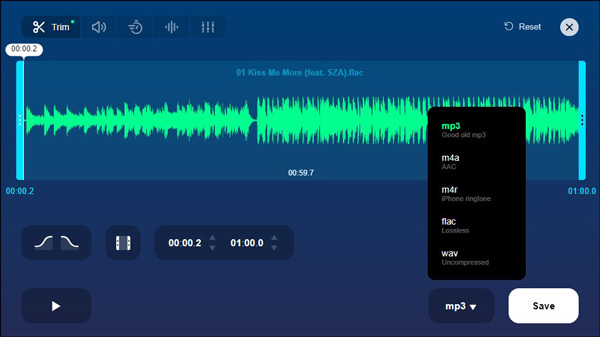
Step 4. When all settings are done, please touch on the ‘Save‘ button to get the Spotify cuttings.
Part 5. FAQs About Cutting Spotify Music
1. Can I use trimmed Spotify songs for TikTok or Instagram Reels?
Yes. Once you have used the AudFun Spotify Music Converter to download the track as an MP3 and trimmed it to your desired length, you can import that audio file directly into video editing apps like CapCut, InShot, or iMovie to use on social media.
2. Does cutting a song affect its audio quality?
If you use professional audio cutters and select the “High-Quality” or “Lossless” export settings (usually 320kbps for MP3), cutting a song will not degrade its audio quality. The AudFun converter ensures the original track is downloaded at maximum quality before you even begin editing.
3. Can I set a cut Spotify song as my phone ringtone?
Absolutely! For Android users, you can use the MP3 Cutter app mentioned above to trim the song and set it directly as your ringtone. For iPhone users, you can import the trimmed MP3 file into GarageBand and export it as a custom iOS ringtone.
Part 6. Summary
There are multiple effective methods for how to cut a song from Spotify on your iPhone, Android, or desktop. Because of DRM restrictions, the crucial first step is always using a reliable tool like the AudFun Spotify Music Converter to download your favorite Spotify songs to MP3. Once you have the local files, you can easily trim out silent intros, extract choruses for ringtones, or edit music for your videos. If you have any questions about the process, feel free to leave a comment below!
