
Have you used Audacity before? It is a powerful recording and converting tool that supports open sources including various music services. There is also a common question asked by Audacity users: Can Audacity record Spotify? Spotify offers a vast library of music that music lovers can find in any genre. If the Audacity Spotify integration is available, then exploring the music world is the icing on the cake.
Luckily, it comes with a positive answer. In this article, for your reference, we’ll show you the thorough steps on how to record Spotify with Audacity, alongside how to use the alternative to Audacity.
- Part 1. FAQs about Audacity and Spotify
- Part 2. How to Record Spotify with Audacity on Mac/PC
- Part 3. Audacity Alternative to Download Spotify to MP3 Losslessly
- Part 4. Verdict: Audacity vs Its Alternative
Part 1. FAQs about Audacity and Spotify
Q1: What Is Audacity?
A: Audacity is a free, open-source, and cross-platform audio editing and recording software available for Windows, macOS, and Linux. This powerful tool empowers users to record, edit, and mix audio tracks without spending a dime. It can capture any sound playing through your computer’s soundcard and export it into various common formats, including MP3, WAV, FLAC, and M4A.
Q2: Why to Use Audacity to Record Spotify?
A: While Spotify Free users face ads and lack offline listening, Spotify Premium users can download songs. However, these downloaded tracks are encrypted cache files that cannot be played outside the Spotify app and will disappear if your subscription ends.
Using Audacity to record music from Spotify allows you to bypass these restrictions. You can keep ad-free Spotify music as local MP3 files forever and transfer them to any MP3 player, USB drive, or smart speaker.
Part 2. How to Record Spotify with Audacity on Mac/PC
Let’s go back to recording Spotify with Audacity. Audacity is dedicated to recording audio from microphones and computers. When you record from Spotify with Audacity, it records them from your computer’s built-in speakers.
Here’s a quick guide to recording Spotify with Audacity to MP3 for free on a Windows computer. Since the steps for Audacity for Mac and Windows are similar, you can also use the following tutorial to get music from Spotify to Audacity on Mac. Please head to the Audacity official website to install this recorder.
Step 1 Define Playable Devices to Record Spotify in Audacity
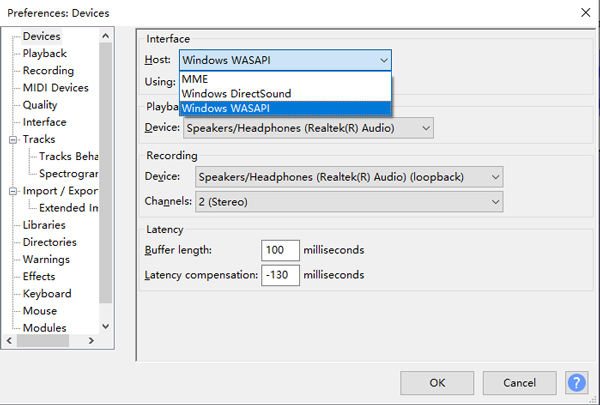
Please install and fire up the Audacity on your Windows computer. Then click the ‘Edit‘ tab in the upper left toolbar and select Preferences from the dropdown menu. Then pick ‘Device‘ or ‘Audio Settings‘ from the left panel, after which, select ‘Windows WASAPI‘ from the ‘Host‘ section.
Step 2 Turn Software Playthrough Off for Recording Spotify
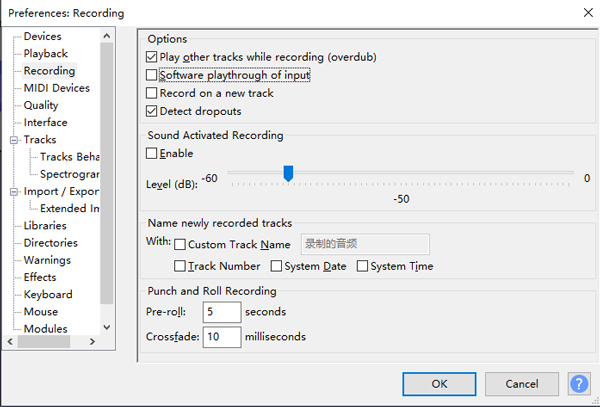
When recording computer playback in the Audacity Spotify Converter, it is necessary to close the Software Playthrough option. Just click on the top ‘Recording‘ from the left panel followed by deselecting the ‘Software playthrough of input‘ option to close it.
Step 3 Choose a Recording Device for Spotify on Audacity
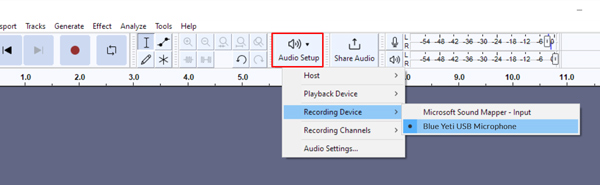
Go back to the home screen of Audacity and click on the ‘Audio Setup‘ tab. Once done, please select ‘Recording Device‘ > ‘Microphone‘.
Step 4 Begin to Record Spotify with Audacity
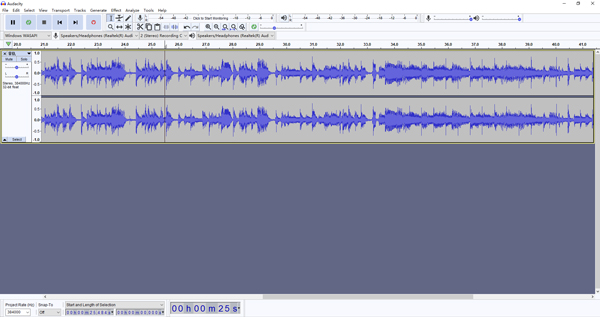
Tap the red Record button in Audacity for Windows. After that, you can play the Spotify music you want to record. Audacity will automatically record Spotify songs and playlists in real time. Once captured, just click the square Stop button to save and record the Spotify tracks to MP3, FLAC, WAV, or AIFF on your computer.
Part 3. Audacity Alternative to Download Spotify to MP3 Losslessly
While Audacity is an excellent free tool, recording a 100-song playlist in real-time is incredibly tedious. Furthermore, Audacity cannot automatically split tracks or save essential ID3 tags like album art and track numbers. If you want a more efficient method, you can use a professional alternative.
AudFun Spotify Music Converter is the satisfactory answer. It is specialized in recording and downloading Spotify music. Instead of playing Spotify songs one by one, it offers an easy way to convert Spotify tracks in batches. In addition, it lets you download Spotify songs in MP3, WAV, AAC, FLAC, and other formats at 5X conversion speed, saving you time and effort.
It completely preserves the original 320kbps lossless audio quality and all metadata info. Whether you are a Spotify Free or Premium user, AudFun makes building your local music library effortless.
The highlights of this perfect tool are listed below:

AudFun Spotify Music Converter
- Download Spotify songs, albums, podcasts in batches losslessly
- Record music from Spotify to WAV, MP3, FLAC, M4A, etc.
- Download Spotify songs offline for both free and premium users
- Run at 5X faster conversion speed with all ID3 tags kept
How to Use AudFun Spotify Music Converter to Download Spotify to MP3
Click on the above Blue button to install the AudFun Spotify Music Converter for free on a PC or Mac. You can use its free version to test its features as the following user guide:
Note: The free version of AudFun only converts 1 minute for each file. To get complete items, please upgrade to its full version.
Step 1 Upload Spotify playlists, albums, podcasts, or audiobooks to AudFun for converting
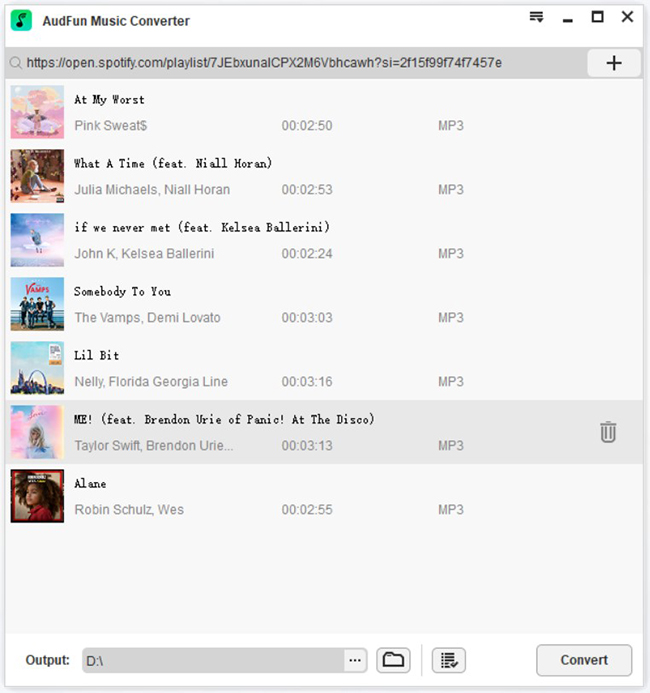
Unlike Audacity Spotify Ripper, AudFun Spotify Converter provides two efficient ways to add Spotify songs. During the process, never quit the Spotify app:
- Drag and drop songs directly from the Spotify app into the program.
- Copy and paste the Spotify audio URL links into AudFun’s address bar. Then tap the right Add icon to detect and load Spotify songs quickly.
Step 2 Define Spotify output formats and parameters for recording
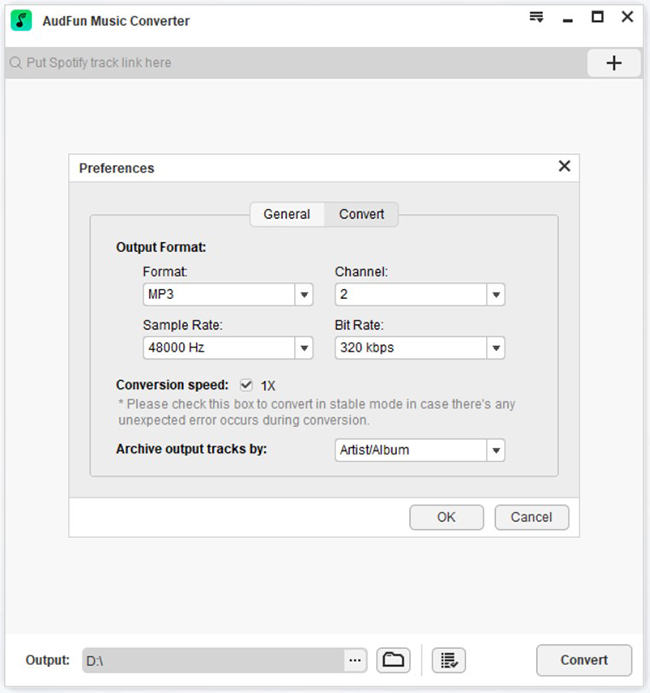
Please tap the top Menu tab and choose Preferences > Convert to open the setting window of AudFun Software. In the new window, you are allowed to customize the output format, audio channel, bit rate, conversion speed, etc. as you want. Besides, you can skip this step and download Spotify songs directly by performing the next step.
Step 3 Record and download music from Spotify to MP3
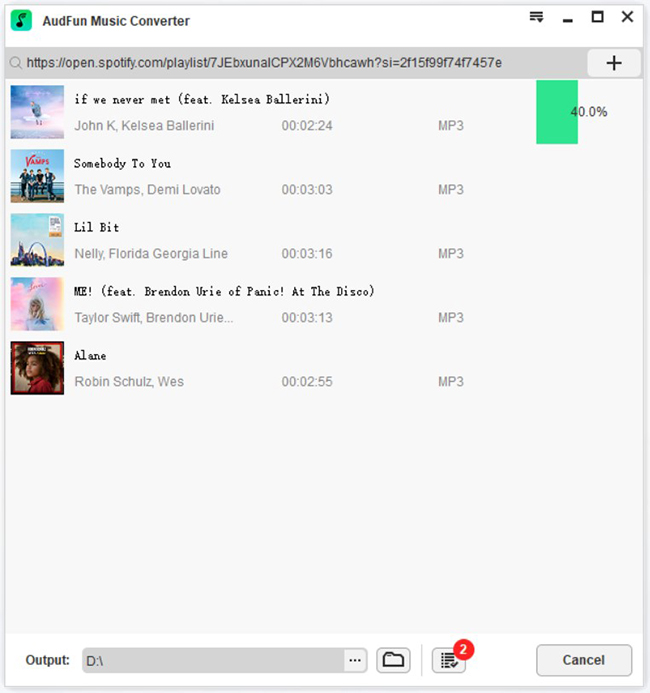
Click the large Convert button on AudFun’s home screen. After that, the download process will begin automatically. Once finished, you can tap the Converted button to locate all the lossless Spotify tracks and import them to any device for playback at any time.
Part 4. Verdict: Audacity vs Its Alternative
Here is a table that covers all the differences between the Audacity Spotify Recorder and the AudFun Spotify Converter:
| Audacity Spotify Ripper | AudFun Spotify Music Converter | |
| Compatible OS | Windows, macOS, Linux | Windows, macOS |
| Input Resource | Any sound playing on computer | Any audio content from Spotify |
| Output Format | MP3, WAV, FLAC, AIFF | MP3, AAC, FLAC, WAV, M4A, M4B |
| Audio Quality | Lossy (with noise) | Lossless (320kbps) |
| Keep ID3 Tags | ❌ | ✔️ |
| Recording Speed | Real-time | 5X on Windows (1X on Mac) |
| Bit Rate | 260kbps | 320kbps |
| Batch Convert | ❌ | ✔️ |
| User Friendly | ❌ | ✔️ |
| Score | 3.5 / 5 | 4.5 / 5 |
Conclusion
There is no doubt that using Audacity to record Spotify is a viable, 100% free solution if you only need to save one or two songs and don’t mind the complex setup process (especially on Mac).
However, if you value your time, care about high-quality audio, and want to download entire playlists with album artwork intact, the AudFun Spotify Music Converter is the superior choice. You can download the free trial version below to test its powerful features today!
