
Chromebooks are popular educational devices running Chrome OS, designed to integrate seamlessly with Google’s suite for students. Despite their utility, a common frustration arises when students attempt to access Spotify. School network filters frequently block streaming services, rendering both the web player and the Android app unusable on these managed devices.
To address this issue, this guide provides a step-by-step solution for unblocked Spotify on school Chromebooks. We will demonstrate how to successfully listen to Spotify via Chrome and download tracks directly, allowing students to bypass restrictions and enjoy their music while they study.
- Part 1. How to Get Unblocked Spotify Download on Chromebook
Hot - Part 2. How to Use Spotify for Chromebook via Web Browser
- Part 3. How to Unblock Spotify on Chromebook via VPN
- Part 4. How to Get Spotify on Chromebook via Android App
- Part 5. FAQs Related to Unblock Spotify to Chromebook
- Conclusion
Part 1. How to Get Unblocked Spotify Download on Chromebook
Accessing Spotify downloads on school or work Chromebooks is often difficult because administrators frequently restrict the Google Play Store, preventing app installation. Additionally, older Chromebook models may not support the Spotify Android app at all, leaving users without a direct way to listen to their music offline.
To solve this, you can use AudFun Spotify Music Converter on a separate Mac or Windows computer. This tool allows you to download and convert Spotify tracks to common formats like MP3 or FLAC without a Premium account. You can then save the Spotify files to a USB drive and transfer them to your Chromebook for unrestricted offline listening.

AudFun Spotify Music Converter for Chromebook
- Get music from Spotify without Premium at 5X speed
- Listen to music offline without needing school Wi-Fi.
- Convert Spotify songs to Chromebook-supported audio tracks
- Transfer and sync Spotify music to Chromebook, Chromecast, etc.
- Keep 320 kbps high-quality music experience on Chromebook
Note: AudFree Spotify Music Converter is not available for Chrome OS. Please kindly utilize a Mac or Windows computer to download Spotify songs to MP3 and save them as local files on your computer. Then you can sync and transfer these downloaded music files for listening on your Chromebook.
How to Get Spotify Songs for Chromebook Without Premium
Step 1 Import Music from Spotify to Chromebook
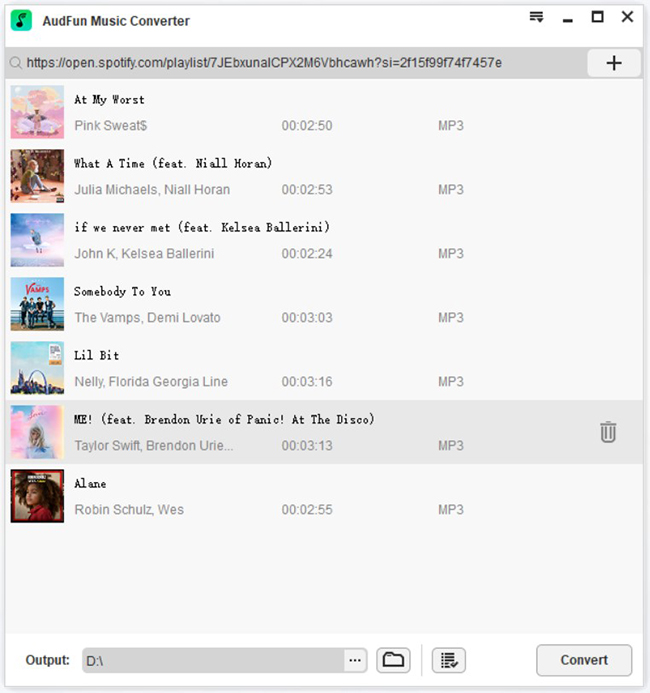
Launch AudFun Spotify Music Converter on your Windows or Mac PC and the Spotify desktop app will be opened instantly. Next, you need to copy and paste the music link to the search box of AudFun software and click the + button to confirm it. Alternatively, you can drag and drop the Spotify songs from the app to the AudFun conversion window.
Step 2 Customize Spotify Output Parameters for Chromebook
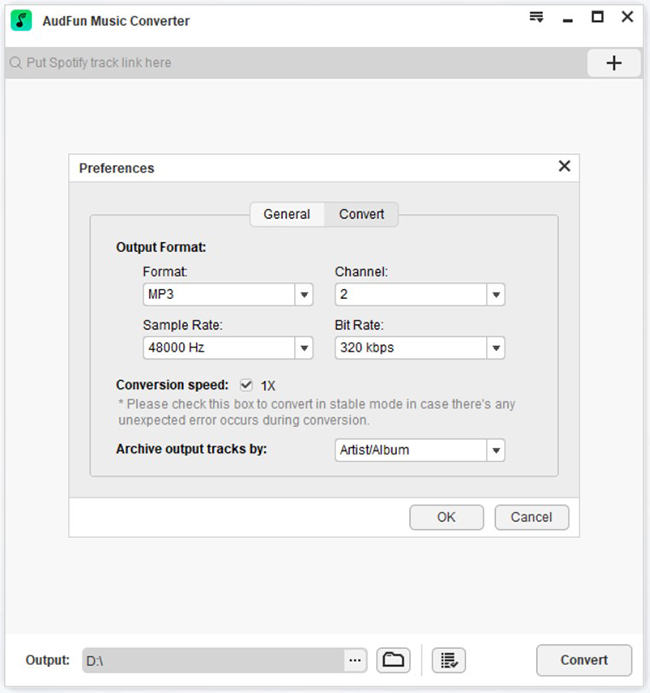
It’s well-known that Spotify tracks feature a unique Ogg Vorbis audio format, which can be playable on Chromebooks’ music players. Please open the setting window by clicking the Preferences > Convert button to adjust the Spotify output format as MP3, which is of high compatibility.
Step 3 Download Spotify Songs for Chromebook Without Premium
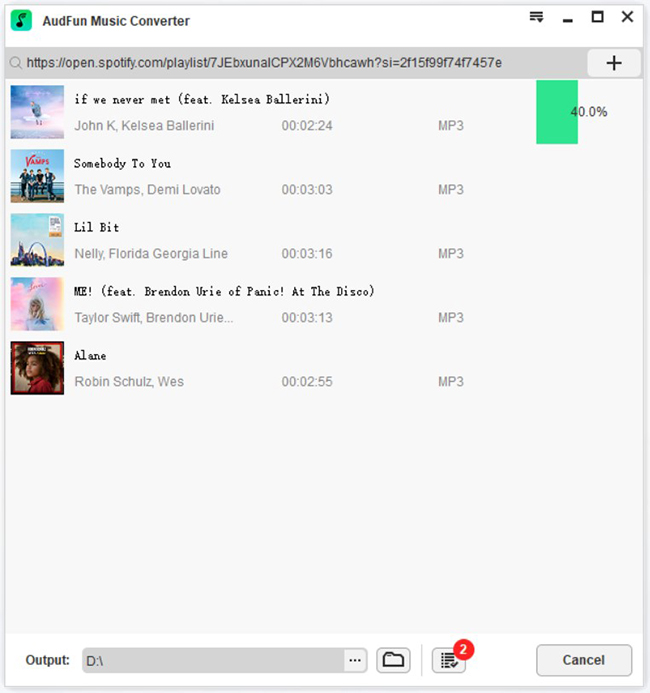
Next, simply press the Convert button at the bottom-right corner. It will convert Spotify music to MP3 or another Chromebook-compatible audio format you set earlier. It runs at a 5X faster speed to do this conversion. You can locate Spotify MP3 songs from the Converted button.
Step 4 Sync Spotify MP3 Music to School Chromebook
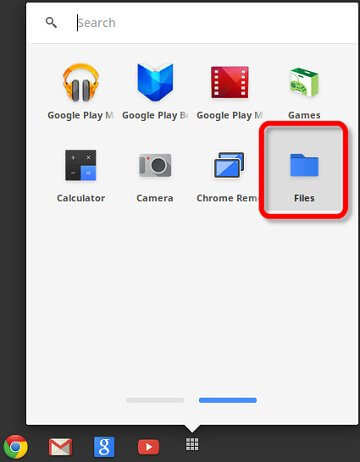
You are able to transfer the Spotify music downloads to your USB flash drive in order to play Spotify songs on your school Chromebook without a network connection. By doing so, you can sync Spotify music files to the local folder of your Chromebook via the USB port.
Part 2. How to Use Spotify for Chromebook via Web Browser
As a Chrome OS laptop, there is no doubt that Chromebook can use the Google Chrome browser to perform a variety of tasks. Of course, one of the often practiced activities is accessing Spotify Web Player through the Chrome browser and listening to your favorite music.
There is no official Spotify Chrome OS version for Chromebook. Let’s use the unblocked Spotify Web Player to explore music entertainment on this lightweight Chromebook. In this part, we’ll show you first how to listen to Spotify music on a common Chromebook.
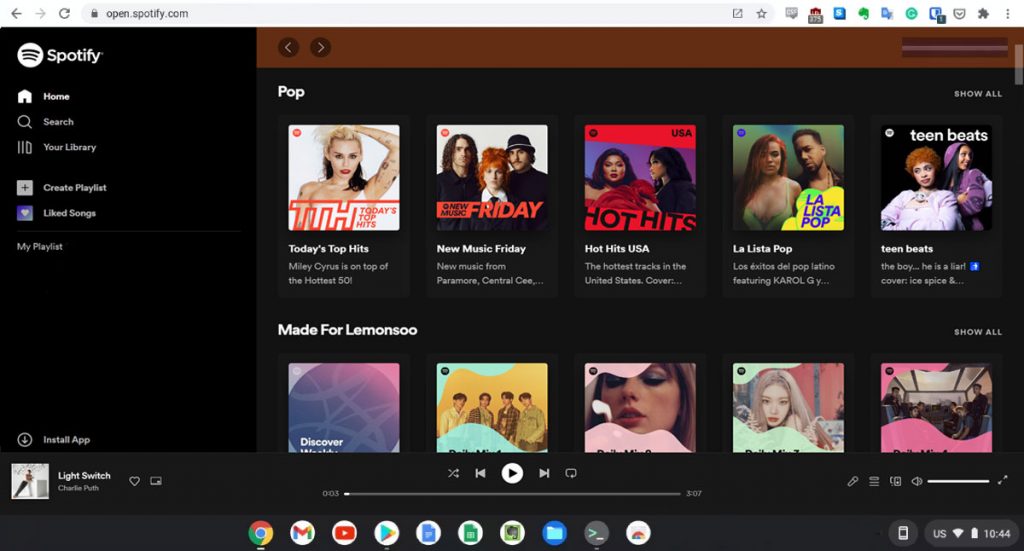
Step 1. Launch the Chrome browser on your Chromebook laptop, and navigate to the Spotify Web Player by typing https://open.spotify.com/ on the browser address bar.
Step 2. Log into your Spotify account, and now you can listen to the music or playlist on your Chromebook.
Part 3. How to Unblock Spotify on Chromebook via VPN
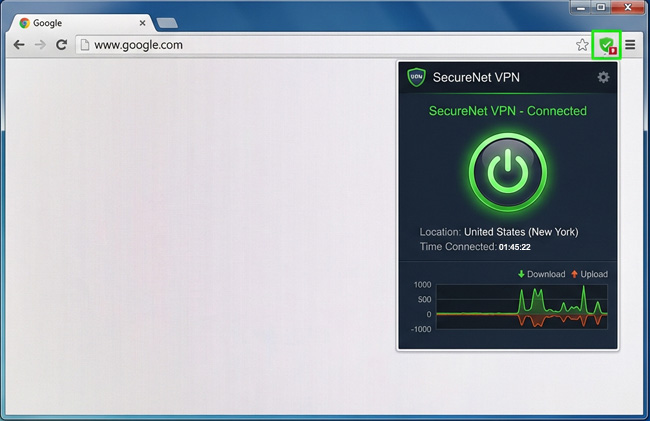
If you want to stream music online but the school firewall blocks the website, a VPN (Virtual Private Network) is the most effective solution. A VPN encrypts your traffic and routes it through a different server, bypassing the school’s content filters. Since you likely cannot install `.exe` files, you should use a Chrome Browser Extension.
Step 1. Open the Chrome Web Store on your Chromebook.
Step 2. Search for a reputable free VPN extension (e.g., ProtonVPN, Hotspot Shield, or ZenMate).
Step 3. Click Add to Chrome to install the extension.
Step 4. Click the puzzle piece icon in your browser toolbar, open the VPN, and connect to a server. Once connected, refresh the Spotify website—it should now be unblocked.
Part 4. How to Get Spotify on Chromebook via Android App
Modern Chromebooks support the Google Play Store, allowing you to run Android apps. This provides a better experience than the web player, including the ability to download songs (if you have Premium).
Step 1. Please make sure your Chromebook Chrome OS is updated to the latest version. And then select the Time > Settings at the bottom right.
Step 2. Navigate to the Google Play Store option, and turn on the Install apps and games from Google Play on your Chromebook button.
Step 3. Search and find the Spotify for Android app, and click on it to download Spotify on Chromebook. With your Spotify Premium subscription, you can listen to and download playlists and albums as offline files.
Part 5. FAQs Related to Unblock Spotify to Chromebook
Q1: Can I get Spotify on my Chromebook?
Yes. Chromebook allows you to access Spotify web player or download the Spotify Android app version from Google Play. But if you want to listen to Spotify unblocked for school Chromebook, you can refer to part 3 to listen to them online.
Q2: Can I download Spotify music on my Chromebook?
If there are no listening limits on Spotify on your Chromebook, you can download the Spotify Android app from Google Play and then log into your premium account to download any music you want. Incidentally, you can try AudFun Spotify Converter to help you download music from Spotify without limitations and expiration.
Q3: Can I bypass the school restrictions and listen to Spotify?
Sure. To listen to Spotify unblocked for school Chromebook, you should resort to a bypassing tool, such as Rammerhead Proxy, and you can refer to part 3 for more details. By the way, we suggest you use AudFun Spotify Music Converter to download any Spotify music you want and then you can transfer your favorite music to your Chromebook via a USB stick for offline listening.
Q4: Can I use a web proxy to unblock Spotify?
Yes, web proxies (like Rammerhead or others) can sometimes bypass filters. However, these sites are frequently blocked by IT administrators, and they can be slow or insecure. Using a VPN extension or the USB transfer method (Part 1) is safer and more reliable.
Conclusion
Now you know how to listen to Spotify music on your Chromebook. There are three solutions on how to get Spotify on Chromebook for your reference. And to get Spotify downloads to Chromebook, we advise you to AudFun Spotify Music Converter, which has the ability to download Spotify music via your free account.

4 replies on “How to Unblock Spotify on School Chromebook”
it did not help!
Hi ronin:
Please contact us and leave the issue you encountered via [email protected]. We will give a quick response to solve it. Have a nice day!
hhhiiiiiiiiiiiii thhhhhisssssssss sucksssssssssssss
Hi Logan,
What’s your problem? For further help, please feel free to contact us via [email protected], and we’ll respond as quickly as possible. Have a nice day!