
Whether you are curating the perfect road trip soundtrack or compiling your favorite workout anthems, a Spotify playlist is a deeply personal collection of music. However, over time, as you continuously add new tracks, your beautifully curated list can become cluttered. Suddenly, you find yourself listening to the exact same song three times in a row.
If you are wondering how to remove duplicates from a Spotify playlist, you are not alone. It is one of the most common frustrations among avid music listeners. While Spotify does not feature a magic “delete all duplicates” button natively within the app, there are several highly effective ways to clean up your Spotify playlist.
In this comprehensive guide, we will walk you through the best methods to delete duplicate songs on Spotify, ranging from quick manual fixes to trusted automated tools, and even how to back up your newly cleaned playlist.
- Why Do Duplicate Songs End Up in Spotify Playlists?
- Method 1: How to Remove Duplicates from Spotify Playlist Manually on Desktop
- Method 2: Removing Duplicate Tracks on the Spotify Mobile App (iOS & Android)
- How to Prevent Duplicates When Adding New Music
- Bonus: How to Convert Spotify Songs to MP3 via AudFun Spotify Music Converter
- FAQs About How to Remove Duplicates from Spotify Playlist
Why Do Duplicate Songs End Up in Spotify Playlists?
Before we dive into the solutions, it is helpful to understand how these duplicates happen in the first place. Spotify actually has a built-in warning system. If you try to add a track that is already in your playlist, Spotify will usually prompt you with an “Already added” message.
So, how do duplicates slip through?
- Different Album Versions: Spotify treats a song from an original studio album, a “Greatest Hits” compilation, and a “Deluxe Edition” as completely different tracks due to different metadata.
- Collaborative Playlists: If you share a playlist with friends, multiple people might add the same track without realizing it.
- Ignoring the Warning: Sometimes, we simply click “Add Anyway” when in a rush.
Now that we know the cause, let’s look at how to remove duplicates from a Spotify playlist effectively.
Method 1: How to Remove Duplicates from Spotify Playlist Manually on Desktop
If you have a relatively small playlist (under 200 songs) or if you prefer not to use third-party applications, the manual method using the Spotify Desktop app for Mac or Windows is your best option. The desktop interface allows you to sort and multi-select, making the process much faster than on a mobile device.
Here is how to clean up your Spotify playlist manually:
Step 1. Launch the application on your PC or Mac and navigate to the specific playlist you want to clean up from the left-hand sidebar.
Step 2. Click on the “Title” or “Artist” column header at the top of your playlist. This will arrange all your songs in alphabetical order, grouping any duplicate tracks right next to each other.
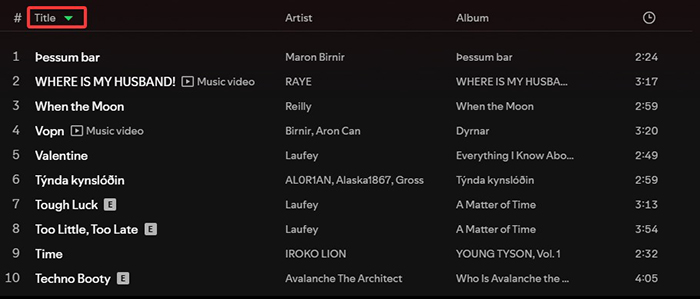
Step 3. Scroll down your playlist. Because the songs are alphabetized, identical tracks will be glaringly obvious.
Step 4. Select Multiple Duplicates:
- On Windows: Hold down the
Ctrlkey and click on each duplicate track you want to remove. - On Mac: Hold down the
Cmdkey and click on the duplicates.
Step 5. Delete the Tracks: Once you have highlighted the duplicate songs, simply press the Delete key on your keyboard. Alternatively, you can right-click on one of the highlighted tracks and select “Remove from this playlist.”
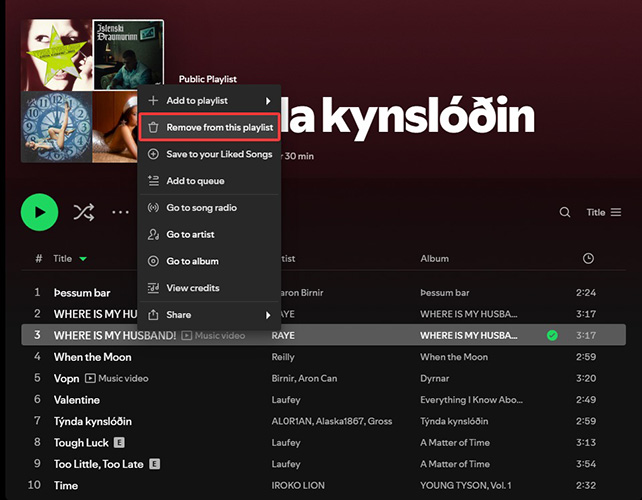
This method is highly secure and gives you complete control over exactly which versions of a song you are keeping and which you are deleting.
Method 2: Removing Duplicate Tracks on the Spotify Mobile App (iOS & Android)
Cleaning up a Spotify playlist on a mobile device is slightly more tedious because you cannot select multiple songs at once. However, if you are on the go and need to delete duplicate songs on Spotify, it is entirely possible.
Step 1. Launch the Spotify app on your iPhone or Android device and open the cluttered playlist.
Step 2. Pull down slightly on the screen to reveal the search bar and the “Sort” button. Tap the Sort button and select “Title” or “Artist”.
Step 3. Scroll through your newly alphabetized list to spot the repeating songs.
Step 4. Tap the three vertical dots (⋮ on Android or ⋯ on iOS) next to the duplicate song’s name.
Step 5. From the pop-up menu, select “Remove from playlist.”
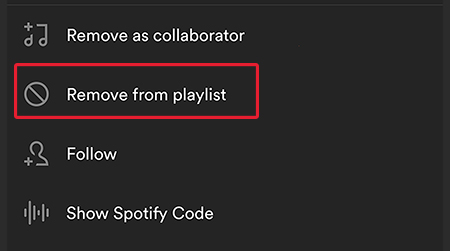
You will need to repeat steps 4 and 5 for every duplicate song, which is why we highly recommend using the desktop app or an automated tool for larger playlists.
How to Prevent Duplicates When Adding New Music
Now that you have a clean Spotify playlist, you will want to keep it that way. Here are a few best practices to avoid clutter in the future:
- Pay Attention to Warnings: When you add a song to a playlist, wait a second to see if the green “Already added” pop-up appears. If it does, choose “Don’t add” instead of “Add Anyway.”
- Check the Album: If you are adding a song from a customized radio station or a “Discover Weekly” playlist, it might be from a compilation album. If you suspect you already have the song, search your playlist first before adding this new version.

Bonus: How to Convert Spotify Songs to MP3 via AudFun Spotify Music Converter
Once you have successfully removed all duplicates and curated the perfect playlist, you might want to back it up locally or listen to it on devices that don’t support the Spotify app (like an older MP3 player or a USB drive for your car). Because Spotify encrypts its downloaded files (even for Premium users), you cannot simply copy and paste them.
This is where a dedicated tool comes in handy. Learning how to convert Spotify songs to MP3 via AudFun Spotify Music Converter is a great way to take your newly organized, duplicate-free music offline permanently. AudFun is a desktop software designed to download and convert Spotify tracks, playlists, and albums into standard audio formats without losing the original sound quality.

AudFun Spotify Music Converter
- Preserves high audio quality output Spotify songs, albums, playlists, etc.
- Supports the conversion of Spotify music files at a high speed of X5 rate
- Listen to Spotify offline without premium on multiple devices and platforms
- Converts Spotify music to several formats like FLAC, M4A, MP3, etc.
Here is a quick guide on how to use it:
Step 1. Install the Software
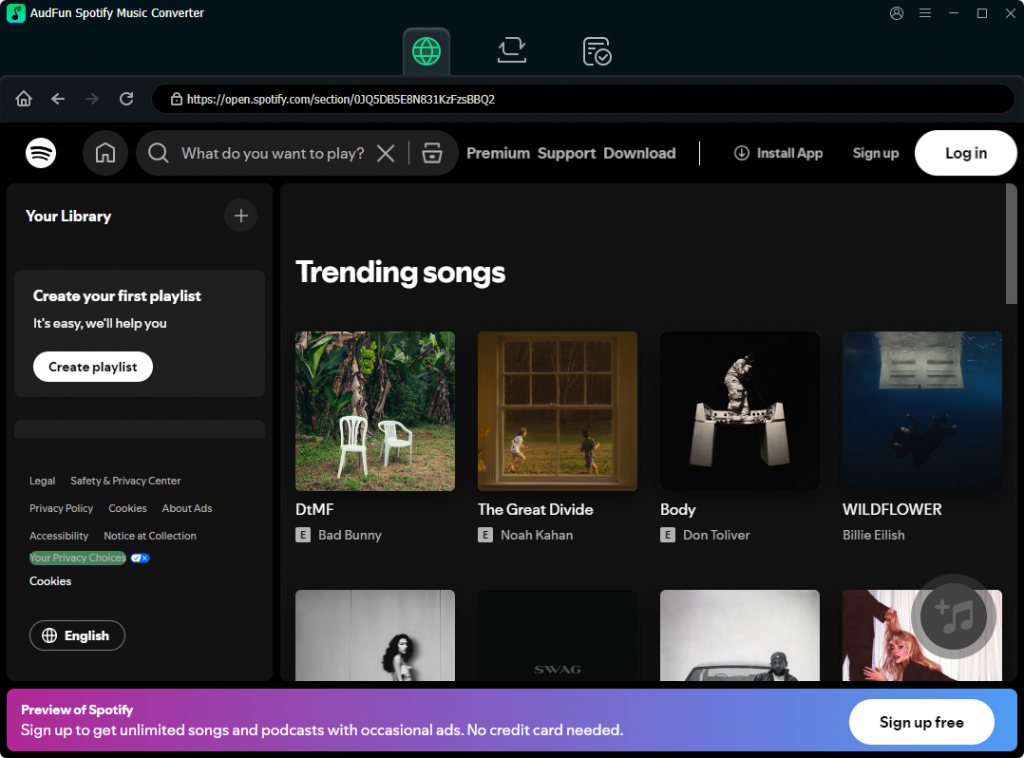
Download and install the AudFun Spotify Music Converter on your Mac or Windows computer. When you launch it, the Spotify desktop app will open automatically.
Step 2. Add Your Cleaned Playlist
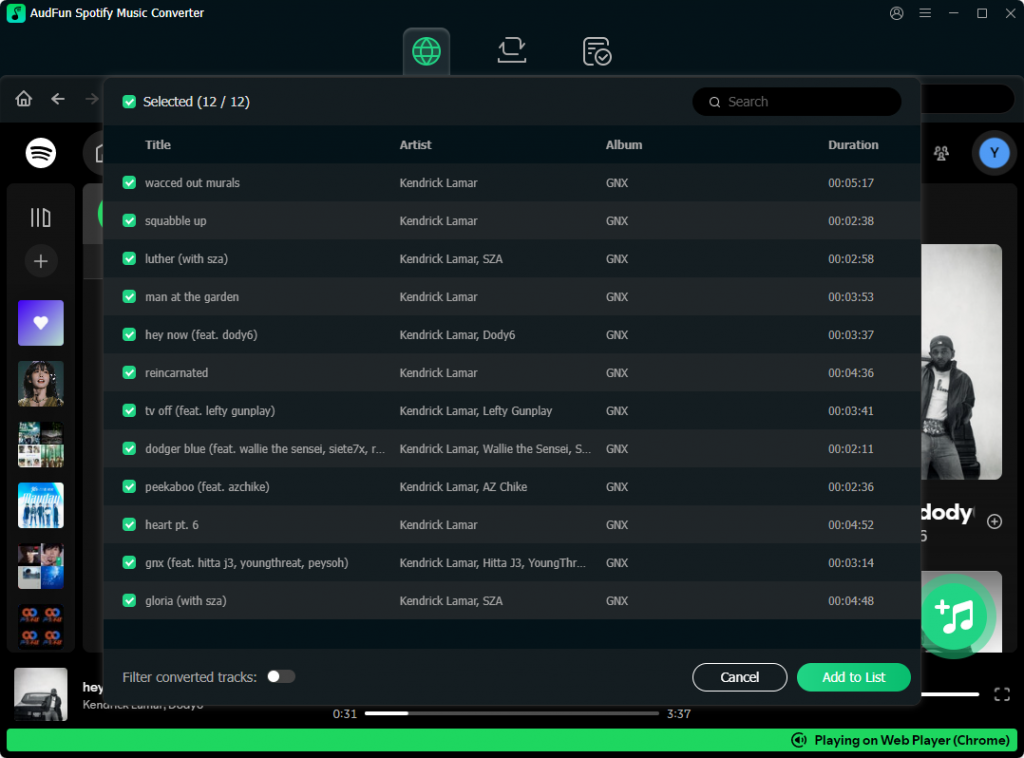
Go to your Spotify app, find the playlist you just removed duplicates from, and drag and drop it directly into the AudFun interface. Alternatively, you can copy the playlist link and paste it into AudFun’s search bar, then click the “+” icon.
Step 3. Set Output Format to MP3
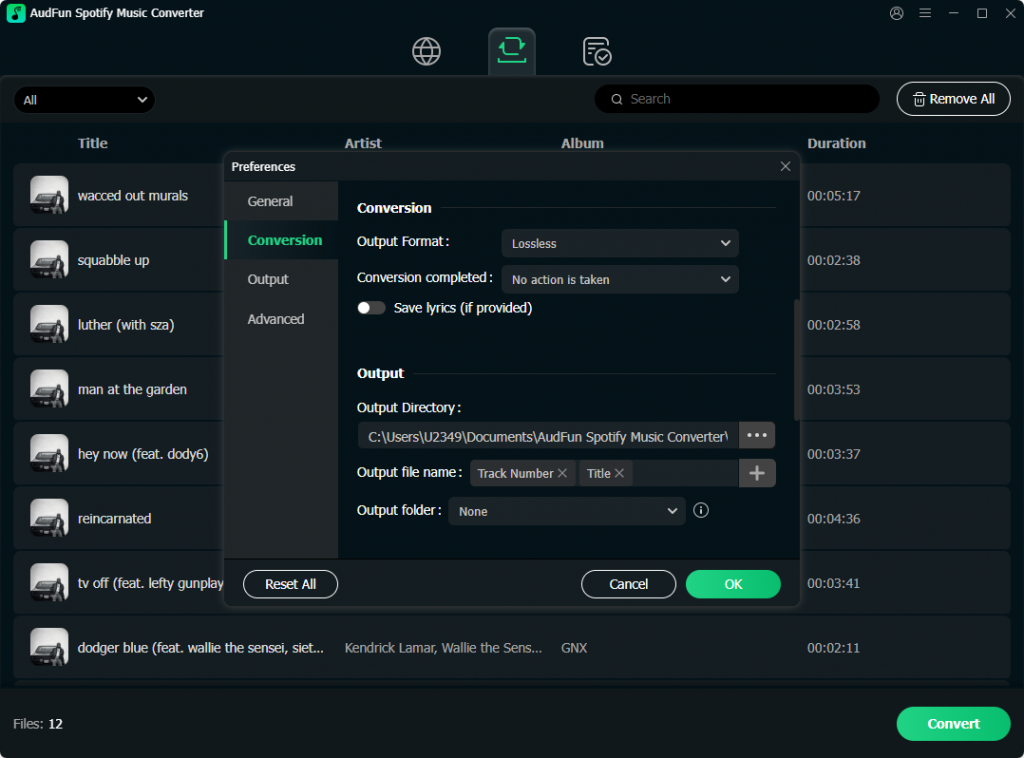
Click on the menu icon (usually three lines) in the top right corner and select “Preferences.” Navigate to the “Convert” tab. Here, set the Output Format to MP3. You can also adjust the bit rate (up to 320 kbps) and sample rate for optimal audio quality.
Step 4. Convert and Download
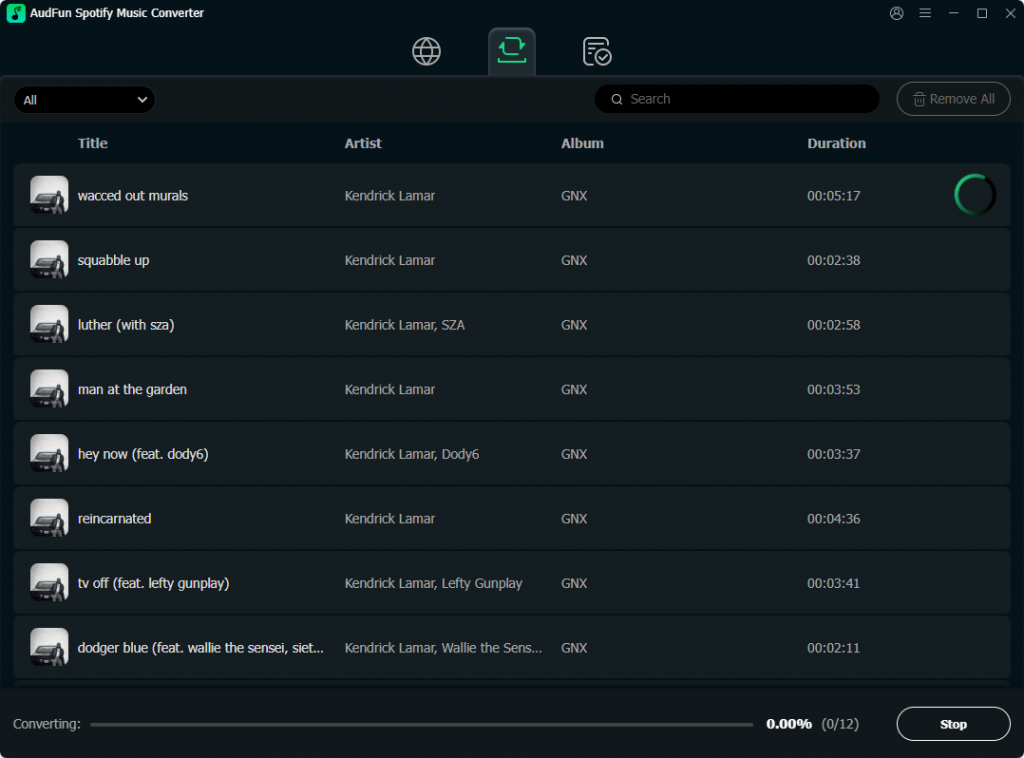
Click the “Convert” button at the bottom right corner. AudFun will begin converting your duplicate-free Spotify playlist into MP3 files and save them directly to your computer’s local drive.
By doing this, you ensure that your perfectly organized playlist is preserved exactly how you want it, accessible anytime, anywhere.
FAQs About How to Remove Duplicates from Spotify Playlist
Can I remove duplicates from “Liked Songs” on Spotify?
Yes. The manual desktop method works perfectly for your “Liked Songs” (Your Library). Simply go to your Liked Songs, sort by Title, highlight the duplicates, and press delete.
Is Spotify Dedup safe to use?
Yes, Spotify Dedup is widely considered safe. It is an open-source project, meaning its code is public and verifiable. Furthermore, it uses the OAuth protocol, meaning you log in directly through Spotify’s servers, and the tool never has access to your actual password.
Why didn’t Spotify warn me about a duplicate song?
Spotify’s duplicate warning system relies on exact track IDs. If you add the original studio version of a song, and later add the “Remastered” version or a version from a movie soundtrack, Spotify sees them as two completely different files. Therefore, it will not trigger the duplicate warning.
Conclusion
A well-organized music library drastically improves your listening experience. Knowing how to remove duplicates from a Spotify playlist ensures that your carefully crafted mixes flow perfectly without annoying repetitions.
Whether you choose to take the manual route via the desktop app for precise control, opt for a massive time-saver like a Spotify duplicate remover tool, or decide to convert your pristine playlists to MP3 using AudFun Spotify Music Converter, managing your music is easier than you might think.
