
If you are a beginner looking to get into mixing, or a seasoned pro wanting to spin tracks at a house party, you likely have one major question: what is the best DJ software that work with Spotify? With millions of curated playlists and an unmatched algorithm, Spotify is the go-to music library for most of us. It seems only natural to want to load those tracks directly into your DJ decks.
However, the landscape of streaming and DJing has changed drastically over the last few years. If you have been searching for a direct way to connect your Spotify account to your DJ controller, you have probably hit a wall of confusing information.
In this comprehensive guide, we will uncover the truth about DJ apps compatible with Spotify, explain why things changed, and provide you with the most effective, reliable workarounds to get your Spotify playlists onto the digital turntables today.
- Part 1. Does Any DJ Software Work With Spotify?
- Part 2. How to Transfer Spotify Playlists to DJ-Friendly Platforms
- Part 3. Top DJ Software to Use with Your Transferred Spotify Playlists
- Part 4. How to Convert Spotify Songs to MP3 via AudFun Spotify Music Converter
Part 1. Does Any DJ Software Work With Spotify?
To save you hours of frustrating research, we need to start with the honest truth: As of 2026, there is no professional DJ software that natively integrates with Spotify.
Prior to July 1, 2020, popular applications like Algoriddim’s djay Pro allowed users to log into their Spotify Premium accounts and stream tracks directly onto their virtual decks. It was a golden era for bedroom DJs. Unfortunately, Spotify abruptly revoked its API access for all third-party DJ applications. Their reasoning was tied to complex licensing agreements with major record labels, which restrict how streamed music can be manipulated and publicly broadcasted.
While Spotify recently introduced its own “AI DJ” feature, this is an automated radio host that curates music for casual listening. It does not allow you to beatmatch, scratch, or manually transition between songs.
So, does this mean your dream of DJing with your carefully curated Spotify library is dead? Absolutely not. You just need to use the right workarounds, whether that means migrating your playlists or converting them to local files.
Part 2. How to Transfer Spotify Playlists to DJ-Friendly Platforms
Since you cannot use Spotify directly, the most professional method to stream your Spotify music is to transfer your playlists to a service that does integrate with DJ software.
Currently, the best streaming services for DJs are Tidal, SoundCloud Go+, Beatport Streaming, and Beatsource. Tidal and SoundCloud are the closest alternatives to Spotify, offering massive mainstream catalogs.
Here is how you can seamlessly move your music:
- Choose a Transfer Tool: Some websites are designed specifically to migrate music libraries between platforms.
- Connect Your Accounts: Log into the transfer tool and authorize access to your Spotify account (the source) and your new Tidal or SoundCloud account (the destination).
- Select Your Playlists: Choose the specific Spotify playlists you want to DJ with.
- Initiate the Transfer: The tool will match the metadata of your Spotify tracks with the database of your new streaming service.
Within minutes, your years of Spotify curation will be available on a platform that actually allows DJ integration.
Part 3. Top DJ Software to Use with Your Transferred Spotify Playlists
Once you have migrated your library to a DJ-friendly streaming service, you need the right software to start mixing. Here are the top choices that will give you that seamless “Spotify DJ mode” experience.
1. Serato DJ Pro / Serato DJ Lite
Serato is arguably the most famous DJ software in the world, heavily favored by hip-hop, open-format, and scratch DJs. It is incredibly stable and features a clean, intuitive interface.
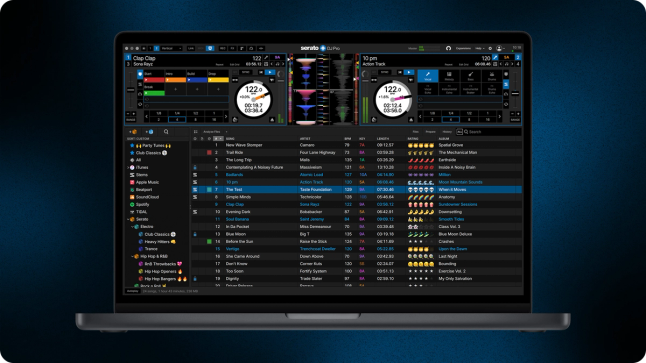
- Streaming Integration: Serato natively supports Tidal, SoundCloud Go+, Beatport, and Beatsource.
- Why it works for you: If you transferred your Spotify playlists to Tidal, you can log into Tidal directly inside Serato. The software will analyze the streaming tracks for BPM (beats per minute) and musical key, allowing you to mix them just like local MP3 files.
2. Rekordbox DJ
Developed by Pioneer DJ (now AlphaTheta), Rekordbox is the industry standard for club DJs. If your ultimate goal is to play in professional nightclubs, Rekordbox is the ecosystem you need to learn.
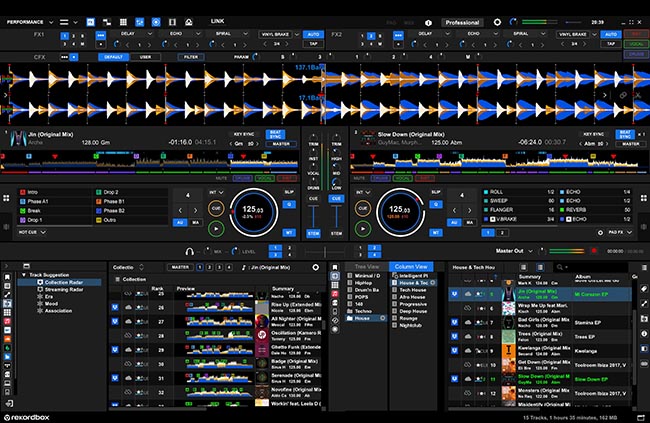
- Streaming Integration: Rekordbox supports Tidal, SoundCloud Go+, and Beatport Streaming.
- Why it works for you: Rekordbox offers excellent track preparation tools. You can load your transferred playlists, set your hot cues, and practice your transitions in “Performance Mode” with a laptop connected to a Pioneer controller.
3. Algoriddim djay Pro
If you are looking for the software that feels the most modern and integrates flawlessly with Apple devices (Mac, iPad, iPhone), djay Pro is a phenomenal choice.
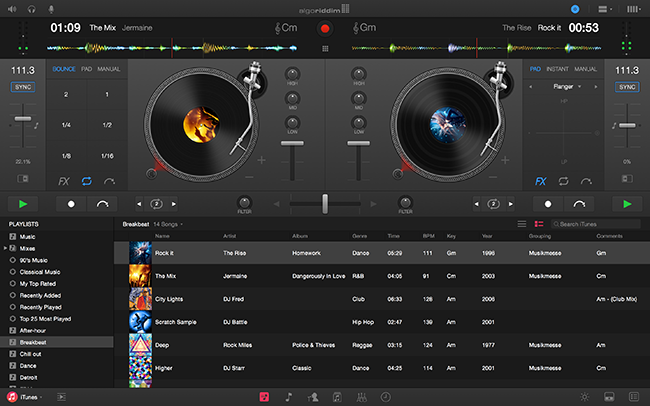
- Streaming Integration: Apple Music, Tidal, SoundCloud Go+, Beatport, and Beatsource.
- Why it works for you: djay Pro recently achieved a massive milestone by integrating Apple Music. If you use an app to move your Spotify playlists to Apple Music, you can DJ with them directly in djay Pro.
Part 4. How to Convert Spotify Songs to MP3 via AudFun Spotify Music Converter
While streaming integrations are incredibly convenient, many professional DJs refuse to rely on a live Wi-Fi connection during a gig. Internet dropouts can ruin a set instantly. If you want the ultimate reliability of offline DJing, you need local audio files.
This brings us to the most popular method for offline mixing: converting your Spotify library into standard audio files. To do this, you can use a dedicated third-party tool. Below is a step-by-step guide on how to convert Spotify songs to MP3 via AudFun Spotify Music Converter.
AudFun is a powerful, user-friendly desktop application designed to download and convert Spotify tracks, albums, and playlists into formats like MP3, WAV, or FLAC.

AudFun Spotify Music Converter
- Preserves high audio quality output Spotify songs, albums, playlists, etc.
- Supports the conversion of Spotify music files at a high speed of X5 rate
- Listen to Spotify offline without premium on multiple devices and platforms
- Converts Spotify music to several formats like FLAC, M4A, MP3, etc.
Here is how to use it for your DJ sets:
Step 1. Download and Install AudFun
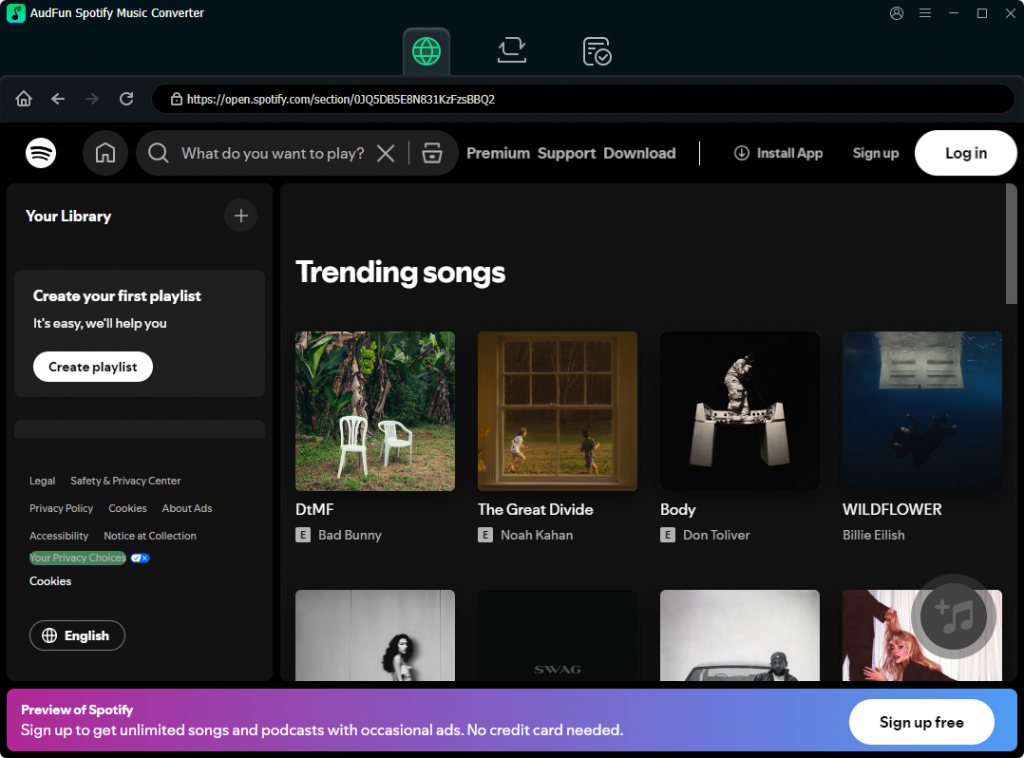
First, navigate to the official AudFun website and download the Spotify Music Converter for your Mac or Windows computer. Once installed, launch the program. You will notice that the official Spotify desktop app will automatically open alongside it.
Step 2. Add Spotify Playlists to AudFun
Find the Spotify playlist or track you want to DJ with. You can add music to AudFun in two easy ways:
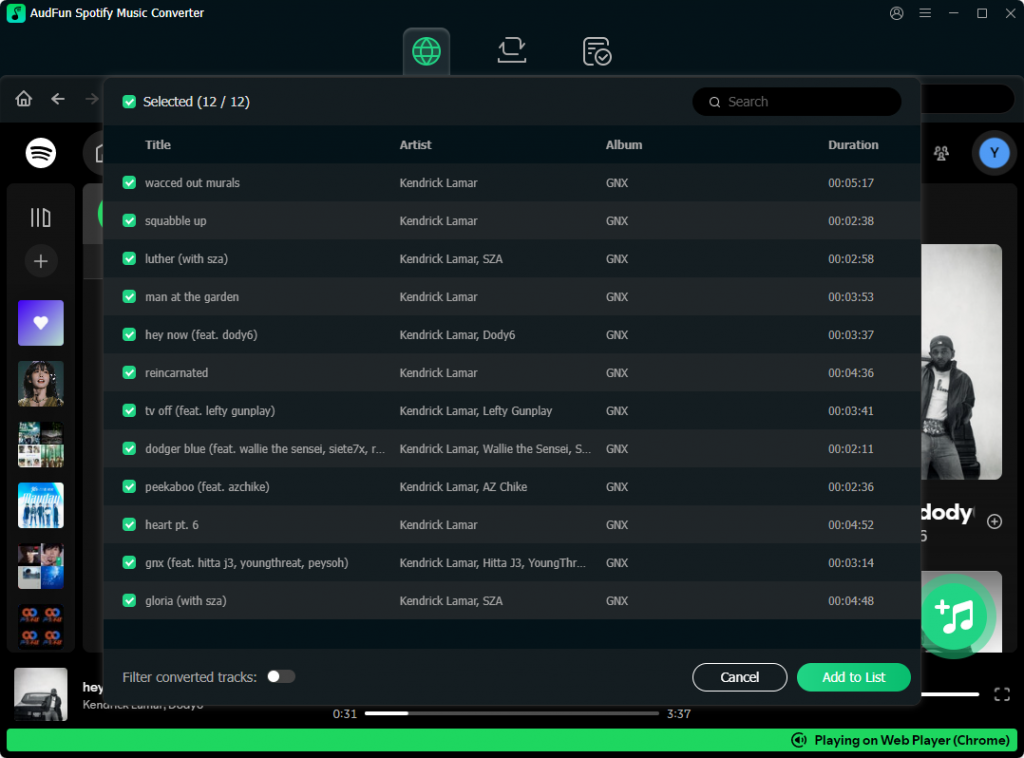
- Drag and Drop: Simply click and drag the playlist directly from the Spotify app into the main interface of AudFun.
- Copy and Paste URL: Right-click the Spotify playlist, select “Share,” and click “Copy link to playlist.” Paste this URL into the search bar at the top of the AudFun interface and click the “+” (Add) button.
Step 3. Configure Output Settings for DJing
This is a crucial step for DJs. You need high-quality audio to ensure your tracks sound punchy on large speakers. Click on the menu icon (usually three lines in the top right corner) and select “Preferences”, then navigate to the “Convert” tab.
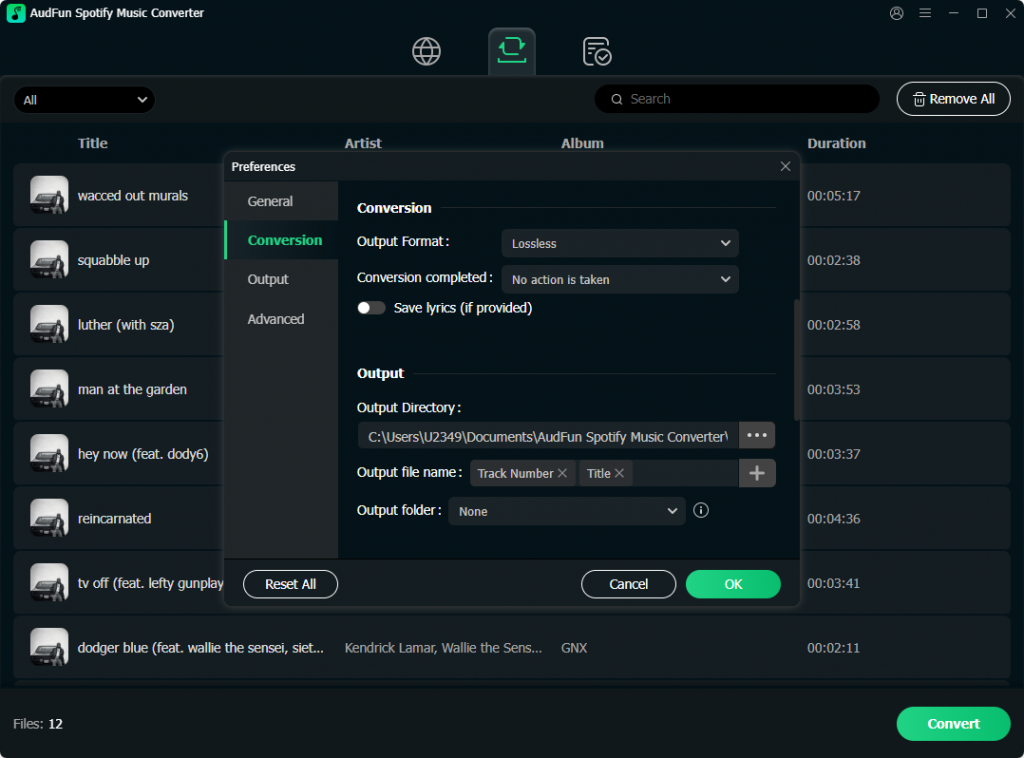
- Format: Select MP3 (or WAV/FLAC for lossless quality).
- Bit Rate: Set this to 320 kbps. This is the industry standard for DJing MP3s. Anything lower may sound muddy in a club setting.
- Sample Rate: Set to 44100 Hz.
Step 4. Convert and Download
Once your settings are dialed in, click the “Convert” button at the bottom right of the screen. AudFun will begin downloading and converting your Spotify tracks at a rapid speed, stripping away the \protection and saving them as high-quality MP3s on your local hard drive.
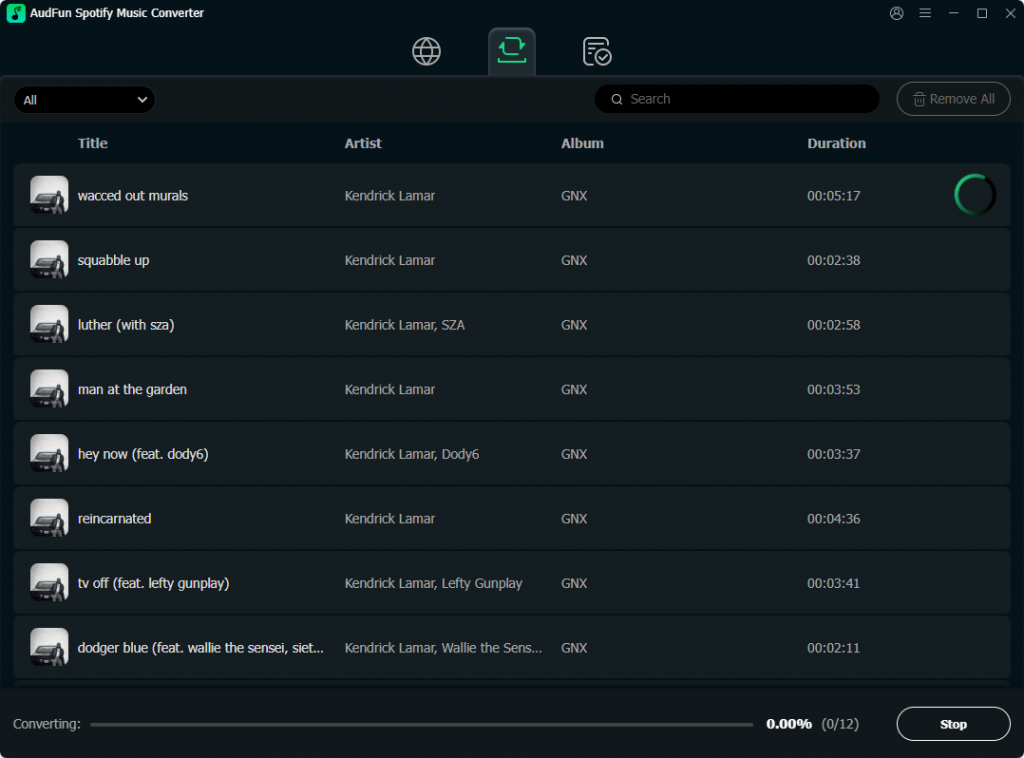
Step 5. Import MP3s into Your DJ Software
After the conversion is complete, locate your new MP3 files in your destination folder. Now, simply open your preferred DJ software—whether that is Serato, Rekordbox, VirtualDJ, or Traktor—and drag the folder into your software’s library browser.
Because AudFun preserves ID3 tags, your DJ software will instantly recognize the track names, artists, and album artwork. You can now analyze the BPM, set your cue points, and DJ entirely offline!
Conclusion
Finding DJ software that works with Spotify is challenging due to API restrictions, but you still have great options. For a cloud-based approach, simply use a playlist migration tool to transfer your Spotify library to DJ-friendly platforms like Tidal or SoundCloud Go+. This unlocks instant access to industry-standard software like Serato, Rekordbox, or djay Pro.
Alternatively, if you need rock-solid offline reliability, use AudFun Spotify Music Converter. By converting your Spotify tracks into high-quality MP3s, you can build a permanent library that works flawlessly with any DJ controller or software on the market. Choose the method that fits your style and start mixing today!
