
Whether you are preparing for a massive road trip, hosting a party, or simply trying to declutter your music library, you have likely wondered how to merge playlists on Spotify. Combining multiple smaller playlists into one ultimate mega-playlist seems like it should be a simple task.
However, if you have spent time digging through Spotify’s settings, you have probably realized one frustrating truth: Spotify does not have a native, one-click “Merge” button.
But don’t worry. While there isn’t a magic button, combining your favorite tracks is still incredibly easy if you know the right tricks. In this comprehensive guide, we will show you exactly how to combine Spotify playlists using the desktop app, mobile workarounds, and safe third-party tools, plus a bonus tip on how to download your new mega-playlist for offline listening.

- Method 1: How to Combine Spotify Playlists on Desktop (The Easiest Way)
- Method 2: How to Merge Spotify Playlists on Mobile (iOS & Android)
- Pro Tips for Managing Your Newly Merged Playlist
- Bonus: How to Download Spotify Playlist via AudFun Spotify Music Converter
- FAQs About How to Merge Spotify Playlist
Method 1: How to Combine Spotify Playlists on Desktop (The Easiest Way)
If you have access to a computer, the Spotify Desktop app (available for Windows and Mac) or the Spotify Web Player is by far the fastest and most efficient way to mix two playlists on Spotify. Because the desktop version allows for bulk selection, you can merge hundreds of songs in seconds.
Here is the step-by-step process:
Step 1. Launch the Spotify app on your Mac or PC and ensure you are logged into your account.
Step 2. If you want to merge two existing playlists into a brand new one, click the “+” icon on the left-hand sidebar and select “Create a new playlist.” Name it whatever you like.
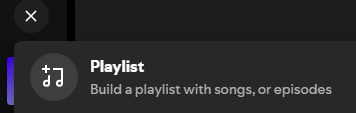
Step 3. Go to the first playlist containing the songs you want to move.
Step 4. Click on any song in the playlist to highlight it. Then, use your keyboard shortcuts to select all the tracks at once:
- For Windows: Press
Ctrl+A - For Mac: Press
Cmd+A
Step 5. With all the songs highlighted, simply click and hold your mouse, then drag the songs over to your destination playlist in the left sidebar. Alternatively, you can right-click the highlighted songs, hover over “Add to playlist,” and select your target playlist from the dropdown menu.
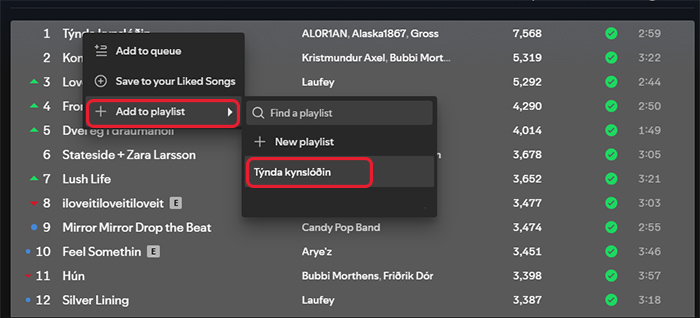
Step 6. Go to your second source playlist and repeat the process.
Congratulations! You have successfully merged your playlists. You can now delete the old source playlists if you no longer need them to keep your library tidy.
Method 2: How to Merge Spotify Playlists on Mobile (iOS & Android)
If you only have access to your smartphone, merging Spotify playlists is a bit more tedious. Currently, the Spotify mobile app for iOS and Android does not support bulk selection. This means you cannot select multiple songs at once—you have to move them individually.
If your playlists are relatively short, here is how to do it manually:
Step 1. Open the Spotify app on your iPhone or Android device.
Step 2. Navigate to the playlist containing the songs you want to move.
Step 3. Tap the three vertical dots (Options menu) next to a song’s title.
Step 4. Tap “Add to playlist” from the pop-up menu.
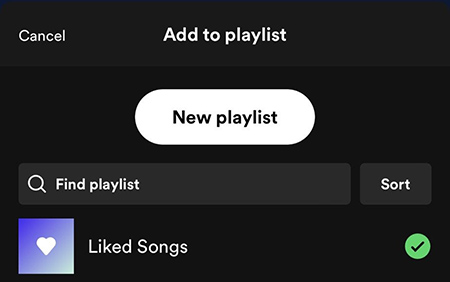
Step 5. Select the destination playlist where you want the song to go.
Step 6. Repeat this process for every song you wish to merge.
Pro Tips for Managing Your Newly Merged Playlist
1. How to Handle Duplicate Songs
When combining multiple playlists, it is highly likely that some songs will overlap. Fortunately, Spotify has a built-in safety net for this.
If you are using the desktop method and attempt to drag a batch of songs into a playlist that already contains some of those exact tracks, Spotify will trigger a pop-up warning. You will be given two options:
- Skip duplicates: This is the best option. Spotify will only add the new, unique songs.
- Add anyway: This will force all songs over, creating duplicate entries.
2. Sorting and Organizing Your Merged Playlist
After a massive merge, your playlist might feel chaotic. You can easily organize it by clicking the column headers on the desktop app. Click “Title” to sort alphabetically, or “Date added” to see the newest tracks you just merged.
Bonus: How to Download Spotify Playlist via AudFun Spotify Music Converter
Now that you have created the ultimate merged playlist, you might want to listen to it offline. While Spotify Premium users can download songs within the app, free users cannot. Furthermore, you cannot export these songs as local MP3 files to play on an MP3 player, USB drive, or DJ software.
This is where a dedicated tool like AudFun Spotify Music Converter comes in handy. AudFun is a desktop software designed to download and convert Spotify playlists into common audio formats like MP3, FLAC, WAV, or AAC, preserving the original audio quality and ID3 tags (like artist name and album art).

AudFun Spotify Music Converter
- Preserves high audio quality output Spotify songs, albums, playlists, etc.
- Supports the conversion of Spotify music files at a high speed of X5 rate
- Listen to Spotify offline without premium on multiple devices and platforms
- Converts Spotify music to several formats like FLAC, M4A, MP3, etc.
Here is how to download your merged Spotify playlist using AudFun:
Step 1. Download and Install AudFun
Download the AudFun Spotify Music Converter for Windows or Mac from their official website and install it.
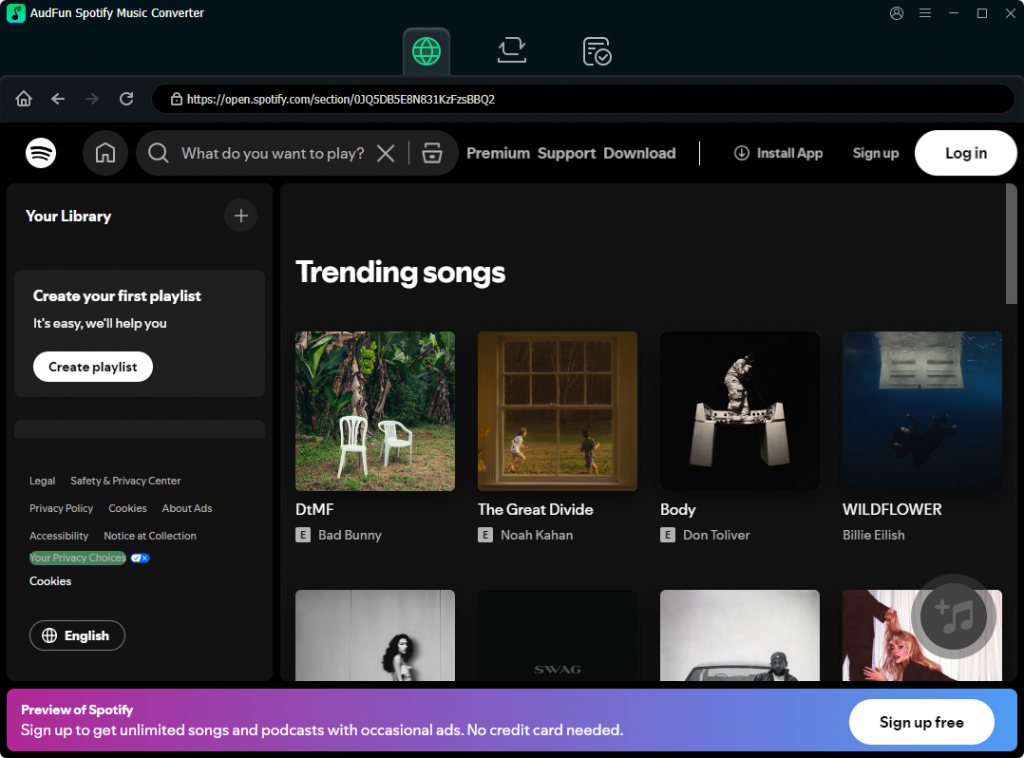
Step 2. Import Your Merged Playlist
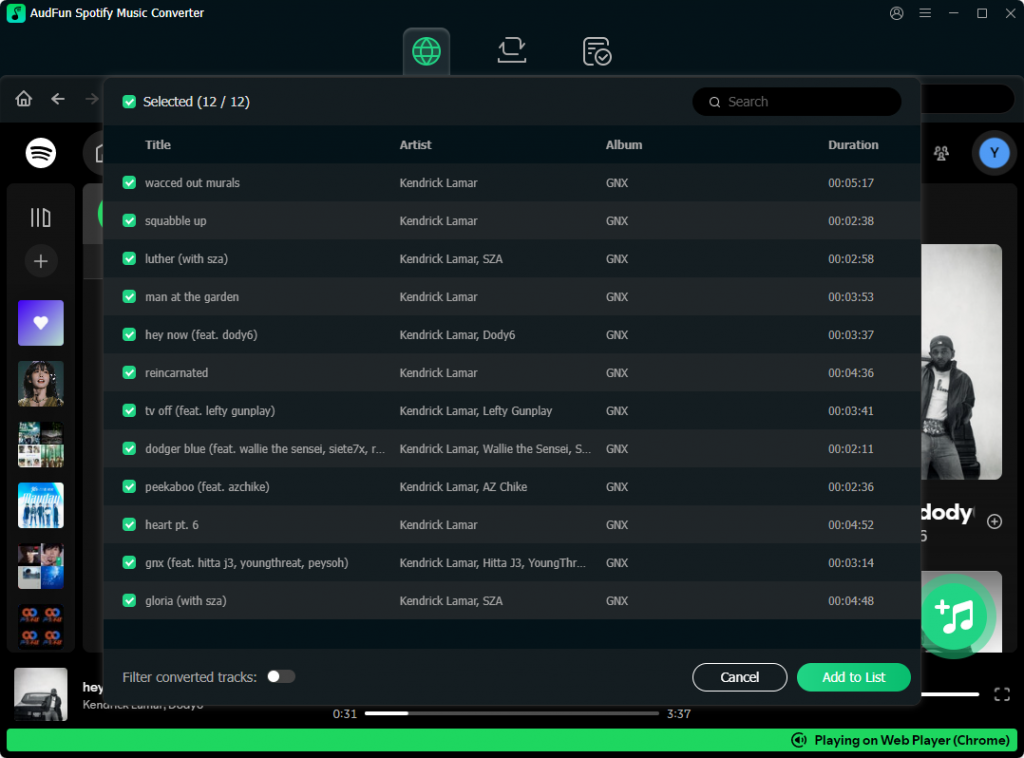
Open AudFun (the Spotify app will launch automatically). Find your newly merged playlist in Spotify. You can either drag and drop the playlist directly into the AudFun interface, or copy the playlist link and paste it into AudFun’s search bar, then click the “+” button.
Step 3. Choose Output Format
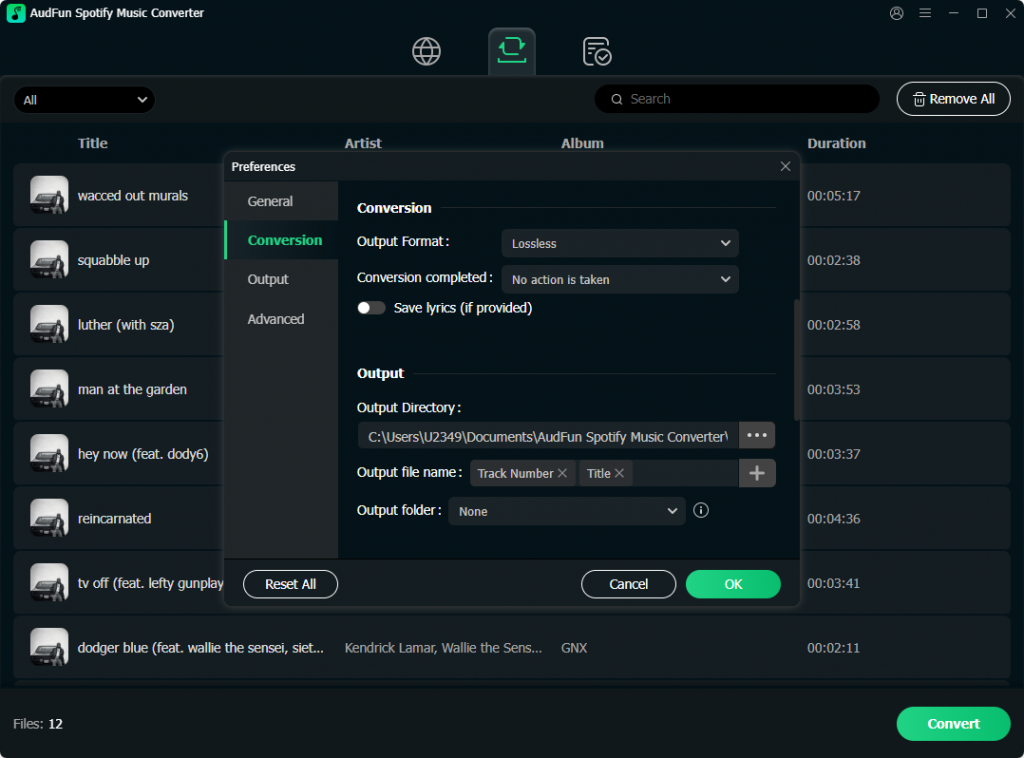
Click the menu icon in the top right corner of AudFun, go to “Preferences,” and select “Conversion.” Here, you can set the output format to MP3 (or your preferred format) and adjust the bit rate for better audio quality.
Step 4. Start Downloading
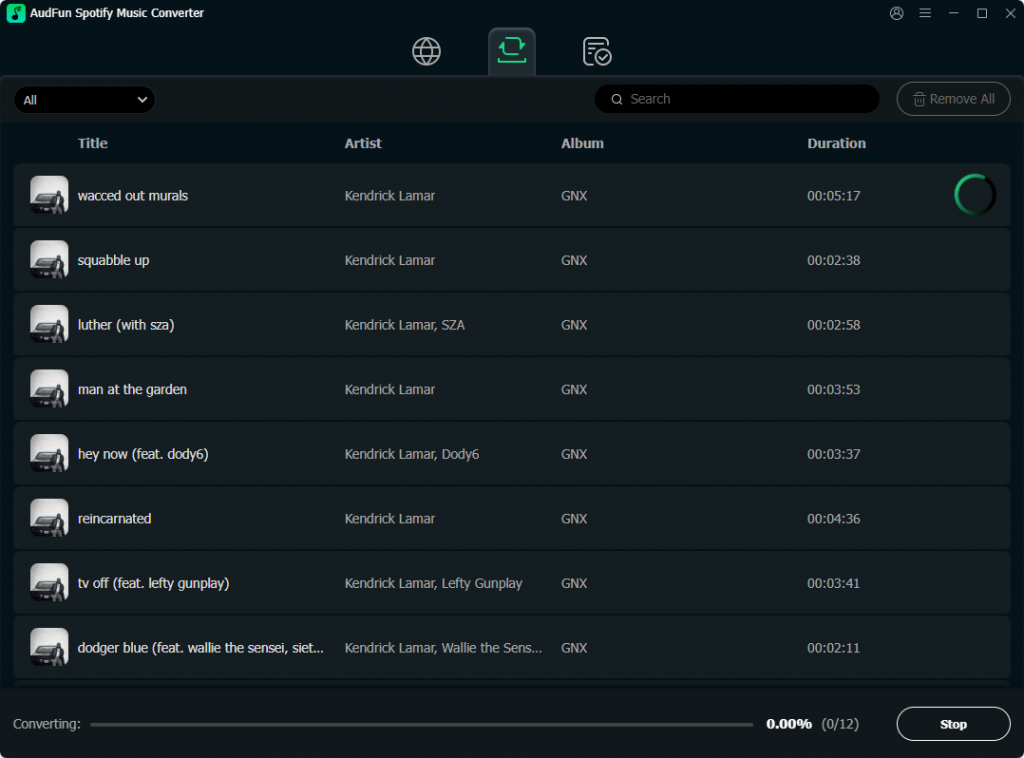
Click the “Convert” button at the bottom right. AudFun will begin downloading your entire merged playlist to your computer’s local drive.
Once finished, you will have a permanent, offline backup of your mega-playlist that you can listen to anywhere, completely independent of the Spotify app!
FAQs About How to Merge Spotify Playlist
Can I merge playlists created by other Spotify users?
Yes! If you find a great public playlist created by someone else, simply “Like” it or save it to your library. Once it is in your library, you can use the desktop Ctrl + A / Cmd + A method to copy all their songs and paste them into your own personal playlist.
Can I undo a playlist merge on Spotify?
If you accidentally merge the wrong playlists using the desktop app, you can immediately press Ctrl + Z (Windows) or Cmd + Z (Mac) to undo the action. However, if you close the app or use a mobile/web tool, there is no native “undo” button. You will have to manually delete the unwanted songs.
Is there a limit to how many songs I can have in a merged Spotify playlist?
Yes, but it is massive. A single Spotify playlist can hold up to 10,000 songs. If your merged playlists exceed this limit, you will need to split them into multiple parts.
Will merging playlists delete the original ones?
No. Copying songs from Playlist A to Playlist B does not delete Playlist A. If you want to get rid of the original playlists after merging them to save space, you will need to manually right-click them and select “Delete.”
Can I merge a Spotify playlist with an Apple Music playlist?
Not natively within Spotify. To merge playlists across different streaming platforms, you will need to use a third-party synchronization tool like TuneMyMusic or Soundiiz. These tools allow you to transfer an Apple Music playlist into your Spotify account, where you can then merge it with your existing Spotify playlists.
Conclusion
While it is slightly disappointing that there is no native “merge” button, learning how to merge playlists on Spotify is incredibly straightforward once you know the desktop shortcut trick. By using the bulk-select method on a computer, you can combine thousands of songs in mere seconds.
For mobile users, leveraging safe third-party tools bridges the gap perfectly. And if you want to take your newly curated mega-playlist on the go without relying on an internet connection or a Premium subscription, tools like AudFun Spotify Music Converter provide a seamless way to download your tracks locally. Take a few minutes today to consolidate your music library and create the ultimate soundtrack for your next listening session!
