
Key Takeaways
- Universal Compatibility: Audifab successfully transforms restricted streaming tracks into universal local formats like MP3, FLAC, WAV, AAC, ALAC, and AIFF.
- Pristine Audio Quality: It guarantees the preservation of 320kbps lossless quality, ensuring your offline playlists sound exactly as the artist intended.
- Flawless Metadata: The software automatically identifies and preserves essential ID3 tags (cover art, artist, album, track number), keeping your local library perfectly organized.
- Speed & Efficiency: Featuring a robust batch conversion engine, it processes large playlists at up to 10x speed without taxing your computer’s CPU.
If you are a true music lover, you already know the frustration. You curate the perfect playlist, only to realize you are essentially just renting the music. The moment you want to transfer those tracks to an MP3 player for a run, load them onto a USB stick for your car stereo, or simply back up your library for offline listening without a premium subscription, you hit a brick wall of ecosystem restrictions and playback limitations.
That is exactly why audio format converters have become essential tools for modern listeners. Today, we are taking a deep dive into one of the most talked-about tools in this space: the Audifab Spotify Music Converter.
Is it just another generic audio recorder, or does it actually deliver the high-fidelity, locally stored music library you are looking for? Let’s break down the technology, the user experience, and the real-world performance.
- Part 1. What is Audifab Spotify Music Converter?
- Part 2. Standout Features: Why Tech Geeks Care
- Part 3. How to Use Audifab (Step-by-Step Guide)
- Part 4. Pros and Cons of Audifab Spotify Music Converter
- Part 5. Pricing: Is It Worth the Investment?
- Part 6. The Best Alternative: AudFun Spotify Music Converter
- Part 7. FAQs About Audifab Spotify Music Converter
Part 1. What is Audifab Spotify Music Converter?
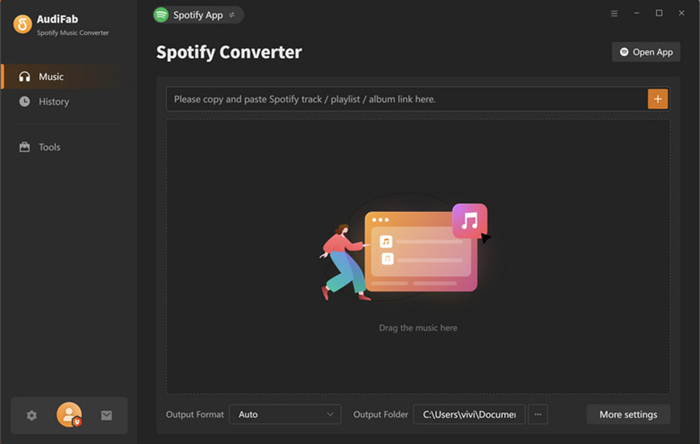
At its core, Audifab Spotify Music Converter is a specialized desktop application (available for both Windows and macOS) designed to extract audio streams from Spotify and convert them into plain, unrestricted audio files.
Unlike basic screen-recording software that captures system audio—often resulting in terrible sound quality and annoying background noises—Audifab uses advanced audio processing technology to parse the raw stream. This means it bypasses playback limitations seamlessly, allowing you to download tracks, albums, playlists, and even podcasts as local files.
Part 2. Standout Features: Why Tech Geeks Care
When evaluating an audio converter, the real test lies under the hood. Here is how Audifab performs across the metrics that actually matter to audiophiles and daily listeners.
1. Uncompromised Lossless Quality (Up to 320kbps)
One of the biggest concerns with converting streaming audio is the potential for compression artifacts. Audifab shines here by supporting up to 320kbps bitrates and a 44.1kHz to 192kHz sample rate. If you choose FLAC, ALAC, or WAV as your output format, the software maintains a near-lossless quality pipeline. Your cymbals will still sound crisp, and the bass will remain punchy.
2. Smart ID3 Tag & Metadata Retention
There is nothing worse than downloading a massive library of 500 songs only to find they are named “Track_01.mp3” with no album art. Audifab employs a smart metadata matching system. During the conversion process, it flawlessly preserves all ID3 tags, including the Title, Artist, Album, Artwork, Track Number, and Disc Number. It even allows you to customize how the output files are named and sorted (e.g., by Artist/Album folders) right out of the gate.
3. Blazing Fast Batch Conversion
Time is money. Thanks to hardware acceleration and multi-thread processing, Audifab can achieve up to 10x conversion speeds on a stable internet connection. You can drag and drop a massive “Liked Songs” playlist containing hundreds of tracks, click convert, and grab a coffee. By the time you return, your batch conversion will likely be finished.
4. Built-in Toolkits
Beyond just converting, Audifab includes a handy suite of extra tools. It features a built-in CD burner, an ID3 tag editor for manual tweaks, and an audio format converter for local files. It is a nice touch that turns a single-purpose tool into a mini audio workstation.
Part 3. How to Use Audifab (Step-by-Step Guide)
To give you an idea of the workflow, here is how you use the software to build your local library. The user interface is remarkably clean and intuitive.
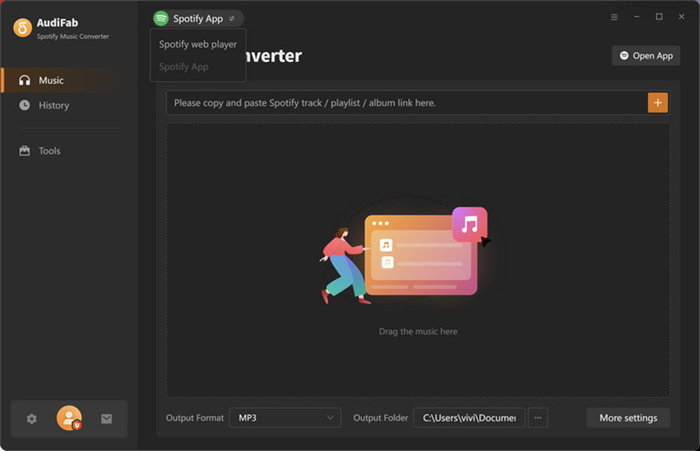
Step 1: Choose Your Conversion Mode
When you launch Audifab, you are prompted to choose between downloading via the “Spotify App” or the “Spotify Web Player.”
- Pro Tip: Choose the App mode if you want the absolute highest 320kbps quality. Choose the Web Player mode if you want 10x speed on a Mac, as it doesn’t require the standalone app to be open.
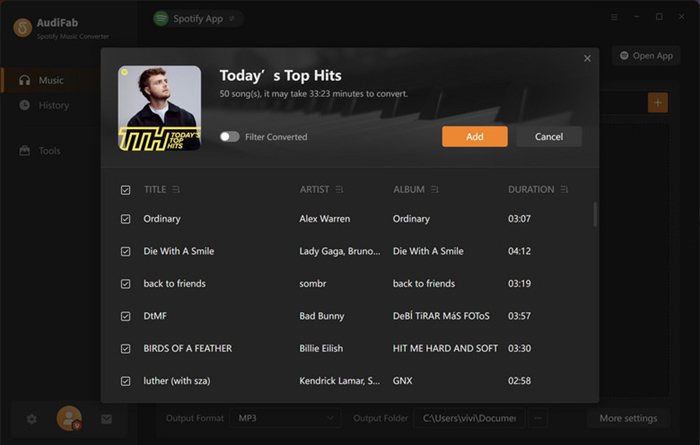
Step 2: Add Your Music
If using the App mode, simply drag and drop a playlist URL or a specific song directly from the streaming app into Audifab’s main window. The software instantly parses the link and displays a list of the tracks. You can check or uncheck specific songs you want to process.
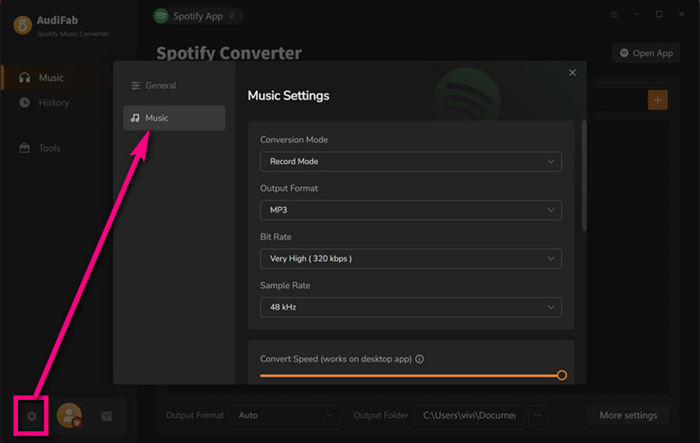
Step 3: Configure Output Settings
Click the “Settings” gear icon in the bottom left corner. Here, you define your output parameters.
- Output Format: MP3, AAC, FLAC, WAV, AIFF, ALAC.
- Bit Rate: 128kbps, 192kbps, 256kbps, 320kbps.
- Output Folder: Choose where your local files will be saved.
- Output File Name: Customize the naming convention (e.g., {Track Number} – {Title}).
Step 4: Start the Conversion
Hit the central “Convert” button. The software will begin processing the tracks one by one at high speed. Once finished, you can find all your perfectly tagged, unrestricted audio files in your designated output folder.
Part 4. Pros and Cons of Audifab Spotify Music Converter
To provide a balanced Audifab Spotify Music Converter review, we must look at both sides of the coin. No software is perfect.
The Pros:
- Extremely High Success Rate: It rarely fails to parse a link or drops a conversion mid-way, which is a common issue with free, web-based converters.
- No Premium Account Required: It successfully extracts audio even if you are using a free tier account, intelligently filtering out the audio advertisements in the process.
- Excellent Organization: The automatic folder structuring based on artist and album is a massive time-saver for large libraries.
- Lyrics Support: It can extract and save lyrics as standard .lrc files or text files.
The Cons:
- Paid Software: While there is a free trial, it restricts conversion to the first 1 minute of each track. You must buy a license to unlock full functionality.
- Real-Time App Dependency: If you use the App conversion mode, Audifab effectively takes control of your desktop streaming app during the process. You cannot use the streaming app to listen to other music while a batch conversion is running.
Part 5. Pricing: Is It Worth the Investment?
Audifab operates on a subscription and perpetual license model.
- Monthly Plan: Typically around $14.95/month. (Good for a one-off massive library download).
- Yearly Plan: Around $59.95/year.
- Lifetime Plan: Around $129.90 (One-time payment).
The Verdict on Value: If you are someone who frequently curates playlists for DJing, wants high-quality tracks for a dedicated Hi-Res audio player (like a FiiO or Astell&Kern), or commutes in areas with zero cell reception, the Lifetime license pays for itself very quickly compared to maintaining a premium streaming subscription purely for offline access.
Part 6. The Best Alternative: AudFun Spotify Music Converter
While Audifab is undoubtedly a powerhouse, any savvy tech enthusiast knows the value of exploring options before committing to a software ecosystem. If you are looking for a slightly different user interface or want to compare performance benchmarks on your specific machine, AudFun Spotify Music Converter stands out as the ultimate alternative.
AudFun shares the same core mission—liberating your streaming library into local, universal audio files—but it brings its own refined processing engine to the table. It is widely praised in the audio lover community for its exceptional software stability and minimalist, distraction-free interface.
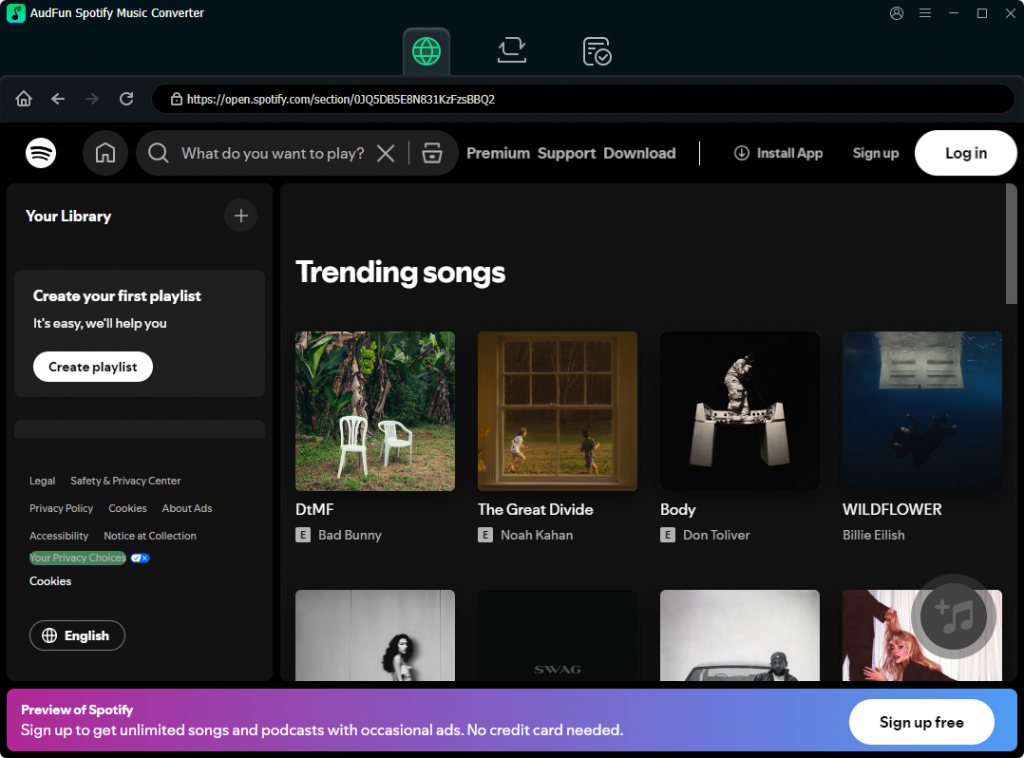
Here is why AudFun deserves a spot on your radar:
- 100% Lossless Output: Just like Audifab, AudFun does not compromise on sound. It captures the raw audio stream and converts it into MP3, FLAC, WAV, AAC, M4A, and M4B formats, preserving the golden standard of 320kbps MP3 bitrates and high sample rates.
- Precision Metadata Recognition: Managing a local library is a nightmare without proper tagging. AudFun excels at automatically grabbing and embedding ID3 tags—including cover art, artist, album, year, and genre—ensuring your tracks look pristine when loaded onto a dedicated MP3 player or a Plex media server.
- Lightning-Fast 5X-10X Speed: Built with an advanced multi-thread conversion engine, AudFun handles massive batch conversions effortlessly. Whether you are backing up a 50-track workout playlist or an entire discography, it minimizes your waiting time without maxing out your computer’s RAM.
- Clean UI: If you prefer software that is straightforward and lacks cluttered toolbars, AudFun’s interface is a breath of fresh air. The “drag, drop, and convert” workflow is incredibly intuitive.
Audifab vs. AudFun: Which should you choose?
Functionally, both tools are neck-and-neck regarding audio fidelity and format support. The choice largely comes down to personal preference regarding the user interface and minor pricing variations during promotional periods. We highly recommend downloading the free trials for both Audifab and AudFun. Test them by converting a few tracks on your own Mac or Windows PC to see which software’s workflow feels more natural to your personal audio-curation routine.
Part 7. FAQs About Audifab Spotify Music Converter
1. Does Audifab Spotify Music Converter require a Premium account to work?
No, it does not. Audifab works perfectly fine with a free account. It is designed to capture the audio stream directly and automatically bypasses the audio ads that usually interrupt free-tier listeners, leaving you with a clean, uninterrupted music file.
2. Can I keep the converted songs forever?
Absolutely. Once the tracks are converted and saved to your computer’s hard drive, they are standard local audio files (like MP3s or FLACs). They will not disappear, expire, or become unplayable, even if you cancel your streaming subscription or uninstall the Audifab software.
3. Will I lose my audio quality when converting to MP3?
If you choose MP3 as your output format and set the bit rate to 320kbps, the audio quality will be virtually indistinguishable from the original high-quality stream. For absolute zero quality loss, you should select FLAC, WAV, or ALAC in the settings menu before converting.
Conclusion
Navigating playback limitations and restricted ecosystems can be a headache for anyone who actually wants to own and control their listening experience. In the crowded market of audio extractors, the Audifab Spotify Music Converter stands out as a highly polished, reliable, and technically proficient tool.
It hits all the right notes for tech-savvy users: 320kbps output, lossless format support, perfect metadata retention, and rapid batch conversion. While the lack of a fully free version might deter casual users, the performance and time saved make it an essential piece of software for serious music collectors, DJs, and audiophiles looking to liberate their playlists. If you want a seamless bridge between modern streaming and traditional, unrestricted local playback, Audifab is highly recommended.
