
Quick Answer / Key Takeaways:
- TuneCable Spotify Downloader is a popular tool packed with solid features like multi-format conversion and ID3 tag retention, but users often report a clunky interface, occasional crashes during batch conversion, and inconsistent processing speeds.
- If you are looking for top-tier stability and speed, AudFun Spotify Music Converter is widely considered the best alternative on the market.
- AudFun outshines competitors by offering lightning-fast 5X conversion speeds, true 100% lossless audio quality (up to 320kbps), and flawless preservation of all metadata.
- Both tools allow you to bypass proprietary format locks so you can enjoy your playlists offline on MP3 players, smartwatches, or car audio systems without needing a Premium subscription.
If you are an avid music listener, you already know the frustration. You spend hours curating the perfect playlist, only to realize that you don’t actually own any of that music. Because Spotify uses a proprietary OGG Vorbis format, your downloaded tracks are locked strictly inside their app. You can’t transfer them to your MP3 player, burn them to a USB drive for your car audio system, or play them on a dedicated DJ setup.
Enter the world of third-party audio converters. If you’ve been Googling for solutions, you have likely stumbled upon the TuneCable Spotify Downloader. But is it the reliable, geek-approved tool you actually need? Let’s pop the hood and take a closer look.
In this comprehensive review, we will dive deep into TuneCable’s core features, how it works, where it falls short, and why you might want to look at a significantly smoother alternative: AudFun Spotify Music Converter.

What is TuneCable Spotify Downloader?
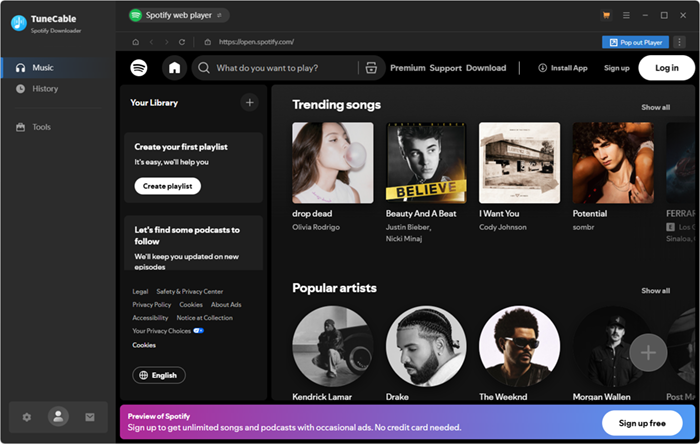
At its core, TuneCable Spotify Downloader is a desktop application designed to record and convert streaming music into common, unrestricted audio formats. Its primary goal is to help you break free from streaming protections, allowing you to build a local, offline music library.
Core Features of TuneCable
Before we judge its performance, let’s look at what TuneCable brings to the table on paper:
- Dual Conversion Modes: TuneCable offers two ways to capture audio. You can either record directly from the Spotify App or use their built-in Web Player capture mode.
- Multiple Output Formats: It supports exporting tracks to MP3, AAC, WAV, FLAC, AIFF, and ALAC. Whether you need a compressed file for your smartwatch or a high-res FLAC file for your home theater, the options are there.
- ID3 Tag Preservation: For anyone obsessed with an organized library, TuneCable retains basic metadata. It captures the title, artist, album, artwork, and track number, ensuring your local folder doesn’t look like a mess of random text strings.
- Customizable Audio Quality: Users can dive into the settings and tweak the output quality, pushing the bit rate up to 320kbps to mimic the highest tier of streaming audio.
How to Use TuneCable (Step-by-Step)
If you decide to give TuneCable a spin, the workflow is relatively standard for this type of software. Here is how you use it:
Step 1. Choose Your Recording Mode
When you launch TuneCable, you are greeted with a prompt to choose between the “App Mode” (requires the official app installed on your computer) or the “Web Player Mode” (which requires you to log into your account directly within TuneCable’s browser).
Step 2. Add Your Playlists
If using the App Mode, you can drag and drop a playlist directly from the streaming app into the TuneCable interface. Alternatively, you can copy the URL of the track or album and paste it into the parsing box.
Step 3. Configure Output Settings
Click the Gear icon (Settings) in the top right or bottom left corner. Here, you can select your preferred output format (e.g., MP3), adjust the bit rate (choose 320kbps for the best audio fidelity), and dictate how the output files should be named and organized in your folders.
Step 4. Start the Conversion
Once your tracks are loaded and settings are confirmed, click the “Convert” button. The software will begin downloading and converting the audio stream into your chosen local folder.
The Cons: Where TuneCable Struggles (The Geek’s Perspective)
As someone who has tested dozens of audio conversion tools over the last decade, I have strict criteria for what makes software “great.” While TuneCable has a robust feature set, real-world testing reveals a few noticeable pain points:
- Inconsistent Speeds and CPU Usage: While it advertises theoretical fast speeds (sometimes claiming 10X), real-world batch conversion often taxes your CPU heavily. This can slow down your entire computer and make the process take much longer than anticipated.
- Stability Issues in Batch Conversion: Users occasionally report that the software freezes, skips tracks, or fails to parse URLs when attempting heavy batch conversion (e.g., playlists with 500+ songs).
- Outdated User Interface: The UI feels a bit antiquated and cluttered. In 2024, software should feel intuitive and seamless, not like a remnant from older operating systems.
Why You Might Need a TuneCable Alternative
If you are just converting a handful of songs, TuneCable might suffice. But if you are a serious music lover looking to back up your massive custom playlists, you need something that won’t crash halfway through the job. You need a tool that handles batch conversion effortlessly, maintains strict lossless quality, and doesn’t hog your system resources.
This brings us to the elephant in the room—and the tool that currently sits on my desktop.
Meet the Best Alternative: AudFun Spotify Music Converter
When users ask me for a bulletproof recommendation to bypass streaming format restrictions, I consistently point them toward the AudFun Spotify Music Converter. Think of it as the sleeker, highly optimized sports car of the audio conversion world.
AudFun is engineered specifically to tackle the exact pain points that plague older software. It intercepts the audio stream efficiently, ensuring you get pristine sound files with zero hassle.
Why AudFun Stands Out (Key Features)
Here is exactly why AudFun edges out TuneCable and the rest of the competition:
- Blazing 5X Conversion Speed (Stable): Time is money. AudFun utilizes advanced encoding technology that allows it to run at a stable 5X speed on Windows (and impressively fast on Mac, too) without crashing your PC. A massive playlist takes minutes, not hours.
- 100% Lossless Quality (True 320kbps): If you care about audio fidelity, you’ll love this. AudFun allows you to customize the output bit rate up to 320kbps and the sample rate up to 48,000Hz. The resulting MP3 or FLAC file sounds completely identical to the original high-quality stream.
- Flawless ID3 Tags and Metadata Management: Nothing is worse than downloading a track and missing the album art. AudFun smartly captures and preserves 100% of the metadata, including album art, genre, year, and track numbers, with much higher accuracy than many competitors.
- Rock-Solid Stability: Whether you are converting a 10-track EP or an 800-track mega-playlist, AudFun handles batch conversion smoothly without freezing your operating system.
- No Premium Account Needed: It works perfectly well with free accounts, automatically filtering out those annoying mid-roll advertisements during the conversion process.
How to Download Tracks Using AudFun (Step-by-Step)
One of the best things about AudFun is its minimal learning curve. Here is a quick guide on how to get your music offline.
Step 1: Add Your Music to AudFun
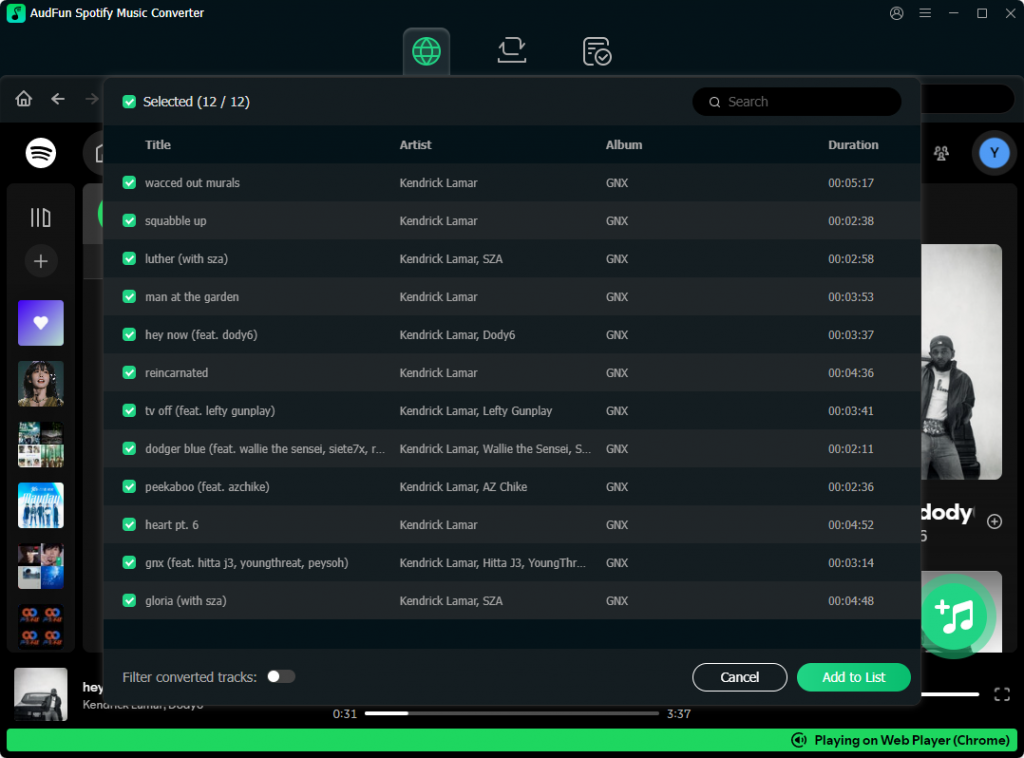
Launch the AudFun Spotify Music Converter. The official streaming app will open automatically in the background. Simply find the song, album, or playlist you want, drag the item, and drop it directly into the AudFun interface.
Step 2: Customize Your Output Settings
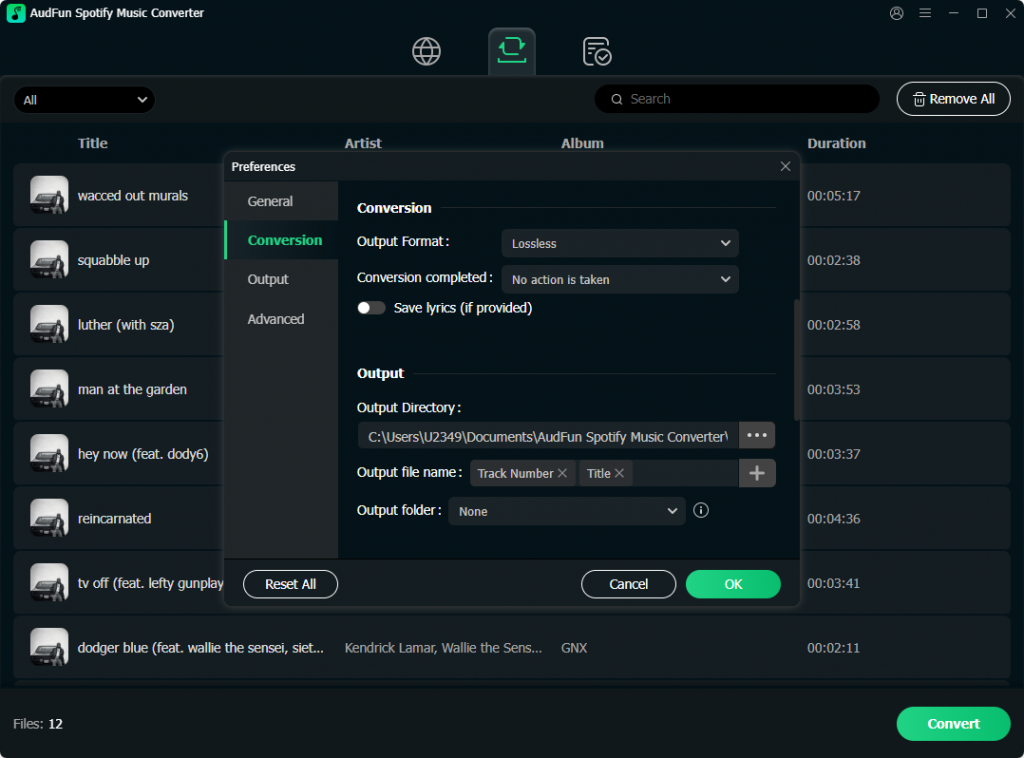
Click the menu icon (usually three lines in the top right corner) and select “Preferences.” Navigate to the “Convert” tab. Here, you can flex your geek muscles: choose your desired format (MP3, FLAC, WAV, AAC, M4A, or M4B), set the bit rate to 320kbps for maximum quality, and choose your sample rate. Click “OK” to save.
Step 3: Start the Batch Conversion
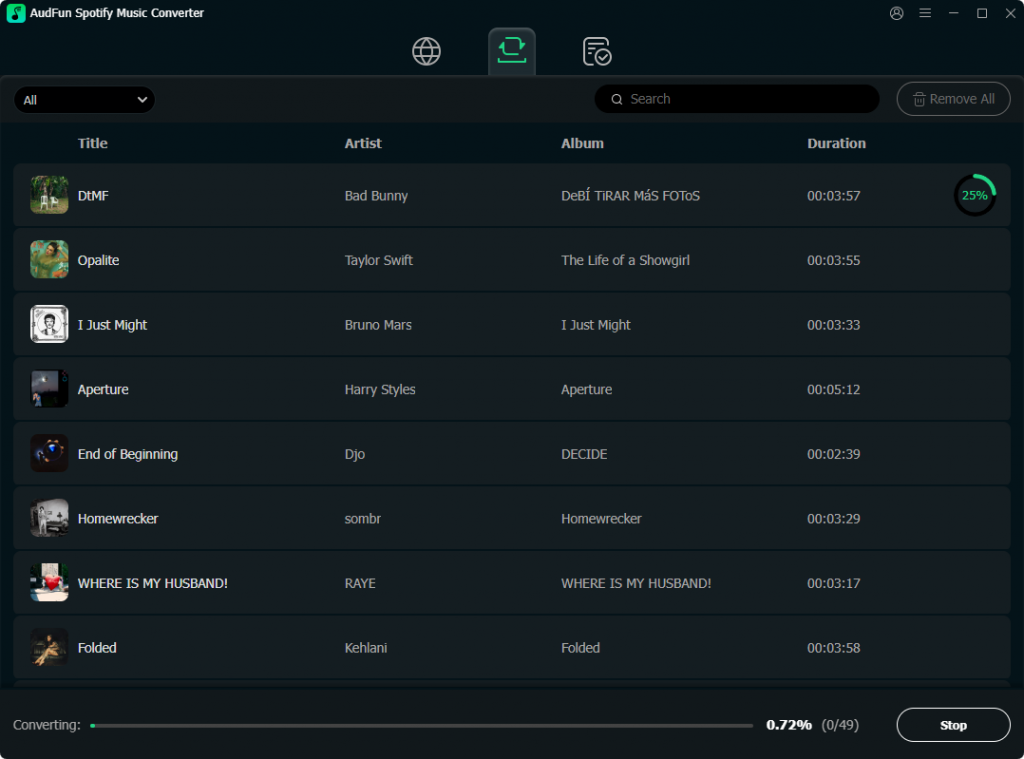
Once your settings are dialed in and your tracks are loaded, simply hit the big “Convert” button at the bottom right. AudFun will kick into high gear, processing your tracks steadily. Once finished, you can find your pristine, unrestricted local files in the history folder, ready to be transferred anywhere.
TuneCable vs. AudFun: The Final Verdict
Let’s be objective. TuneCable is not a bad piece of software; it gets the basic job done and offers great format flexibility. However, in the fast-paced world of digital audio, “basic” often isn’t enough.
AudFun Spotify Music Converter simply offers a more refined, professional experience. It wins heavily on UI design, resource management, and batch-processing stability. If you want to ensure your offline music library is built quickly, retains perfect 320kbps audio quality, and keeps your album art and metadata perfectly organized without random software crashes, AudFun is hands-down the smarter investment.
Frequently Asked Questions (FAQ)
1. Is it legal to use music conversion tools?
Yes, but with a strict caveat. Using tools like AudFun or TuneCable is completely legal for personal, non-commercial use. It falls under the concept of format-shifting for personal convenience. You cannot, however, upload the converted files to YouTube, sell them, or distribute them publicly.
2. Do I need a Premium subscription to use AudFun or TuneCable?
No, you do not. Both tools work with free accounts. AudFun, in particular, intelligently captures the audio stream and automatically skips over the advertisements, leaving you with clean, ad-free downloaded tracks.
3. Will my downloaded music disappear if I cancel my streaming subscription?
Absolutely not. Because these converters transform the proprietary streaming files into standard, universal formats like MP3 or FLAC, those files are permanently saved to your computer’s local hard drive. They are yours to keep forever, regardless of your relationship with the streaming platform.
