
Quick Answer: How to Fix Spotify Web Player Not Working
If your Spotify Web Player is experiencing loading errors, playback issues, or a blank screen, try these quick troubleshooting steps:
- Enable Protected Content: Go to your browser settings and allow sites to play protected media.
- Clear Browser Cache: Delete cached data and cookies to remove corrupted files causing loading loops.
- Disable Ad-Blockers: Whitelist the Spotify URL, as ad-block extensions often block media scripts.
- Use an Offline Alternative: If browser issues persist, use a reliable tool to convert Spotify to MP3 for uninterrupted, offline playback on any device.
Spotify’s Web Player is an incredibly convenient way to stream your favorite music directly from a browser without installing the desktop app. However, users frequently encounter frustrating issues like the Spotify Web Player not loading, skipping songs, or displaying a black screen.
These playback obstacles usually stem from browser configurations, cache build-ups, or network restrictions. Fortunately, there are several proven methods to sort out these problems. In this guide, we will walk you through the most effective troubleshooting steps, as well as introduce the ultimate workaround for seamless offline listening.
- Part 1. Enable Spotify Web Player on Web Browser
- Part 2. Spotify Web Player Not Working – Best Ways to Fix
- Part 3. Avoid Meeting Spotify Web Player Not Playing Songs Again
- Part 4. FAQs About Spotify Web Player Issues
Part 1. How to Enable Spotify Web Player on Web Browser
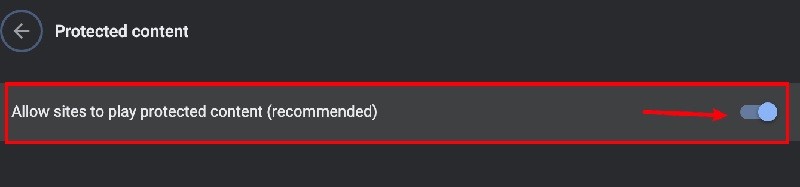
Sometimes, the Spotify Web Player fails to work simply because your browser is restricting media playback. To allow Spotify songs to play without restrictions, you must modify your browser settings to permit “Protected Content.”
Step-by-step guide for Google Chrome:
- Open your browser and navigate to Settings > Privacy and security > Site Settings.
- Scroll down and click on Additional content settings.
- Select the Protected content IDs option.
- Ensure the toggle for “Sites can play protected content” is enabled.
Turning this feature on ensures the Spotify Web Player has the necessary permissions to decode and stream audio tracks flawlessly.
Part 2. Spotify Web Player Not Working – Best Ways to Fix
Why is the Spotify Web app still not working? If you have enabled media permissions but are still facing playback errors, try the following reliable solutions:
- Clear Browsing Data: A bloated or corrupted cache often interrupts the loading of Spotify songs. Go to your browser’s History > Clear browsing data. Select “Cached images and files” and hit delete. This frees up space and forces the web player to load fresh data.
- Open in Incognito Mode: Using a private window is a quick way to bypass conflicting browser extensions. Click the three dots at the top right of your browser and choose “New incognito window”. Sign in to your Spotify account here to test if the player works.
- Disable Ad-Blockers: Spotify relies on specific scripts to load music, which are often falsely flagged by ad-blocking extensions. Try temporarily disabling your ad-blocker or whitelisting “open.spotify.com” to permit the site to function properly.
- Flush DNS Cache: If the site refuses to load entirely, your system’s DNS might be outdated. Open Command Prompt on Windows and type
ipconfig /flushdnsto reset your network connections.
These are the common Spotify Web Player not working issues and you had identified the related fixing methods.
Part 3. Avoid Meeting Spotify Web Player Not Playing Songs Again
If you are tired of dealing with web player crashes, buffering, or the low 128kbps audio quality limit on the free web player, there is a much better alternative. You can bypass the browser entirely by downloading your favorite tracks for local playback.
To do this, we highly recommend the best Spotify converter on the market: the AudFun Spotify Music Converter. This powerful desktop app is designed to help you convert Spotify to MP3, FLAC, WAV, and other standard formats. Once downloaded, you can transfer your music to any media player, MP3 player, or USB drive without any playback restrictions.

AudFun Spotify Music Converter
- This program converts and downloads the Spotify playlist precisely
- The conversion takes place at a faster rate and occurs without any data loss
- Retains the ID3 tags for future use
- You can listen to the Spotify songs in an offline mode and storing in the system local drive
- Manages the downloaded Spotify songs optimally and helps the users for easy reach
These are the remarkable features of the AudFun Spotify Music Converter app and it provides a comfortable way to access the Spotify soundtracks efficiently.
Comparison: Web Player vs. AudFun Converter
| Features | Spotify Web Player | AudFun Converter |
|---|---|---|
| Internet Required | Yes (Continuous) | Only for downloading |
| Audio Quality | Up to 128kbps (Free) / 256kbps (Premium) | Up to 320kbps (Lossless) |
| Ad Interruptions | Yes (For free users) | No Ads |
The stepwise guidelines to play the Spotify playlists using the AudFun Spotify Music Converter program.
Step 1 Install the AudFun Spotify Music Converter
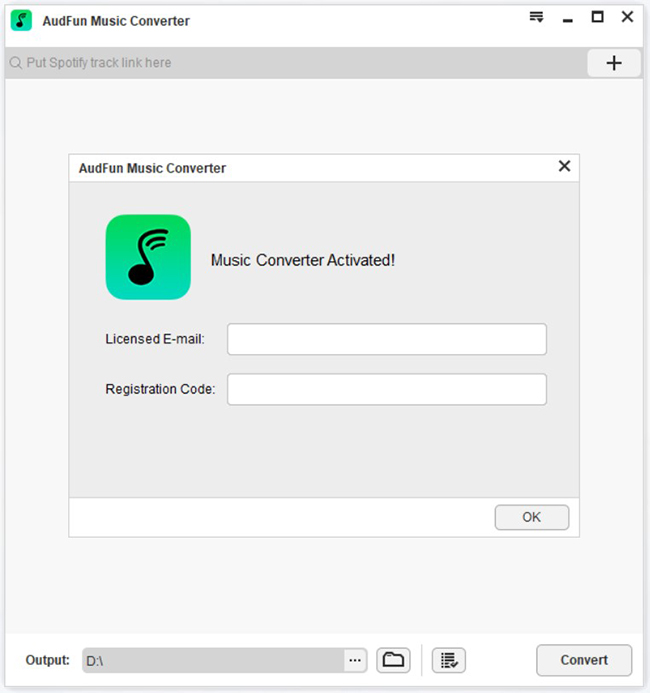
Download the AudFun Spotify Music Converter app from its official website based on your system OS version and install it. Then, launch the tool and register it using the credentials like Licensed email and registration code. Enter these details by tapping ‘Menu > Register’.
Step 2 Insert the Spotify playlists
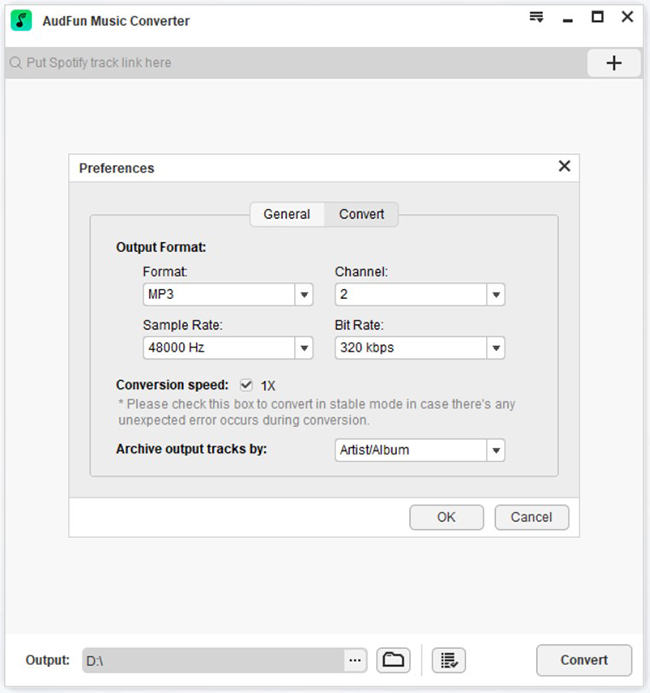
Next, sign in to your Spotify account and copy your favorite playlist link to paste them on the AudFun Spotify Music Converter environment. Paste the link nearby the ‘+’ sign and change the conversion parameters. You must tap the Preferences icon and modify the attributes like sample rate, bit rate, conversion speed, and output file format to convert Spotify to MP3, FLAC, WAV, or more. Click the ‘OK’ button to save the changes on the conversion parameters.
Step 3 Begin the conversion of Spotify songs
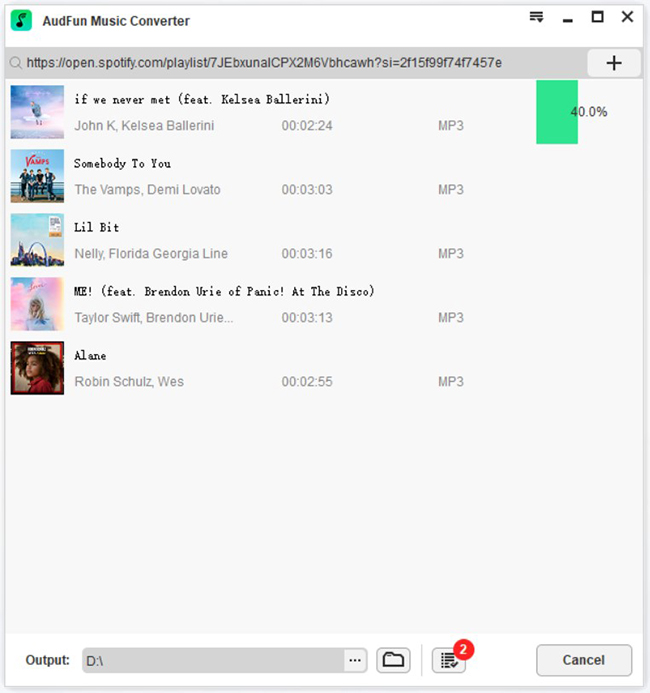
Hit the Convert button at the bottom right. The software will rapidly process your music and save the MP3 files directly to your computer’s local drive. Once finished, navigate to the ‘History’ tab to locate your tracks. You are now free to listen to your music on any offline device without worrying about web player crashes!
Part 4. FAQs About Spotify Web Player Issues
1. Is it possible to use Spotify Web Player on a mobile browser?
Yes, but it is not optimized. Spotify typically redirects mobile web users to download their official app. To force the web player on a smartphone, you must request the “Desktop Site” from your mobile browser’s settings.
2. Why does my Spotify Web Player show a blank black screen?
A blank screen is usually caused by outdated graphics drivers, a corrupted browser cache, or conflicting ad-blockers. Clearing your cache and disabling extensions are the quickest ways to resolve this.
3. How do I get 320kbps quality without the desktop app?
The Spotify Web Player caps audio quality at 256kbps (even for Premium users). To achieve true 320kbps high-quality audio offline, your best option is to use a dedicated desktop tool like AudFun Spotify Music Converter to extract and save the files locally.
Conclusion
Thus, this article had given you insightful ideas to fix Spotify Web Player not working issues. You can try using the above-discussed solutions to resolve this problem. Choose the AudFun Spotify Music Converter app and access the Spotify songs flawlessly. Use this app to play the soundtracks without any issues. Connect with this article to explore efficient ways to stream the Spotify music tracks precisely.
