
Encountering Spotify says no internet connection available message when your Wi-Fi or mobile data works perfectly for other apps is a frequent source of frustration. This common glitch affects both Premium and Free users, interrupting your listening experience even when your device actually has a stable signal.
In this guide, we explore the causes behind this error and provide nine proven solutions to get your music back. Additionally, we introduce a method to permanently bypass these connectivity issues by downloading your tracks for true offline playback, ensuring you can enjoy your playlist without interruption.
- Part 1. Why is My Spotify Saying No Internet Connection?
- Part 2. Solutions to Fix Spotify Says No Internet Connection
- Fix 1. Check Network Connection (iOS/Android)
- Fix 2. Check VPN Connection
- Fix 3. Force Stop Spotify App and Restart it
- Fix 4. Clear Spotify Cache
- Fix 5. Check Data Restriction
- Fix 6. Turn Off Spotify Offline Mode
- Fix 7. Update Spotify App
- Fix 8. Sign Out Everywhere to Log in Again
- Fix 9. Reboot Your Device
- Part 3. How to Listen to Spotify Music Offline via AudFun Spotify Music Converter🔥
- Part 4. FAQs About Spotify Says No Internet Connection Available
Part 1. Why is My Spotify Saying No Internet Connection?
Before jumping into the fixes, it helps to understand the root cause. When Spotify says no internet connection available, it usually points to a communication breakdown between the Spotify app on your device and Spotify’s servers.
Here are the most common culprits:
- Unstable Network: Even if your Wi-Fi icon is on, the bandwidth might be too low for streaming.
- Offline Mode: You may have accidentally triggered Spotify’s built-in “Offline Mode.”
- Corrupted Cache: Over time, Spotify stores temporary data (cache) to speed up loading. If this data gets corrupted, it causes connection errors.
- Background Data Restrictions: Your phone’s battery saver mode might be cutting off Spotify’s internet access when the screen is off.
- App Bugs: An outdated version of the Spotify app may have unresolved bugs.
Part 2. Solutions to Fix Spotify Says No Internet Connection
If you are stuck staring at the No internet connection error code, don’t panic. Work your way through these 9 troubleshooting steps, starting from the easiest fixes.
Fix 1. Check Network Connection (iOS/Android)
The most obvious reason is often the correct one. Spotify requires a stable connection to stream music. If you are on public Wi-Fi or a weak cellular signal, the app will fail to load.
For Android and iOS Users:
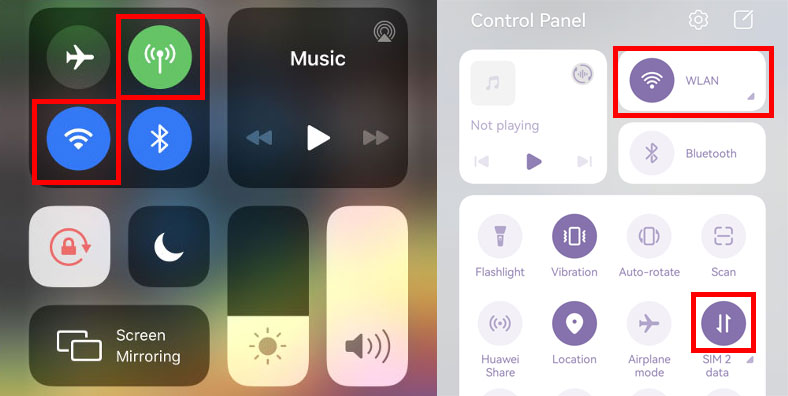
Step 1. Open a web browser and try to load a webpage (e.g., Google.com). If it doesn’t load, the issue is your phone, not Spotify.
Step 2. Toggle Airplane Mode on for 30 seconds and then turn it off to reset your radio modules.
Step 3. Switch from Wi-Fi to Mobile Data (or vice versa) to see if the error persists on a different network.
Fix 2. Check VPN Connection
Do you use a VPN (Virtual Private Network) to protect your privacy or access geo-blocked content? While useful, VPNs can sometimes conflict with Spotify. Spotify may flag the VPN IP address as suspicious or the VPN might be throttling your connection speed.
How to fix it:
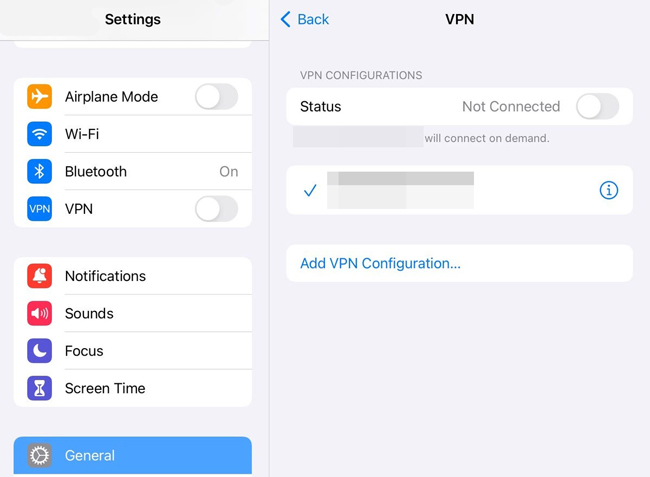
Step 1. Open your VPN application.
Step 2. Disconnect from the current server.
Step 3. If Spotify works, try connecting to a different VPN server or keep it off while streaming.
Fix 3. Force Stop Spotify App and Restart it
Sometimes the app simply hangs or enters a “zombie” state where it cannot refresh its background processes. A simple close isn’t enough; you need to force stop it.
On Android:
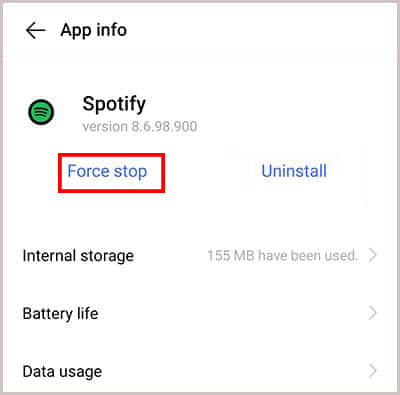
Step 1. Go to Settings > Apps > Spotify.
Step 2. Tap on Force Stop.
Step 3. Relaunch the app.
On iOS:
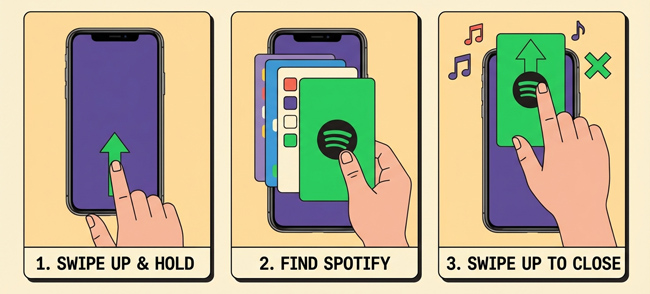
Step 1. Swipe up from the bottom of the screen (or double-press the Home button) to view recent apps.
Step 2. Swipe the Spotify card up to close it completely.
Step 3. Tap the Spotify icon on Home Screen to restart.
Fix 4. Clear Spotify Cache
This is often the magic bullet for the Spotify says no internet connection available error. Spotify downloads album art, snippets, and user data to your device. If this cache becomes overloaded or corrupted, the app thinks it can’t connect to the database.
Note: Clearing the cache will not delete your playlists or library, but it may remove downloaded songs depending on your OS version.
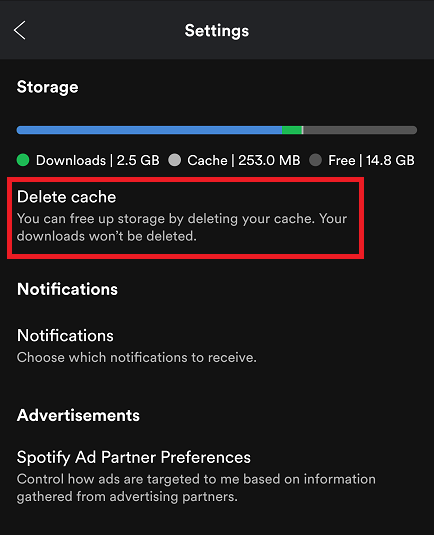
Step 1. Open the Spotify App.
Step 2. Tap on your Profile Picture or the Gear icon (Settings) at the top right.
Step 3. Scroll down to the Storage section.
Step 4. Tap Delete cache. Confirm the action when prompted.
Fix 5. Check Data Restriction
Smartphones are designed to save battery and data. Sometimes, your phone’s operating system aggressively restricts apps from using the internet in the background. If Spotify is restricted, it will lose connection the moment you lock your screen.
On Android:
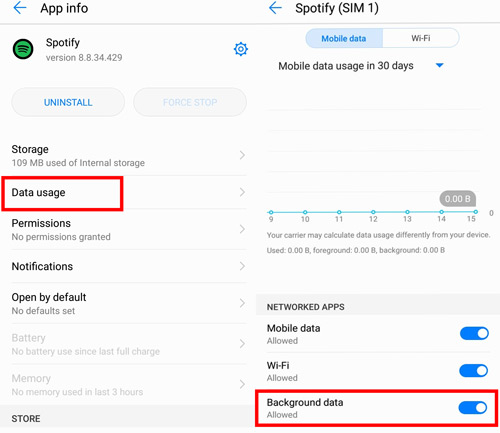
Step 1. Go to Settings > Apps > Spotify > Data usage.
Step 2. Ensure Background data is toggled ON.
Step 3. Ensure Unrestricted data usage is toggled ON (especially if you use Data Saver mode).
On iOS:
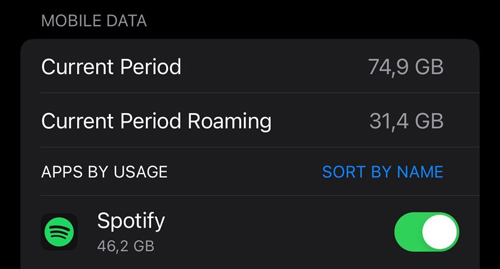
Step 1. Go to Settings > Spotify.
Step 2. Ensure Mobile Data is toggled ON.
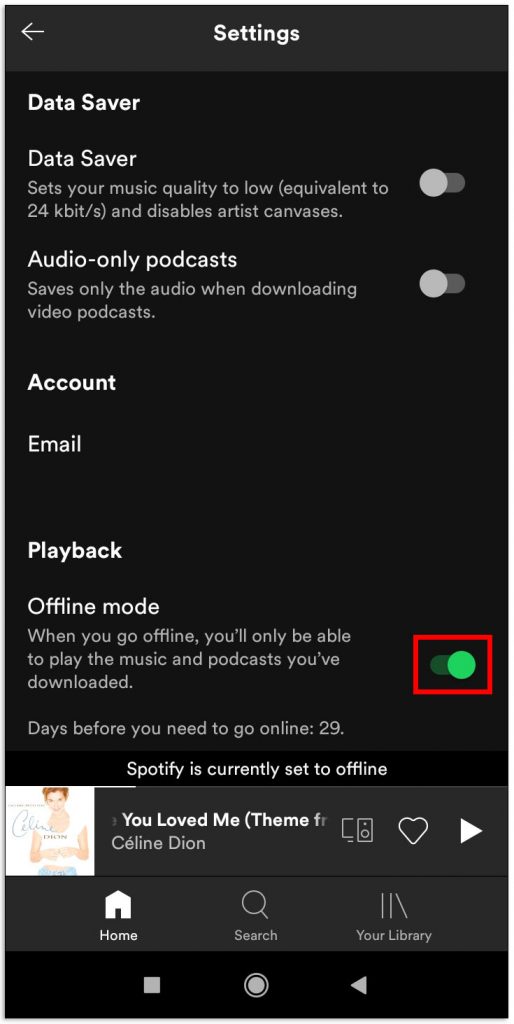
Fix 6. Turn Off Spotify Offline Mode
Spotify has a dedicated “Offline Mode” that prevents the app from using any internet. This is great for saving data, but if you forgot you turned it on, you won’t be able to stream anything new.
Step 1. Open Spotify and go to Settings.
Step 2. Look for Playback (iOS) or the switch under the main Settings menu (Android).
Step 3. Find Offline mode.
Step 4. If the toggle is green (active), switch it off. The app should immediately reconnect to the internet.
Fix 7. Update Spotify App
Spotify frequently releases updates to patch connectivity bugs and security vulnerabilities. If you are running a version from six months ago, it may no longer be compatible with the current server protocols.
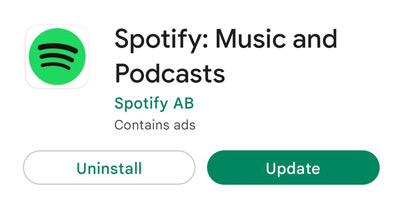
Step 1. Go to the Google Play Store or Apple App Store.
Step 2. Search for Spotify.
Step 3. If you see an Update button, tap it.
Step 4. Once updated, open the app and check if the “No internet connection” message is gone.
Fix 8. Sign Out Everywhere to Log in Again
Your account credentials or session token might have expired or become desynchronized. Signing out forces the server to issue a new session token.
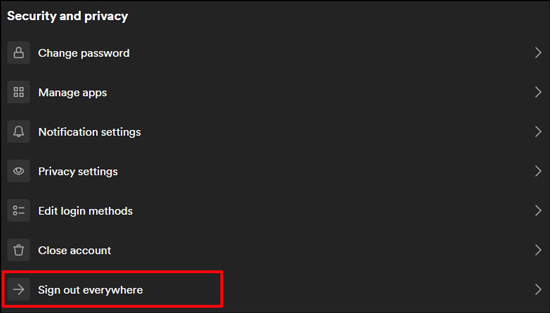
Step 1. Go to the Spotify Account Overview page on a web browser (you cannot do this “sign out everywhere” step from the app).
Step 2. Scroll down to the bottom of the page.
Step 3. Click on Sign out everywhere.
Step 4. Wait for 1 hour (as recommended by Spotify), then log back in on your phone.
Fix 9. Reboot Your Device
If all else fails, the classic “turn it off and on again” might be the solution. Rebooting clears system-wide RAM, resets network stacks, and kills lingering background processes that might be interfering with Spotify.
Part 3. How to Listen to Spotify Music Offline via AudFun Spotify Music Converter
If you have tried the fixes above and Spotify says no internet connection available keeps popping up, or if you are tired of relying on an unstable internet connection, there is a better solution.
The ultimate way to avoid connection errors is to take full control of your music files. This is where AudFun Spotify Music Converter comes in.
AudFun is a professional music converter designed to convert and download Spotify playlists, songs, and albums into plain audio formats like MP3, FLAC, WAV, and AAC. Unlike Spotify’s standard “Offline Mode” (which still requires the app and periodic check-ins), AudFun allows you to save the files locally on your device. This means you can play them with any music player, anywhere, with absolutely zero internet connection required.

AudFun Spotify Music Converter Key Features:
- Download Spotify music, podcasts, and playlists with free accounts.
- Batch convert entire playlists in minutes without quality loss.
- Convert Spotify audio and songs to MP3, WAV, FLAC, etc.
- Preserves ID3 tags inlcuding title, artist, album art, and track number.
How to use AudFun to Bypass Internet Issues:
Step 1: Add Spotify Songs to AudFun
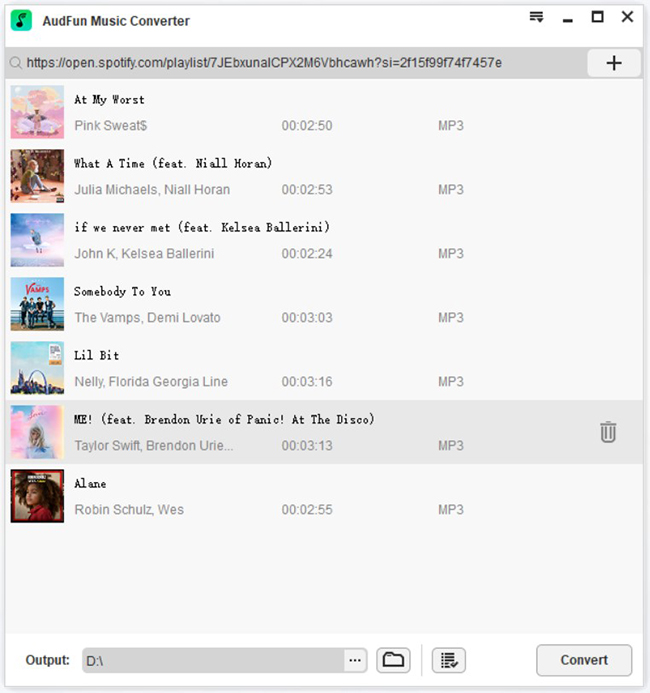
Download and install AudFun Spotify Music Converter on your computer. Upon launching, the Spotify app will open automatically. Drag and drop the tracks or playlists you want to listen to from Spotify into the AudFun interface. Alternatively, copy the URL of the playlist and paste it into the search bar in AudFun.
Step 2: Customize Output Audio Parameters
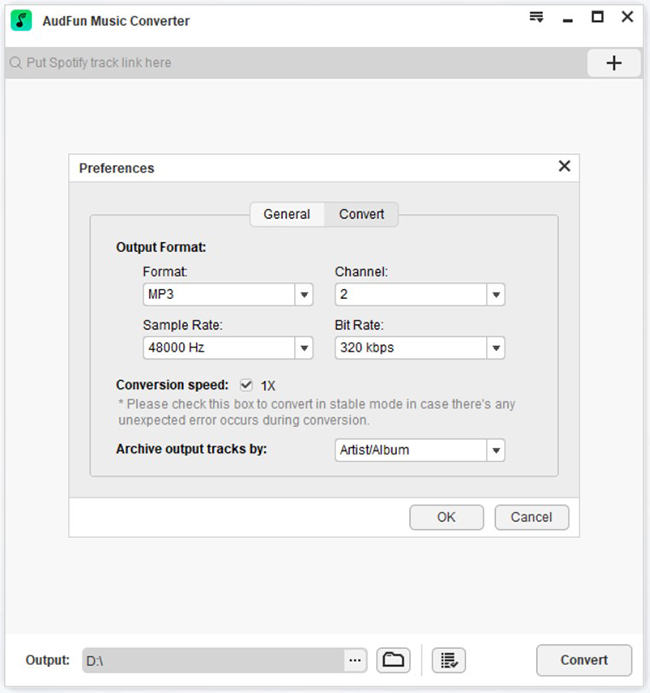
Click on the Menu icon > Preferences > Convert. Here, you can set the output format to MP3 (recommended for compatibility). You can also adjust the bit rate to 320kbps for the best quality, and change the sample rate. Click OK to save settings.
Step 3: Convert and Download Spotify Music
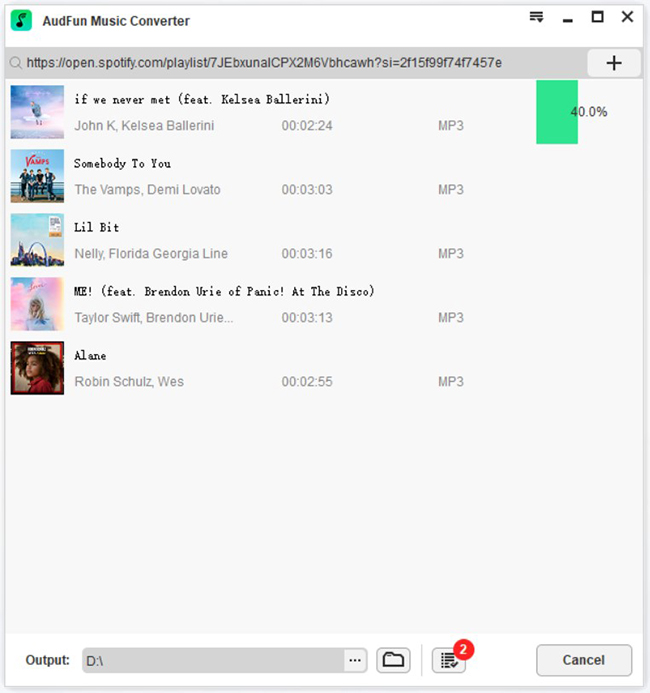
Click the Convert button at the bottom right. AudFun will start downloading the tracks and saving them to your computer’s local folder. Once finished, transfer these files to your phone via USB. You can now listen to your music using your phone and will never see the “Spotify says no internet connection available” error again.
Part 4. FAQs About Spotify Says No Internet Connection Available
Q1: Does Spotify Premium prevent the “No Internet Connection” error?
Not necessarily. While Premium allows for offline listening, you still need an internet connection to stream new songs, search, or validate your downloads every 30 days. Premium users face connection errors just as often as Free users if the network is unstable.
Q2: Can a firewall cause Spotify connection issues?
Yes, especially on desktop computers. Windows Defender or third-party antivirus software might block Spotify from accessing the internet. You should check your firewall exceptions list and ensure Spotify is allowed.
Q3: Why does Spotify say no internet when other apps work?
This usually indicates a specific issue with the Spotify app (cache corruption) or a setting on your phone (data restriction for that specific app). Refer to Fix 4 and Fix 5 in Part 2.
Q4: Will I lose my music if I reinstall the app?
If you uninstall and reinstall Spotify, you will lose your downloaded offline songs and will need to re-download them. However, your playlists and library structure are saved in the cloud and will reappear once you log in.
Conclusion
Encountering Spotify says no internet connection available can ruin the mood, but it is rarely a permanent problem. By systematically checking your network, clearing your cache, and ensuring your data settings are correct, you can usually get back to streaming in minutes.
However, for users who want to eliminate buffering, data overages, and connection errors forever, the best long-term solution is AudFun Spotify Music Converter. By converting your favorite tracks to MP3, you gain the freedom to listen offline on any device, regardless of Wi-Fi status or app glitches.
