
Quick Answer
- Native MediaMonkey Spotify integration only synchronizes text-based playlist metadata to match against existing local tracks or YouTube streams; it cannot decode or play encrypted Spotify audio content directly.
- Playing unowned Spotify music requires using a third-party conversion tool to transform encrypted Ogg Vorbis streams into standard formats like MP3 or FLAC, which MediaMonkey can index.
- After conversion, import your tracks into the MediaMonkey library using the Folder Monitoring feature. This allows you to manage the files for personal offline listening while utilizing professional-grade features like WASAPI exclusive mode, ReplayGain volume leveling, and advanced ID3 metadata management.
Introduction
For audiophiles managing massive libraries, MediaMonkey is the gold standard for WASAPI DAC output and precision tagging. Learning how to play Spotify music on MediaMonkey is a common hurdle for collectors wanting a unified local archive. Integrating streaming services with local file managers is rarely straightforward due to fundamental encryption barriers.
While MediaMonkey offers native “Spotify” integration, it only syncs playlist metadata. Because Spotify caches tracks as proprietary, encrypted Ogg Vorbis chunks, standalone media players cannot decode them. You remain tethered to the official app, missing out on MediaMonkey’s advanced DSP features.
This guide covers the necessary workflow: converting Spotify tracks into unprotected formats like FLAC or MP3. We will demonstrate how to properly index these files into your MediaMonkey library for seamless playback, ensuring your streaming music is managed with the same technical precision as your local collection.

On this page
- Introduction
- Part 1. Why MediaMonkey Cannot Play Spotify Cache Files Directly
- Part 2. How to Sync Spotify Playlists Using MediaMonkey’s Native Integration
- Part 3. How to Play Spotify Music on MediaMonkey with AudFun Spotify Music Converter
- Part 4. Best Practices to Manage Imported Spotify Tracks in MediaMonkey
- FAQs About Playing Spotify Music on MediaMonkey
- Conclusion
Part 1. Why MediaMonkey Cannot Play Spotify Cache Files Directly
When trying to play Spotify music on MediaMonkey, pointing the library scanner to your local Spotify folder yields zero playable tracks. Even though MediaMonkey natively supports .ogg, MP3, FLAC, WAV, and ALAC files out of the box, direct imports always fail due to three technical barriers:
- Fragmented Cache Storage: A $12.99/month Spotify Premium subscription lets you download up to 10,000 tracks per device across five devices, but the desktop client does not save standalone
.oggsongs. Instead, it stores offline audio as fragmented Ogg Vorbis cache files. - Proprietary DRM Encryption: These cached chunks are locked behind strict playback restrictions. Even if you upgrade from MediaMonkey Standard to MediaMonkey Gold ($39.95) for multi-core encoding and automatic organization, neither version possesses the decryption keys needed to read or index unowned streaming caches.
- The Transcoding Requirement: To unlock full access for personal offline listening, you must first convert the streams into standard local formats. Transcoding playlists to 320 kbps MP3 or uncompressed FLAC strips away format limitations without introducing severe compression artifacts, preserving clean audio fidelity and complete ID3 metadata for ReplayGain analysis.
Part 2. How to Sync Spotify Playlists Using MediaMonkey’s Native Integration
Connect Your Account via Devices & Services
MediaMonkey 5 and 2024 include a specialized module within the interface designed to organize content by pulling in your Spotify playlist taxonomy. This feature acts as a bridge for managing your library’s structure rather than providing direct access to audio streams.
- Launch MediaMonkey 5 or 2024.
- Locate the Devices & Services node within the left-hand navigation pane.
- Click on Spotify to initialize the authentication portal.
- Enter your Spotify credentials when prompted to authorize the API connection.
- Grant the application permission to fetch your playlist names and associated track metadata.
How Metadata Matching Works with Local and YouTube Sources
The native sync function operates primarily as a metadata aggregator rather than an audio downloader. When you initiate this sync, the software parses track titles, artist names, and album data from your Spotify playlists. It then cross-references this information against your existing local library—such as your stored FLAC or MP3 collections—or pulls data from web-based sources like YouTube to create playable entries within the MediaMonkey interface. Essentially, this process maps your Spotify playlist structure to audio files you either already own or can access through online streaming services, effectively organizing your digital library based on your Spotify preferences.
Limitations of Native Spotify Sync for Audiophiles
Relying solely on this native integration is often insufficient for users who require high-fidelity, permanent offline access to their collections.
- Audio Quality: Unmatched tracks frequently fallback to low-bitrate web streams, which are not suitable for critical listening.
- Feature Bypassing: This method excludes audiophile-grade playback features, such as WASAPI exclusive mode, ReplayGain volume leveling, and AccurateRip verification.
- Connectivity Dependency: Because tracks are not stored as standalone, indexable audio files on your local drive or NAS, they remain dependent on active network connectivity, making them inaccessible for truly offline, portable playback.
Part 3. How to Play Spotify Music on MediaMonkey with AudFun Spotify Music Converter
While MediaMonkey offers a “Devices & Services” integration for Spotify, it functions merely as a metadata browser rather than an audio decoder. It cannot access or play the proprietary, encrypted Ogg Vorbis streams that Spotify caches on your drive. To achieve true integration—allowing you to leverage MediaMonkey’s WASAPI exclusive mode, advanced 10-band EQ, and ReplayGain analysis on your favorite playlists—you must first convert those tracks into standard, unprotected local audio files.
AudFun Spotify Music Converter bridges this technical gap by transforming restricted streaming cache into accessible formats that MediaMonkey can catalog and play natively. By decoupling your music from the Spotify app, you regain full control over your library’s organization, indexing, and playback environment.
Why AudFun Spotify Music Converter Suits MediaMonkey Libraries
MediaMonkey is designed as a sophisticated local media manager, relying heavily on proper ID3 tag metadata and organized file structures to populate its database. Using AudFun Spotify Music Converter aligns with these requirements because it handles the following tasks essential for a clean, professional library:
AudFun Spotify Music Converter
- Preserves high audio quality output Spotify songs, albums, playlists, etc.
- Supports the conversion of Spotify music files at a high speed of X5 rate
- Listen to Spotify offline without premium on multiple devices and platforms
- Converts Spotify music to several formats like FLAC, M4A, MP3, etc.
- Format Versatility for Compatibility: The software converts encrypted Spotify tracks into high-fidelity formats such as 320 kbps MP3, FLAC, WAV, M4A, AAC, or M4B. Using FLAC or 320 kbps MP3 ensures you retain high audio quality for MediaMonkey’s advanced playback modes.
- Comprehensive Metadata Preservation: It preserves full ID3 tags—including track title, album, artist, cover art, and track number. This is critical for MediaMonkey’s
Auto-TagandAuto-Organizefeatures to correctly sort your library without manual intervention. - Optimized File Archiving: The program supports auto-archiving output folders by Artist/Album, mirroring the library structure MediaMonkey expects for efficient indexing.
- Performance Flexibility: The converter operates at 5X speed for rapid batch processing, while offering a 1X stability mode. This 1X mode is highly recommended if you are converting large collections or dealing with system-resource-intensive tasks to ensure zero data corruption during the write process.
Step-by-Step Tutorial to Convert Spotify for MediaMonkey
To successfully import your music into MediaMonkey, follow these steps to ensure the output files are correctly tagged and organized for the software’s scanning engine.
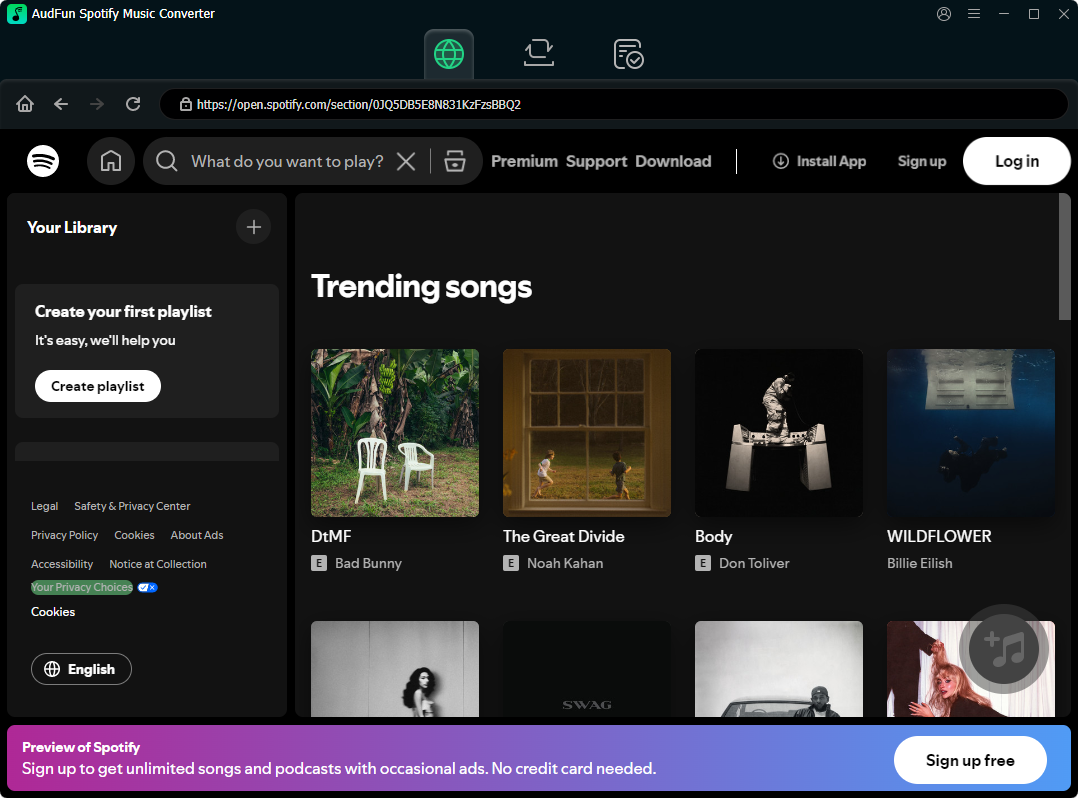
Load Your Tracks: Launch AudFun Spotify Music Converter. Open your Spotify desktop application, find the playlist or track you wish to import into MediaMonkey, and drag it directly into the converter’s main interface. Alternatively, copy the Spotify link and paste it into the converter’s address bar to trigger the import.
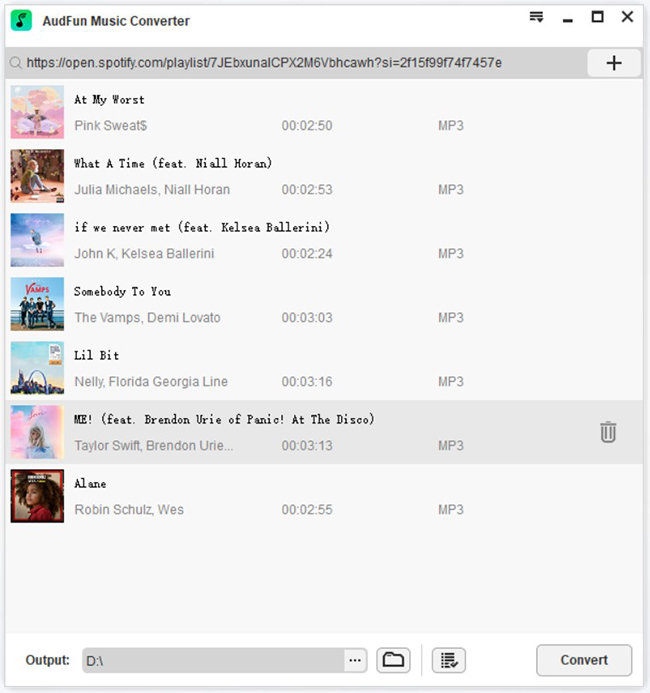
Configure Output Settings: Go to the menu bar, select Preferences > Convert. In this dialog, set your preferred format. For optimal compatibility with MediaMonkey’s features (like volume leveling and ReplayGain), select MP3 (320 kbps) or FLAC (Lossless). Ensure the “Archive output tracks by” option is set to “Artist/Album” to keep your local drive organized.
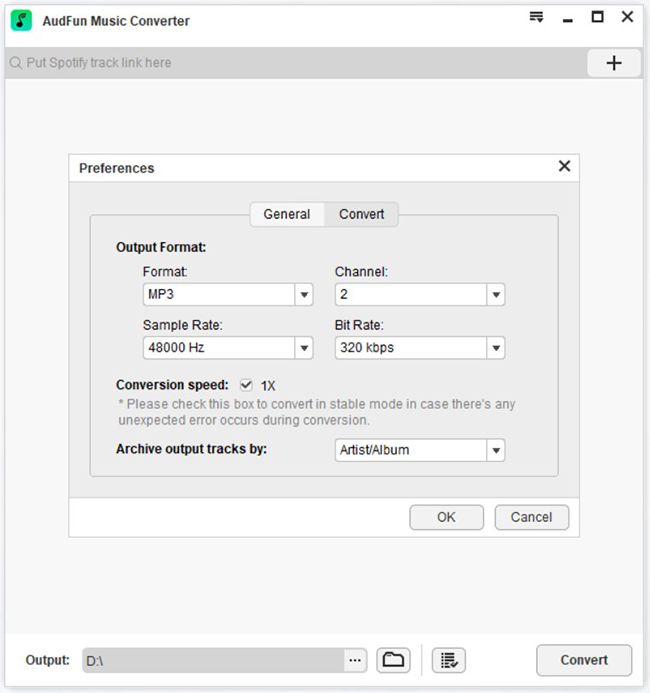
Execute the Conversion: Press the OK tab to apply your settings. Click the large Convert button at the bottom-right corner. The software will begin batch downloading the tracks into your designated destination folder.
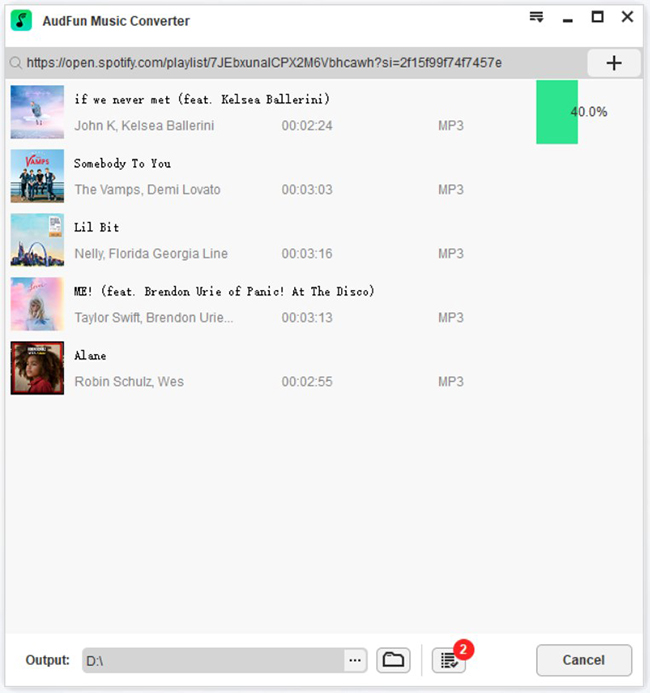
Locate and Prepare Files: Once the conversion completes, open the output directory. You now have a folder of standard, unlocked audio files that MediaMonkey can read. You can now point MediaMonkey’s Folder Monitoring or Add/Rescan tool to this directory to finalize the integration process.
Part 4. Best Practices to Manage Imported Spotify Tracks in MediaMonkey
Once your Spotify tracks are converted into standard file formats such as MP3 or FLAC, integrating them into MediaMonkey requires specific configuration to ensure your library remains organized and delivers high-fidelity audio. The following steps help you automate file management, clean up metadata, and optimize playback quality.
Automate Imports with MediaMonkey Folder Monitoring
Rather than manually importing files every time you download new music, you can link your output directory directly to MediaMonkey’s background file monitor. This ensures that any new audio files added to your local storage are indexed and displayed in your library automatically without user intervention.
- Open MediaMonkey and navigate to Tools > Options.
- Select Library > File Monitor in the left-hand navigation pane.
- Check the boxes for Scan at startup and Scan continuously to enable background directory updates.
- Click the Add folder button, browse to the directory where you save your converted music files, and select it.
- Click OK to save the settings and initialize the automatic scan of your folder.
Standardize Metadata and Volume Levels
A disorganized library can ruin the listening experience, especially when dealing with converted files that might lack specific tag data or exhibit varied loudness levels. Utilize these native tools to standardize your collection and ensure consistent playback.
- Auto-Tag from Web: Highlight your newly imported tracks, right-click, and select Auto-Tag from Web to automatically pull accurate album artwork, release years, and track numbers from online music databases.
- Auto-Organize Files: Press Ctrl+R to open the Auto-Organize Files tool; use this to move and rename your converted music into a clean, consistent folder structure (e.g.,
Artist\Album\Track Title) based on existing tags. - ReplayGain Analysis: Navigate to Tools > Advanced Tools > Analyze Volume to calculate ReplayGain metadata, which allows MediaMonkey to normalize playback volume across different tracks, eliminating the need to adjust the volume manually between songs.
Enable WASAPI Exclusive Mode for Bit-Perfect Output
To get the best sound quality from high-resolution FLAC or 320 kbps MP3 files, you should bypass the standard Windows sound engine. Enabling WASAPI (Windows Audio Session API) Exclusive mode allows MediaMonkey to send audio data directly to your DAC (Digital-to-Analog Converter), avoiding system-level resampling or audio interference from other applications.
- Navigate to Tools > Options in the main menu.
- Locate the Output Plug-ins section found under the Player category.
- Choose MediaMonkey WASAPI Output from the list of available plugins to highlight it.
- Click the Configure button to open the settings window, then select your specific audio hardware or DAC from the output device dropdown menu.
- Click OK to confirm your selection and restart the media player if prompted to apply the exclusive stream settings successfully.
FAQs About Playing Spotify Music on MediaMonkey
Why can’t MediaMonkey play downloaded Spotify cache files if it supports the OGG format?
When learning how to play Spotify music on MediaMonkey, dragging offline downloads directly into the library fails because Spotify stores audio in fragmented, restricted cache chunks rather than standard .ogg files. External media managers cannot index or decode these proprietary containers without prior conversion.
What does MediaMonkey’s built-in “Devices & Services > Spotify” sync feature actually do?
This native integration only syncs text metadata—like track titles, artists, and playlist structures—to match against files you already own locally or look up on YouTube. It does not stream or play unowned Spotify audio tracks directly inside MediaMonkey.
Which audio format (MP3 vs. FLAC) is best when importing converted Spotify tracks into MediaMonkey?
Choose FLAC if you use WASAPI exclusive mode and want to avoid secondary compression artifacts when converting from Spotify’s Ogg Vorbis streams. Pick 320 kbps MP3 via AudFun Spotify Music Converter if you prioritize smaller file sizes and universal ID3 tag compatibility across older hardware.
How do I set up MediaMonkey to automatically import newly converted Spotify playlists?
Press Ins (or click File > Add/Rescan Files to the Library), select your converter’s output folder, and enable Scan Continuously alongside Scan at Startup. MediaMonkey will automatically index new tracks and .m3u playlists the moment they finish exporting.
Is it legal to convert Spotify music for offline playback in MediaMonkey?
Converting streaming audio for personal, non-commercial offline listening generally falls under private use in many regions, though it violates Spotify’s terms of service. Never share, distribute, or monetize converted local files.
Conclusion
Learning how to play Spotify music on MediaMonkey highlights the difference between basic metadata syncing and true offline playback. Since MediaMonkey cannot decode encrypted streams natively, converting tracks into standard formats like FLAC or 320 kbps MP3 is essential.
By using AudFun Spotify Music Converter alongside MediaMonkey’s Folder Monitoring, you can seamlessly integrate your streaming playlists into a permanent local archive—unlocking full access to WASAPI exclusive mode, 10-band EQ adjustments, and automated library management.