
Quick Answer
- Choose the right package for your LTS version: On Ubuntu 24.04 LTS, use the official APT repository with modern dearmored GPG keyrings in
/usr/share/keyrings/. On Ubuntu 22.04 LTS and older, use Snap or Flatpak to bypasslibc6version mismatches. - Understand the local cache format: Offline downloads saved inside the official desktop app are stored as encrypted, fragmented data blocks rather than standard audio files, meaning native players like Rhythmbox or VLC cannot read them.
- Export tracks for native Linux players: Use a dedicated streaming music converter to export playlists into standard 320 kbps MP3 or lossless FLAC files while keeping full ID3 metadata tags intact.
- Move files to your local music directory: Place the converted audio files into
~/Musicto play your collection in lightweight native audio players without running the Electron desktop app.
Setting up Spotify on Ubuntu often reveals unexpected friction. Depending on whether you run Ubuntu 22.04 LTS or 24.04 LTS, installing the official desktop client can run into system library mismatches like libc6 errors, while the app itself consumes considerable system memory through its Electron framework.
Even when the client runs smoothly, offline tracks stay trapped inside encrypted cache folders. Standard open-source music managers like Rhythmbox, Clementine, and VLC cannot index or play these cached files directly.
This guide walks through configuring the official client cleanly across different Ubuntu LTS releases and shows you how to export your playlists into universal audio formats for local playback across any Linux desktop player.
Part 1. How to Install and Configure the Official Spotify Client on Ubuntu
Install via Modern APT Repository with GPG Keyrings (Ubuntu 24.04)
On modern distributions like Ubuntu 24.04 LTS (Noble Numbat), the official native package requires libc6 >= 2.39. Setting up Spotify’s official APT repository using a dedicated dearmored GPG key ensures smooth updates while following current Debian security standards that replace the deprecated apt-key method.
- Open your terminal and download Spotify’s signing key into the system keyrings directory:
curl -sS https://download.spotify.com/debian/pubkey_6224F9941A8AA6D1.gpg | gpg --dearmor | sudo tee /usr/share/keyrings/spotify.gpg > /dev/null - Add the official APT repository entry pointing to the keyring:
echo "deb [signed-by=/usr/share/keyrings/spotify.gpg] http://repository.spotify.com stable non-free" | sudo tee /etc/apt/sources.list.d/spotify.list - Update your package list:
sudo apt update - Install the client package:
sudo apt install spotify-client - Launch Spotify from your application launcher or run
spotifyin your terminal.
Install via Snap or Flatpak Packages (Ubuntu 22.04 and Earlier)
On Ubuntu 22.04 LTS (Jammy Jellyfish) and older releases, installing via APT often fails due to older system glibc libraries. Containerized packages like Snap and Flatpak bundle their own runtime dependencies, letting you run Spotify without modifying system libraries.
- Open your terminal, or launch Ubuntu Software / App Center.
- Run the Snap command to install the official package:
sudo snap install spotify - If you prefer Flatpak, ensure Flatpak support is configured on your system and run:
flatpak install flathub com.spotify.Client - Open the app from the application grid and log in to your account.
Use Lightweight TUI Client ncspot for Low Memory Environments
The official desktop client frequently consumes between 400MB and 1GB of RAM. If you are working on an older machine, running low-spec hardware, or managing a remote server, ncspot provides a fast terminal-based interface written in Rust that runs on around 50MB of RAM.
- Account requirement: You need an active Spotify Premium subscription, as third-party librespot clients rely on subscriber-only streaming endpoints.
- Installation: Install the package quickly using Snap with
sudo snap install ncspot, or build it using Rust’s package manager viacargo install ncspot. - Audio dependencies: If you compile from source, verify that core sound development libraries like
libpulse-devorlibasound2-devare installed on your system. - Navigation: Run
ncspotin your terminal, log in with your credentials, and navigate your library using standard keyboard controls (j/k to scroll, Space to play/pause).
Part 2. Limitations of Spotify Offline Streaming on Linux Systems
While the desktop client works for standard streaming, using Spotify on Ubuntu introduces several practical limitations:
- Encrypted local cache: When you download tracks for offline listening inside the official client, the files are split and encrypted inside
~/.cache/spotify/Data/. These chunks are unreadable by regular Linux audio players. Tools like Rhythmbox, Strawberry, Audacious, and VLC cannot parse or index this cache, preventing you from adding tracks to a central local music collection. - High system resource usage: Running an Electron client alongside your browser and development tools takes a noticeable toll on system memory. Because the Linux client is maintained as a community build rather than a core platform target, updates addressing Wayland integration, PipeWire audio routing, and hardware acceleration often lag behind Windows and macOS versions.
- Matching errors from command-line scrapers: CLI scrapers like SpotDL attempt to download Spotify tracks by searching video-sharing platforms for matching titles. This workaround regularly results in mismatched audio, including live takes, unofficial covers, missing ID3 tags, and poor bitrate quality.
- Incompatibility with external audio tools: Local Linux audio workflows—such as ALSA/JACK routing, system-wide equalizers like EasyEffects, car USB drives, or home media servers—rely on standard audio files like MP3, FLAC, and WAV with embedded metadata.
Part 3. How to Convert Spotify Music to Universal Audio Files for Ubuntu Using AudFun
Terminal players and sandboxed containers can solve memory and dependency issues, but they do not remove the restrictions of encrypted offline caching. The tracks remain tied to Spotify’s client, leaving you unable to organize them within native media managers.
To build a standalone local library for your Ubuntu desktop or home server, converting your Spotify playlists into standard audio formats provides full control over your files and playback environment.
Why AudFun Spotify Music Converter Is Ideal for Ubuntu Users
AudFun Spotify Music Converter exports your personal playlists, albums, and podcasts into standard audio containers without relying on third-party video search results. It captures the stream directly, preserving original audio clarity up to 320 kbps in MP3 format or lossless output in FLAC and WAV.
For Linux users who maintain structured music directories, AudFun automatically embeds essential ID3 metadata, including track titles, artist names, album art, genre tags, and track numbers. This allows desktop players like Rhythmbox or Clementine to organize your collection without requiring manual tag corrections. Its 5X batch conversion speed also makes quick work of large playlists and complete discographies.
Step-by-Step Tutorial
Step 1. Add Spotify Playlists to AudFun Spotify Music Converter
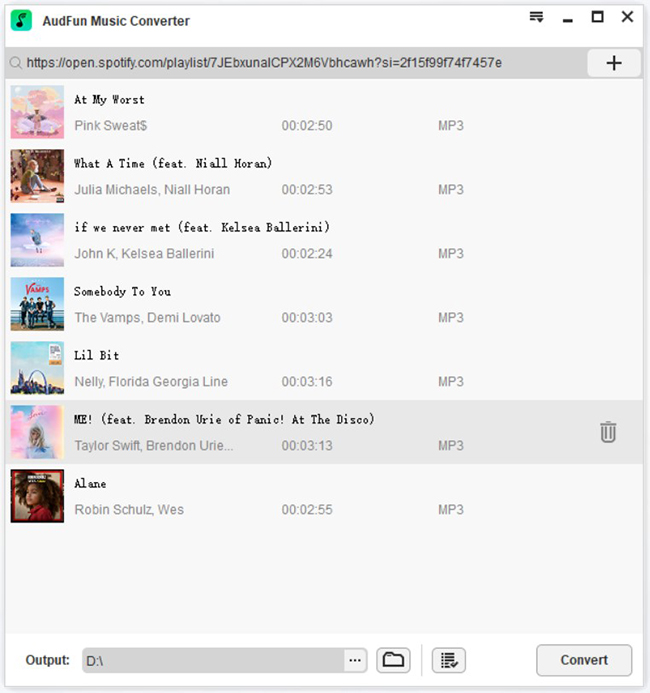
Launch AudFun Spotify Music Converter on your Windows or Mac workstation; the Spotify desktop app will open alongside it. Find the playlist or album you want to transfer to Ubuntu. Copy the item link, paste it into AudFun’s search bar, and click the + button. You can also drag and drop items directly into the conversion window.
Step 2. Configure Output Parameters for Linux Playback
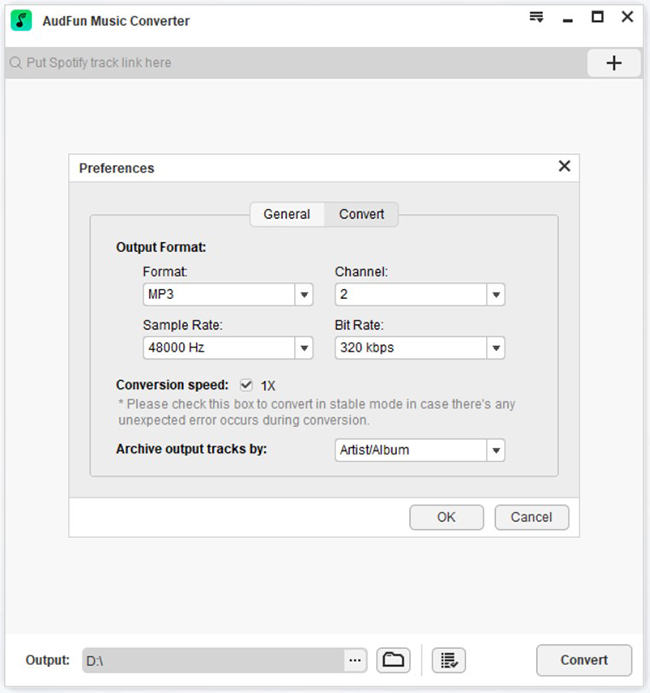
Open the top Menu and select Preferences, then click the Convert tab. Choose MP3 for broad compatibility across lightweight CLI audio players, or pick FLAC for lossless sound quality. Set the sample rate to 48,000 Hz and bit rate to 320 kbps to maintain high audio fidelity.
Step 3. Convert Spotify Tracks to Standard Audio Files
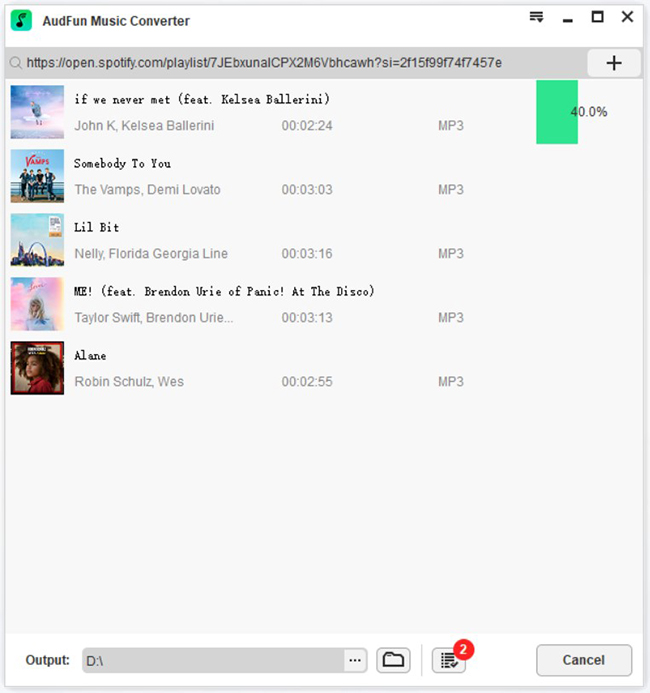
Click OK to save your settings, then click the Convert button in the lower-right corner. AudFun Spotify Music Converter will batch-convert your selected tracks into open audio files at up to 5X speed while applying your format preferences and preserving ID3 tags.
Step 4. Transfer and Index Tracks on Ubuntu
When the process finishes, click the folder icon to view the output directory on your local drive. Copy the audio files over to your Ubuntu system using a USB drive, rsync/scp over your local network, or a shared Samba folder. Place the files in ~/Music, open your preferred Linux media player (such as Rhythmbox or Audacious), and scan the folder to start listening offline without client overhead.
Frequently Asked Questions About Spotify on Ubuntu
Can I install the official Spotify APT package directly on Ubuntu 22.04 LTS?
No. Recent builds of the spotify-client APT package depend on libc6 >= 2.39, which is not available in Ubuntu 22.04 LTS. On 22.04, install Spotify via Snap or Flatpak to avoid dependency errors.
Why can’t native Ubuntu media players like Rhythmbox play Spotify offline cache files?
The official Linux client stores offline downloads as encrypted, fragmented data blocks rather than standalone audio files. Players like Rhythmbox, VLC, and Clementine cannot decode these protected files.
How do I transfer converted Spotify music to Ubuntu local libraries?
Export your tracks to MP3 or FLAC using AudFun Spotify Music Converter, copy them into ~/Music on your Ubuntu machine, and rescan your library in your chosen audio player.
What is the performance difference between the Spotify desktop client and local playback?
The official Electron client regularly uses 400MB to 1GB of RAM and has a slower startup time. Playing local audio files in lightweight Linux players like Audacious or VLC uses under 50MB of RAM with instant responsiveness.
Conclusion
Streaming Spotify on Ubuntu works well once you select the right installation path for your LTS release—using the modern APT repository on Ubuntu 24.04 or relying on Snap and Flatpak on Ubuntu 22.04 to prevent libc6 conflicts. However, the official client’s encrypted cache still restricts your downloads from integrating with standard Linux media managers.
Exporting your playlists into universal formats like MP3 and FLAC bypasses client limitations, letting you organize music in lightweight desktop players with minimal resource consumption. For an easy way to create personal offline backups from your playlists, AudFun Spotify Music Converter delivers a dependable method to bring your favorite music straight to your Ubuntu storage.