Quick Answer
- Check the Spotify desktop app or Web Player for a Mini Player control, usually near the playback bar or in the player’s additional options. Availability can vary by version and account.
- If the control is unavailable, use the Web Player in a browser or install it as a PWA so Spotify stays accessible while you work.
- On mobile, add a Spotify widget to your home or lock screen for quick playback controls.
- For listening without an internet connection, download music with Spotify Premium for offline playback, or use legally obtained local audio files in a compatible player.
“I have been looking for a Spotify mini player but can’t help myself in this regard. Can you help with my issue?” – Jason from Reddit
The best way to stream Spotify songs when working on something important is to use a Spotify mini player. This process can help you skip and change the songs without visiting the Spotify app.
However, the issue is that Spotify doesn’t come up with a built-in mini player. Luckily, you can look for a Spotify Web Player or other options to get a Spotify mini player. The guide below will cover all the information you want. In short, use the Spotify Web Player or a suitable third-party option for mini-player access; AudFun Spotify Music Converter is also covered as an alternative approach.

- 1. How to Get Spotify Mini Player on Windows/Mac
- 2. How to Get Spotify Mini Player on Android
- 3. How to Play Spotify on Any Player
HOT - 4. Conclusion
Part 1. How to Get Spotify Mini Player on Windows/Mac
1.1 via Spotify Web Player
You won’t find a Spotify mini player in the official desktop app. However, you can access it using a Spotify Web Player on both Mac and Windows computers. Follow the guide below to make it possible.
Step 1: Launch Google Chrome and navigate to the open.spotify.com website. This process will help you access the Spotify Web Player.
Step 2: After logging into your Spotify account, you’ll need to start playing a song.
Step 3: You’ll need to launch the Spotify PC mini player by tapping the ”mini player” icon. You’ll be able to control the music when the Spotify mini player with albums comes up.

1.2 via Third-party Tools
You can also consider taking the help of third-party tools to get Spotify mini player on Mac and Windows computers. The following are 4 useful tools we tested for you.
#1. Lofi Spotify Mini Player (Windows/Mac)
Lofi is a free open-source and lightweight app. It is a befitting Spotify mini player that comes with 4 visualizations. Although Lofi isn’t a Spotify desktop app alternative by any means, it is still worth a try. The following is how to get Spotify Mini player via Lofi.
Step 1: After launching the Spotify desktop app, you’ll need to enter your Spotify credentials to login into the account. Next up, you’ll need to launch the Lofi mini-player for Spotify.
Step 2: Now, you’ll need to click the Log in icon, and you’ll be able to enter into a page where the request authorizing Lofi access to Spotify is made. After connecting Lofi with Spotify, you’ll be able to play the songs.

#2. Alfred Spotify Mini Player (Windows/Mac)
Apart from controlling Alfred Spotify playlists, the Alfred Spotify mini player helps you to search the Spotify library. Moreover, it also comes with tremendous features that can enhance your listening experience.
Step 1: Launch Alfred Spotify PC mini player after downloading it on Mac and Windows.
Step 2: You’ll need to create an app and then set the app description and name. Next up, you’ll need to choose the “Desktop” app.
Step 3: After responding with “No”, you’ll need to hit “Submit”.
Step 4: Select “Edit settings” after visiting the application page. Next up, you’ll need to tap “Add” after completing Redirect URLs.
Step 5: After tapping “Save”, you can play Spotify music on the Alfred Spotify mini player.

#3. MiniPlay for Spotify and iTunes (Mac)
MiniPlay for Spotify and iTunes is another great Spotify mini player Mac users can used to adjust sound volume and manage Spotify’s playback with ease. It also assists you in finding the current playlist of your Spotify app.
Step 1: After downloading the mini player, you’ll need to install it on your Mac. Next, you’ll need to launch it.
Step 2: You’ll only need to launch Spotify and connect your Spotify account to a mini player app. After entering the Spotify account, you’ll be able to manage your Spotify playlist.

#4. SpotMenu Mini Player (Mac)
The role of the SpotMenu mini player is to help you access the track title and artist title in the menu bar. After clicking these options, you’ll be able to manage playlists on Spotify.
Step 1: Download the SpotMenu mini player from its official website and then install it on your Mac PC. Next up, you’ll need to launch the application.
Step 2: After starting the Spotify desktop app, you’ll need to log in with your Spotify account on the Spotify mini player Mac. Now, you can manage the Spotify app operations on the mini app.

2. How to Get Spotify Mini Player on Android
If you want to get Spotify mini player Android, you need to follow the step-by-step guide below.
Step 1: First of all, download the latest version of the Spotify app on your Android device. After pressing the home screen on your device, you’ll be able to see some options out there.
Step 2: Hitting “Widgets”, and then navigate to the Spotify widget.
Step 3: Drag the widget to any place after long-pressing the Spotify widget. You’ve got the luxury to manage your Spotify playlist via the widget.

3. How to Play Spotify on Any Player or Device
The methods we’ve introduced above can help you get a Spotify mini player. But, these methods are limited and probably won’t live up to your expectations.
However, if you want to play Spotify music on any player or device without a premium, AudFun Music Converter is the right option. You can convert and download Spotify songs in various audio file formats using this tool. Then you can move them to any device you want to play offline.
Key Features of AudFun Spotify Music Converter
- Convert Spotify songs at 5X speed
- Download Spotify songs for free
- Download Spotify audio tracks in lossless quality
- Support converting Spotify to WAV, MP3, FLAC, AAC, M4A, M4B
How to Convert Spotify Music to by AudFun Spotify Music Converter
Now, let’s learn how to convert and download Spotify songs to MP3 or other common audio formats for listening on any player or device via AudFun Spotify Music Converter.
Step 1 Import the Spotify playlist into AudFun
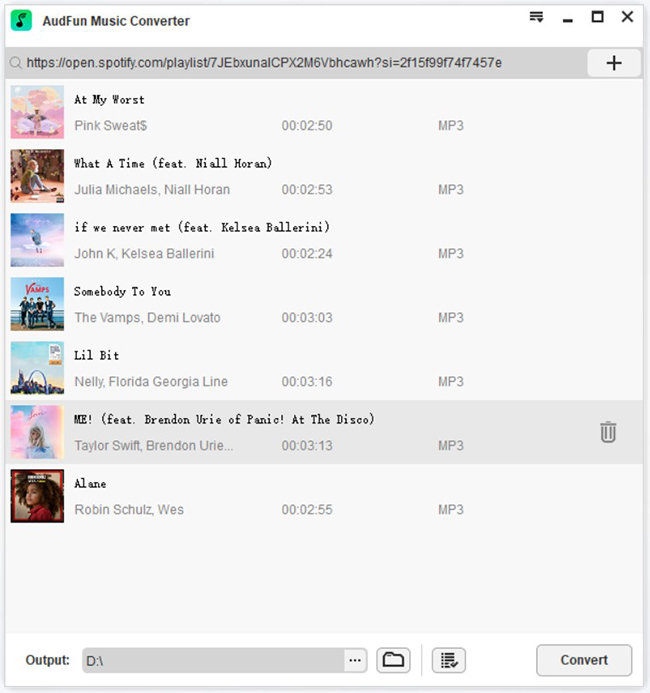
After downloading and installing the AudFun Spotify Music Converter on your computer, you’ll need to start it. And then you need to import the target Spotify music into the AudFun program.
Step 2 Select output format of Spotify music
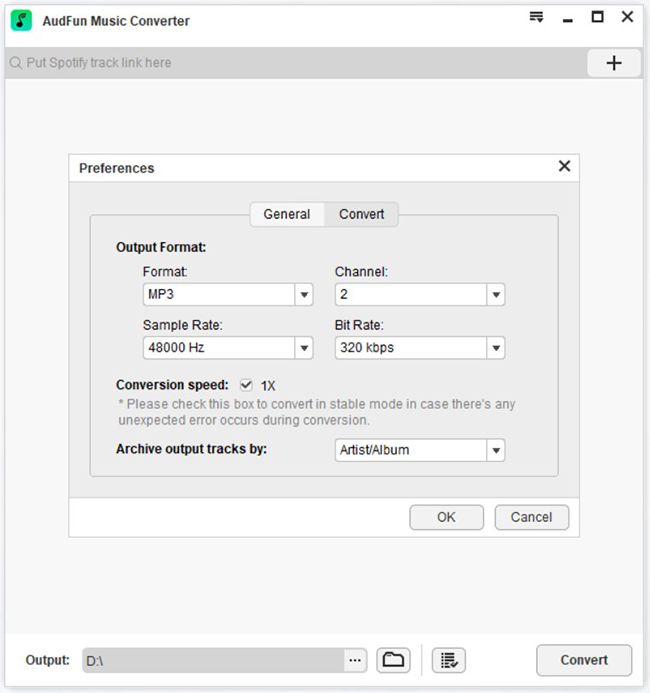
Here you need to tap “Preferences” after visiting the main menu bar on AudFun. And then select the output format you’d like to download the Spotify playlist to MP3, FLAC, etc. Also, the bit rate, sample rate, and more can be altered as you want.
Step 3 Start to download and convert Spotify
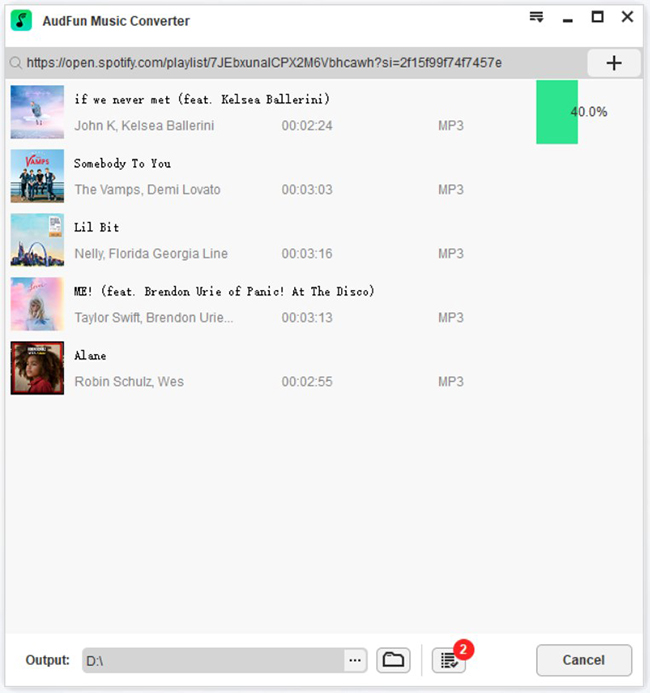
Hit the “Convert” ‘icon and start converting the Spotify music file. After that, you can find the downloaded Spotify files from the local folder of your computer via the “converted” icon on AudFun.
Play Spotify on Any Mini Player
For Windows:
If you are a Windows computer user, you can then use the Groove Music app to get Spotify mini player. Here are the steps for you on how to make it.
Step 1: After launching the Groove Music app, you’ll need to play the Spotify songs you downloaded via AudFun Spotify Music Converter. You can open the mini-player after tapping ”Play in mini view”.

For Mac:
While if you are on a Mac computer, then you can play Spotify on mini player via the Music app after downloading Spotify music on Mac. Please follow the steps below and learn more.
Step 1: Launch a Music app on your Mac. You’ll need to import the downloaded Spotify songs to it.
Step 2: After playing the song, you’ll need to navigate Switch to MiniPlayer after tapping ”Window”.
Troubleshooting and FAQ
Why is the Spotify Mini Player button missing?
Update and restart the Spotify desktop app, then start playing a track and check the playback controls for the Mini Player icon. Availability can depend on your account, app version, and Spotify’s current rollout. If it is still missing, check Spotify Support for current eligibility rather than assuming every account has access.
Can I use Spotify Web Player on a Chromebook or Linux?
Yes—open open.spotify.com in a supported, updated browser and sign in. If playback fails, check that protected content is allowed, temporarily disable interfering extensions, and clear Spotify’s site data. Installing the website as an app, where your browser supports it, provides a separate window but does not guarantee desktop Mini Player features.
Why is my Spotify widget missing or showing an old song?
Update Spotify and your operating system, open Spotify once, then remove and re-add the widget. Start playback to refresh its content. On Android, check background activity restrictions; on iPhone, check the widget gallery. Mac widget availability and behavior vary by macOS version and the installed app. Widgets may show shortcuts or recent content rather than continuous playback information.
Why can’t a third-party mini player connect to Spotify?
Check whether it still supports Spotify’s current authorization process. Sign in again through Spotify’s official authorization page and review the requested permissions. If connection failures persist, revoke its access from your Spotify account’s Apps page before retrying.
Does a mini player provide offline playback?
A mini player usually controls Spotify playback; it does not create portable audio files. AudFun Spotify Music Converter is a separate local-file workflow. Playback in another player requires compatible files you are authorized to use.
4. The Bottom Line
Since Spotify doesn’t offer an official mini player, going for a third-party tool makes sense. Of all the methods we’ve explored here in this discussion, AudFun Spotify Music Converter is the best. Using this converter, you can play Spotify on any player offline, meaning you don’t need to worry about the internet speed. Also, you can play Spotify on multiple devices offline as you like, and keep them forever.