
There is nothing quite as frustrating as getting ready to stream your favorite playlist, only to be met with a frozen screen. You click, you wait, and eventually, you see the dreaded error message: “Spotify application is not responding.”
Whether you are in the middle of a workout, a study session, or a commute, a crashing music app disrupts your flow. This issue is a common headache for both Windows and Mac users, often manifesting as a white screen, an app that won’t open, or a sudden freeze during playback.
If you are struggling to get the music back on, you are in the right place. This guide will dive deep into why this error occurs and provide practical, step-by-step solutions to fix it. Plus, we will explore a clever workaround to enjoy your Spotify library without even opening the buggy application.
- Part 1. Why Spotify Application is Not Responding
- Part 2. How to Fix Spotify Application is Not Responding
- Part 3. How to Enjoy Spotify Music without Application
- Part 4. FAQs About Spotify Application is Not Responding
Part 1. Why Spotify Application is Not Responding
Before jumping into the fixes, it is helpful to understand the root causes. Diagnosing why the Spotify application is not responding can save you time and prevent the issue from recurring.
Generally, the problem stems from a conflict between the software and your computer’s operating system. Here are the most common culprits:
- Corrupted Cache Files: Spotify stores temporary data (cache) to load songs and images faster. Over time, these files can become corrupted, causing the app to choke on startup.
- System Resource Overload: If your CPU or RAM is maxed out by other demanding programs (like video editors or gaming), Spotify may not have enough resources to function, leading to a freeze.
- Outdated Application Version: Running an old version of Spotify can lead to compatibility issues with newer operating system updates.
- Firewall or Antivirus Blocking: Sometimes, overzealous security software mistakenly identifies Spotify as a threat and blocks its access to the internet, causing it to hang.
- Faulty Installation: If the initial installation files were damaged or moved, the app might launch but fail to respond to commands.
Understanding these triggers helps us apply the right solution rather than guessing blindly.
Part 2. How to Fix Spotify Application is Not Responding
Now, let’s troubleshoot the issue. We have compiled the most effective methods to fix a frozen Spotify app, ranked from the easiest quick fixes to more advanced solutions.
1. Force Quit and Restart the App
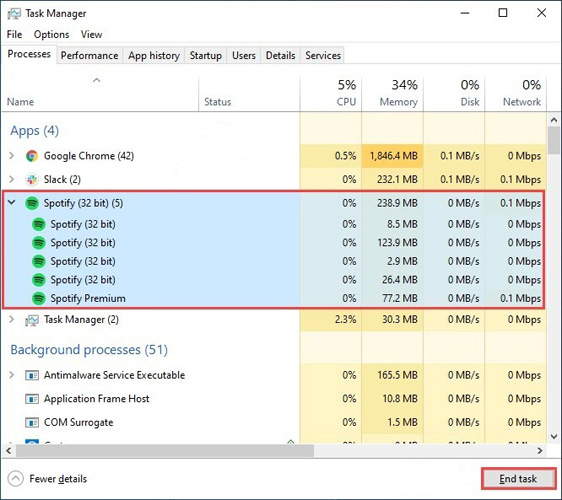
The classic “turn it off and on again” is often all you need. When Spotify hangs, simply clicking the “X” button might not close the background processes. You need to terminate it completely.
For Windows:
Step 1. Press Ctrl + Shift + Esc to open the Task Manager.
Step 2. Look for “Spotify” under the Processes tab.
Step 3. Right-click on it and select End Task.
Step 4. Relaunch Spotify to see if the issue is resolved.
For Mac:
Step 1. Press Option + Command + Esc to open the Force Quit Applications window.
Step 2. Select Spotify and click Force Quit.
2. Check Your Internet and Firewall Settings
Spotify is a streaming service that relies heavily on a stable internet connection. If your network drops, the app might freeze while trying to buffer. Furthermore, your firewall might be blocking the connection.
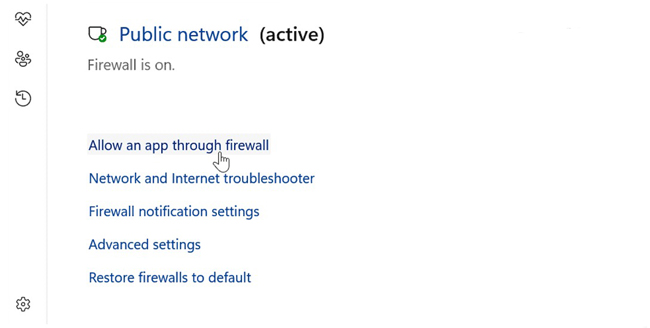
How to Allow Spotify Through Windows Firewall:
Step 1. Type “Firewall” in the Windows search bar and select Firewall & Network Protection.
Step 2. Click on Allow an app through firewall.
Step 3. Click Change settings and scroll down to find Spotify.exe.
Step 4. Ensure both the Private and Public checkboxes are ticked.
Step 5. Click OK and restart your computer.
3. Disable Hardware Acceleration
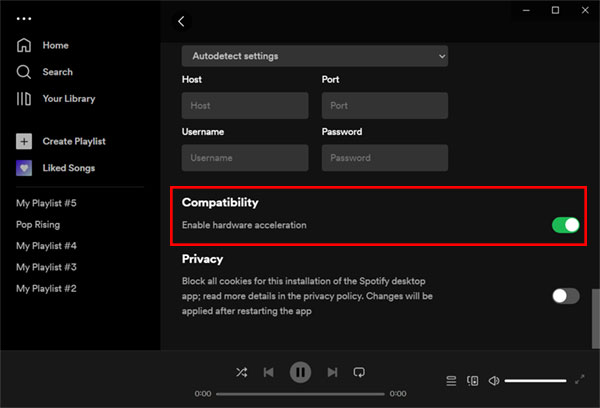
Hardware acceleration uses your computer’s GPU to help render the app smoothly. However, on some older machines or specific graphics drivers, this feature can cause the Spotify application is not responding error.
Note: If you can’t open Spotify at all, skip to the next step. If you can open it briefly before it freezes, try this:
Step 1. Open Spotify and click on your profile picture (or the three dots in the top left).
Step 2. Go to Settings.
Step 3. Scroll down to the Compatibility section.
Step 4. Toggle off Enable Hardware Acceleration.
Step 5. Restart the app.
4. Delete Local Cache Files
If a simple restart didn’t work, corrupted cache data is a likely suspect. Clearing this data forces Spotify to download fresh files, often resolving the freeze.
For Windows:
Step 1. Close Spotify completely.
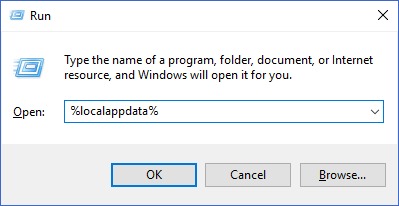
Step 2. Press Windows Key + R to open the Run box.
Step 3. Type %appdata% and press Enter.
Step 4. Navigate to the Spotify folder.
Step 5. Delete the folder named Users.
Step 6. Go back to the Local AppData folder (usually C:\Users\YourName\AppData\Local\Spotify\Storage) and delete the contents inside.
For Mac:
Step 1. Open Finder and click Go in the menu bar.
Step 2. Hold the Option key and click Library.
Step 3. Go to Caches > com.spotify.client.
Step 4. Delete the contents of this folder.
5. Perform a Clean Reinstall
If none of the above works, your app files might be deeply corrupted. A standard uninstall often leaves behind “junk” files. A clean reinstall ensures a fresh start.
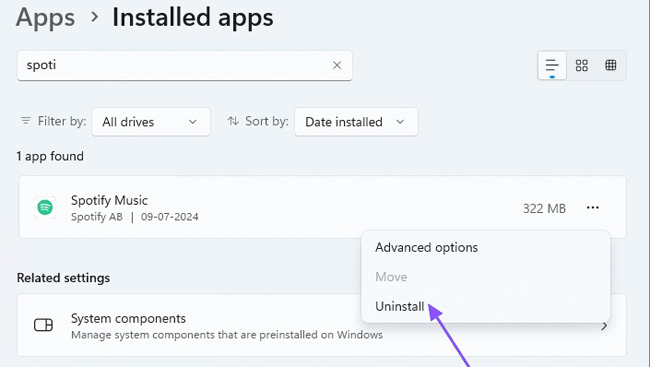
Step 1. Uninstall Spotify via your computer’s settings (Add or Remove Programs on Windows / Move to Trash on Mac).
Step 2. Manually delete the Spotify folders in AppData (Windows) or Library (Mac) as described in the “Delete Local Cache” step above. This is crucial.
Step 3. Restart your computer.
Step 4. Download the latest version of Spotify from the official website and install it.
Part 3. How to Enjoy Spotify Music without Application
If you are tired of constantly troubleshooting the Spotify application is not responding error, or if your computer simply struggles to run the heavy desktop app, there is a smarter alternative.
The most effective way to avoid app crashes permanently is to download your Spotify songs as local files. By doing this, you can play your music on any lightweight media player (like VLC, Windows Media Player, or iTunes) without ever needing to open the Spotify app. To achieve this, we recommend using AudFun Spotify Music Converter.
Why Choose AudFun Spotify Music Converter?
AudFun Spotify Music Converter is a professional music downloader designed to help both Free and Premium users download Spotify tracks, playlists, and albums to the local computer.
Unlike the Spotify app, which stores cache files that can corrupt and freeze your system, AudFun converts music into standard audio formats like MP3, FLAC, WAV, and AAC. This means you truly own the music files and can listen to them offline on any device without fear of the app crashing.

AudFun Spotify Music Converter
- Preserves high audio quality output Spotify songs, albums, playlists, etc.
- Supports the conversion of Spotify music files at a high speed of X5 rate
- Listen to Spotify offline without premium on multiple devices and platforms
- Converts Spotify music to several formats like FLAC, M4A, MP3, etc.
Step-by-Step Guide: How to Use AudFun to Fix Spotify Issues
Follow this simple tutorial to download your music and say goodbye to “Application Not Responding” errors.
Step 1. Import Spotify Songs to AudFun
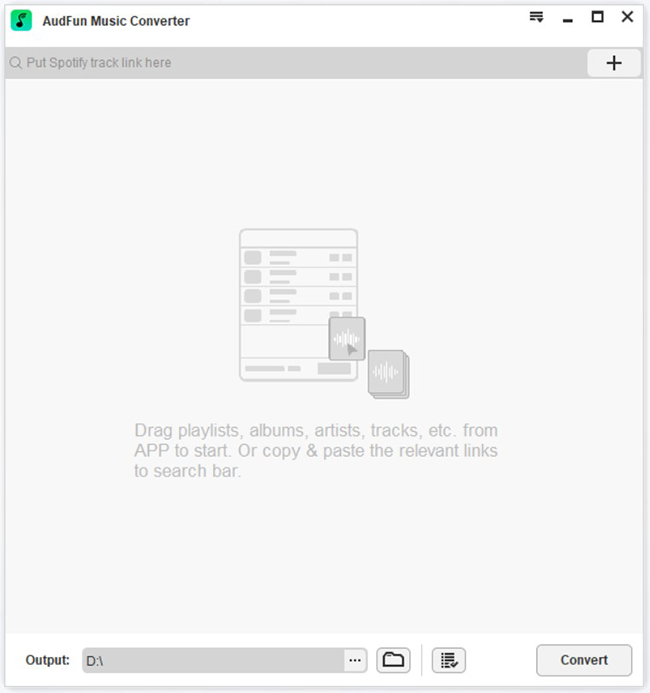
Download and install AudFun Spotify Music Converter on your computer. Upon launching AudFun, the Spotify app will automatically open (don’t worry if it freezes later, we only need it for a moment). Find the song or playlist you want to download in Spotify.
- Option A: Drag and drop the track directly into the AudFun interface.
- Option B: Copy the playlist link (URL), paste it into the search bar in AudFun, and click the “+” button.
Step 2. Customize Output Audio Settings
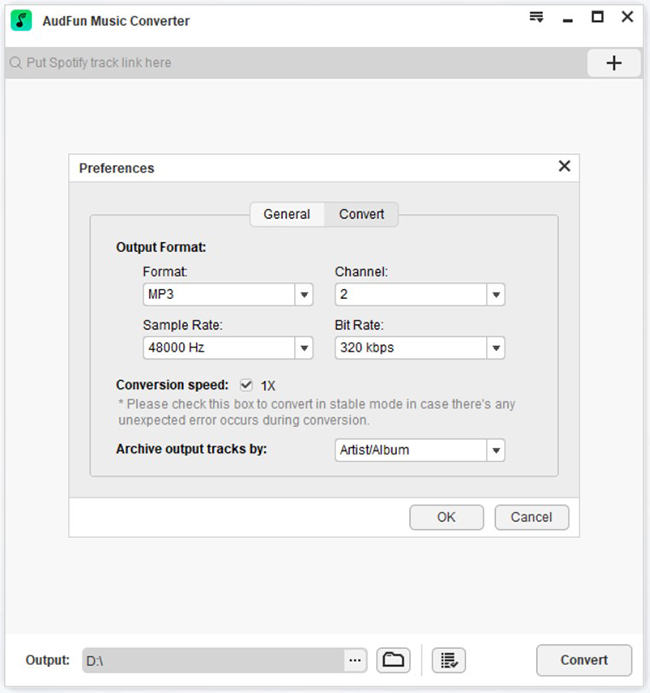
Click the Menu icon (three lines) in the top-right corner and select Preferences > Convert. Here you can choose your desired output format. We recommend selecting MP3 for maximum compatibility with other media players. You can also adjust the Bit Rate to 320kbps and Sample Rate to 48000Hz for the best quality.
Step 3. Download and Convert Spotify Music
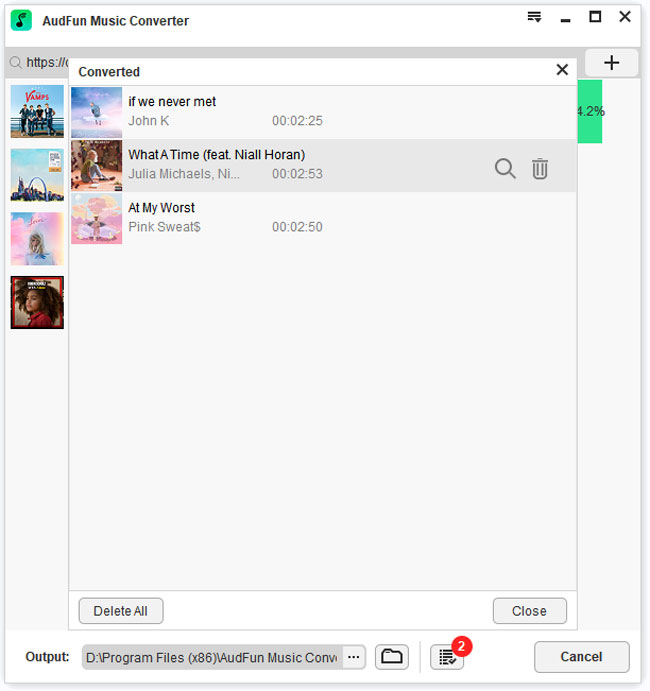
Click the big “Convert” button at the bottom right. AudFun will immediately start downloading your selected tracks and converting them to your local drive. Once finished, click the “History” icon (paper with a clock) to locate your files. You can now play these songs using any media player on your computer, completely bypassing the buggy Spotify application.
Part 4. FAQs About Spotify Application is Not Responding
Q1: Will reinstalling Spotify delete my playlists?
No, your playlists and liked songs are saved to your Spotify account in the cloud, not on your computer. Once you log back in after a reinstall, all your music collection will reappear. However, you will lose any songs you had downloaded for offline listening and will need to re-download them.
Q2: Why does Spotify keep freezing on Windows 11?
Windows 11 has strict background app permissions and new security features. Ensure Spotify is allowed to run in the background (Settings > Apps > Installed Apps > Spotify > Advanced options) and that your graphics drivers are fully compatible with Windows 11.
Q3: Can a slow internet connection cause the app to stop responding?
Yes. If Spotify tries to load a high-quality stream and the connection times out repeatedly, the app may hang. Try lowering the streaming quality in settings or restarting your router.
Q4: Is it safe to delete the Spotify ‘Storage’ folder?
Yes, it is safe. This folder contains cached data. Deleting it simply forces Spotify to re-cache data the next time you play a song. It is a common fix for playback glitches.
Q5: What if Spotify is not responding on my phone (iOS/Android)?
On mobile, the fix is usually simpler: clear the app cache in your phone’s storage settings, or uninstall and reinstall the app. Ensure your phone’s OS is up to date.
Conclusion
Spotify freezing disrupts your rhythm, but simple fixes like force quitting or reinstalling usually resolve it. To prevent future issues, keep the app updated and clear the cache. For a glitch-free experience, consider converting your library to MP3 using AudFun Spotify Music Converter. Don’t let a frozen screen stop the music—apply these tips and enjoy your tunes!
