
Quick Answer
- Built‑in toggle: Turn off “Allow explicit content” in Settings → Content & Privacy (mobile) or in the desktop/web player to gray out and skip tracks marked with an “E.”
- Family Plan controls: The plan manager can lock explicit content for any member’s account; the Spotify Kids app adds another layer of curation for younger listeners.
- Permanent clean library: When toggles fall short, AudFun Spotify Music Converter lets you download clean radio edits as MP3s you can play offline — no tag dependency, no streaming surprises.
Introduction
A quick scan of today’s charts shows most hits carry an “E” tag, yet Spotify’s labeling isn’t airtight. The built‑in toggle, Family Plan parental controls, and the Spotify Kids app each give you real leverage, but they all lean on that imperfect system. Filters do gray out and skip restricted tracks, but a device‑specific toggle may not travel with a child’s login, and offline downloads often stay explicit even after you flip the switch.
This guide walks through every practical lever: turning off explicit content on mobile, desktop, and web; locking down family accounts; troubleshooting grayed‑out toggles; and building playlists that stay clean even when Spotify’s labels fail.
Part 1: How to Turn Off Explicit Content in Spotify Settings (Mobile, Desktop, Web)
Spotify depends on rights holders to label tracks as explicit, so a few mature songs can still slip through after you enable the filter. Still, the built‑in toggle is your first stop. When you turn it off, Spotify skips any song with an “E,” grays it out, and displays a notice. The setting works instantly on the device you’re using.
Disable the Toggle on Android
- Open Spotify, tap Home, then the gear icon to open Settings.
- Scroll to Content & Privacy (or Explicit Content on older versions).
- Switch off Allow explicit content. Any explicit track will now skip automatically.
Disable the Toggle on iOS
The iPhone app follows the same path. The filter grays out and skips explicit tracks immediately.
- Launch Spotify and tap Home → Settings (gear icon).
- Select Content & Privacy (or Explicit Content).
- Turn off Allow Explicit Content.
Disable on Desktop or Web Player
On a computer, the filter lives under the main Settings panel with similar wording.
- In the desktop app or web player, click your profile picture and choose Settings.
- Scroll to Explicit Content.
- Uncheck Allow playback of explicit-rated content. The choice syncs across devices logged into the same account.
Part 2: How to Use Spotify Family Plan Parental Controls for Explicit Content
The Family Plan lets the plan manager enforce explicit‑content restrictions at the account level. This remote switch travels with the child’s login — regardless of device — and can’t be reversed on their phone because the toggle appears grayed out.
To block explicit tracks, the manager opens the Family dashboard, selects the member, and turns off “Explicit Content.” The setting pushes silently; the next time the child streams, E‑labeled songs are grayed, unplayable, and auto‑skipped.
For families who want an even tighter safety net, the Spotify Kids app — meant for listeners twelve and under — offers curated, ad‑free playlists that don’t rely on the E‑label system. Switching a child to the Kids app adds an editorial layer that catches what poor labeling might miss. Combining the family control with the Kids app gives you the most reliable built‑in path to a listening experience that matches your boundaries.
Part 3: Troubleshooting: Why the “Allow Explicit Content” Toggle Is Grayed Out or Not Working
The toggle sometimes becomes unresponsive or vanished. The most common reason is an active Spotify Connect session. When your app acts as a remote for a speaker, console, or TV, content restrictions can only be changed on the playback device itself. End every remote session — tap “Devices” and select “This phone” — and the toggle should become active again.
A locked slider can also indicate a Family Plan override. If your account belongs to a plan managed by someone else, the owner may have disabled explicit content for your profile. Only that administrator can restore the permission; ask them to adjust your member controls.
Corrupted local data sometimes freezes the switch. Log out of Spotify, clear the app cache, and — if needed — reinstall the app. Your library remains intact.
Even with the toggle enabled, mislabeled tracks can play because Spotify relies on labels to tag content accurately. When a song slips through, the best safety net is a secondary check: verify tracks before they land in a shared playlist, or build a child‑friendly library from known clean‑edit releases. That dual‑layer approach covers the gaps a single toggle cannot close.
Part 4: How to Download Clean Versions of Explicit Songs for Offline Playback with AudFun Spotify Music Converter
Even with the toggle off and Family controls locked down, gaps remain. Spotify’s labeling isn’t perfect, clean edits aren’t always on the platform, and offline downloads can still carry the original explicit version if saved before the filter was applied. AudFun Spotify Music Converter lets you build a permanent clean library by converting the safe versions of songs into universal, offline‑ready files.
Why AudFun Spotify Music Converter Solves Filter Gaps
Spotify’s built‑in filter relies on metadata tags supplied by artists and labels. When a clean edit is missing or the “E” tag is absent, the app plays the explicit version without warning. AudFun sidesteps these inconsistencies entirely. You hand‑pick the exact version you want — a kid‑friendly radio edit, a clean mix — and download it as a permanent file in MP3, AAC, or another common format. The converter processes tracks into standard formats that free them from Spotify’s encrypted streams, so your clean library stays clean even if the catalog later replaces a clean version with an explicit one.
AudFun Spotify Music Converter
- Preserves high audio quality output Spotify songs, albums, playlists, etc.
- Supports the conversion of Spotify music files at a high speed of X5 rate
- Listen to Spotify offline without premium on multiple devices and platforms
- Converts Spotify music to several formats like FLAC, M4A, MP3, etc.
Step‑by‑Step Tutorial: Downloading the Clean Version of Any Song
Before you start, install AudFun Spotify Music Converter on your Windows or macOS computer and log in to the Spotify desktop client.
1. Import the clean track into AudFun
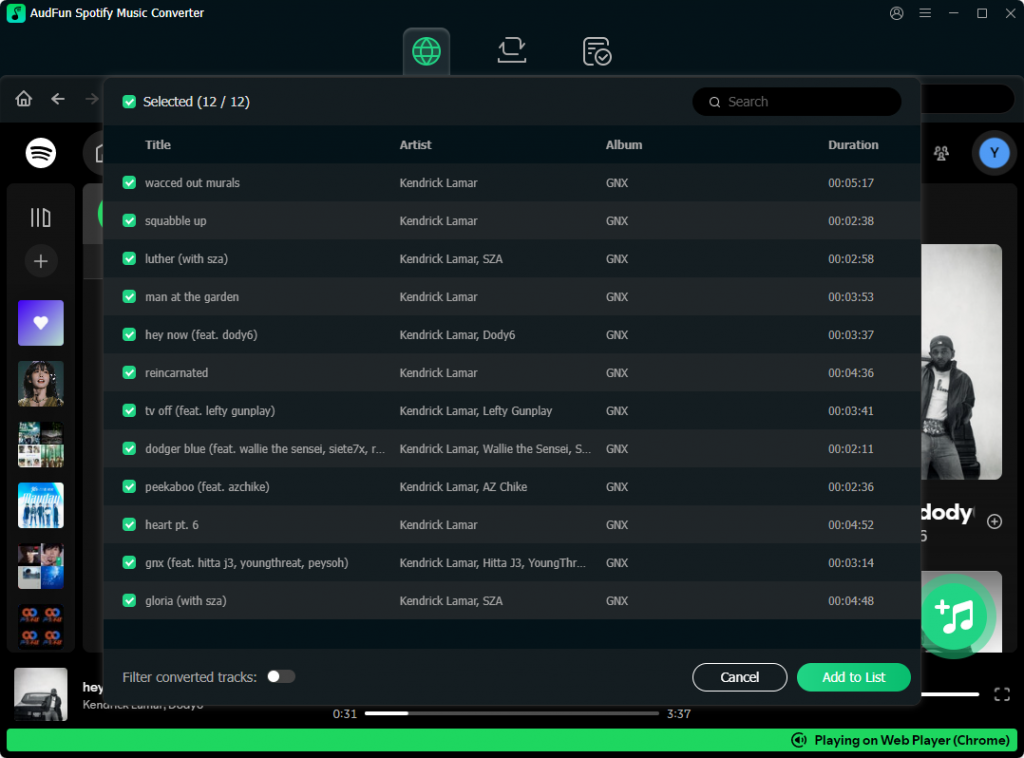
Launch AudFun, find the songs and click Add button, paste the Spotify link, and the track appears in the conversion list. Repeat for an entire clean playlist.
2. Choose your output format and quality
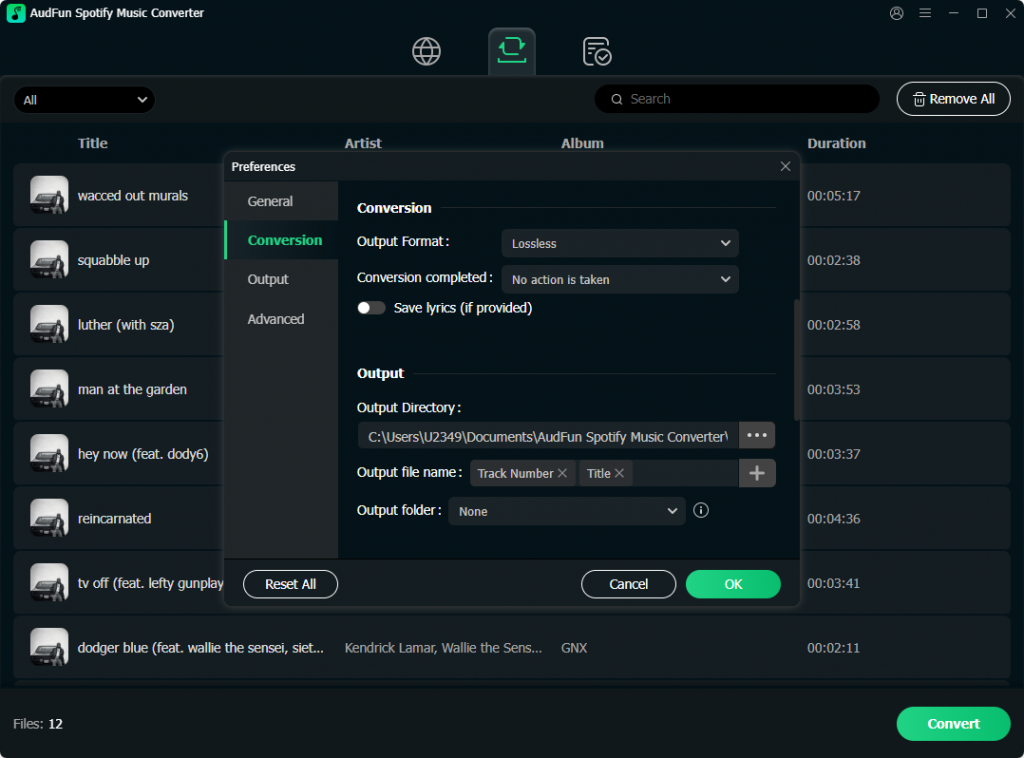
Click the gear icon to open Preferences. Under Format, select MP3 (universal) or AAC. Bitrate options go up to 320 kbps; 256 kbps balances size and clarity for most devices. Set a destination folder.
3. Convert and save the clean MP3
Click Convert. AudFun processes each track at high speed while preserving ID3 tags. When done, click the Converted tab and open the output folder. Copy the clean MP3s to any device — they play without involving Spotify’s explicit‑content filter because the files are now plain MP3s independent of platform labeling.
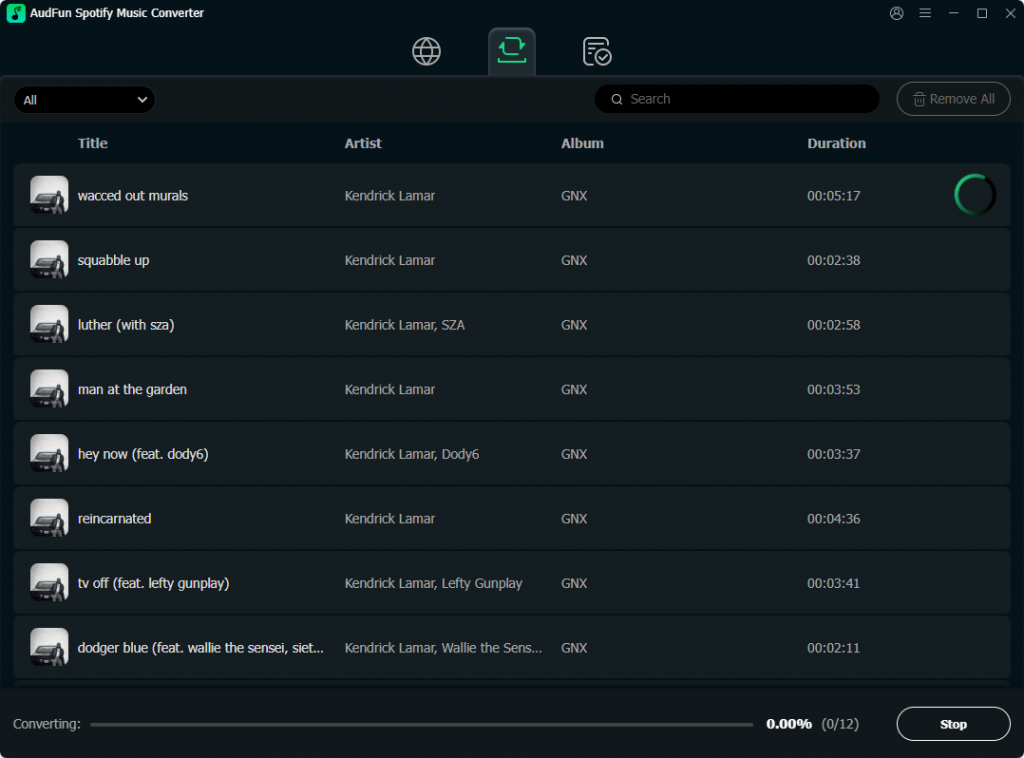
With these permanent clean copies, you’ve built an offline safety net that doesn’t rely on Spotify’s toggle working perfectly — and every file stays exactly as safe as the version you chose.
Part 5: Frequently Asked Questions About Turning Off Spotify Explicit Content
Does the explicit‑content filter on my phone also apply when I stream to a smart speaker?
Not always. When using Spotify Connect, the playback device’s restrictions may override your phone’s toggle. End the remote session and control playback directly from the device that holds the restriction.
What should I do if the toggle is grayed out?
First, end any active Spotify Connect sessions. If it remains locked, your account is likely part of a Family Plan where the manager has disabled explicit content for your profile. Only the plan manager can re‑enable it.
Will Spotify Kids block everything explicit?
Spotify Kids provides a curated, ad‑free catalog that sidesteps the E‑label system. It’s the safest built‑in option. Combining it with the Family Plan explicit block gives you the strongest control.
Can I download clean tracks so they stay clean offline?
Yes. AudFun Spotify Music Converter lets you convert clean radio edits into permanent MP3s. Because the files are no longer tied to Spotify’s platform, they won’t change even if the catalog shifts.
Why do some explicit songs still play after I turn off the setting?
Spotify depends on labels to tag songs, and mislabeled tracks are common. To fill that gap, build playlists from known clean‑edit releases or use a conversion tool that locks in the version you want.
Conclusion
Spotify’s own filters catch most explicit music, but they lean on a tagging system that occasionally lets songs through. The built‑in toggle and Family Plan controls handle typical streaming, while the Kids app tightens things further for younger listeners. When gaps appear — missing clean edits or inconsistent labels — having a parallel approach makes all the difference.
AudFun Spotify Music Converter fits that role by letting you permanently save the clean versions you choose. The files play anywhere, immune to catalog changes and account mix‑ups. In the end, combining platform settings with a self‑curated clean library gives you the most reliable way to block explicit songs and keep the listening experience on your terms.