
Spotify provides a direct ‘Download’ option for users to download Spotify songs to computers. So, users can listen to Spotify music on devices that don’t connect to the Internet. But this is the privilege of Premium members. Moreover, you couldn’t find Spotify music downloads on your local computer. That’s because Spotify downloads are cache files, not local files. Therefore, downloading Spotify playlists to a computer by using this way can allow you to listen to Spotify offline on its own app only.
But what if you want to use Spotify music on other devices? For example, transfer Spotify music to a USB stick for playing on devices with a USB port. You might be wondering if there’s another effective way to download Spotify songs for full music control. So, in this article, we’ll cover two ways to download songs from Spotify to computers with or without a premium account.
- Part 1. Easiest Way to Download Spotify Songs to Computer (with/without Premium)
- Part 2. Official Way to Download Spotify Music to Computer (with Premium)
- Part 3. FAQs
- Part 4. Final Verdict
Part 1. How to Download Spotify Songs to Computer as Local MP3 Files (Best Method)
If your goal is to bypass restrictions and truly own your music, the most effective method is using a professional Spotify to MP3 converter. This allows both Free and Premium users to download songs, playlists, and podcasts as local files that will never disappear.
We highly recommend AudFun Spotify Music Converter. Engineered with an advanced decryption core, it allows you to batch download Spotify music at 5X faster speeds while preserving 100% of the original ID3 tags (artist, album, track number) and up to 320kbps high-fidelity audio quality. It is 100% safe, ad-free, and incredibly user-friendly.

AudFun Spotify Music Downloader for Free and Premium Users
- Download Spotify individual songs, albums, and playlists locally
- Convert Spotify songs, and playlists to MP3, WAV, FLAC, etc.
- Play Spotify music on all portable devices and players offline
- Keep lossless music quality & customize output audio parameters
Step-by-Step: How to Convert Spotify to MP3 on Computer
Here is a simple tutorial on how to use AudFun to rip music from Spotify to your computer legally and safely.
Step 1 Import Spotify individual songs, or playlists to AudFun Software
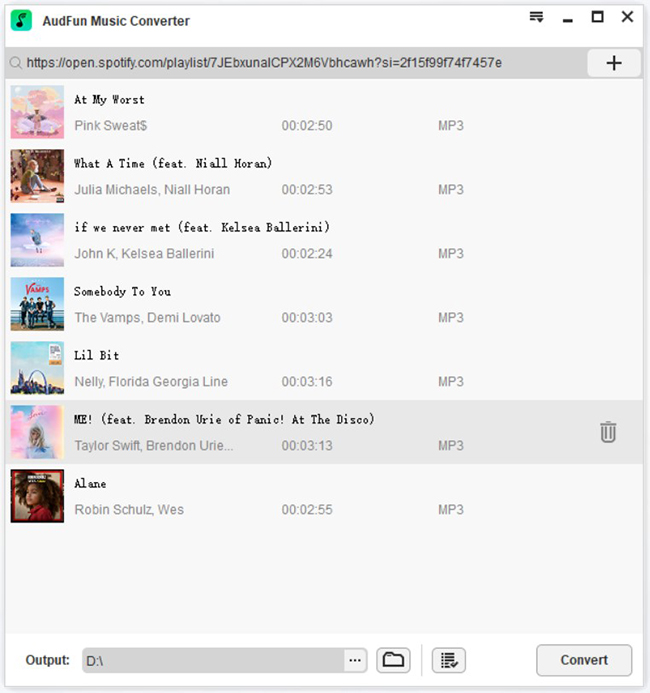
Launch the AudFun Software. The Spotify desktop app will open automatically. Find the track, album, or playlist you want to download. You can easily drag and drop the music directly into the AudFun main interface. Alternatively, right-click the song, copy the URL, paste it into AudFun’s search bar, and hit the “+” button to load the batch.
Step 2 Customize Spotify output format and parameters for download
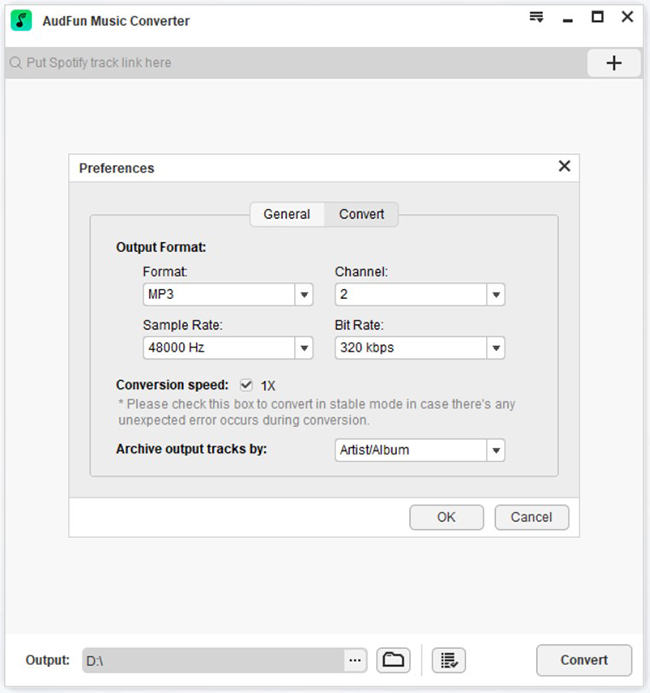
Click on the Menu icon at the top right and select Preferences > Convert. For the best compatibility and audio experience, we recommend setting the output format to MP3, the Sample Rate to 48000 Hz, and the Bit Rate to 320 kbps. Click ‘OK’ to save your settings.
Step 3 Download Spotify songs to your computer for free
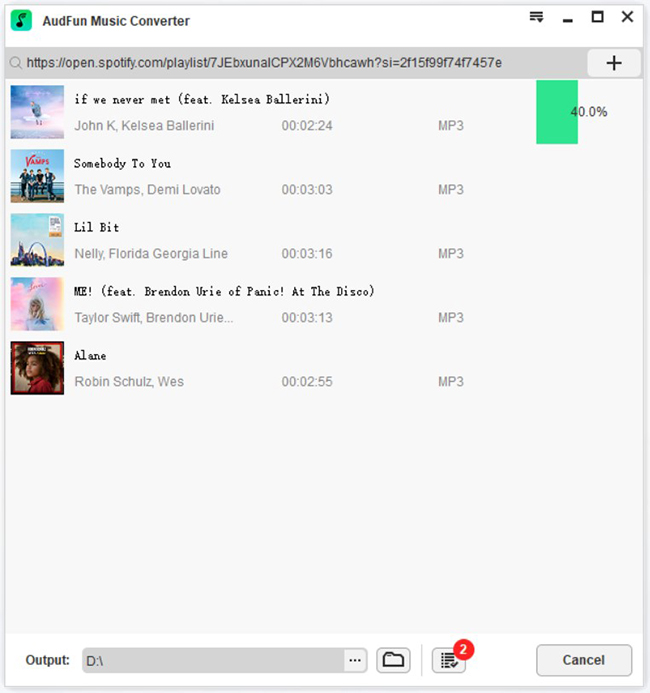
Once everything is set, click the Convert button at the bottom right. AudFun will begin converting your selected Spotify tracks into local files at a 5X speed. After conversion, click the ‘Converted’ (History) folder icon to locate your newly downloaded MP3s on your computer’s local drive.
Part 2. How to Download Spotify Music to Computer Officially (Premium Required)
If you prefer not to use third-party software and already pay $10.99 per month for a Premium subscription, you can utilize Spotify’s built-in offline listening feature. However, keep in mind that you can only download full playlists or albums—not individual tracks (unless you put them into a new playlist first).
How to Download Music from Spotify to Computer
Now, let’s see how to download Spotify music to computers easily.
Step 1. Install and open the Spotify app on a PC or Mac
Download the Spotify client app and launch it on your computer after the installation. It requires you to log in to your email address and password that is bound to a Premium account.
Step 2. Discover the Spotify playlist that you’d like to download
Go to the ‘PLAYLISTS‘ section on the left side of the Spotify desktop app. You can type and search for the name of the playlist to find it. When you open the playlist, it will show a ‘Download‘ button near the center of the new window.
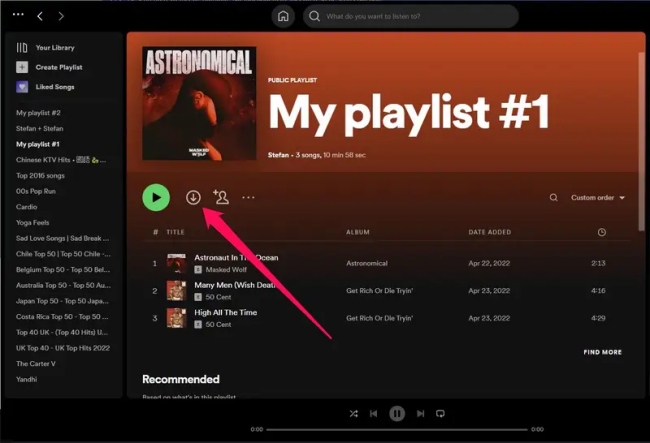
Step 3. Download music from Spotify to computers
Open the ‘Download‘ toggle button. The download process starts and your playlists will be downloaded to your computer automatically. Even though you are not connected to the Internet, you can still stream Spotify songs and playlists offline on your computer.
Part 3. FAQs Related to Download Spotify Songs
1. How do I download Spotify songs to my computer?
As stated above, if you’ve already a Spotify Premium user, you can easily use the Download feature offered by Spotify. But the downloaded songs are only cache files. For Spotify Free users and those who want to keep the downloaded songs forever, we highly recommend AudFun Spotify Music Converter. You can just drag the Spotify songs to the program, and click the Convert button. Wait a while and all the desired tracks are saved on your local computer.
2. How do I save Spotify songs as MP3s?
Well, Spotify doesn’t allow users to download and save Spotify music files as MP3, due to copyright protection. Fortunately, you can use some third-party tools such as AudFun Music Converter to convert and save Spotify songs as MP3s in a couple of clicks.
See more: How to Convert Spotify Music to MP3
3. How do I keep downloaded Spotify songs forever?
Because Spotify uses protection, any songs downloaded via a Premium account will vanish if your subscription expires or if you don’t go online for 30 days. To keep your Spotify music forever, you must convert the tracks to standard MP3 files using a dedicated Spotify downloader.
Part 4. Final Verdict
Downloading songs from Spotify to your computer is straightforward once you know your options. The official Spotify Premium method is great for simple, in-app offline listening. However, its strict limitations mean you never truly own the music.
If your ultimate goal is to convert Spotify to MP3, bypass restrictions, and transfer your playlists to other devices like USB drives or MP3 players, using a dedicated tool is the best long-term solution. AudFun Spotify Music Downloader bridges this gap perfectly, offering a secure, fast, and lossless way to build your personal local music library.
