
If you have spent any time on Instagram, X (formerly Twitter), or TikTok recently, you have likely seen your friends posting aesthetic, crumpled-looking shopping receipts. But instead of listing groceries or clothing, these receipts display their most-played songs and favorite artists. This viral trend is all thanks to a clever third-party web application called Receiptify.
Whether you want to show off your nice underground music taste or proudly display your love for mainstream pop, generating your own music receipt is incredibly easy. In this comprehensive guide, we will explain exactly how to get Spotify Receiptify, how to customize your music stats, how to download your top tracks to MP3, and how to troubleshoot common login errors so you can join in on the fun.
- Part 1. What is Spotify Receiptify?
- Part 2. How to Get Spotify Receiptify
- Part 3. How to Customize Your Spotify Music Receipt
- Part 4. How to Download Your Spotify Receiptify Playlist to MP3 via AudFun🔥
- Part 5. Is Receiptify Safe to Use with Spotify?
- Part 6. Troubleshooting: How to Fix Receiptify Not Working
- Part 7. Best Spotify Receiptify Alternatives to Try
Part1. What is Spotify Receiptify?
Receiptify is a popular third-party music statistics tool created by Michelle Liu, an information systems student at Carnegie Mellon University. Inspired by the creative Instagram account @albumreceipts, Liu developed a web application that taps into your music streaming data and visualizes your listening habits in the format of a classic restaurant or retail receipt.
While it is most commonly used with Spotify, the tool also supports Apple Music and Last.fm. By analyzing your listening history, Receiptify calculates your top tracks, top artists, and top genres, presenting them as “items” on a bill, complete with track durations acting as the “price” and a randomized order number for an authentic touch. It is essentially a year-round, bite-sized version of Spotify Wrapped that you can generate whenever you want.
Part 2. How to Get Spotify Receiptify
Generating your personalized music receipt takes less than a minute. Follow these simple steps to safely connect your account and view your top tracks.
Step 1: Visit the Official Receiptify Website
To protect your data, it is crucial to only use the official website. Open your preferred web browser on your smartphone, tablet, or computer and navigate to receiptify.herokuapp.com. Because it is a web-based application, you do not need to download any apps from the App Store or Google Play.
Step 2: Log in with Your Spotify Account
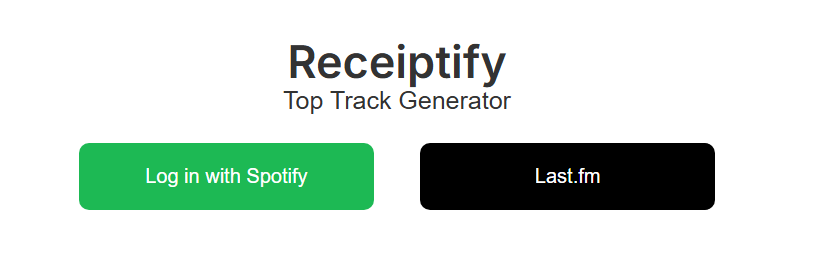
On the homepage, click the prominent “Log in with Spotify” button. You will be securely redirected to Spotify’s official login portal. Enter your Spotify email and password. If you are already logged into Spotify on your browser, you may bypass this screen automatically.
Step 3: Authorize App Permissions
After logging in, Spotify will show you a permissions screen. Receiptify will request “read-only” access to your account data, specifically your top artists, top tracks, and listening history. Click “Agree” to authorize the connection.
Step 4: Generate and Download Your Receipt
Once authorized, you will be taken to the main dashboard where your Spotify receipt will automatically generate based on default settings. Scroll to the bottom of your customized receipt and click the “Download Image” button. The image will save directly to your device’s camera roll or downloads folder, perfectly formatted and ready to be shared on your favorite social media platforms.

Part 3. How to Customize Your Spotify Music Receipt
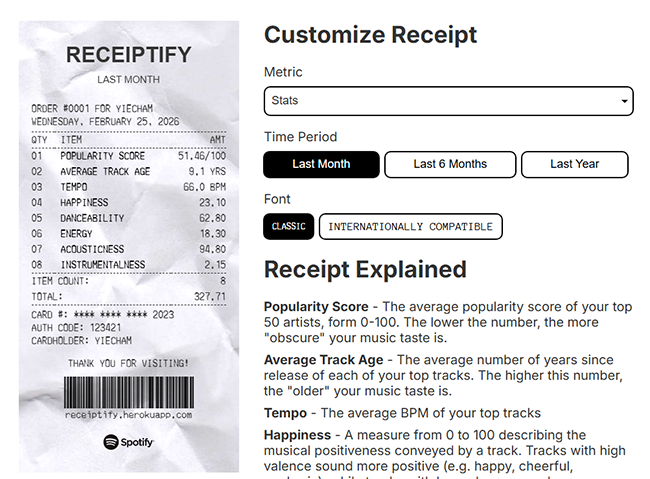
One of the best features of the Receiptify app is the ability to tailor the data to your exact liking. Once you are logged in, you will see a customization menu at the top of the screen. Here is how you can tweak your receipt:
- Metric: Choose what data you want to display. You can select Top Tracks (your most played songs), Top Artists, Top Genres, or the brand-new “Stats” feature.
- Time Period: You can filter your listening history by the Last Month (great for seeing your current obsessions), Last 6 Months (for broader trends), or All Time (your ultimate all-time favorites since you created your Spotify account).
- Length: Choose whether you want a short and punchy Top 10 list, or an extended Top 50 receipt.
- Font Style: Toggle between the “Classic” dot-matrix receipt font or an “Internationally Compatible” font if your top songs feature non-Latin characters (like K-Pop or J-Pop track titles).
Exploring the New Receiptify Stats Feature
Recently, Receiptify introduced a “Stats” metric, which acts as a health check for your music personality. Instead of listing song titles, this receipt analyzes Spotify’s backend audio features to score your library from 0 to 100%. It measures:
- Average Artist Popularity: Are you listening to global superstars or undiscovered indie bands?
- Danceability & Energy: Does your playlist make you want to hit the club, or is it meant for studying?
- Acousticness & Instrumentalness: Do you prefer unplugged, raw vocals, or heavy electronic synth production?
Part 4. How to Download Your Spotify Receiptify Playlist to MP3 via AudFun
After generating your aesthetic music receipt, you might want to take those top tracks and create a dedicated playlist. While Spotify Premium allows offline listening within the app, what if you want to play your top Receiptify songs on an MP3 player, burn them to a CD, or mix them in DJ software? This is where a third-party tool like the AudFun Spotify Music Converter becomes incredibly useful.
AudFun Spotify Music Converter is a professional music downloader that allows both Free and Premium Spotify users to extract audio and convert it into highly compatible formats like MP3, FLAC, and WAV. It preserves 100% lossless audio quality and retains all original ID3 tags (like artist name and album cover).

AudFun Spotify Music Converter
- Preserves high audio quality output Spotify songs, albums, playlists, etc.
- Supports the conversion of Spotify music files at a high speed of X5 rate
- Listen to Spotify offline without premium on multiple devices and platforms
- Converts Spotify music to several formats like FLAC, M4A, MP3, etc.
Here is how to use AudFun to download your Receiptify playlist:
Step 1: Compile Your Playlist and Install AudFun
First, create a new playlist in your Spotify app and manually add the top songs shown on your Receiptify image. Next, download and install the AudFun Spotify Music Converter on your Mac or PC.
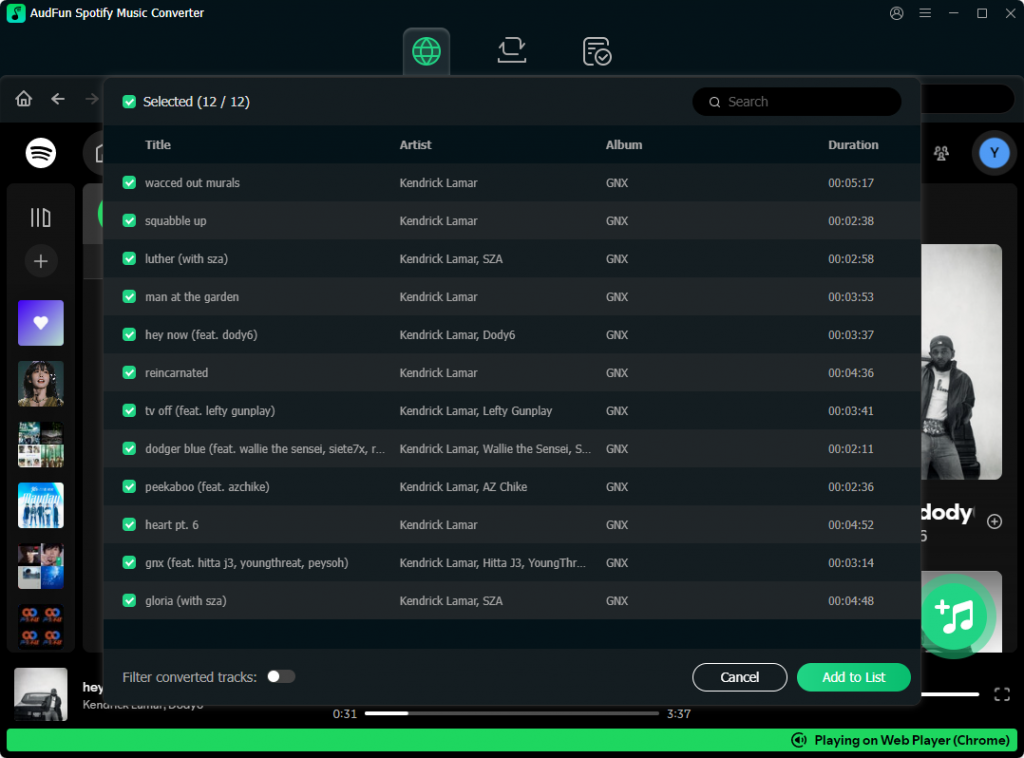
Step 2: Upload Your Receiptify Playlist to AudFun
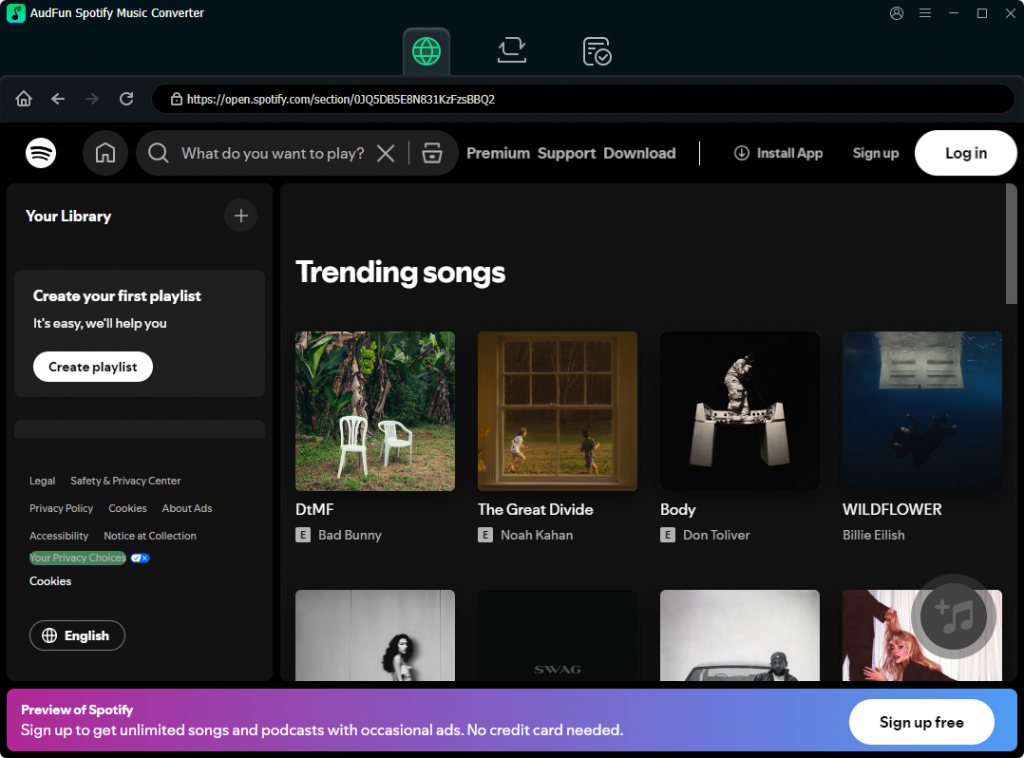
Open the AudFun software, which will automatically launch your Spotify desktop app. Find your newly created Receiptify playlist, click the three dots (…), select Share, and click Copy Spotify Link. AudFun will automatically detect the link and prompt you to add the songs to your download list. Alternatively, you can click the + button directly in the AudFun interface to add them.
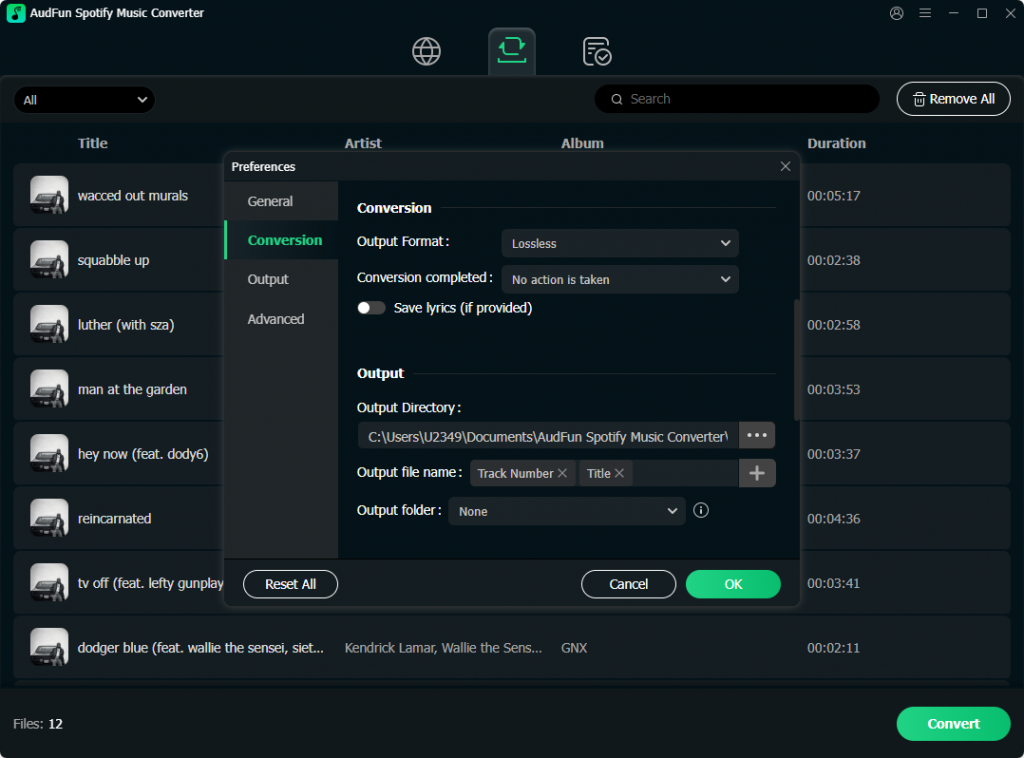
Step 3: Set the Output Format to MP3
Navigate to the menu bar and select Preferences, then click on the Conversion tab. In this settings window, change the output format to MP3. You can also adjust the bit rate and sample rate here to ensure the highest possible audio quality.
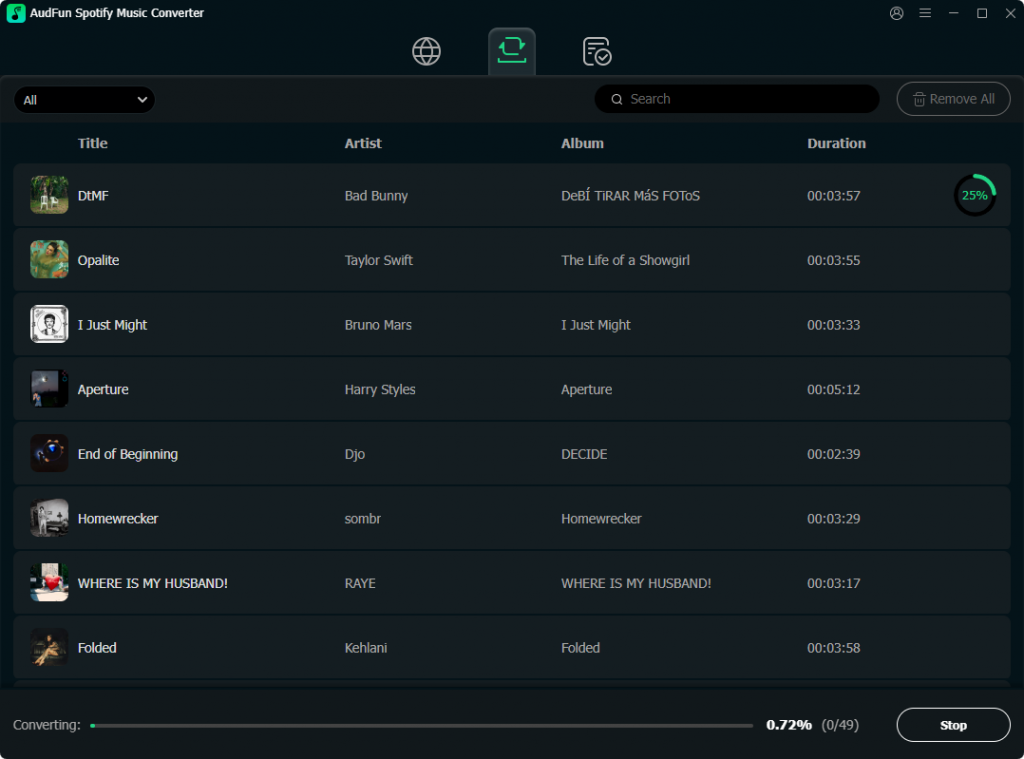
Step 4: Convert and Download Your Tracks
Click the large Convert button at the bottom right of the screen. AudFun will begin downloading your Receiptify playlist at up to 5X speed (on Windows). Once finished, your MP3 files will be saved locally on your computer, completely free of DRM restrictions and ready to be transferred to any device you own.
Part 5. Is Receiptify Safe to Use with Spotify?
A common and highly valid question users ask is: Is Receiptify safe? The short answer is yes.
Receiptify utilizes Spotify’s official API (Application Programming Interface) and the industry-standard OAuth 2.0 authorization protocol. This means that when you log in, you are typing your credentials directly into Spotify’s secure servers, not Receiptify’s. The app never sees, records, or stores your password.
Furthermore, the app only requests read-only permissions. It can look at your listening history to generate the image, but it cannot alter your account, delete your playlists, or post on your behalf.
If you want to be extra cautious, you can easily revoke the app’s access immediately after downloading your receipt. Simply go to your Spotify account settings on a web browser, navigate to “Apps”, locate Receiptify in the list of connected applications, and click “Remove Access.”
Part 6. Troubleshooting: How to Fix Receiptify Not Working
Because Receiptify is hosted on a free server platform and experiences massive spikes in viral traffic, you might occasionally run into glitches. Here is how to fix the most common Receiptify not working errors.
405 Method Not Allowed
This is the most frequent error users encounter. It usually happens if you try to use a bookmarked link or hit the “back” button on your browser, confusing the server.
The Fix: Do not refresh the error page. Instead, tap your browser’s address bar, manually type in receiptify.herokuapp.com, and hit enter to force a fresh connection.
No Data Found
If your receipt generates but is completely blank or says “No Data Found,” the app is being blocked from reading your Spotify history.
The Fix: Open your Spotify mobile app, go to Settings, scroll down to Privacy & Social, and ensure the toggle for “Share my listening activity” is turned ON. If this is off, Spotify hides your data from third-party apps.
Blank Screen or Loading Glitches
If the website lets you log in but the receipt image never appears, your device might be blocking the browser’s Canvas API (the technology used to draw the receipt image).
The Fix: Turn off “Low Power Mode” or “Battery Saver” on your smartphone. Additionally, temporarily disable any strict ad-blockers or try using a different browser like Chrome or Safari.
Part 7. Best Spotify Receiptify Alternatives to Try
If you love visualizing your music data but want to try something different than the standard receipt format, there are several fantastic alternatives that use the same secure Spotify API:
Spotify Pie: This tool analyzes your listening history and generates a highly detailed, colorful pie chart broken down by your top micro-genres, alongside a list of your top artists.
Instafest: Ever wondered what a music festival curated specifically for you would look like? Instafest takes your top artists and generates a realistic, three-day festival lineup poster.
Stats.fm (formerly Spotistats): For the true data nerds, this mobile app provides deep, year-round analytics on your listening habits, including exact play counts and minutes listened.
Conclusion
Learning how to get Spotify Receiptify is a fun, quick, and safe way to visualize your unique music taste. By following the steps outlined in this guide, you can easily generate your own aesthetic music receipt, customize it to show your favorite time periods, and troubleshoot any minor server glitches along the way. Furthermore, by utilizing tools like AudFun Spotify Music Converter, you can easily take your top tracks offline. Log in today, download your stats, and see what your listening habits say about you!
