
Short Summary: Are you looking for a way to download your entire “Liked Songs” library from Spotify? This guide covers two effective methods: 1. Using a professional tool to save songs as MP3s (yours to keep forever); 2. Using Spotify Premium for offline playback within the app.
Q: “Hello there, is that possible to download my Spotify liked songs? I have about 250. Thanks for any suggestions.” – Lid999 from Spotify Community
As you discover new music on Spotify, tapping the heart icon (or the new “Plus” button) is the quickest way to save a track. Over time, your Liked Songs playlist becomes a curated collection of your absolute favorites. Naturally, you want to access this collection anytime, anywhere.
However, there is a catch. Even if you pay for Spotify Premium, the “download” feature only saves cache files. These files are encrypted and can only be played inside the Spotify app. You cannot transfer them to a USB drive, MP3 player, or burn them to a CD. Fortunately, there is a workaround. In this post, we will show you how to download Spotify Liked Songs to MP3 so you can truly own your music and listen offline on any device.
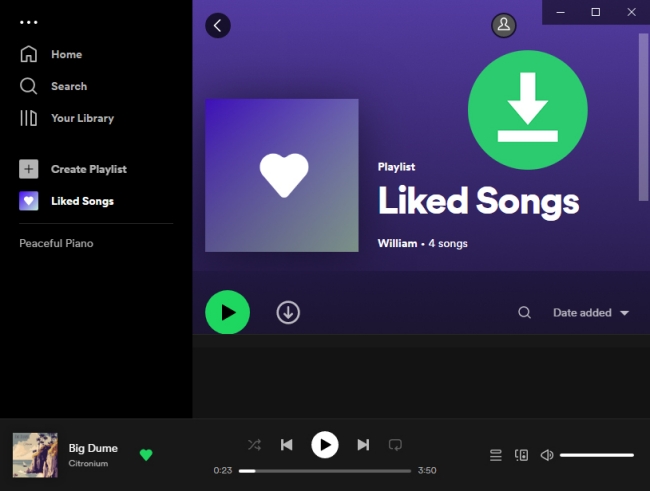
Part 1. How to download Spotify Liked Songs to MP3
Currently, there is no way to download Spotify Liked Songs in MP3 format from Spotify’s official channel. You have to resort to some third-party tools, such as AudFun Spotify Music Converter.
AudFun is a professional music downloader and converter for Spotify. You can use it to download any tracks, playlists, albums, podcasts, etc. from Spotify for offline listening, including Liked Songs. The most important thing is that it can convert Spotify music to MP3, WAV, FLAC, or other common formats. Thus, you are free to use them as you like.
AudFun Spotify Music Converter is capable of downloading Spotify audio files at up to 5x fast speed while retaining the original music quality. Besides, it offers a chance for you to classify song info after conversion, such as album, artist, genre, etc.

Key Features of AudFun Spotify Converter
- Download Spotify Liked Songs with ease
- Download all kinds of Spotify content
- Convert Spotify to WAV, MP3, FLAC, AAC, M4A, M4B
- Download Spotify songs fast, with no quality loss
Step-by-step Guide to Download Spotify Liked Songs to MP3 with AudFun
Next, let’s see how easy it is to convert Spotify Liked Songs to MP3 with AudFun Music Converter. Before that, please make sure you’ve prepared the following tools:
- AudFun Spotify Music Converter app
- Spotify app
- A Windows or Mac computer
Step 1 Launch AudFun Spotify Liked Songs Downloader
Click the Download button above to install the AudFun Spotify Music Converter on your computer. Launch the program after you finish the installation. And the Spotify desktop app will be launched automatically.
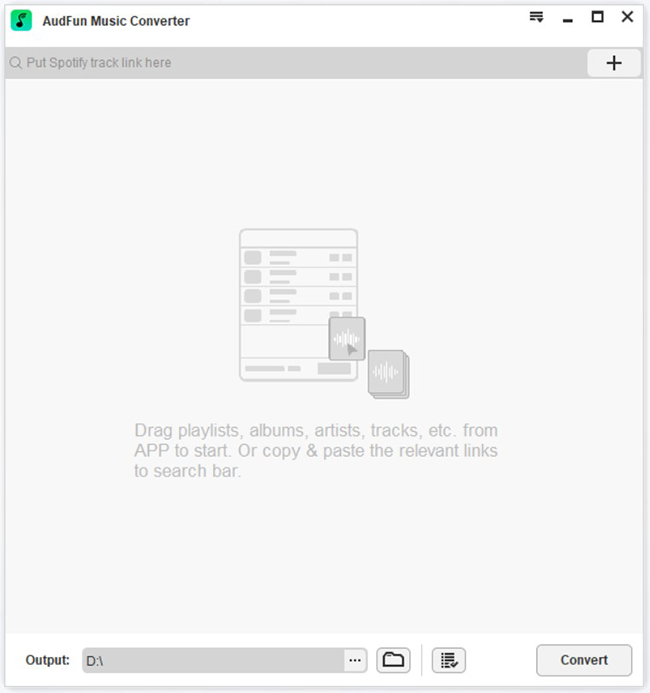
Step 2 Move Spotify Liked Songs to New Playlist
Next, navigate to Your Library and click the “+“button to create a new playlist. Then go to your Liked Songs on the left sidebar of the Spotify desktop app. Use the “Ctrl” keyboard shortcut to choose any Liked Songs you want to download. Or “Ctrl + All” to choose all Spotify Liked Songs. Then right-click and choose “Add to playlist” to move them to the playlist you just created.
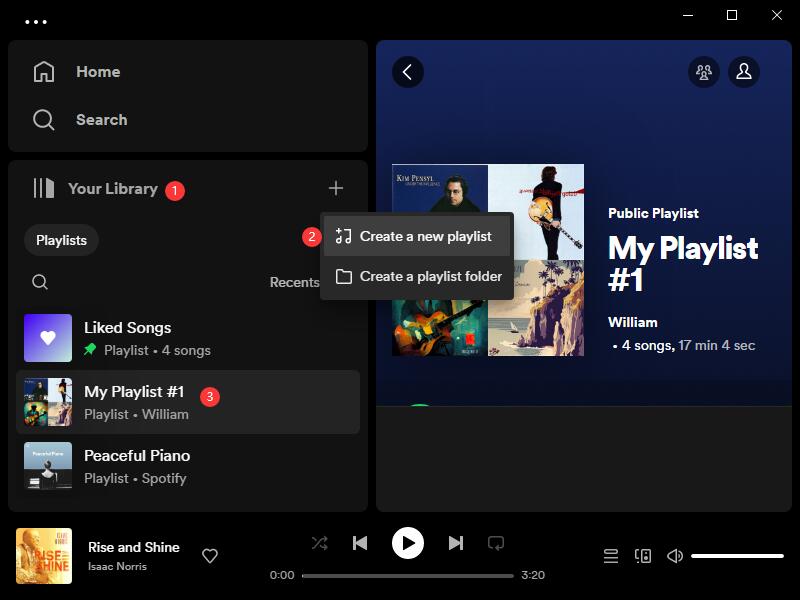
Note: If you want to download some of your Liked Songs to MP3, you can skip this step and move forward to drag the individual links for conversion.
Step 3 Add Spotify Liked Songs to AudFun
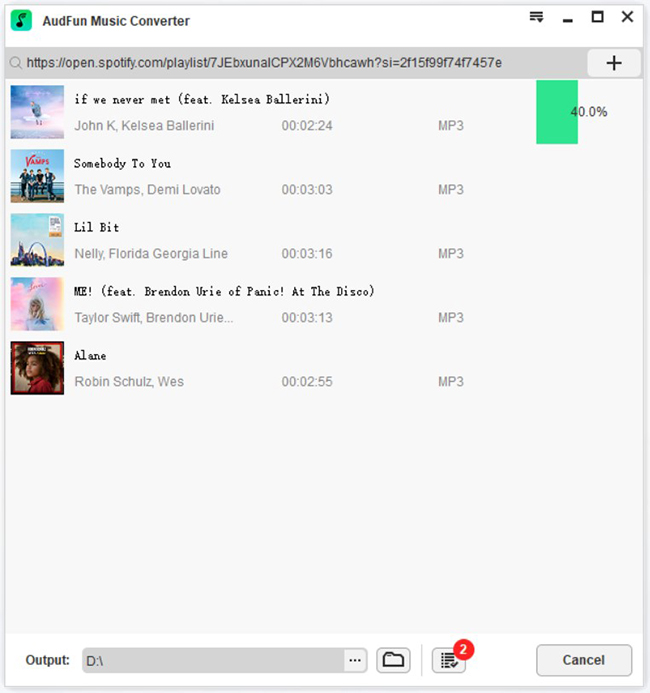
Now you can simply drag the playlist link and drop it to AudFun Spotify Converter, and all songs will be loaded automatically.
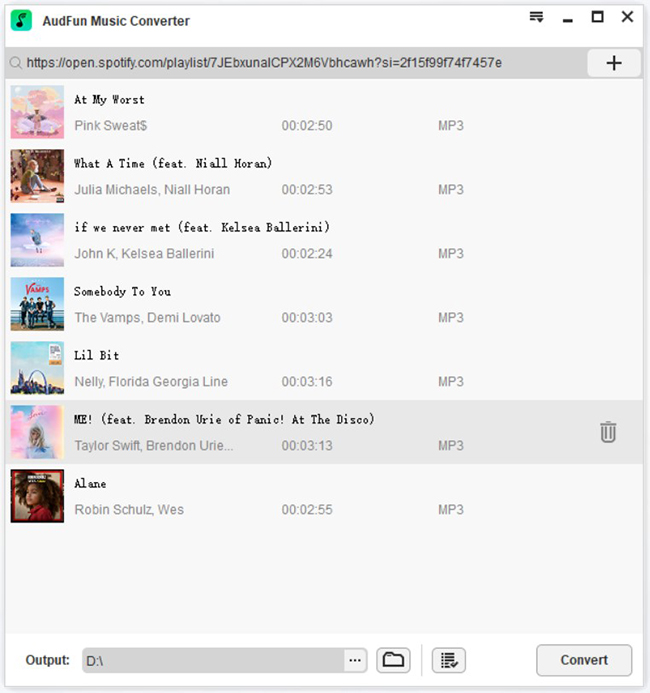
Step 4 Start to Convert Spotify Songs
Finally, click the Convert button at the right bottom corner and AudFun will start to convert your Spotify Liked Songs to MP3. Wait until the process is done. You will find the downloaded Spotify Liked Songs on the local computer, and use them on any device such as Apple Watch.
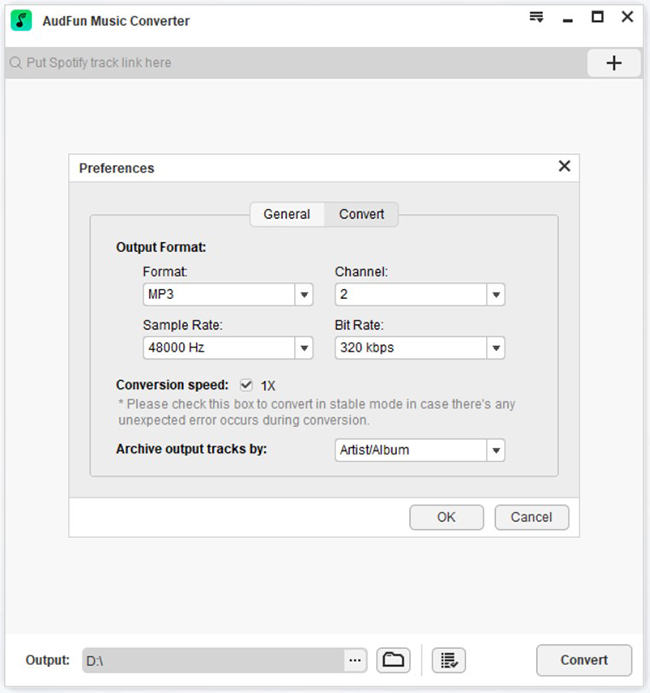
(Optional) If you want to change the output parameters like format, bit rate, etc., you can go to Menu > Preferences > Convert.
Part 2. How to Download Spotify Liked Songs with Premium
If you have upgraded to the Spotify Premium plan, you can simply follow the guide below to download Spotify Liked Songs with ease. Please note that all the songs are cache files, so they’ll be gone once you stop subscribing to Spotify Premium.
For desktop
Step 1: Launch the Spotify program on your Windows or Mac computer. Sign in to your Spotify account.
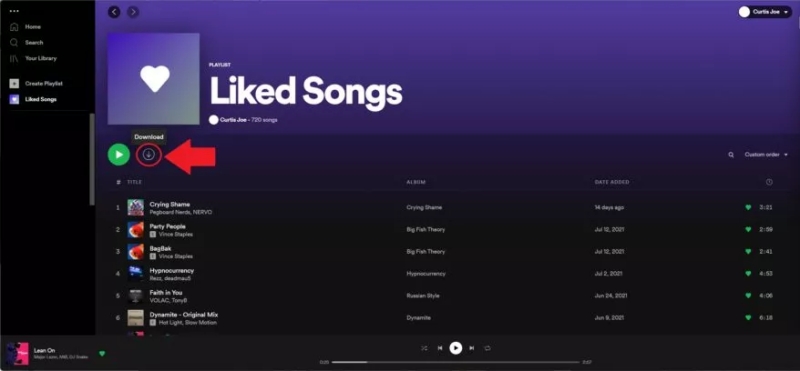
Step 2: Go to the Liked Songs playlist on the left sidebar, and click the Download button (downward-facing arrow) to download all your Liked Songs list.
For Android & iOS
Step 1: Open the Spotify app on your iPhone or Android phone.
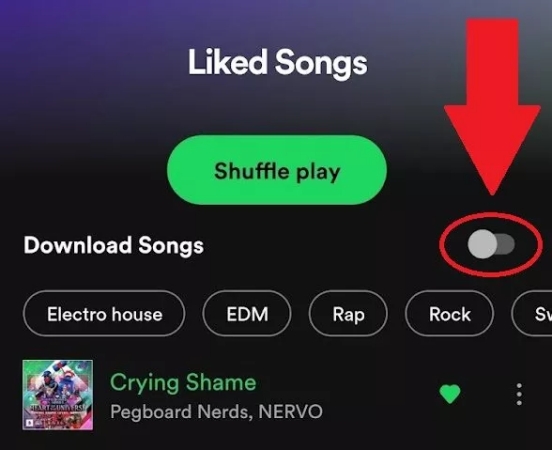
Step 2: Navigate to Your Library > Liked Songs. Tap the Download Songs toggle to download any Liked Songs from Spotify automatically.
Part 3. How to Download Spotify Liked Songs via Online Downloader
If you don’t want to install extra software on your computer, using an online Spotify downloader is a decent alternative. Web-based tools like SpotMate allow you to download songs directly through your browser.
Note: While convenient, online downloaders have limitations compared to professional software (Part 1). They often have lower audio quality (usually 128kbps), contain pop-up ads, and may fail to download large playlists in one go.
Steps to Use an Online Spotify Downloader
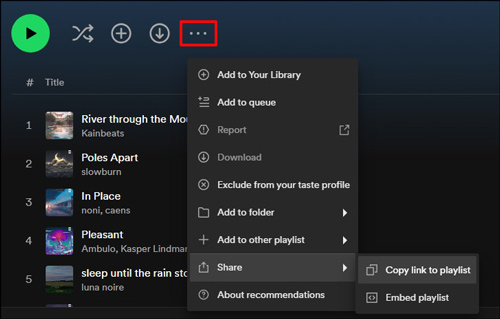
Step 1: Copy the Link.
Just like in Part 1, you cannot copy a link to the “Liked Songs” folder directly. You must first move your songs to a new Playlist (as described above), or copy the link of a single song you want to download.
Step 2: Visit the Online Downloader.
Open your browser and navigate to a site like SpotMate.
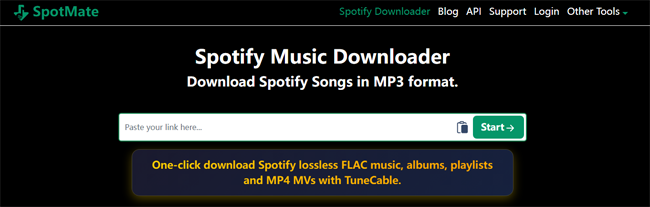
Step 3: Paste and Download.
Paste the Spotify song or playlist link into the search field and hit “Start.” The site will process the link. You may need to click “Download” next to each individual song to save the MP3 to your device.
Part 4. FAQs Related to Download Liked Songs Spotify
1. How to find your Liked Songs on Spotify?
Open your Spotify web player or desktop app on the computer. On the left side of the interface, you’ll see the Liked Songs button. Click that button to find all of your Liked Songs.
2. What is Spotify’s Liked Songs limit?
At first, users could only save 10,000 Spotify tracks as liked longs. In 2020, the company finally removed such a limit, which means that you can like an unlimited number of songs on Spotify.
3. What happened to Spotify Liked Songs?
Spotify always used a heart icon to represent Liked Songs. In February 2023, the company announced that it was consolidating the heart icon and the “Add to playlist” icon into a single symbol: the Plus button. It allows users to save all songs, playlists, albums, podcasts, and audiobooks to their library.
4. Why did I fail to download Liked Songs on Spotify?
Remember that the download feature is only available for Premium users. If you are, check whether you’ve logged into the right account. If the problem still exists, you can update the Spotify app, reinstall the app, relog the account by yourself, or contact the Spotify tech support team for help.
Part 5. Conclusion
Your “Liked Songs” are the soundtrack of your life, and you shouldn’t be restricted by an internet connection or a subscription status. While Spotify Premium offers a convenient rental service for offline listening, tools like AudFun Spotify Music Converter give you true ownership.
If you only need a song or two, the Online Downloader method is a quick fix. However, for backing up your entire library in high quality, a dedicated converter is the best choice. Choose the method that fits your needs and enjoy your music anywhere!
