
Every morning, we wake up to the sound of an alarm clock. For some of us, it’s a gentle beep or peaceful song that slowly gets louder and more insistent until we finally wake up. Others hit the snooze button multiple times before getting out of bed. But what if there was a better way to wake up? What if, instead of a jarring sound or annoying song, you woke up to your favorite music? That’s where Spotify comes in.
The seamless integration between these two apps allows you to easily set up a Spotify alarm clock on Samsung devices. You can use the Samsung Clock app to connect to your Spotify account so that you’ll hear whatever music you want when it goes off. However, some users still do not know how to set this up, or they find that the Samsung Clock Spotify is not working. If you are facing these issues, here is a complete guide to solve all your doubts.
- Part 1. Connect Samsung Clock to Spotify – Official
- Part 2. Solve Samsung Clock Spotify Not Working
- Part 3. Alternative: Set Spotify as an Alarm on Samsung Offline
- Part 4: FAQs about Spotify Alarm Clock on Samsung
- Part 5. In Conclusion
Part 1. How to Connect Samsung Clock to Spotify
So, how do you actually connect Spotify to your Samsung Clock? Well, if you would love to wake up to your favorite Spotify tunes, it is important that your device is connected to the Internet and updated to Android version 10.0 or above. Then, you need to update the Samsung Clock app to the latest version from the Google Play Store. After that, follow the guide below to activate the Spotify feature on your device.
Step 1. Launch your Spotify app on your phone. If you do not have one, download it from Google Play Store and log in to your account.
Step 2. Start the clock app and tap on the “Alarm” option at the bottom of the screen.
Step 3. Tap the “+” icon or existing alarm to edit an alarm.
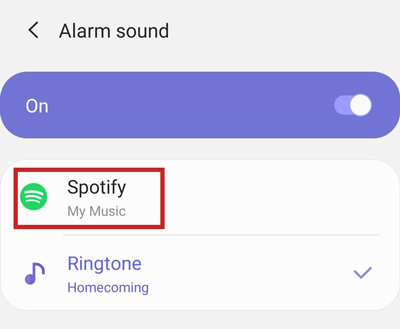
Step 4. Select “Alarm Sound” and choose “Spotify” to discover your favorite Spotify tune.
Step 5. Now, select your favorite Spotify songs as your alarm sound.
Step 6. Hit the back arrow twice and select “Save” to set your Spotify alarm clock on Samsung.
Part 2. Samsung Clock Spotify Not Working? 6 Effective Solutions
Today, Samsung users can easily get started with the new Spotify alarm feature. However, if you search the Internet, you will often find many users reporting issues. Some people reported that their alarm didn’t ring after a system update, while others said that the Samsung Clock could not play Spotify at all, defaulting to the standard beep. If you are one of them, don’t worry! Here are the most effective solutions.
Solution 1: Disable Battery Optimization for Spotify
Samsung’s aggressive battery management system often puts background apps to sleep. If Spotify is put to sleep, the Samsung Clock cannot trigger it to play music when your alarm goes off. To fix this: Go to your phone’s Settings > Apps > Spotify > Battery, and change the setting from “Optimized” to “Unrestricted”. This ensures Spotify can run in the background when the alarm triggers.
Solution 2: Reboot Your Device
Normally, a simple device restart can fix most of the small software glitches on your phone. If you encounter any Spotify alarm clock issues, try restarting your Samsung device and see if it helps re-establish the connection between the two apps.
Solution 3: Check Your Internet Connection
If you want to use streaming Spotify music as your alarm sound, your phone must have an active internet connection at the time the alarm goes off. Otherwise, the app will default to a standard Samsung ringtone. Ensure your phone is connected to a stable Wi-Fi network or has mobile data enabled overnight.
Solution 4: Update Both Apps
Spotify and Samsung release updates from time to time to fix bugs and improve user experience. Ensure you are using the latest versions of both apps. Launch the Google Play Store or Galaxy Store, search for “Spotify” and “Clock”, and tap “Update” if available.
Solution 5: Clear App Data and Cache
If the solutions above don’t work, corrupted temporary files might be the culprit. Clearing the cache will reset the app data and hopefully fix the syncing issue. To clear Spotify cache, go to Settings > Apps > Spotify > Storage > Clear Cache.
Solution 6: Contact Samsung Support
If you have tried all the solutions above, but your Spotify Samsung alarm still doesn’t work, it is likely a system-level bug with your specific One UI version. In this case, you can report the error via the Samsung Members app or contact Samsung support for further assistance.
Part 3. Alternative: Set Spotify as an Alarm on Samsung Offline
As mentioned above, connecting Spotify to Samsung Clock requires a constant internet connection. If your Wi-Fi drops overnight or you prefer to sleep with your phone in Airplane Mode, the official method will fail. So, what can you do if you want to use Spotify as your alarm sound without an internet connection?
The best alternative is to download Spotify music as local files! All you need is a reliable Spotify music downloader – AudFun Spotify Music Converter. It is a powerful tool that helps you download and convert Spotify songs to MP3, allowing you to set them as your local alarm ringtone even when your phone is completely offline.

Key Features of AudFun Spotify Music Converter
- Batch download Spotify music for offline use on Samsung Clock
- Support to convert Spotify to multiple audio formats like MP3, WAV
- The downloading is in process at a 5X faster speed
- Maintain all the Spotify sound quality and metadata information
How to Download and Connect Spotify to Samsung Clock for Use
Step 1 Download and activate AudFun Spotify Music Converter
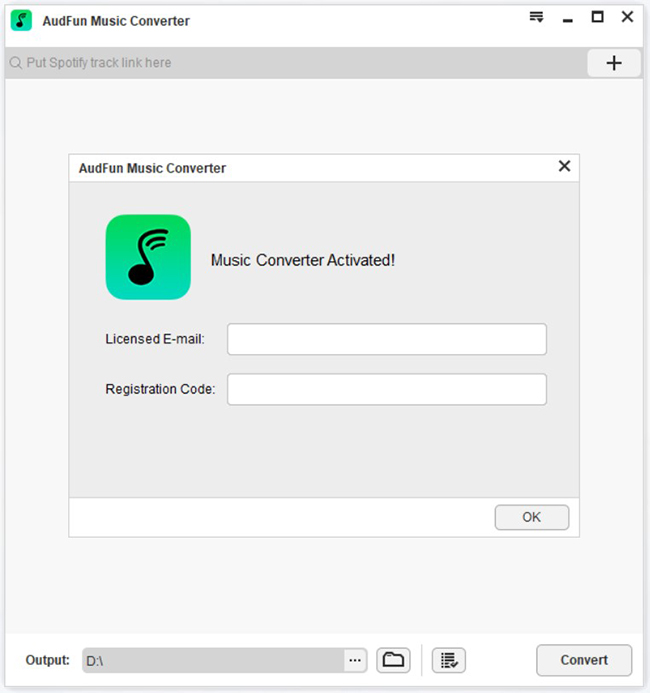
Go to the official AudFun website and click the “Download” button to download the application file. And ensure that you already have the Spotify app installed. After the download is complete, run the application file to install it on your computer and launch it.
Normally, the AudFun Spotify Music Converter comes with a free version of the software that only allows users to convert up to 1-minute of each Spotify song. Therefore, to eliminate this restriction, you need to purchase a premium plan. After purchasing, go to the Menu bar and select “Register“, enter the registered email and license code to activate the application.
Step 2 Import tunes from Spotify to AudFun to download
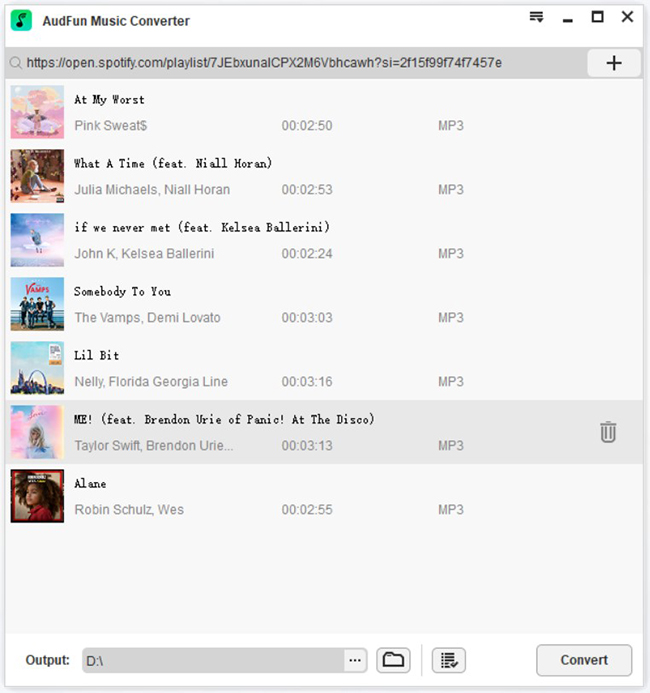
Launch the Spotify app and log in to your Spotify account. Find the Spotify song you want to download for your Samsung alarm clock. Click on the music item, and select “Share” > “Copy Spotify Link“. Paste the copied link on the AudFun address box and hit the “+” button to load the song for download. Alternatively, you can drag and drop the song, playlist or album, etc. to the AudFun interface.
Step 3 Customize the Spotify output audio for Samsung Clock
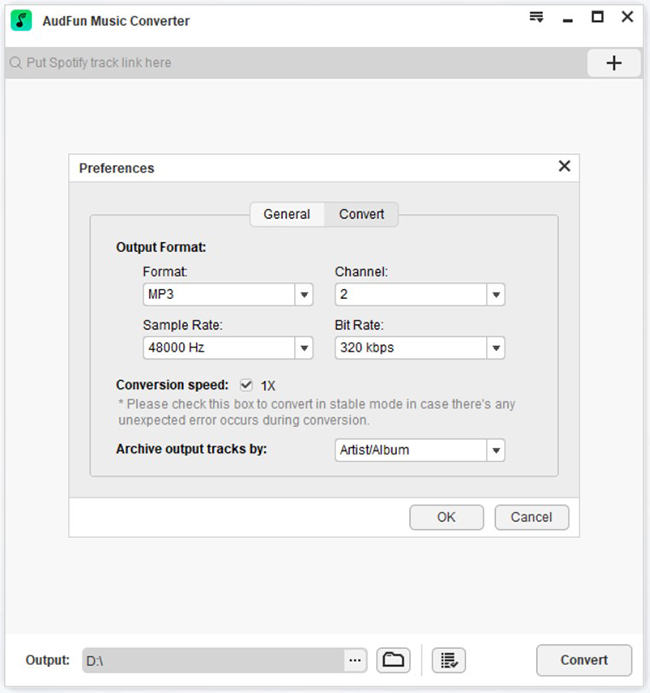
Next, you must convert Spotify Ogg Vorbis to MP3, FLAC, and other audio formats compatible with the Samsung Clock. To do that, go to the Menu bar, and select the “Preferences” > “Convert” option to access the settings window. From here, you can define your preferred audio output option and edit certain music parameters like the song bit rate and sample rate. You can also archive output Spotify songs by the artist or albums. When all is set, hit the OK button.
Step 4 Download and move Spotify music to Samsung device
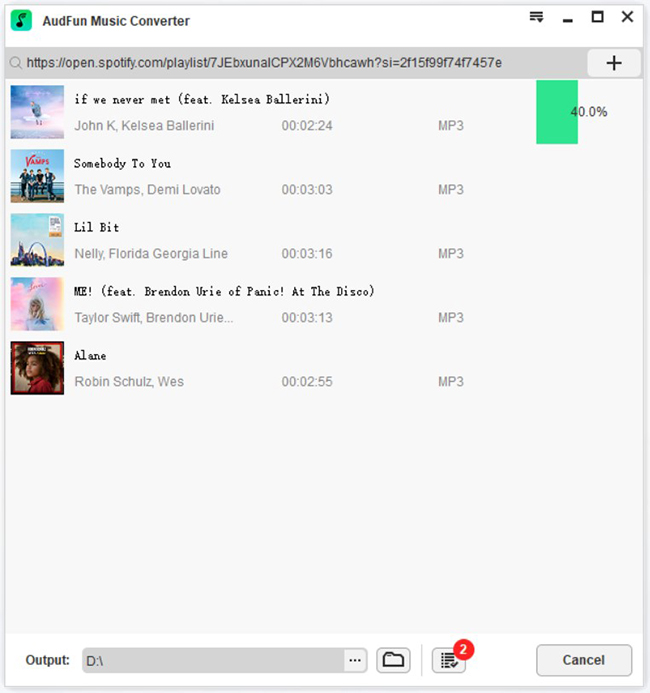
At the last step, click on the “Convert” button at the bottom right corner to start the download and conversion process for your favorite Spotify tunes. After the download is complete, find the destination folder of the songs by opening the Converted list, and then transfer them to your Samsung device using a USB cable.
Set Spotify Song as an Alarm on Samsung Device
Once you’ve moved the downloaded Spotify music files to your Samsung device, it is time we set the downloaded Spotify song as your alarm sound. Please, follow the steps below:
Step 1. On the main menu, tap on the Clock icon to launch the app on the Samsung phone.
Step 2. Tap on the “+” icon or alarm you wish to edit.
Step 3. Select “Alarm Sound” > “Ringtone“.
Step 4. Tap the “Add (+)” icon and find the Spotify song you want to use.
Step 5. Select the particular Spotify tune and tap “Done” to save the change.
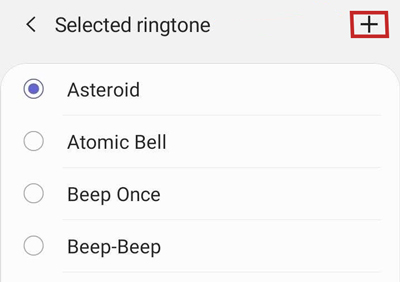
You can now wake up to your favorite Spotify songs without having to connect your Spotify app to the Internet.
Part 4: FAQs about Spotify Alarm Clock on Samsung
1. Do I need Spotify Premium to use it as an alarm on Samsung?
No, you do not need a Spotify Premium subscription. Both Free and Premium users can connect their Spotify accounts to the Samsung Clock app. However, Spotify Free users might be restricted to shuffle play for certain playlists and may hear ads, whereas Premium users can select any specific song, album, or podcast to wake up to without interruptions.
2. Why does my Samsung alarm play the default ringtone instead of Spotify?
If your alarm plays the standard Samsung beep instead of your chosen Spotify track, it usually happens for two reasons: either your phone lost its internet connection overnight, or Samsung’s strict battery optimization put the Spotify app to sleep in the background. To fix this, ensure you have a stable Wi-Fi connection and change Spotify’s battery setting to “Unrestricted”.
3. Can I use a Spotify alarm while my phone is in Airplane Mode?
The official integration between Samsung Clock and Spotify requires an active internet connection to stream the music. If you turn on Airplane Mode before going to sleep, the alarm will fail to load Spotify and will play a default offline ringtone instead. If you prefer sleeping with Airplane Mode on, your best option is to download the songs as local MP3 files using the AudFun Spotify Music Converter (as mentioned in Part 3) and set them as local alarm ringtones.
Part 4. Wrap Up
Connecting Spotify to your Samsung Clock is a super easy and convenient way to have your favorite tunes wake you up in the morning. In this guide, we have featured the official way to set it up, the most effective troubleshooting steps (like disabling battery optimization), and an alternative solution using AudFun Spotify Music Converter for offline use.
