
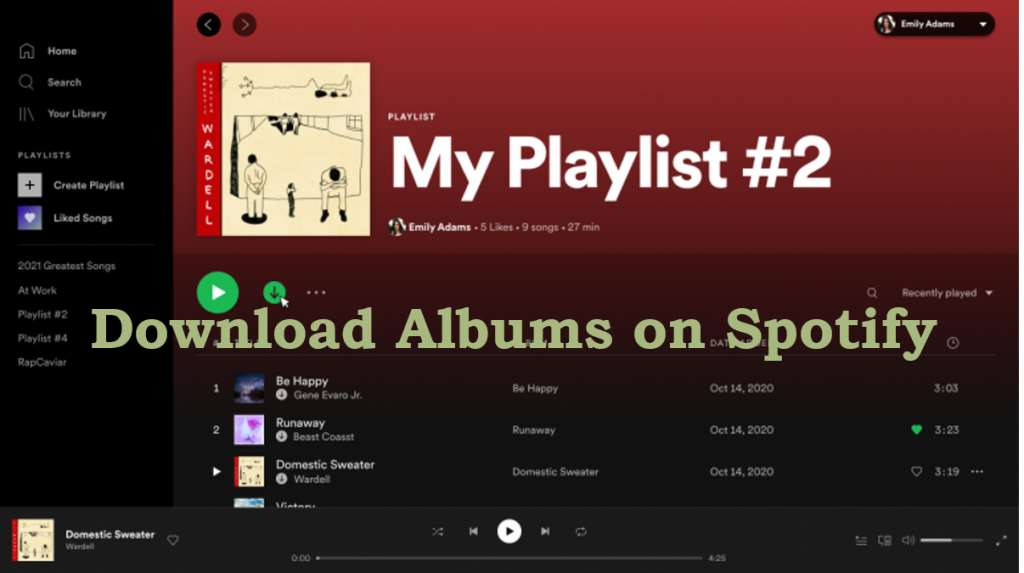
With recent updates, Spotify finally allows desktop users to download entire albums—a feature previously limited to playlists. However, there is a catch: only Premium users can download albums and playlists for offline listening. Spotify Free users are still limited to downloading podcasts.
If you don’t have a Spotify Premium subscription, you might be wondering how to bypass this limitation. In this guide, we will show you exactly how to download albums on Spotify, whether you are a Free or Premium user, on both desktops and mobile devices.
TL;DR: Quick Answers
- For Premium Users: Simply open the album on your Spotify app (PC/Mac/Mobile) and click the downward-pointing Download arrow.
- For Free Users: You cannot download albums directly within the app. You will need a reliable third-party tool like AudFun Spotify Music Converter to download albums as MP3 files to your local drive.
- Keep in mind: Premium downloads require you to go online at least once every 30 days to keep your offline music active.
Part 1. How to Download Albums on Spotify without Premium
1. Download Albums on Spotify without Premium (PC/Mac)
How to download albums on Spotify without Premium? If you are a free user of Spotify, you need a tool to help you download albums on Spotify. This tool is AudFun Spotify Music Converter. With this perfect converter, you can download Spotify albums on PC without a subscription to Spotify. Why is it called the perfect converter?
Because it enables you to download Spotify songs, playlists, artists, and albums to MP3, FLAC, M4A, WAV, AAC, M4B, etc. for offline listening with ease. And it keeps 100% original sound quality and lossless ID3 tags and meta info, which helps you to identify and manage audio files easily. What’s more, the download and conversion speed is very fast. With up to 5X conversion speed, it quite improves the efficiency and you can also convert Spotify files in batch.

AudFun Spotify Music Converter
- Download albums on Spotify without Premium on your devices
- Keep Spotify albums to your local computer forever without Premium
- Convert Spotify to FLAC, WAV, M4A, MP3, M4B, etc. losslessly
- Play Spotify albums on all devices offline without any hassle
After downloading the AudFun Spotify Music Converter by hitting the above “Download” button, you can follow the next step-by-step tutorial to download albums on Spotify without Premium.
Step 1 Add Spotify albums to AudFun
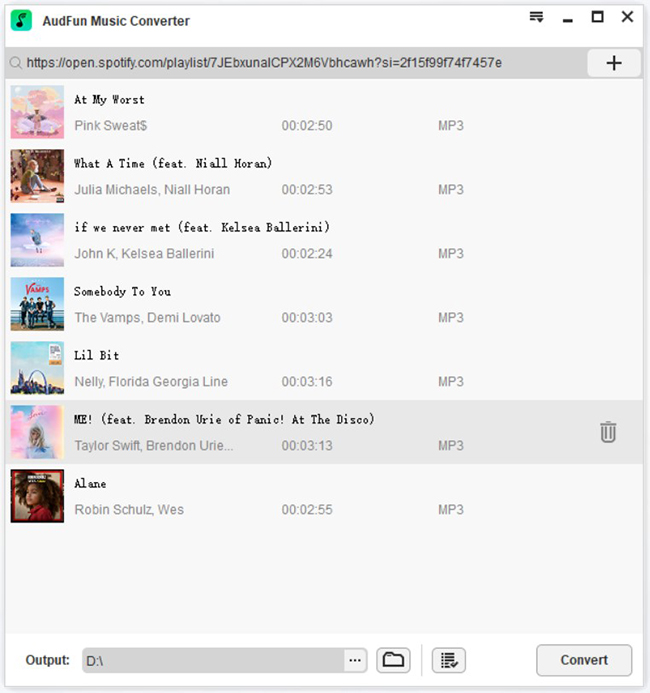
Open the AudFun Spotify Music Converter on your computer, and it will launch the Spotify app for you automatically. Select albums you need to download for offline listening, then just drag and drop the Spotify albums from Spotify to AudFun.
Or you can also go to the Spotify app, tap the album and choose the “…” > “Share” > “Copy Spotify Link” option to copy Spotify URL. Then paste the URL into the address bar at the top of the AudFun. Finally, click the “+” button to load the Spotify albums.
How to download one song from album on Spotify? Just choose one song from the album to add to AudFun. The procedure is the same.
Step 2 Choose Spotify albums output format as MP3
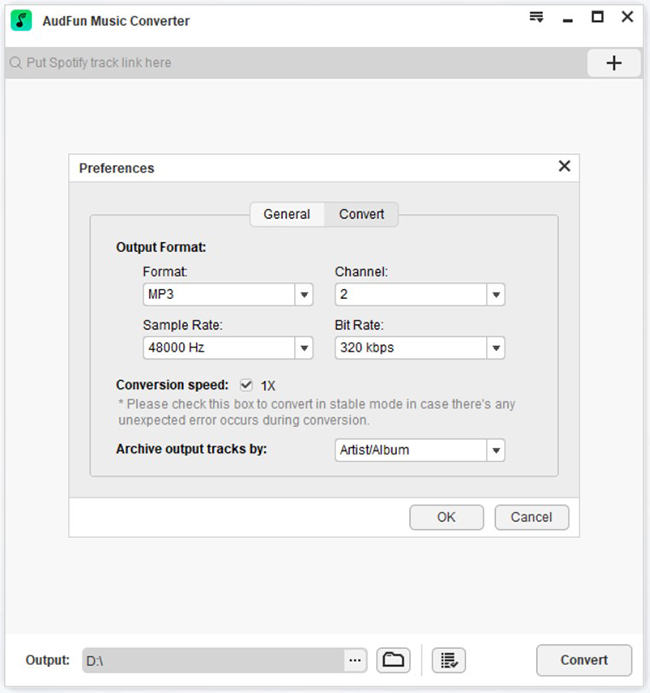
Click the “Menu” bar at the top right on AudFun, and then please choose the “Preferences” > “Convert” section. On the pop-up setting window, you can adjust many parameters like output format, bit rate, sample rate, and so on. Now, you can choose the output format as MP3.
Step 3 Download Spotify albums on your computer
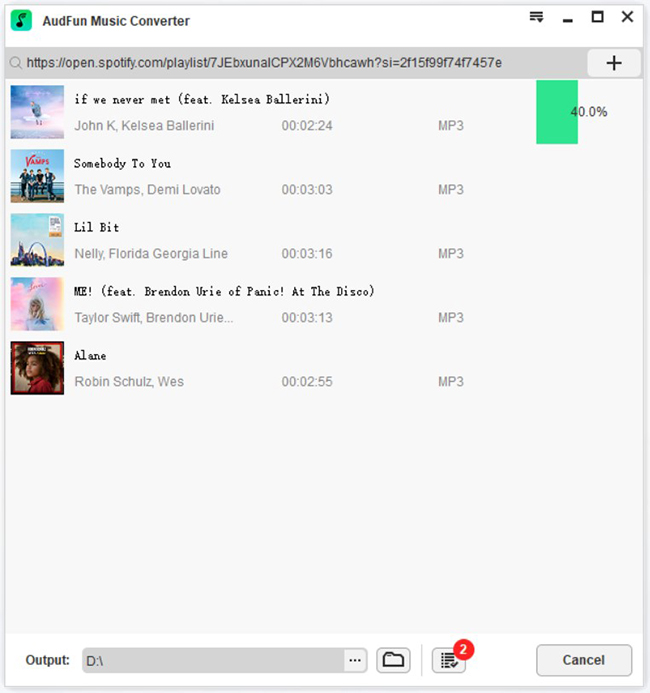
After adjusting all your settings, please click the “Convert” button at the bottom left. And then it will start downloading all your Spotify albums at up to 5X speed. At the same time, it will show you a download process.
When the download process is done, you can find the Spotify albums by clicking the “Converted” icon. And they will also be put into your computer’s local folder. Then you can listen to Spotify albums offline without Premium.
2. Download Albums on Spotify without Premium (Android/iOS)
After downloading Spotify albums on your computer, you can then transfer them to your phones easily.
(1) Download Spotify Albums on Android:
Step 1. Connect your phone to your computer with a USB cable.
Step 2. Locate your Spotify albums in your computer folder.
Step 3. Copy and paste the Spotify albums from your computer to your phone.
(2) Download Spotify Albums on iOS:
Step 1. Connect your iPhone to your computer with a USB cable.
Step 2. Open iTunes on your iPhone. Click the “Device” button at the top left.
Step 3. Select “Music” under the “Settings”.
Step 4. Select the check box of “Sync Music”. Then tap on “Selected playlists, artists, albums, and genres”.
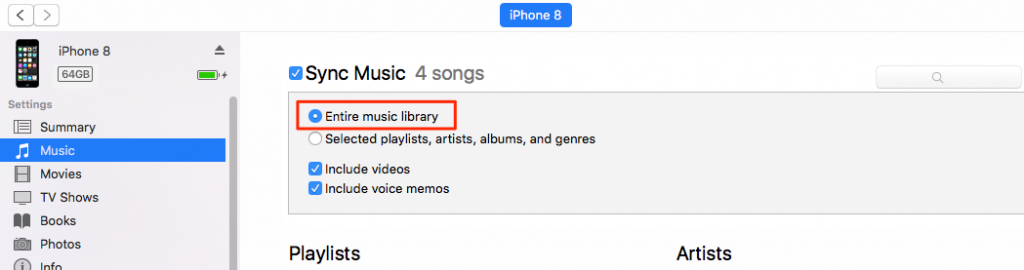
Step 5. Choose the Spotify album you want to sync and then click the “Apply” button at the bottom right.
Step 6. Now you have transferred Spotify albums to iTunes on your iPhone. You can listen to them on your iPhone without limitation.
Part 2. How to Download Albums on Spotify with Premium (PC/Mac)
How to download albums on Spotify PC with Premium? In this part, you can know how to download Spotify albums on both PC and Mac. With the newest Spotify app, you can download albums on Spotify with Premium directly. Just follow the steps.
Step 1. Download and install the newest Spotify app on your computer.
Step 2. Open the Spotify app. Select a Spotify album you want to download.
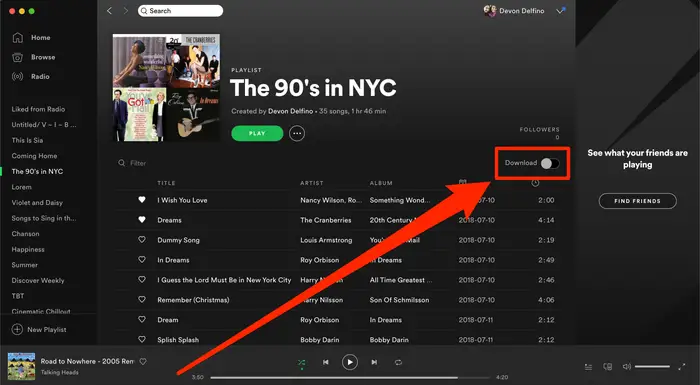
Step 3. Hit the “Download” switch at the top of the album page. It will turn green and start to download the album.
Part 3. How to Download Albums on Spotify with Premium (Android/iOS)
How to download albums on Spotify Android? In this part, you can see how to download albums on Spotify on both Android and iOS with Premium. The steps are almost the same as the desktop app.
Step 1. Open the Spotify app on your Android phone or iPhone.
Step 2. Select an album you want to download.
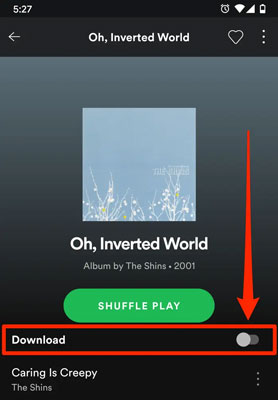
Step 3. Hit the “Download” switch at the top of the album page. Then your Spotify album will be downloaded on your phone.
Part 4. FAQs about How to Download Albums on Spotify
1. Can you download albums from Spotify for free?
No directly, but yes with third-party tools. Spotify Free users can officially only download podcasts. To download music albums, you must either upgrade to Premium or use a dedicated tool like AudFun Spotify Music Converter to save them as MP3s.
2. How many albums or songs can I download on Spotify Premium?
Up to 10,000 songs per device. Spotify allows Premium users to download a maximum of 10,000 tracks on up to 5 different devices simultaneously (50,000 songs in total).
3. How long do Spotify downloads last?
30 days. If you download music via Spotify Premium, you must reconnect to the internet at least once every 30 days. This allows Spotify to verify your subscription status. If you fail to go online, your downloaded albums will be removed.
4. Where are Spotify downloads stored, and can I play them elsewhere?
They are stored as encrypted cache files. Official Spotify downloads can only be played inside the Spotify app. You cannot move these files to an MP3 player, burn them to a CD, or play them on unauthorized devices unless you convert them using third-party software.
5. How do I download album art from Spotify?
Spotify does not offer a native way to download album cover art. You can take a screenshot, or use an audio downloader like AudFun, which automatically pulls the high-resolution album art and embeds it into your downloaded MP3 files.
Part 5. In Conclusion
Downloading albums on Spotify is incredibly straightforward if you have a Premium subscription—just click the download icon on your app. However, if you are a Free user, you are not entirely locked out. By using a tool like AudFun Spotify Music Converter, you can easily download full albums, bypass the 30-day online check-in requirement, and transfer your music to any device for permanent offline playback. Choose the method that best fits your listening habits and start enjoying your favorite albums anywhere, anytime.
