
Quick Answer
Here are the key takeaways from this TunePat Spotify Music Converter review:
- Core Performance: TunePat captures tracks via Web Player Mode (up to 320kbps MP3) or App Mode (up to 24-bit/44.1 kHz FLAC). Batch processing takes 10–18 seconds per 3-minute song.
- Main Drawbacks: The interface defaults to selecting every track in a playlist, requiring manual deselection. App Mode can cause connection delays.
- Top Alternative: AudFun Spotify Music Converter is recommended for a streamlined workflow, stable 5X speed, and intuitive track selection.
Finding a reliable tool to download Spotify tracks requires looking past marketing claims. When building an offline library, choosing the right converter is essential to avoid audio glitches, slow processing, and missing ID3 tags. In this TunePat Spotify Music Converter review, we evaluate its daily performance.
This guide analyzes TunePat’s actual conversion speeds, audio quality limits across its dual-source modes, and overall software stability. By examining everyday usability quirks, you will understand exactly what to expect before installing it.
Finally, we explore a top-tier alternative, AudFun Spotify Music Converter, for users prioritizing a streamlined track selection process.

Overview of TunePat Spotify Music Converter
TunePat Spotify Music Converter is a desktop application designed to capture and convert restricted Spotify tracks into common local audio formats. This software allows you to download songs, albums, and podcasts directly to your local drive, making it easy to transfer your library to MP3 players or USB flash drives without an active internet connection.
TunePat stands out with its dual-source recording method. The built-in Web Player mode requires no extra app installation and captures audio at up to 320kbps MP3. Alternatively, the App Mode connects directly to the Spotify desktop client to support higher fidelity outputs, including up to 24-bit/44.1 kHz FLAC files.
Instead of leaving you with randomly named files, TunePat retains comprehensive ID3 tags—such as album artwork, track numbers, and artist names—and offers customizable folder classification.
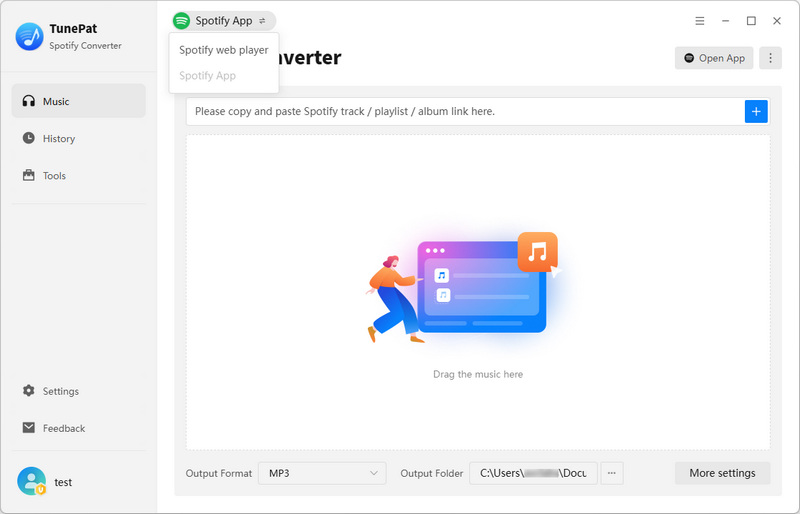
Key technical specifications include:
- Supported Output Formats: MP3, AAC, WAV, FLAC, ALAC, and AIFF.
- Processing Speed: Advertised at up to 10X speed; practical batch processing takes 10 to 18 seconds per 3-minute track.
- Built-in Toolbox: Includes utilities for CD burning, manual ID3 tag editing, local audio conversion, and library backup.
How to Maximize TunePat Features and Audio Quality
Getting the most out of the software is a key part of this TunePat Spotify Music Converter review, as default settings do not always yield the highest audio quality.
Configure App Mode for 24-Bit FLAC Output
To capture the highest fidelity audio, rely on the desktop application rather than the Web Player Mode. Achieving true lossless output requires specific settings.
- Switch the software to App Mode on the main interface.
- Navigate to the settings menu and select Record Mode.
- Choose the Recommended output format (such as FLAC).
- Ensure the original Spotify source track is available in 24-bit quality.
Utilize the Built-In Toolbox Utilities
Beyond standard conversions, the software includes a dedicated Toolbox section. This utility hub allows you to burn downloaded tracks directly to CDs, edit missing ID3 tags, and convert local audio files into different formats. Additionally, the library backup function streamlines management when moving files between devices.
Manage Batch Processing and Speeds
While official documentation highlights a 10X conversion speed, real-world performance depends on your chosen mode and network stability.
- Expect a real-world processing time of 10 to 18 seconds for a standard 3-minute song.
- Switching to App Mode causes a slight delay, as the software must wake up and connect to the Spotify desktop client.
Deselect Unwanted Tracks in Playlists
TunePat defaults to selecting all tracks when it loads a playlist link. If you only want to download a few specific songs from a massive playlist, you must manually deselect the unwanted tracks. Overlooking this step results in longer batch processing times and unnecessary local storage consumption.
Pros and Cons of Using TunePat
A thorough TunePat Spotify Music Converter review requires looking at both its core strengths and everyday limitations.
Pros of TunePat:
- Flexible Dual-Source Recording: Use the Web Player Mode for quick downloads (up to 320kbps), or switch to App Mode for higher quality (up to 24-bit FLAC).
- Comprehensive Format Support: Reliably exports tracks into MP3, AAC, WAV, FLAC, ALAC, and AIFF while retaining excellent ID3 tags.
- Fast Batch Processing: Real-world conversion speeds are highly efficient, processing a standard three-minute song in just 10 to 18 seconds.
- Built-In Toolbox Utilities: Includes extra tools to burn CDs, edit ID3 tags, convert local audio files, and back up your music library.
Cons of TunePat:
- Tedious Playlist Selection: The software defaults to selecting every single track in a parsed playlist, requiring tedious manual deselection.
- App Mode Connection Delays: Switching to App Mode can occasionally cause a delay while it attempts to wake up the desktop client.
- Unclear Mode Guidance: The interface lacks clear in-app explanations regarding when to choose App Mode versus Web Player Mode.
Understanding Account Safety and Ban Risks
Account safety is a common concern when using third-party converters. Many listeners worry that parsing audio tracks might trigger an unexpected suspension. However, under normal usage conditions, the actual risk remains minimal.
TunePat utilizes standard audio recording technology rather than malicious hacking methods. Because the software captures the audio stream as it buffers, the platform generally reads the activity as standard listening behavior.
To ensure maximum account security, follow this workflow:
- Adjust the conversion speed: Set the conversion speed to 1X in the settings menu to prevent unusual activity flags.
- Select the recording source: Choose either Web Player Mode or App Mode.
- Parse the playlist: Open your target playlist within the interface to let the software read track information natively.
- Process the tracks: Initiate the conversion and let it run without manually skipping songs rapidly on your linked account.
The Best TunePat Spotify Music Converter Review Alternative: AudFun Spotify Music Converter
While TunePat offers a robust set of features, its interface quirks—such as the slight delay when waking up the desktop app or the default “select all” behavior—can be frustrating. If you want a more focused option, AudFun Spotify Music Converter is a premier alternative.
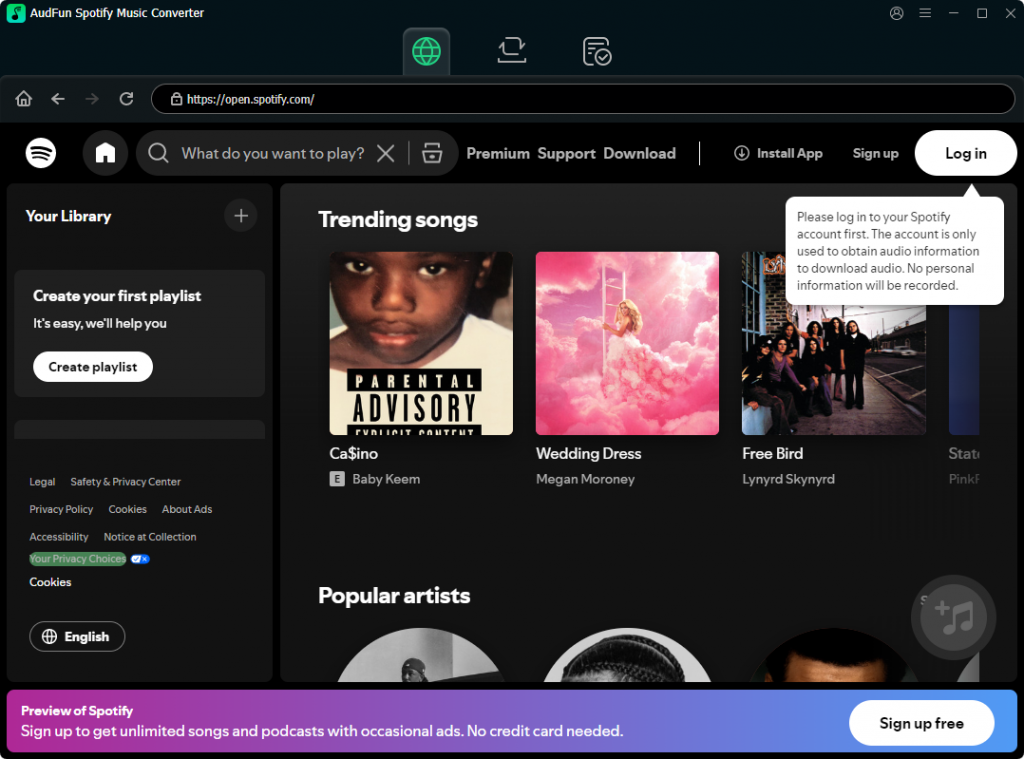
AudFun strips away unnecessary toolbox bloat to focus entirely on core performance.
- Intuitive track selection: AudFun eliminates the tedious manual deselection process. Its interface makes picking specific songs fast and simple.
- Consistent app connection: It maintains a highly stable link with the desktop client, bypassing wake-up delays.
- Stable 5X conversion speed: You get a steady, efficient processing rate that handles large batches smoothly.
AudFun Spotify Music Converter
- Preserves high audio quality output Spotify songs, albums, playlists, etc.
- Supports the conversion of Spotify music files at a high speed of X5 rate
- Listen to Spotify offline without premium on multiple devices and platforms
- Converts Spotify music to several formats like FLAC, M4A, MP3, etc.
If your main goal is a clean, uninterrupted process to save your tracks, AudFun is an excellent fit.
Comparison: TunePat vs. AudFun Spotify Music Converter
Comparing TunePat side-by-side with a strong alternative clarifies which tool fits your workflow.
| Feature / Dimension | TunePat Spotify Music Converter | AudFun Spotify Music Converter |
|---|---|---|
| Conversion Speed | Up to 10X (Web Player Mode) | Highly stable 5X speed |
| UI Ease of Use | Moderate; dual modes require a slight learning curve | Highly intuitive and straightforward |
| App Connection Stability | Slight delay when waking up the desktop client | Smooth, consistent background connection |
| Output Formats | MP3, AAC, WAV, FLAC, ALAC, AIFF | MP3, AAC, WAV, FLAC, M4A, M4B |
| Track Selection Logic | Selects all tracks by default (tedious manual deselection) | Flexible selection; no forced batch selection |
While TunePat provides excellent format variety and dual audio sources, its default “select all” behavior can slow down users who only want specific songs. In contrast, AudFun prioritizes a frictionless user experience. It trades the 10X peak speed for a highly stable 5X conversion rate and a much cleaner track selection process. If you prefer deep format customization, TunePat remains capable. However, if you want to skip tedious manual deselection, AudFun serves as a highly efficient alternative.
FAQs About TunePat Spotify Music Converter
Is TunePat Spotify Music Converter free to use?
No, TunePat is paid software. It offers a free trial, but it limits you to converting only the first minute of each track. To unlock full-length downloads, you must purchase a license.
Can I use TunePat with a free Spotify account?
Yes, the software supports both free and Premium accounts. When using a free account, TunePat records the audio stream while automatically filtering out advertisements.
Why does TunePat sometimes fail to connect in App Mode?
Connection issues usually happen when the desktop client is outdated, running as an administrator while TunePat is not, or experiencing background hangs. To fix this, close both applications, update your desktop app, and relaunch TunePat.
How does AudFun handle playlist track selection compared to TunePat?
Unlike TunePat, which automatically checks every song when a playlist loads, AudFun provides a cleaner selection interface. It lets you easily check or uncheck specific tracks right away.
Conclusion
To wrap up this TunePat Spotify Music Converter review, the software stands out as a powerful tool for users needing dual-source recording and a comprehensive built-in toolbox. Its ability to switch between Web Player and App modes makes it highly versatile for managing offline music libraries.
However, the daily workflow can be hindered by minor UI quirks. The default behavior of selecting all tracks requires tedious manual deselection, and occasional wake-up delays when connecting to the desktop client might frustrate users.
If you prefer a streamlined approach, AudFun Spotify Music Converter provides an excellent alternative. It offers a highly stable experience with consistent conversion speeds, making it ideal for those who prioritize a straightforward, hassle-free interface.