
Quick Answer
- Use a dedicated desktop audio converter to convert Spotify music to M4A (AAC) at up to 320 kbps, resolving format limitations without introducing muddy transcoding artifacts.
- Match native audio parameters by configuring output profiles to 320 kbps and 44.1 kHz or 48 kHz to preserve dynamic range, high-frequency transients, and full ID3 metadata.
- Transfer your local files directly into Apple Music, iTunes, DJ software, or portable offline players for reliable personal listening anywhere.
Even with an active Premium subscription, cached Spotify downloads remain stored in an encrypted format that restricts playback strictly to the official client. If you want to use your favorite playlists in third-party DJ setups, local media servers, or older Apple hardware, learning how to convert Spotify music to M4A gives you full control over your offline library.
Compared to legacy MP3 files, the M4A container—paired with Advanced Audio Coding (AAC)—delivers cleaner high-frequency detail, tighter transients, and better compression efficiency at identical bitrates. It also integrates smoothly across macOS, iOS, and iTunes without requiring extra codecs.
This guide explains how to export clean, standalone M4A tracks from Spotify while keeping audio parameters, metadata tags, and album artwork intact for personal offline listening.
Part 1. Understanding M4A (AAC) vs. MP3 for Spotify Offline Playback
Spotify streams audio using lossy compression: desktop and mobile applications rely on Ogg Vorbis (capped at 160 kbps for Free accounts and 320 kbps for Premium), while the web player streams AAC at up to 256 kbps. When you convert Spotify music to M4A, the audio is encoded into an MPEG-4 container using AAC. Compared to the older MP3 standard, AAC utilizes modern psychoacoustic models and refined filterbanks. At identical bitrates like 256 kbps or 320 kbps, AAC maintains clearer high-frequency extension above 16 kHz and handles sharp percussive transients with significantly fewer pre-echo artifacts.
Choosing M4A brings distinct advantages if you use Apple hardware. Because M4A serves as the default audio container across macOS, iOS, watchOS, and iTunes, exported files slide straight into your local music library without extra decoding overhead.
Furthermore, saving tracks directly to high-bitrate M4A retains the practical clarity of the original stream. Avoid tools claiming to upscale Spotify streams into uncompressed WAV or FLAC; upsampling lossy streams merely inflates file sizes without restoring lost acoustic information. A 320 kbps M4A export provides the optimal balance of acoustic fidelity, file size, and broad playback compatibility.
Part 2. Desktop Stream Decoders vs. Online YouTube Matchers
When searching for ways to convert Spotify music to M4A, you will run into two main options: dedicated desktop audio converters and web-based URL downloaders. While browser tools look convenient because they avoid local installation, their underlying extraction process is fundamentally compromised.
Most online converters do not record from Spotify at all. Instead, they read the track title, query public YouTube search results, and download the matching video soundtrack. This indirect scraping leads to version mismatches, missing tags, and lower audio quality. Dedicated desktop converters capture the application’s audio feed directly, re-encoding it cleanly into standard M4A files.
| Comparison Metric | Dedicated Desktop Audio Converters | Free Online URL Matchers |
|---|---|---|
| Audio Source Fidelity | Direct audio stream capture (up to 320 kbps source quality) | Scraped third-party video audio (often re-compressed at 128 kbps or lower) |
| Track Matching Accuracy | 100% exact studio or album version match | Frequent live recordings, acoustic covers, or bad cuts |
| Metadata & ID3 Tags | Full track titles, artists, album art, and track numbers preserved | Missing artwork, generic filenames, or distorted tags |
| Processing Reliability | Stable multi-track batch processing | Frequent connection timeouts and restrictive queue limits |
For anyone organizing a serious local library, this distinction matters. Re-encoding an already compressed YouTube audio track into M4A causes generational loss, dulling transients and muddying the soundstage. A dedicated desktop tool guarantees clean, bit-accurate AAC audio alongside full metadata.
Part 3. Converting Spotify Playlists to High-Quality M4A with AudFun Spotify Music Converter
While web tools often grab the wrong track versions, dedicated software captures the native desktop stream directly. If you want to convert Spotify music to M4A for Apple devices or local archiving, using a dedicated tool avoids corrupted tags and low-bitrate rips.
AudFun Spotify Music Converter handles this task by capturing source playback and packaging it into an AAC-encoded M4A container, preserving the original sound stage for both Free and Premium users.
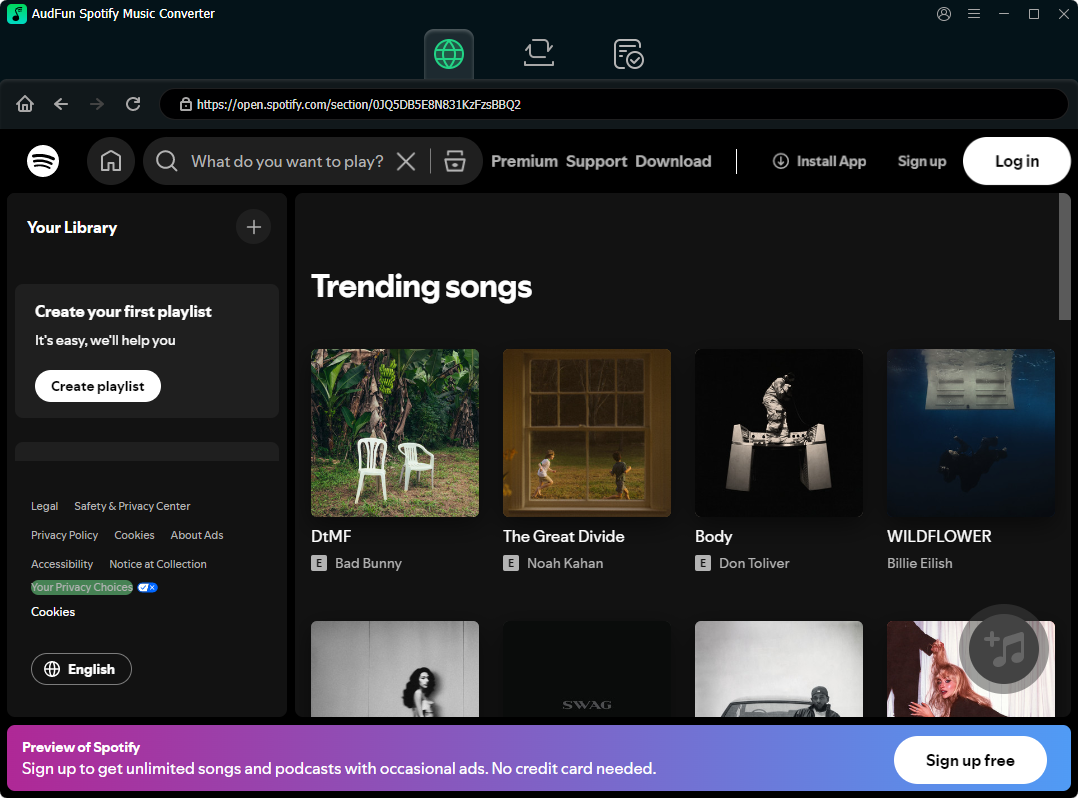
Why Choose AudFun Spotify Music Converter for M4A Audio
- Clean Stream Re-encoding: Exports tracks to M4A at up to 320 kbps and 48,000 Hz, preserving crisp high-frequency fidelity and transient snap.
- Complete Metadata Preservation: Retains track titles, artist names, album art, year, and genre, while automatically organizing output files into artist and album folders.
- High-Speed Batch Export: Converts full playlists and albums at up to 5X speed, finishing standard tracks in roughly ten to fifteen seconds.
AudFun Spotify Music Converter
- Preserves high audio quality output Spotify songs, albums, playlists, etc.
- Supports the conversion of Spotify music files at a high speed of X5 rate
- Listen to Spotify offline without premium on multiple devices and platforms
- Converts Spotify music to several formats like FLAC, M4A, MP3, etc.
Step-by-Step Tutorial
Step 1: Launch AudFun Spotify Music Converter and Import Spotify Tracks
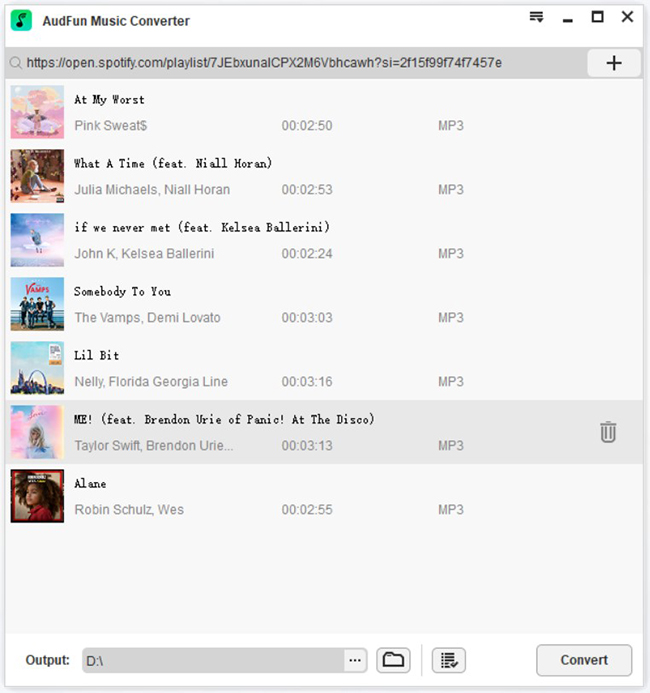
Open AudFun Spotify Music Converter on your Mac or Windows PC; the Spotify desktop app will open automatically alongside it. Locate the songs, albums, or playlists you want to convert. Copy the link via Share > Copy Spotify Link, paste it into the converter’s top search bar, and click the + button. You can also drag and drop items directly into the converter’s main window.
Step 2: Open Preferences and Select M4A
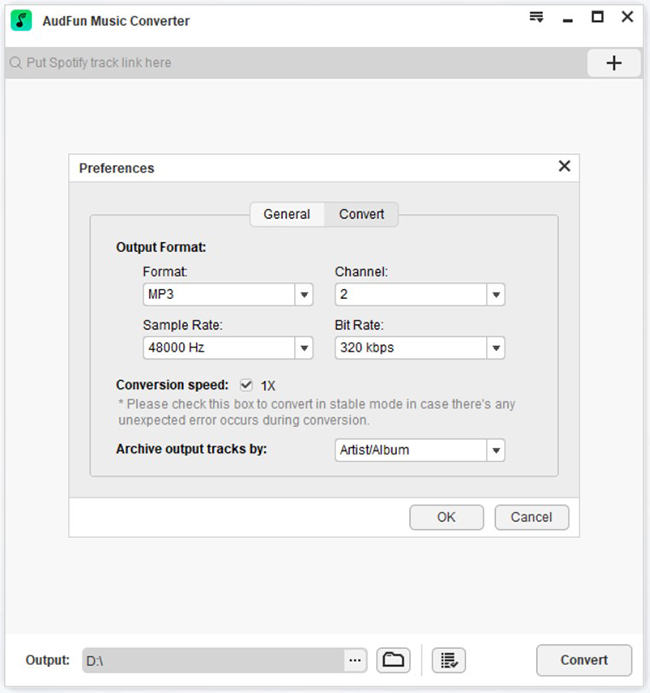
Open the top menu, select Preferences, and switch to the Convert tab. In the Format drop-down menu, choose M4A.
Step 3: Configure Output Parameters
In the same settings panel, set the Bitrate to 320 kbps, adjust the Sample Rate to 44100 Hz or 48000 Hz, and set the audio channel to Stereo. You can also customize output folder sorting by artist or album. Click OK to save your settings.
Step 4: Convert and Export M4A Files
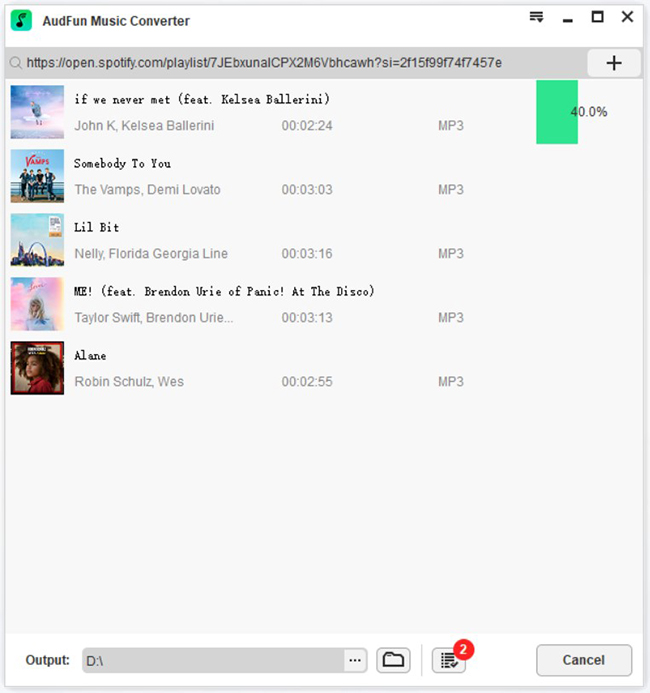
Click the Convert button at the bottom-right corner. The software will process your queue sequentially. When finished, open the Converted folder to access your standalone M4A audio files, ready for local playback across your personal devices.
Part 4. Managing and Syncing Converted M4A Tracks Across Devices
Import Converted M4A Tracks into Apple Music and iTunes Library
Exporting your playlists to standard M4A files allows smooth playback across macOS, iOS, and iPadOS without container mismatches. Because M4A uses native AAC encoding, Apple Music and iTunes instantly read the embedded ID3 tags, artwork, and track sequence.
- Open the Apple Music app on macOS or launch iTunes on Windows.
- Click File in the menu bar and choose Add to Library (or Add Folder to Library on Windows).
- Browse to the local folder containing your converted M4A tracks, select the files, and click Open.
- Connect your iPhone or iPad to your computer via USB and select your device in the sidebar.
- Head to the Music tab, check Sync Music onto [Device Name], select your newly imported albums or playlists, and click Apply.
Transfer M4A Audio Files to Offline Wearables and Mobile Devices
Standalone MP3 players, Garmin watches, Android phones, and car stereos easily recognize standard M4A audio for offline listening. This setup lets you enjoy your music during outdoor workouts or road trips without burning mobile data or dealing with app login timeouts.
- Connect your portable media player, smartwatch charging dock, or mobile device to your computer via USB.
- If prompted on the device screen, select File Transfer (MTP mode).
- Open File Explorer on Windows or Finder on macOS and find your connected device drive.
- Locate the internal storage and open the Music directory (create one if it is missing).
- Drag and drop your converted M4A files into the folder and let the transfer complete.
- Right-click the drive icon, select Eject, and safely unplug your device.
Frequently Asked Questions About Spotify to M4A Conversion
Is M4A format better than MP3 when you convert Spotify music to M4A?
Yes. At identical bitrates like 256 or 320 kbps, M4A with AAC encoding provides tighter compression, cleaner dynamic range, and less high-frequency distortion than MP3, while working natively across Apple devices.
Does converting Spotify tracks to M4A produce true lossless audio?
No. Spotify streams lossy source audio (up to 320 kbps Ogg Vorbis or 256 kbps AAC). Converting to M4A preserves this source fidelity without audible loss, but it cannot reconstruct studio master uncompressed audio.
Why do free online converters frequently output incorrect or low-quality songs?
Most web downloaders match track titles against YouTube video audio rather than capturing the Spotify stream directly. Desktop software like AudFun Spotify Music Converter records the source track directly to retain correct versions, bitrates, and ID3 tags.
How do I sync converted M4A tracks to an Apple Watch or iPod?
Import your M4A files into the Apple Music or iTunes library on your computer. From there, sync directly to your iPod over USB, or add the playlist to your Apple Watch using the iOS Watch app.
Is it legal to convert Spotify tracks to M4A for personal use?
Creating format-shifted copies strictly for personal offline backup is generally permitted under personal-use exemptions in many regions. Users must comply with local copyright laws and avoid distributing or monetizing the files.
Conclusion
When you convert Spotify music to M4A, you get reliable playback quality and native compatibility across all Apple devices and local media players. Encoding your favorite tracks into 320 kbps M4A preserves subtle dynamic details and high-frequency response far better than older MP3 formats.
Unlike web-based link matchers that pull low-bitrate audio from video platforms, dedicated desktop software records the native stream directly to keep track numbers, artist tags, and album art intact. A purpose-built tool like AudFun Spotify Music Converter simplifies batch processing while preserving original sound parameters.
Once your files are saved locally, transfer them to your phone, smartwatch, or media library to enjoy seamless, high-quality offline listening wherever you go.