
Quick Answer
- Access the tool: Go to the official Spotify Pie website hosted on GitHub by Darren Huang.
- Connect your account: Click “Login to Spotify” and authorize read-only access to your streaming history.
- View and share: Instantly view your dynamically generated pie chart and take a screenshot to share your top genres on social media.
- Save your tracks: Use AudFun Spotify Music Converter to save your favorite songs as local files for offline listening.
If you are wondering how to get your Spotify Pie Chart, you are not alone. This viral third-party web app offers a real-time, colorful breakdown of your top genres and artists. Instead of waiting until December for your annual wrap-up, this tool gives you an instant visual snapshot of exactly what you are playing right now.
Unlike standard streaming summaries, the Pie Chart dynamically updates your current listening trends. It digs into granular subgenres, revealing your specific musical habits.
In this guide, we will walk you through the exact steps to generate your chart securely, interpret your listener persona, and save those top-charting tracks for offline listening.

Part 1. Steps to Safely Generate Your Spotify Pie Chart
Getting your Spotify Pie Chart is a quick process. The tool is an open-source web application created by UCLA student Darren Huang, and it works seamlessly across desktop and mobile browsers. Here is how to access it securely.
Step 1. Access the website and log in
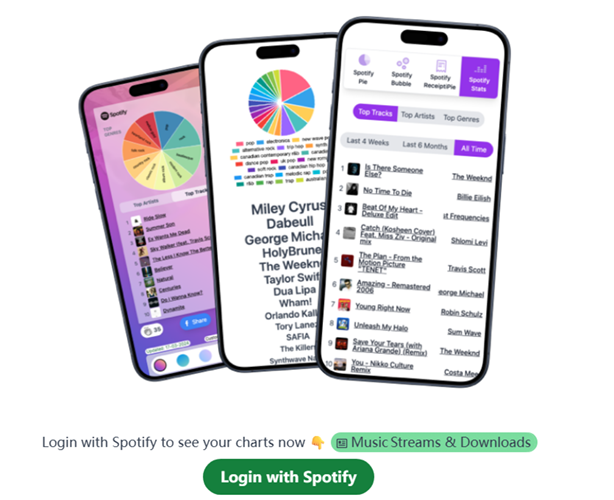
First, navigate to the official Spotify Pie website hosted on GitHub. Once the page loads, click the prominent “Login to Spotify” button. This redirects you to the official authorization prompt. If you are not already logged into your streaming account, enter your standard credentials.
Step 2. Authorize the required permissions
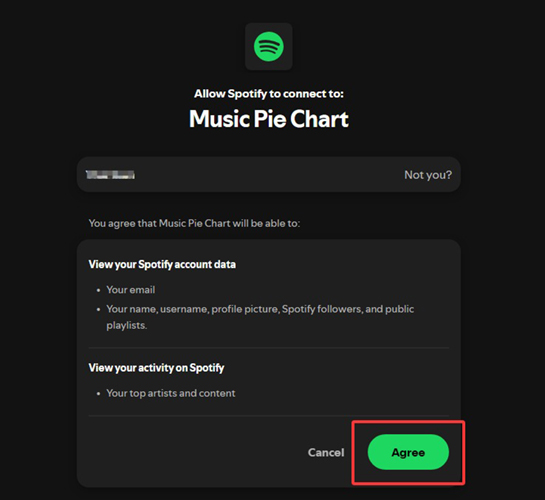
Before completing the login, a permission request screen appears. The tool only requests read-only API permissions to fetch your recent listening history. The application processes your top tracks temporarily within your browser. Your account data is never permanently stored, altered, or collected by the developer.
Step 3. View and save your pie chart
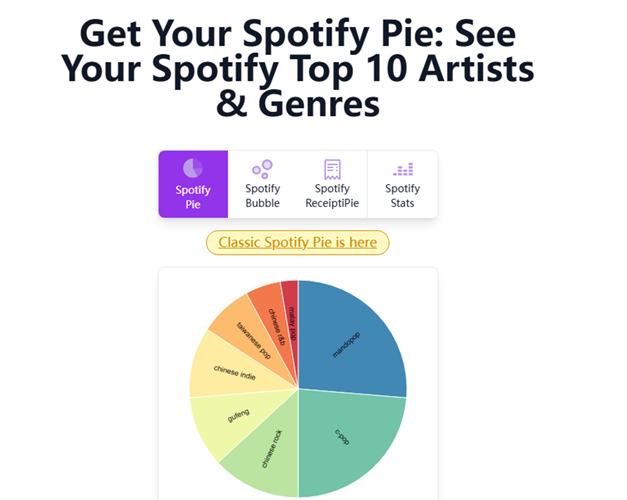
After you approve the permissions, the site instantly generates your personalized pie chart. Because the website does not feature a native sharing button, simply take a screenshot of your display to save or share your colorful genre breakdown. If you ever want to revoke access, you can easily do so in your account’s third-party app settings.
Part 2. How to Read Your Spotify Pie Chart and Listener Personas
Once you know how to get your Spotify Pie Chart, the next step is making sense of the colorful data. The tool’s algorithm pulls your recent listening history to identify your top tracks. It then ranks your top artists by frequency and quantifies the associated genres. The larger the slice on your screen, the more heavily that specific subgenre dominates your daily rotation. Below the chart, a detailed legend lists your top artists in descending order, color-coded to match their respective slices.
You can analyze these results to identify your specific listener persona. If a single genre takes up over 60% of the circle, you fall into “The Specialist” category. This means you have a highly focused taste, often sticking to a specific niche like indie rock or classical music for comfort listening. Specialists tend to have deep knowledge of a few select artists.
Conversely, if no single genre exceeds the 30% mark and your chart looks like a rainbow of tiny slivers, you are “The Explorer.” This persona indicates a broad habit of discovery, skipping across multiple genres and constantly testing out new artists.
Finally, check if your chart is heavily split between two distinct colors. If so, you might be “The Dual Citizen.” This happens when two main genres reflect entirely different daily life scenarios. For example, you might rely heavily on lo-fi beats while working, but switch exclusively to high-energy hip-hop for evening workouts. Understanding these visual patterns gives you a clearer picture of your audio habits.
Part 3. Methods to Share Your Spotify Pie Chart on Social Media
Share on Instagram Stories
Because the Spotify Pie Chart website lacks a native share button, you must use screenshots to show off your music taste. Instagram Stories is the perfect place to post your colorful chart and let friends react to your specific listener persona.
- Take a screenshot of your generated pie chart on your mobile device. Make sure the legend is visible.
- Open your photo gallery to crop out the browser edges and battery indicators for a cleaner look.
- Launch Instagram, swipe right to open the camera, and select your cropped image from the Camera Roll.
- Tap the Sticker icon to add text, music, or a poll asking followers to guess your top artist.
- Press Your Story to publish the image to your profile.
Post on Twitter (X)
Twitter is ideal for starting conversations about unexpected subgenres or defending your heavy rotation of a specific artist. To make sure your followers understand your stats, capture the complete breakdown.
- Scroll down slightly on the results page so both the pie graphic and the detailed legend are visible.
- Capture a full screenshot and save it directly to your device.
- Open the Twitter (X) app and tap the Compose button to start a new post.
- Tap the Gallery icon and attach your saved screenshot.
- Add a brief caption about your top 20 artists, tag any relevant fandoms, and tap Post.
Create a TikTok Trend Video
TikTok thrives on music trends and aesthetic data reveals. Use this quick checklist to turn your static chart screenshot into an engaging short video.
- Use the Green Screen effect in the TikTok camera with your cropped chart screenshot set as the background.
- Point out your most obscure subgenres or explain why your data fits a specific listener persona.
- Add a trending audio track that matches the vibe of your most-played artist.
- Include popular hashtags related to music stats to reach a wider audience.
Part 4. How to Download Your Top Pie Chart Tracks for Offline Listening
After analyzing your listener persona and sharing your results online, you might want to keep your most-played music accessible anywhere. Securing those favorite tracks for uninterrupted playback is especially useful when traveling, facing spotty network connections, or wanting to bypass platform format limitations.
Why Use AudFun Spotify Music Converter
Once you identify your top 20 artists from the chart, you can compile them into a dedicated playlist. AudFun Spotify Music Converter helps you convert these specific tracks into local files for personal backup. By saving your top-tier music locally, you can enjoy offline commute listening without relying on the streaming app, avoiding playback restrictions and sudden buffering issues. Disclaimer: This tool is intended for personal backup of content you have the right to access. Users must comply with local copyright laws and platform terms of service.
AudFun Spotify Music Converter
- Preserves high audio quality output Spotify songs, albums, playlists, etc.
- Supports the conversion of Spotify music files at a high speed of X5 rate
- Listen to Spotify offline without premium on multiple devices and platforms
- Converts Spotify music to several formats like FLAC, M4A, MP3, etc.
Step-by-Step Tutorial
Follow these steps to save your top pie chart tracks to your computer:
Step1. Open the software: Download and launch AudFun Spotify Music Converter on your Mac or Windows desktop. The official streaming app will open automatically in the background to sync your library.
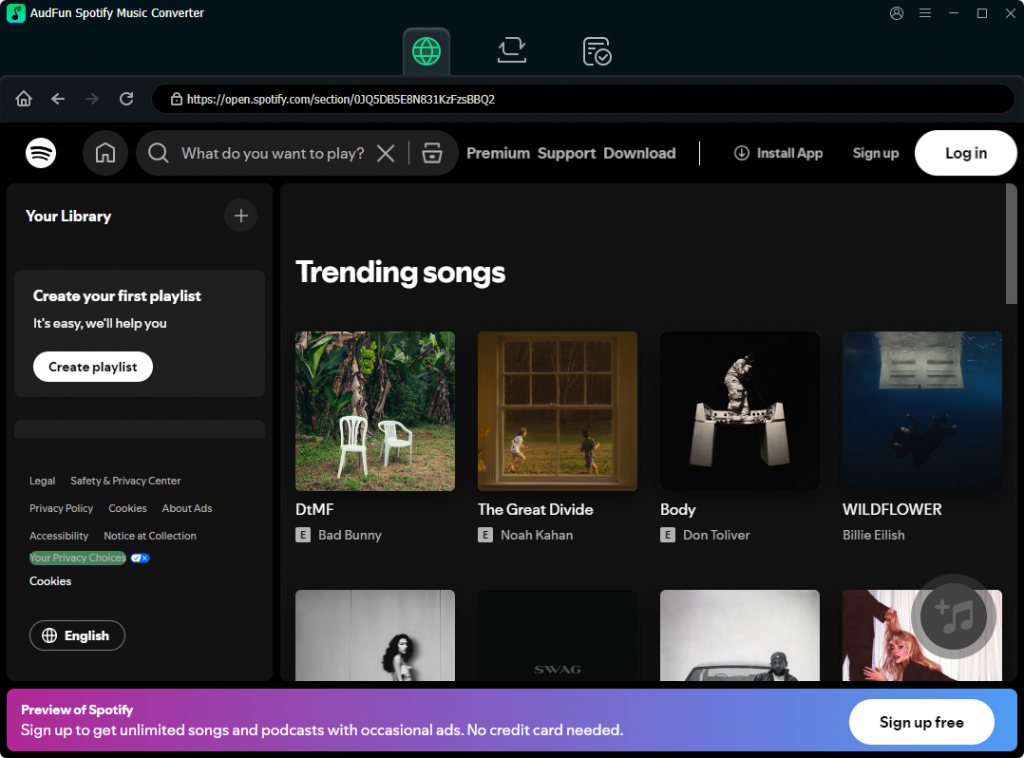
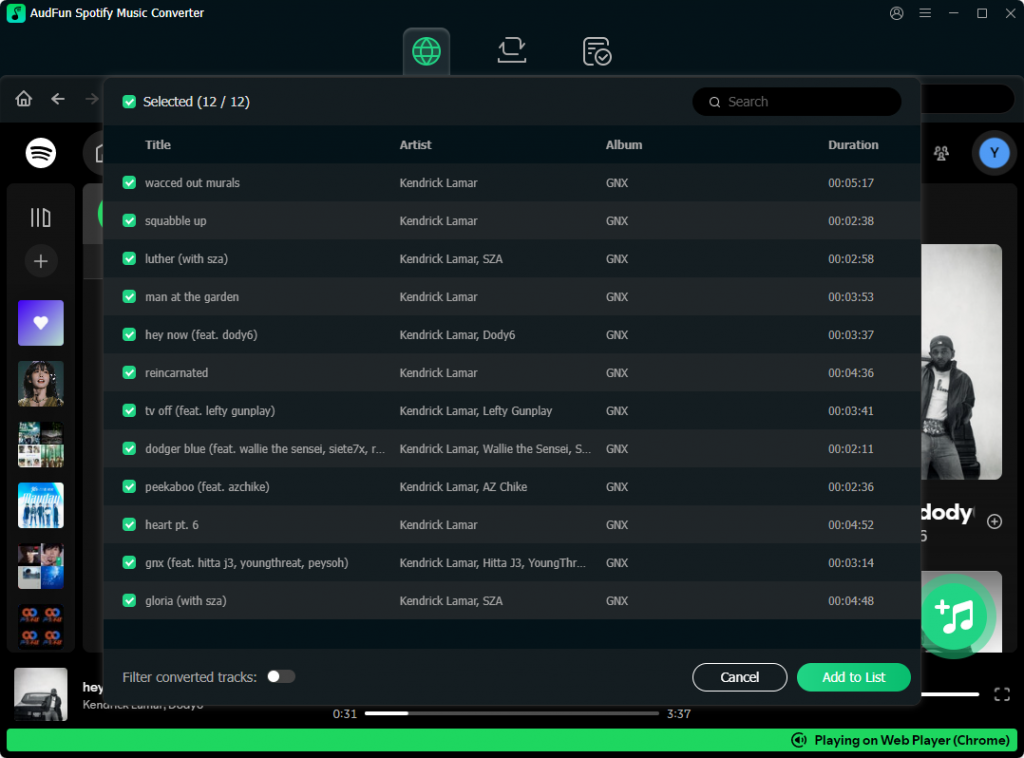
Step 2. Import your top tracks: Group your top pie chart songs into a new playlist within your account. Drag and drop this playlist directly into the main conversion window of AudFun Spotify Music Converter. Alternatively, copy the playlist link and paste it into the search bar at the top, then click the plus icon.
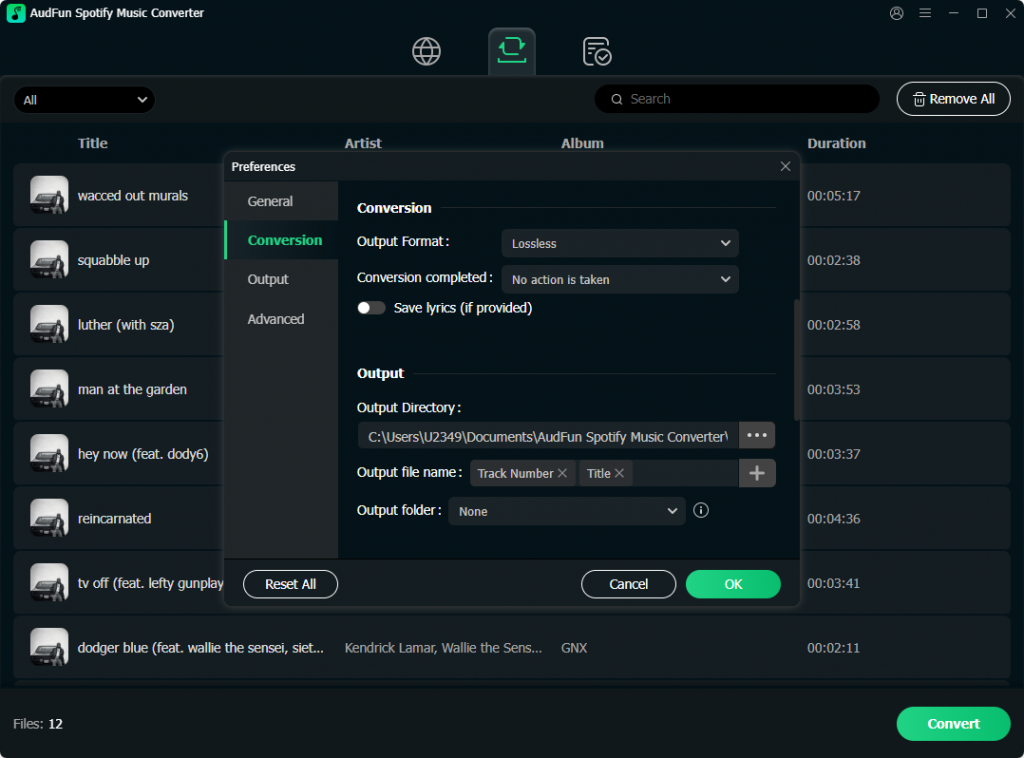
Step 3. Configure output settings: Navigate to the settings menu to select your preferred output format. You can choose standard MP3 for broad device compatibility, or opt for FLAC or WAV for lossless quality. You can also adjust the bit rate and sample rate here.
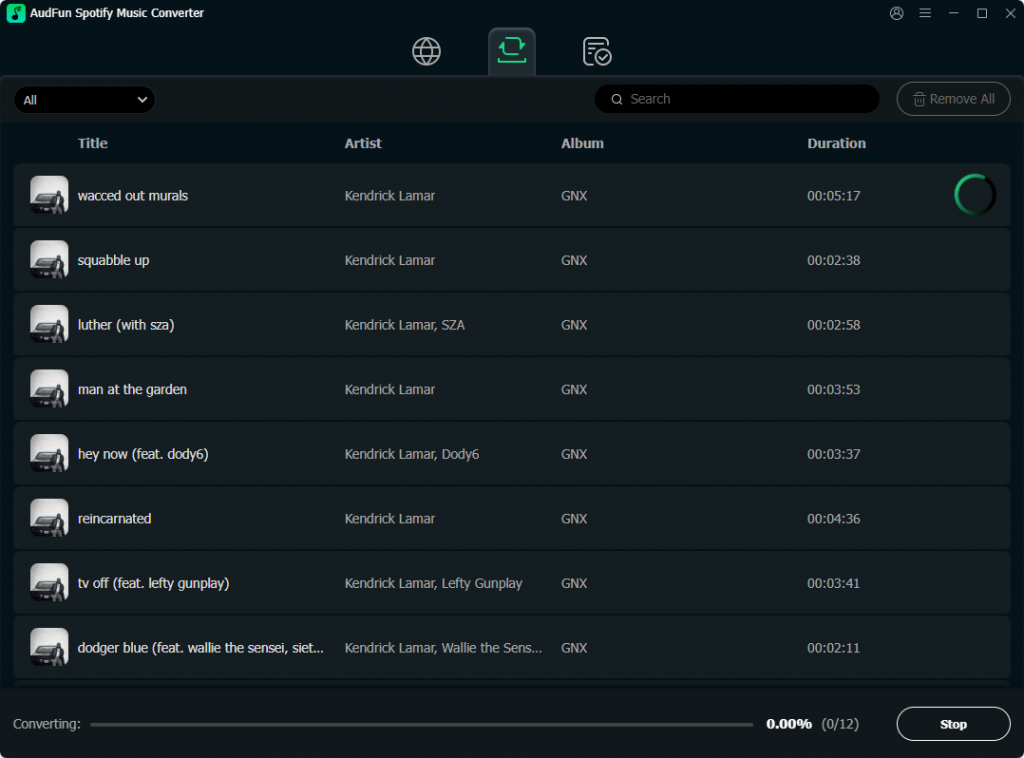
Step 4. Start the conversion: Click the “Convert” button to begin processing. The application will save your selected tracks as local audio files, preserving the original ID3 tags and metadata for offline listening on any media player.
FAQs About Getting Your Spotify Pie Chart
Q1: Is the Spotify Pie Chart safe to use?
Yes. The tool only requests read-only access to your listening history to generate the visual data. It does not store your login credentials or make changes to your account. You can revoke its access anytime in your account settings.
Q2: How often does the pie chart update?
Unlike the annual Wrapped campaign, this chart updates dynamically based on your current listening habits. If you indulge a new genre for a few days, your chart will shift to reflect that recent activity.
Q3: Can I get a pie chart for Apple Music?
Currently, Darren Huang’s specific web app is designed exclusively for Spotify users. Apple Music users will need to rely on native features like Apple Music Replay for similar insights.
Q4: How can I listen to my pie chart artists offline?
You can create a custom playlist of your top artists and use AudFun Spotify Music Converter to download them as local files. This allows you to bypass format limitations and enjoy your favorite tracks offline.
Conclusion
Learning how to get your Spotify Pie Chart is a fun and visually engaging way to understand your evolving music taste. Whether you are a dedicated specialist or a curious explorer, this dynamic tool provides instant insights into the genres and artists that soundtrack your daily life.
By taking a few seconds to securely connect your account, you can generate colorful charts to share across Instagram, Twitter, and TikTok. It is an excellent way to connect with friends over shared subgenres or debate unexpected listening habits.
Finally, do not let your favorite discoveries stay trapped online. By compiling your top tracks and using AudFun Spotify Music Converter, you can easily build a local library for uninterrupted, offline playback.