
If you encounter random music pauses or see unfamiliar songs in your history, you likely forgot to sign out on a public or shared device. These oversights are more than just annoyances; they are security vulnerabilities. Consequently, knowing how to log out of all devices on Spotify is a fundamental skill for securing your account and preventing unauthorized access.
Spotify’s wide availability across platforms makes managing active sessions challenging. This guide details standard logout procedures and the powerful “Sign Out Everywhere” feature to help secure your account. Additionally, we explore how to maintain your offline listening experience using the AudFun Spotify Converter, ensuring you keep your music even after disconnecting your devices.
- Part 1. Why You Need to Sign Out Everywhere
- Part 2. How to Log Out of All Devices on Spotify Desktop
- Part 3. How to Log Out on iPhone or Android
- Part 4. How to Log Out of All Devices at Once via Sign Out Everywhere
- Part 5. How to Log Out of All Devices on Spotify via Resetting Password
- Part 6. How to Listen to Spotify Music After Logging Out by Using AudFun Spotify Converter🔥
- Part 7. FAQs About How to Log Out of All Devices on Spotify
Part 1. Why You Need to Sign Out Everywhere
Before diving into the “how,” it is crucial to understand the “why.” Many users underestimate the importance of managing their active Spotify sessions. Here are the primary reasons why you might need to perform a global logout:
1. Unauthorized Access and Security
If your password has been compromised or you suspect someone is “piggybacking” on your account, your recommendations will get messed up, and your playback will be interrupted (since Spotify only allows one stream at a time per account). Signing out everywhere is the first step in reclaiming your account.
2. Exceeding Device Limits
Spotify Premium allows you to download music for offline listening on up to 5 devices. If you try to download on a 6th device, the device used least recently will automatically lose its downloads. Logging out of old, unused devices helps you manage this limit manually and effectively.
3. Public or Shared Devices
We have all done it—logged into an Airbnb TV, a work computer, or a friend’s phone to play a specific playlist. If you forget to log out, that device retains access to your account indefinitely. Using the “Sign Out Everywhere” feature ensures that your account is removed from these inaccessible devices.
4. Glitches and Playback Errors
Sometimes, the Spotify app gets confused about which device is the “active” one, leading to syncing errors or the app refusing to play. A total logout acts as a soft reset for your account connection, often resolving persistent technical glitches.
Part 2. How to Log Out of All Devices on Spotify Desktop
If you are currently sitting at your computer, you might want to log out of that specific instance first. However, it is important to note that logging out of the desktop app only logs you out of that specific computer, not your other devices.
Here is how to properly sign out of the Spotify desktop application on Windows or Mac:
Step 1. Launch the Spotify application on your computer.
Step 2. Look at the top-right corner of the interface. You will see your profile name and picture.
Step 3. Click on your profile picture to reveal a dropdown menu.
Step 4. Click on the Log out option at the bottom of the list.
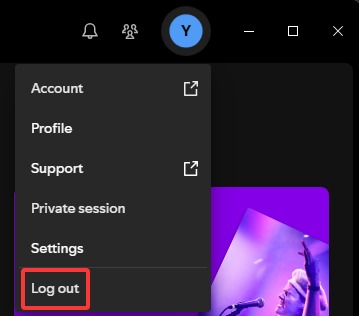
Once clicked, the app will return to the login screen. You will need to re-enter your credentials to access your music on this computer again.
Part 3. How to Log Out of All Devices on Spotify on iPhone or Android
Similar to the desktop version, logging out via the mobile app is a local action. It disconnects the phone or tablet you are holding but leaves your other sessions active. This is useful if you are handing your phone to someone else or selling the device.
Follow these steps for iOS and Android devices:
Step 1. Open the Spotify app on your mobile device.
Step 2. Tap the Home icon in the bottom left corner if you aren’t already there.
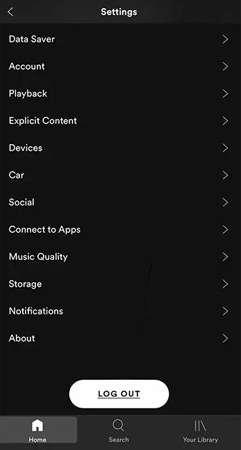
Step 3. Tap your profile picture or the Gear icon (Settings) located at the top left corner of the screen.
Step 4. Scroll all the way down to the bottom of the Settings page.
Step 5. You will see a Log out button. Tap it.
Step 6. A confirmation popup may appear asking if you are sure. Tap Log out again.
Part 4. How to Log Out of All Devices at Once via Sign Out Everywhere
This is the most critical section of this guide. If you need to remove your account from a lost phone, a public computer, or an ex-partner’s iPad, you must use the Sign Out Everywhere feature.
This feature is only available via a web browser. You cannot access it through the installed apps on your phone or PC.
Step 1. Open Chrome, Safari, Firefox, or any web browser on your computer or mobile device.
Step 2. Go to spotify.com/account. If you are not already logged in, enter your username and password.
Step 3. You should land on the Account Overview page by default. If not, select it from the sidebar menu.
Step 4. Scroll down the page past your profile information and plan details.
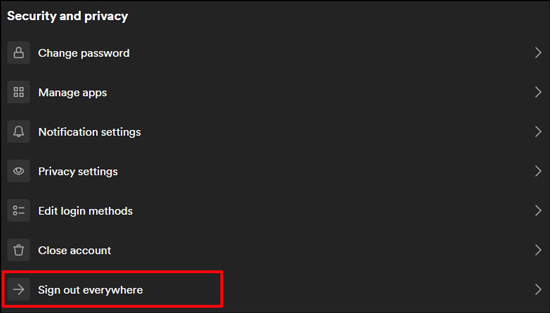
Step 5. Look for a section labeled Sign out everywhere.
Step 6. Click the button that says Sign out everywhere.
Important Things to Know:
- The Delay: This process is not instantaneous. It can take up to 1 hour for the logout to take effect on all devices.
- Web Player Exception: This button signs you out of mobile apps, desktop apps, and tablets. However, it usually does not sign you out of the current web browser you are using to perform the action.
- Partner Devices: Some partner devices (like Sonos speakers, PlayStation, or Smart TVs) might not sign out immediately. You may need to unlink these manually via the “Apps” section in your account settings if they persist.
Part 5. How to Log Out of All Devices on Spotify via Resetting Password
If you are logging out because you suspect unauthorized access (e.g., someone hacked your account), simply using “Sign Out Everywhere” might not be enough to log out of all devices on Spotify. If the intruder knows your password, they can just log back in.
In this case, changing your password is the superior method. Changing your password automatically triggers a logout on all devices requiring the new credentials to re-enter.
Step 1. Navigate to spotify.com/account in your web browser.
Step 2. In the left-hand sidebar (or under the menu on mobile), click on Change password.
Step 3. Type your Current password and new password. Repeat new password to confirm.
Step 4. Click the Set new password button.
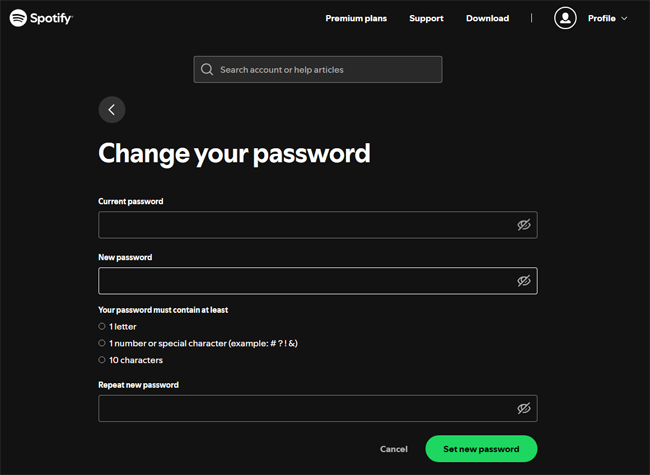
Once this is done, any device attempting to stream music will be paused and asked to re-authenticate with the new password. This is the most secure way to ensure you are the only one using the account.
Part 6. How to Listen to Spotify Music After Logging Out by Using AudFun Spotify Converter
One of the biggest downsides to logging out of Spotify—especially if you are cancelling a subscription or moving accounts—is losing access to your offline downloads. Spotify downloads are “cached” files, meaning they are encrypted and only playable within the logged-in Spotify app.
If you want to secure your playlist and listen to your favorite songs or albums on any device without constantly logging in (or even without the Spotify app), you need a specialized tool like AudFun Spotify Converter.
AudFun Spotify Converter is a professional music downloader designed to convert Spotify tracks, playlists, and albums into universal formats like MP3, FLAC, WAV, and AAC. By doing this, you create actual local files on your computer that belong to you.

Why Choose AudFun Audiobook Converter for Spotify
- Download entire Spotify playlists in minutes.
- Retain 100% of the original audio quality and ID3 tags.
- Convert Spotify Ogg Vorbis files to MP3, WAV, FLAC, etc.
- Listen to your music on different devices without logging into Spotify.
How to Use AudFun to Backup Your Music:
Step 1. Install AudFun Spotify Music Converter
Download and install AudFun Spotify Converter on your Mac or Windows computer. Open AudFun (which will launch Spotify). Drag and drop the songs or playlists you want to back up from Spotify into the AudFun interface.
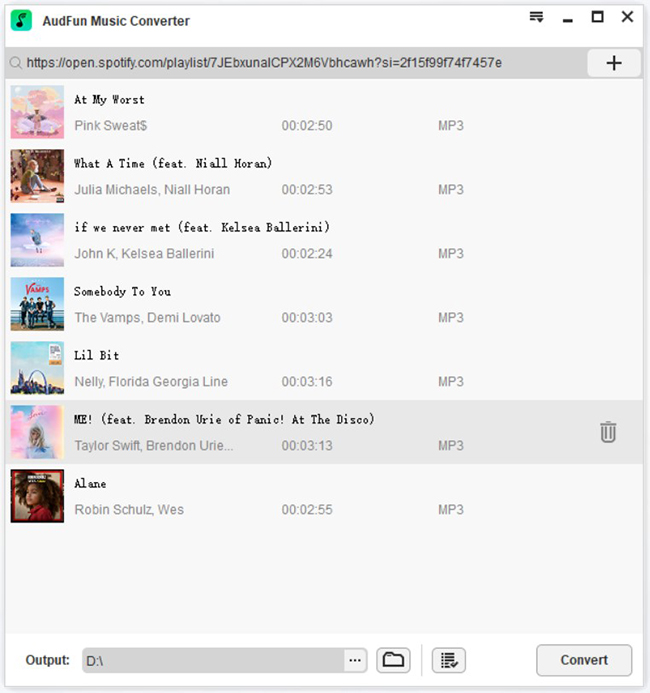
Step 2. Set Output Format
Go to the menu bar > Preferences > Convert. Here you can select MP3 as the output format and adjust the bit rate to 320kbps for high quality.
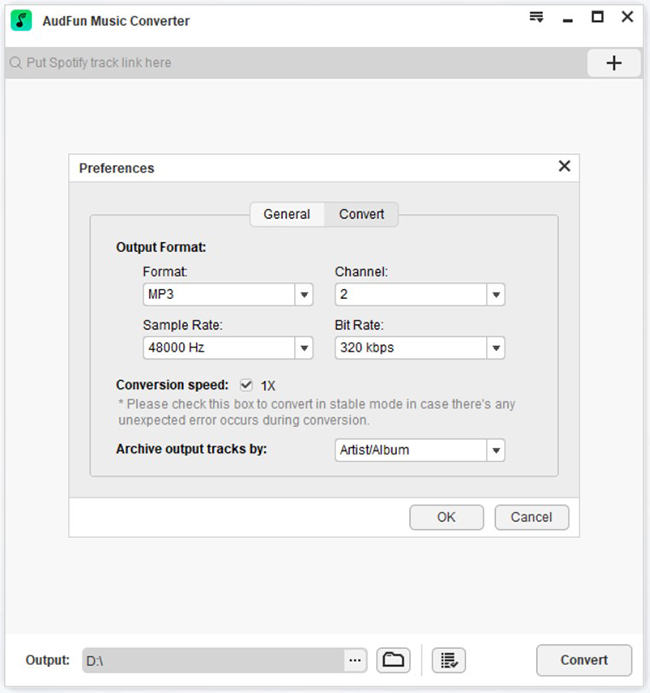
Step 3. Download Spotify Music for Offline Listening
Click the Convert button. AudFun will download the tracks to your local computer.
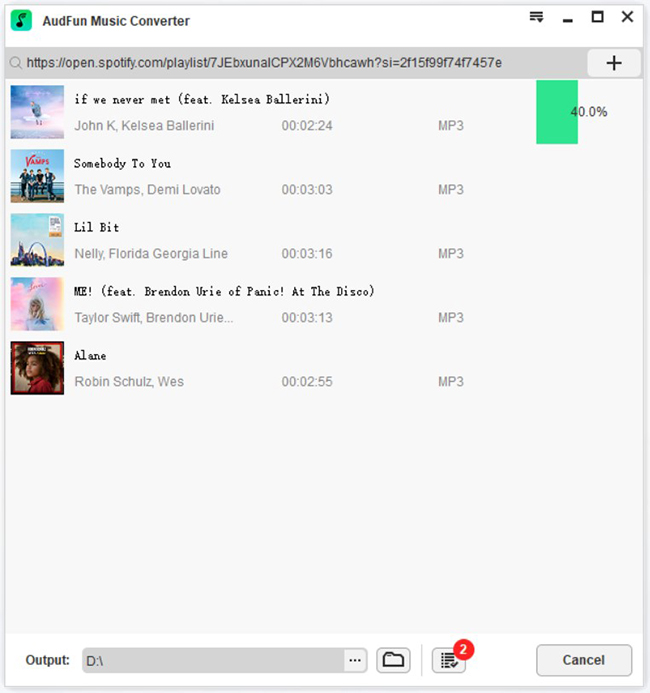
Once converted, you can transfer these files to any device. You can log out of Spotify, or even cancel your Premium subscription, and these files will remain playable forever.
Part 7. FAQs About How to Log Out of All Devices on Spotify
Q1: Does “Sign Out Everywhere” happen instantly?
No. Spotify officially states that it can take up to one hour for the logout command to propagate to all devices. If you still see activity immediately after clicking, give it some time.
Q2: Will logging out delete my downloaded music and playlists?
Logging out does not delete your playlists; those are saved to your account cloud. However, it will remove access to your offline downloads on that device. The data might remain in the cache, but you cannot play it until you log back in. If you want to keep downloads playable while logged out, refer to Part 6 regarding AudFun.
Q3: Can I see a list of exactly which devices are logged in?
Unlike Facebook or Google, Spotify does not provide a detailed list of specific devices (e.g., “iPhone 13,” “Windows PC”) that are currently logged in. This is why the “Sign Out Everywhere” button is a blunt instrument—it wipes everything because you can’t cherry-pick specific devices to remove.
Q4: Does this sign me out of partner devices like Sonos or PS5?
Usually, yes. However, some third-party integrations use a token system. If “Sign Out Everywhere” doesn’t work for your smart speaker, go to your Account page, select Apps, and choose Remove Access for that specific integration.
Conclusion
Securing your Spotify account is vital for privacy and managing connected devices. While apps offer local logouts, the “Sign Out Everywhere” feature via a web browser provides the ultimate control to disconnect all sessions. For those seeking permanent offline access without account dependencies, third-party tools like AudFun Spotify Converter offer a robust solution for keeping your music portable.
