
Few things are more frustrating than putting on your headphones, getting ready to listen to your favorite playlist or podcast, and being greeted by a blank screen displaying the message: “Something went wrong.”
Because this error message is incredibly vague and lacks a specific error code, it can leave you wondering what exactly is broken. Is it your phone? Your internet? Or is Spotify just down? Fortunately, you are not alone. This is one of the most common glitches on the platform, and it is usually very easy to resolve.
In this comprehensive guide, we will walk you through exactly how to fix the Spotify “Something went wrong” error. We have organized these troubleshooting steps from the easiest and fastest solutions to the more advanced fixes, ensuring you can get your music playing again as quickly as possible.
- Phase 1: Quick Checks You Should Do First
- Phase 2: Proven Methods to Fix Spotify “Something Went Wrong”
- Phase 3: Advanced Troubleshooting Steps
- Bonus Workaround: Avoid Streaming Errors by Playing Music Offline
- Why Does the Spotify “Something Went Wrong” Error Occur?
Phase 1: Quick Checks You Should Do First
Before you start digging into your phone’s settings or deleting apps, it is highly recommended to perform a few basic checks. Often, the issue isn’t with your device at all.
Check Spotify Server Status
The most common reason you might see the “Something went wrong” error on Spotify is that the platform’s servers are experiencing an outage. If Spotify’s servers are down, the app cannot authenticate your account or load your music library.
To check if this is the case, you can visit a third-party outage tracking website like Downdetector. Simply search for Spotify on their site. If you see a massive spike in user reports, it means the servers are down globally or regionally.
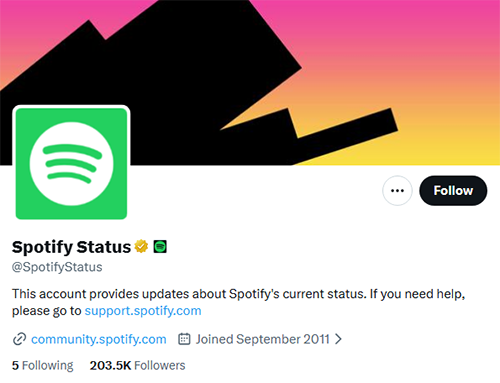
Additionally, you can check the official @SpotifyStatus account on X (formerly Twitter), where the company posts updates regarding ongoing technical issues. If the servers are down, no amount of troubleshooting on your device will fix it; you simply have to wait for Spotify’s engineers to resolve the problem.
Verify Your Network Connection
Spotify requires a stable internet connection to stream music, load search results, and verify your login credentials. A weak or fluctuating connection can easily trigger the Spotify something went wrong error.
- Toggle Airplane Mode: Turn on Airplane Mode on your device for about 10 seconds, then turn it off. This forces your device to reconnect to the nearest cellular tower or Wi-Fi router.
- Switch Networks: If you are on Wi-Fi, try switching to cellular data (or vice versa) to see if the app loads. If Spotify works on cellular data but not on your Wi-Fi, the issue lies with your router or ISP.
Phase 2: Proven Methods to Fix Spotify “Something Went Wrong”
If the servers are up and running and your internet connection is strong, the problem is likely localized to the app on your device. Here are the most effective ways to fix the issue.
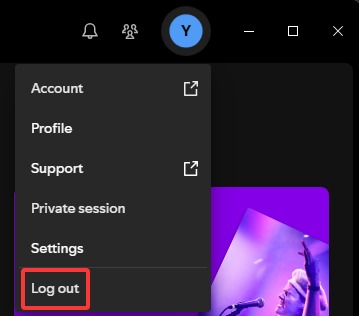
Log Out and Log Back In
Sometimes, the authentication token that keeps your account logged in becomes corrupted. When the app tries to verify who you are, it fails, resulting in an error screen.
Step 1. Open the Spotify app.
Step 2. Tap on your Profile icon in the top left corner (on mobile).
Step 3. Tap on Settings and privacy.
Step 4. Scroll all the way to the bottom and tap Log out.
Step 5. Close the app completely, reopen it, and enter your login credentials again.
Clear the Spotify App Cache
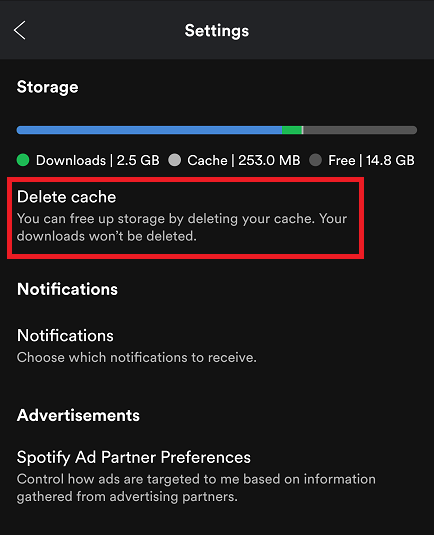
As you stream music, Spotify stores temporary files (cache) on your device to help songs load faster in the future. Over time, this cache can become bloated or corrupted, leading to performance issues and the dreaded “Something went wrong” message.
Clearing the cache will not delete your downloaded playlists or podcasts; it only removes temporary data.
How to clear cache on Mobile (iOS & Android):
Step 1. Open Spotify and go to Settings and privacy.
Step 2. Scroll down to the Storage section.
Step 3. Tap on Clear cache.
Step 4. Confirm your choice when prompted.
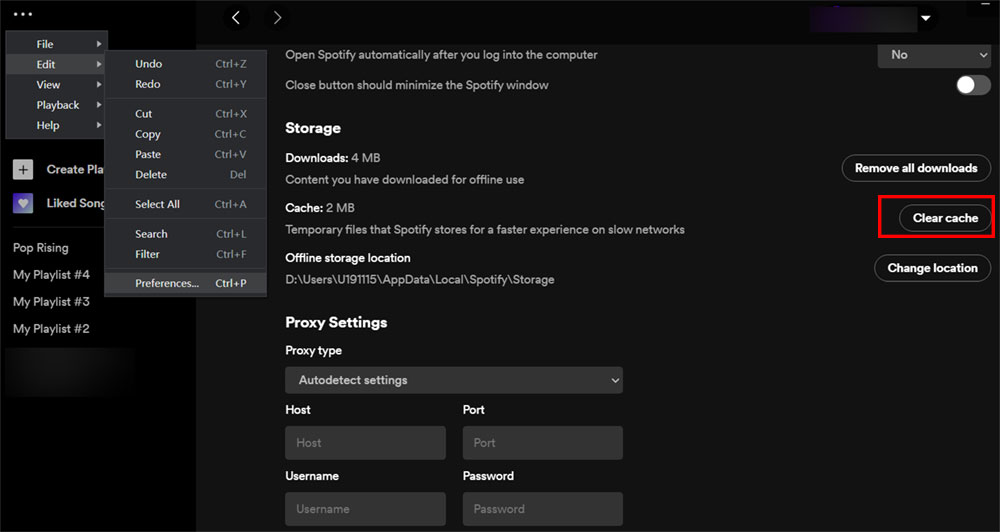
How to clear cache on Desktop:
Step 1. Click on your profile picture in the top right corner and select Settings.
Step 2. Scroll down to the Storage section.
Step 3. Click the Clear cache button.
Disable Your VPN or Proxy Settings
Virtual Private Networks (VPNs) are excellent for privacy, but they frequently interfere with streaming services. Spotify has strict geographic licensing agreements for music. If your VPN routes your traffic through a server that Spotify has flagged for suspicious activity, or if it detects a mismatch between your account’s registered country and your IP address, it may block your access and display an error.
If you are using a VPN, turn it off completely. Restart the Spotify app and see if the error disappears. If it does, you may need to allow Spotify within your VPN settings or connect to a different server location.
Force Stop and Update the Spotify App
An outdated app can suffer from compatibility issues with your device’s operating system. Furthermore, if the app has frozen in the background, a simple restart might not be enough.
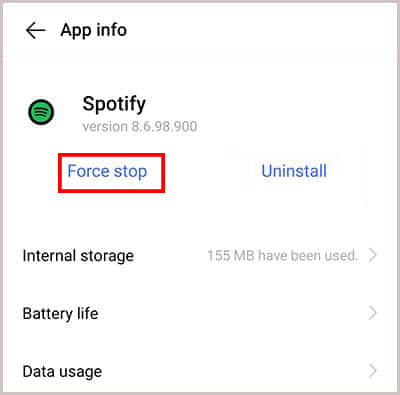
To Force Stop on Android:
Step 1. Go to your phone’s Settings > Apps > Spotify.
Step 2. Tap on Force Stop at the bottom of the screen.
To Force Stop on iOS:
Step 1. Swipe up from the bottom of the screen and pause in the middle to open the App Switcher.
Step 2. Swipe up on the Spotify app card to close it forcefully.
Once you have force-stopped the app, open the Google Play Store or Apple App Store, search for Spotify, and check if an Update is available. Installing the latest version ensures you have the newest bug fixes and performance improvements.
Phase 3: Advanced Troubleshooting Steps
If you have tried all the steps above and you are still wondering how to fix the Spotify something went wrong error, you will need to take more advanced measures.
Use the “Sign Out Everywhere” Feature
If a standard logout didn’t work, there might be a deeper synchronization issue with your account across multiple devices. Spotify offers a web-based tool to force a logout on every device connected to your account.
Step 1. Open a web browser on your computer or phone and go to Spotify.com.
Step 2. Log in to your account.
Step 3. Go to your Account Overview page.
Step 4. Scroll down to the bottom of the page and click on Sign out everywhere.
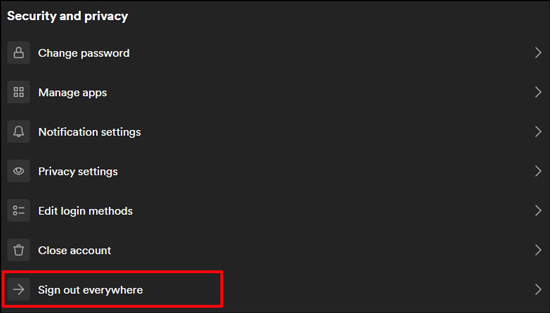
Note: It can take up to an hour for this to take effect on all devices. Once complete, open the app on your primary device and log back in.
Perform a Clean Reinstall of Spotify
When all else fails, a clean reinstall is your best option. This goes a step further than simply deleting the app; it ensures all residual, potentially corrupted data is wiped from your device before you install a fresh copy.
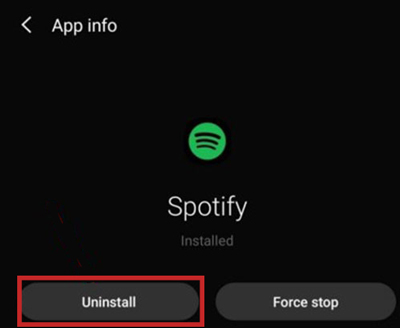
For Android Users:
Step 1. Go to Settings > Apps > Spotify.
Step 2. Tap on Storage, then tap Clear Data and Clear Cache.
Step 3. Go back one screen and tap Uninstall.
Step 4. Restart your phone, then reinstall Spotify from the Google Play Store.
For iOS Users:
Step 1. Go to Settings > General > iPhone Storage.
Step 2. Scroll down and tap on Spotify.
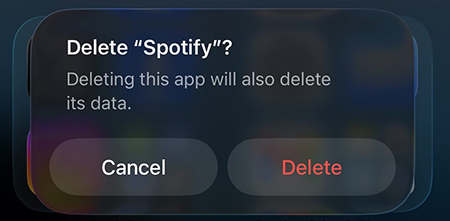
Step 3. Tap Delete App (Do not tap Offload App, as Offload keeps the corrupted data).
Step 4. Restart your iPhone and reinstall the app from the App Store.
Bonus Workaround: Avoid Streaming Errors by Playing Music Offline
If you live in an area with a spotty internet connection, or if you are tired of dealing with server outages causing the “Something went wrong” error, the most reliable solution is to take your music offline.
While Spotify Premium allows you to download songs, those downloads are still encrypted within the app. If the app glitches or requires a server check, you might still get locked out of your downloaded music. To completely bypass the Spotify app and its potential errors, you can use a dedicated tool to save your tracks locally.
How to Use AudFun Spotify Music Converter to Play Spotify Songs Offline
AudFun Spotify Music Converter is a specialized desktop software designed to download and convert Spotify tracks, playlists, and podcasts into common audio formats like MP3, FLAC, or WAV. By doing this, you can play your favorite music on any standard media player, completely avoiding the Spotify app and its streaming errors.

AudFun Spotify Music Converter
- Preserves high audio quality output Spotify songs, albums, playlists, etc.
- Supports the conversion of Spotify music files at a high speed of X5 rate
- Listen to Spotify offline without premium on multiple devices and platforms
- Converts Spotify music to several formats like FLAC, M4A, MP3, etc.
Here is a quick guide on how to use it:
Step 1. Download and Install AudFun
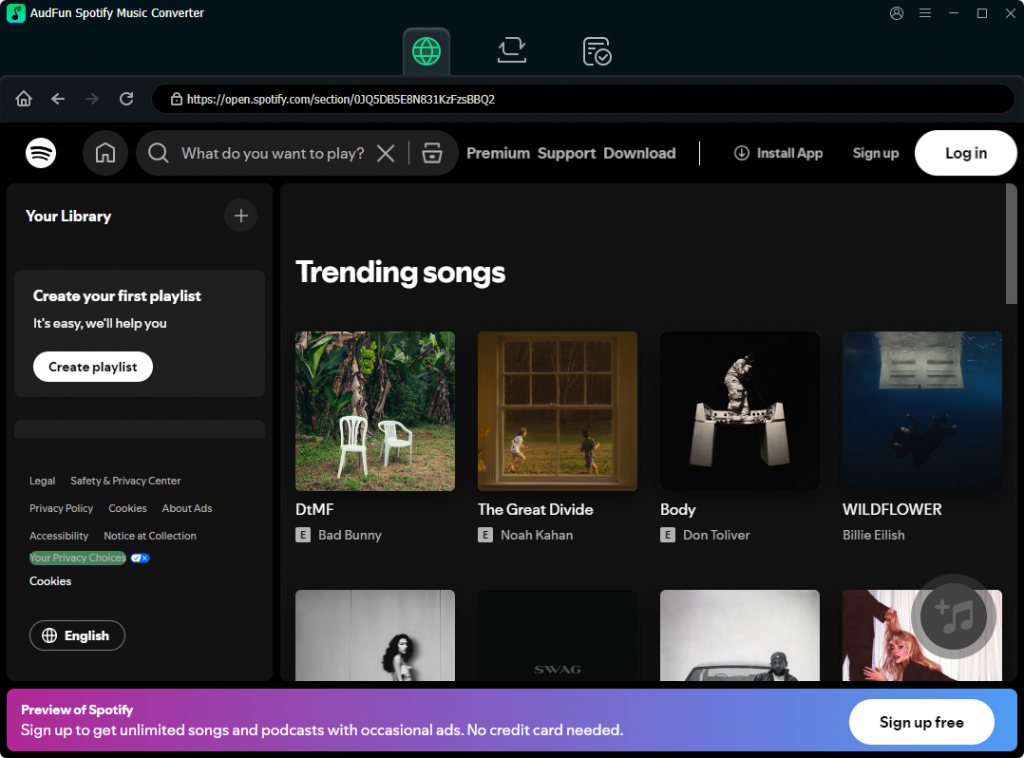
Install the AudFun Spotify Music Converter on your Mac or Windows computer. Ensure you have the Spotify desktop app installed as well.
Step 2. Add Spotify Songs
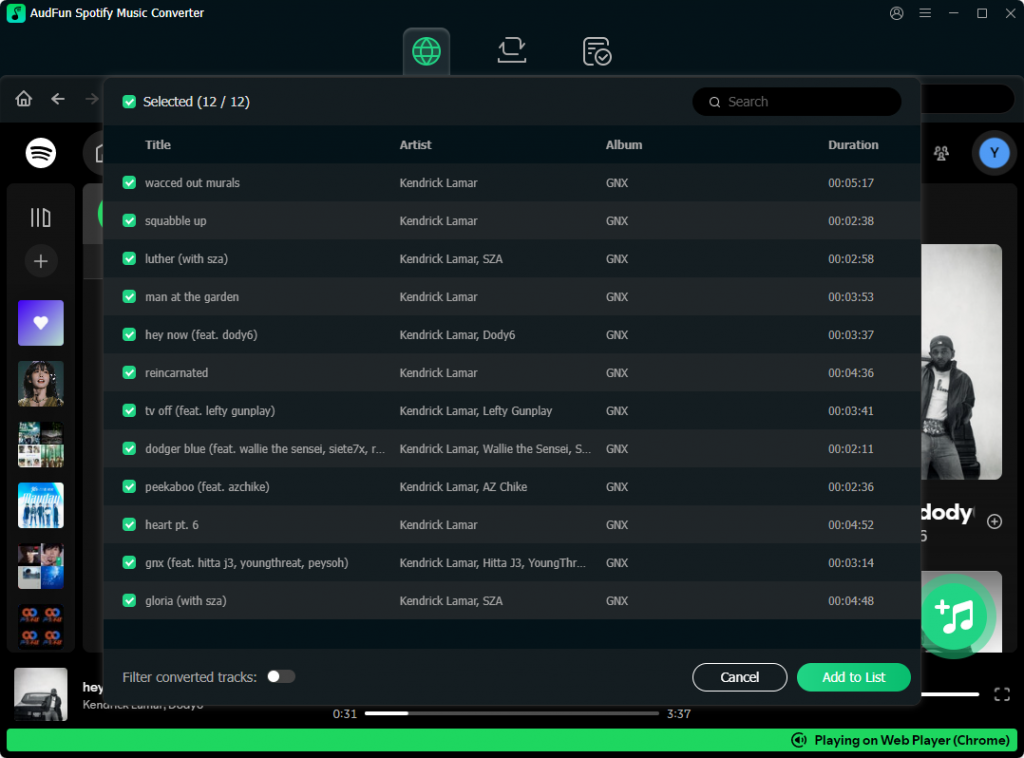
Launch AudFun. The Spotify app will open automatically. Find the playlist or song you want to download, drag it from Spotify, and drop it into the AudFun interface. Alternatively, you can copy the song link and paste it into AudFun’s search bar.
Step 3. Choose Output Format
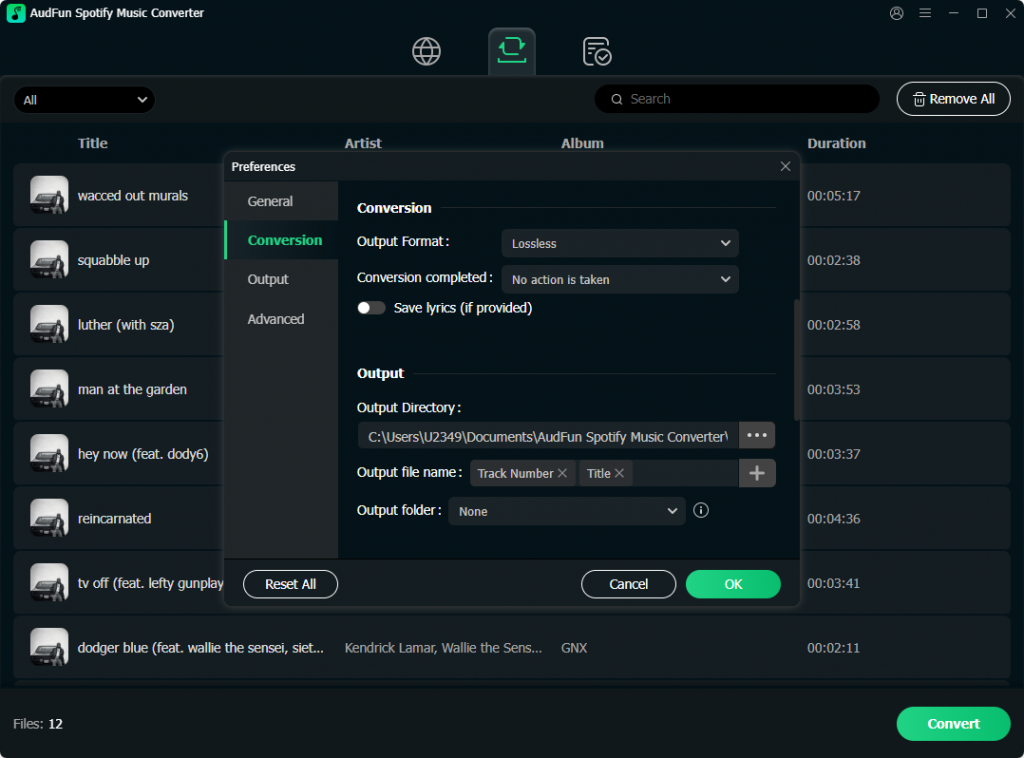
Click on the Menu icon (usually three lines) and go to Preferences > Conversion. Here, you can select your preferred output format (such as MP3) and adjust the bit rate for high-quality audio.
Step 4. Convert and Download
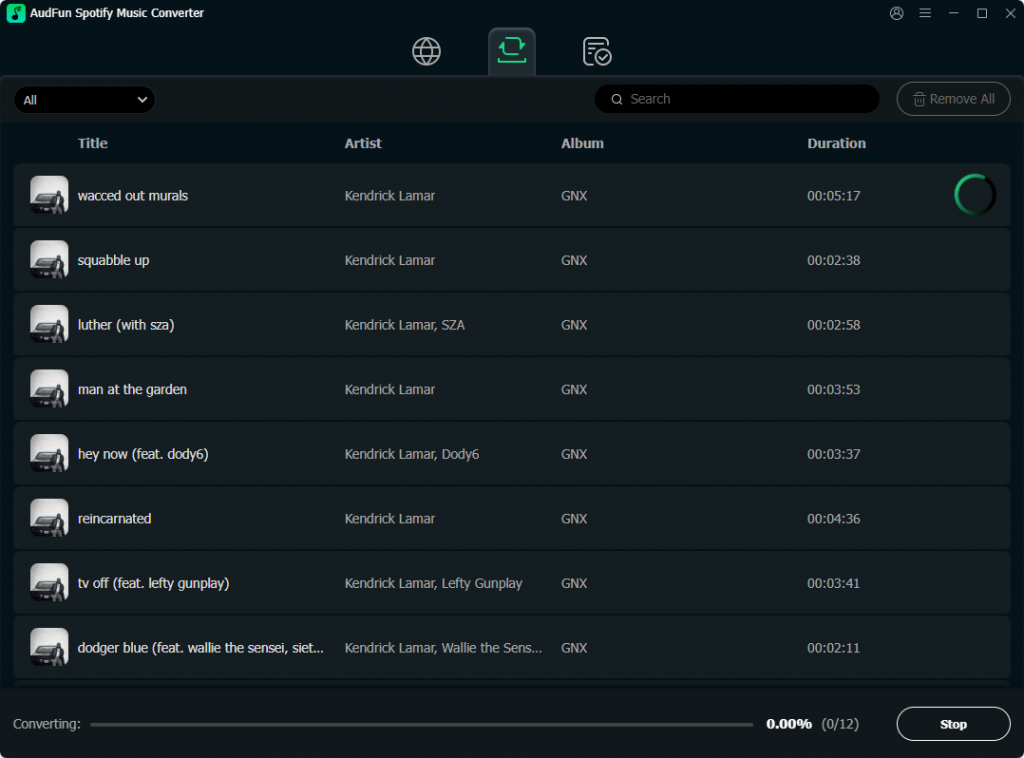
Click the Convert button at the bottom right. AudFun will begin downloading the songs directly to your computer’s local drive.
Once the conversion is complete, you have permanent, offline access to those audio files. You can transfer them to your smartphone, an MP3 player, or a USB drive. Because these files are stored locally and played through a standard music player, you will never have to worry about the Spotify “Something went wrong” error interrupting your listening experience again.
Why Does the Spotify “Something Went Wrong” Error Occur?
Understanding why this error happens can help you prevent it in the future. Because Spotify is a cloud-based application, it relies heavily on continuous communication between your device and its servers.
When you open a playlist or search for an artist, your app sends a request. If that request is interrupted by a network drop, blocked by a firewall/VPN, or confused by corrupted cache data on your phone, the app doesn’t know how to process the failure. Instead of crashing completely, it defaults to the generic “Something went wrong” screen. Keeping your app updated and your device’s storage reasonably clear of bloated cache files is the best way to maintain a smooth listening experience.
Conclusion
Encountering Spotify’s “Something went wrong” error is frustrating but rarely a permanent issue. In most cases, you can resolve this problem within minutes by checking your internet connection, clearing the app’s cache, or simply logging out and logging back in.
If the app still fails after trying all troubleshooting steps, including a clean reinstall, your account might be experiencing a specific bug. At this point, reach out to Spotify Support via their website for personalized help. Alternatively, you can use third-party tools like AudFun Spotify Music Converter to keep local backups of your playlists, ensuring your music never stops even during server outages.
