
There is nothing quite as frustrating as getting into the rhythm of your favorite playlist or the climax of a true-crime podcast, only to have the audio abruptly stop. If Spotify keeps crashing on your phone, tablet, or computer, you are not alone. This is one of the most common issues reported by users worldwide.
Whether the Spotify app is closing automatically in the background, freezing mid-song, or Spotify is crashing on startup before you can even hit play, the root cause usually boils down to corrupted cache files, outdated software, or device-specific settings.
In this comprehensive guide, we will walk you through the most effective, proven steps to stop Spotify from crashing so you can get back to your music uninterrupted.
- Part 1. Quick Checks Before You Troubleshoot
- Part 2. Universal Fixes for Spotify Crashing
- Part 3. Fix Spotify Keeps Crashing on iPhone and Android
- Part 4. Fix Spotify Keeps Crashing on Windows and Mac
- Part 5. Fix Spotify Keeps Crashing via a Clean Reinstall
Part 1. Quick Checks Before You Troubleshoot
Before diving into your device settings, it is crucial to rule out external factors. Sometimes, the issue isn’t with your phone or computer at all.
1. Check if Spotify is Down
If Spotify keeps crashing on startup or fails to load the home screen, the Spotify servers might be experiencing a global outage.
- Go to a status-checking website like Downdetector.
- Search for “Spotify” to see if there is a massive spike in user reports.
- Check the official @SpotifyStatus account on X (formerly Twitter).
If the servers are down, no amount of troubleshooting will fix the app. You simply have to wait for Spotify’s engineers to resolve the issue.
2. Verify Your Internet Connection
A weak or fluctuating internet connection can cause the app to time out and crash, especially if it is trying to load high-quality audio or video podcasts. Switch from Wi-Fi to cellular data (or vice versa) to see if a stable connection resolves the crashing issue.
Part 2. Universal Fixes for Spotify Crashing
If the servers are fully operational, start with these universal fixes that apply whether you are using an iPhone, Android, Mac, or Windows PC.
Force Quit and Restart the App
It sounds cliché, but turning it off and on again works. A temporary glitch in the app’s background processes can cause Spotify to freeze.
- On Mobile: Swipe up from the bottom of your screen to open the app switcher, then swipe the Spotify app up and away to force close it.
- On Desktop: Click the “X” to close the app. If it is frozen, use Task Manager (Windows) or Activity Monitor (Mac) to force quit the application.
Log Out and Log Back In
Sometimes, a synchronization error between your account data and the app can cause Spotify to crash.
- Navigate to the Settings gear icon in the Spotify app.
- Scroll to the very bottom and select Log Out.
- Close the app completely, reopen it, and log back in with your credentials.
Part 3. Fix Spotify Keeps Crashing on iPhone and Android
Mobile devices handle background apps and storage differently than computers. If the Spotify app keeps stopping on your smartphone, try these targeted solutions.
1. Clear the Spotify App Cache
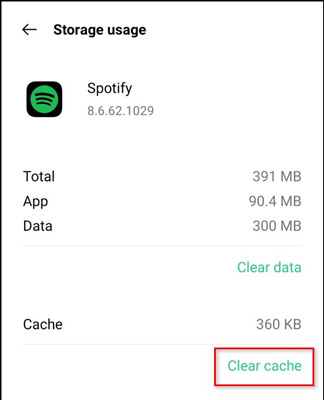
As you stream music, Spotify saves temporary data (cache) to make future loading times faster. Over time, this cache can become bloated or corrupted, which is the primary reason the Spotify app closes automatically.
To clear cache within the app:
- Open Spotify and tap your profile picture (or the gear icon) to open Settings and privacy.
- Scroll down to the Storage section.
- Tap Clear cache.
Note: Clearing your cache will not delete your downloaded offline music or your playlists. It only removes temporary streaming files.
2. Disable Android Battery Optimization (Android Only)
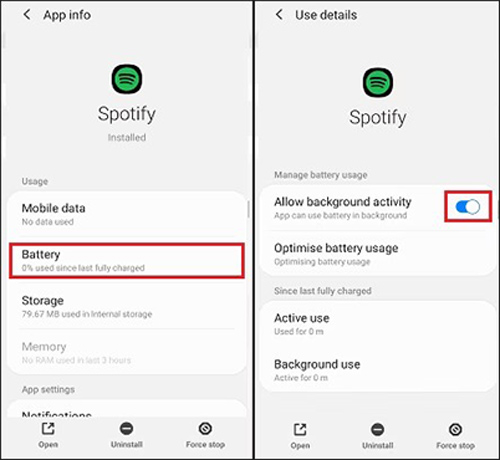
If you are an Android user and Spotify keeps crashing when your screen turns off or when you open another app, your phone is likely killing the app to save battery.
- Go to your Android phone’s Settings.
- Navigate to Apps > Spotify.
- Tap on Battery.
- Change the setting from “Optimized” to Unrestricted and Allow background activity. This allows Spotify to run smoothly in the background without being force-closed by the operating system.
3. Check Your SD Card (Android Only)
If you save your downloaded Spotify music to an external MicroSD card, a failing or corrupted card can cause the app to crash instantly when it tries to read the audio files. Try removing the SD card, restarting your phone, and opening Spotify. If it works perfectly, you may need to format or replace your SD card.
4. Offload the App (iPhone Only)
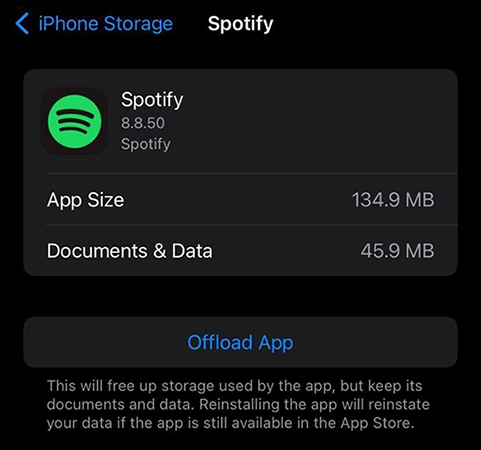
iOS users can use the “Offload” feature, which deletes the app’s core files while keeping your personal data and downloaded music intact.
- Go to iPhone Settings > General > iPhone Storage.
- Scroll down and tap on Spotify.
- Tap Offload App. Once finished, tap Reinstall App.
Part 4. Fix Spotify Keeps Crashing on Windows and Mac
Desktop crashes often stem from hardware conflicts or corrupted local application data. If Spotify is crashing on your computer, follow these steps.
1. Disable Hardware Acceleration
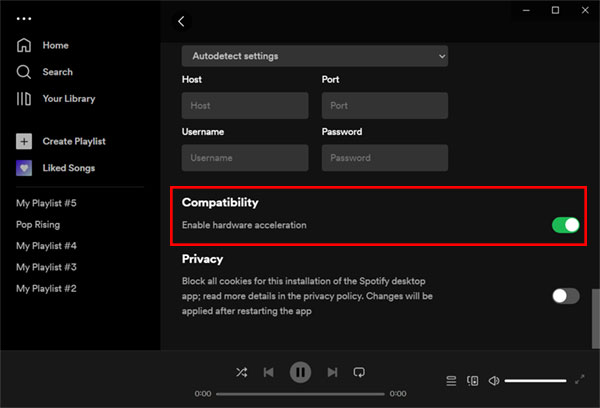
Hardware acceleration allows Spotify to use your computer’s graphics card (GPU) to render the app’s interface smoothly. However, if you have older or conflicting GPU drivers, this feature will cause Spotify to freeze, turn black, or crash entirely.
- Open the Spotify desktop app.
- Click on your profile picture in the top right and select Settings.
- Scroll down to the Compatibility section.
- Toggle off Enable hardware acceleration.
- Restart the Spotify app.
2. Run Spotify as Administrator (Windows)
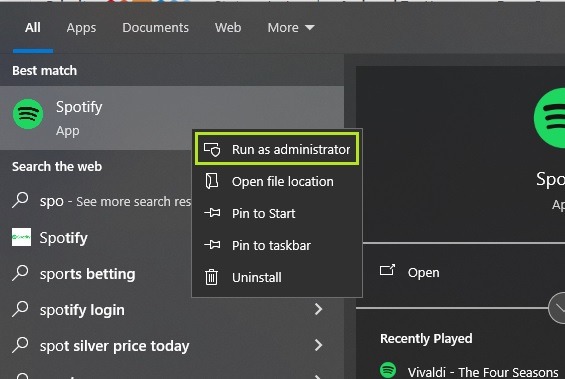
Sometimes, Spotify lacks the necessary system permissions to read or write temporary files, causing it to crash on startup. Right-click the Spotify desktop shortcut and select Run as administrator. If this fixes the issue, you can right-click the shortcut, go to Properties > Compatibility, and check the box that says “Run this program as an administrator” permanently.
Part 5. Fix Spotify Keeps Crashing via a Clean Reinstall
If you have tried all the steps above and Spotify keeps crashing, the application files are deeply corrupted. A standard uninstall is not enough, as it leaves broken registry files and app data behind. You need to perform a Clean Reinstall.
Reinstall for Mobile Devices
- Android: Go to Settings > Apps > Spotify. Tap Storage, then tap Clear Data (this will delete downloaded music). Uninstall the app. Restart your phone, then reinstall Spotify from the Google Play Store.
- iPhone: Tap and hold the Spotify app icon on your home screen. Select Remove App, then Delete App. Restart your iPhone and download Spotify again from the App Store.
Clean Reinstall for Windows PC
- Press the
Windows Key + Rto open the Run dialog box. - Type
%appdata%and press Enter. - Find the Spotify folder and delete it completely.
- Open the Run dialog box again, type
%localappdata%, and press Enter. - Find the Spotify folder here and delete it as well.
- Go to Windows Settings > Apps > Installed Apps, and uninstall Spotify.
- Restart your PC and download the latest version from the official Spotify website.
Reinstall for Mac
- Quit Spotify completely.
- Open Finder, click Go in the top menu bar, hold down the
Optionkey, and click Library. - Open the Caches folder and delete the
com.spotify.clientfolder. - Go back to the Library, open the Application Support folder, and delete the
Spotifyfolder. - Drag the Spotify app from your Applications folder to the Trash.
- Empty the Trash, restart your Mac, and reinstall the app.
Part 6. The Ultimate Workaround: How to Use AudFun Spotify Music Converter to Download Spotify Songs
If you have performed a clean reinstall and the Spotify app remains fundamentally unstable on your aging device, or if your offline downloads keep corrupting and causing the app to crash, there is a permanent workaround.
Instead of relying on the Spotify app to play your music, you can download your favorite tracks locally as standard audio files. By doing this, you can listen to your playlists using any stable, built-in media player on your device (like Apple Music, Windows Media Player, or VLC) without ever opening the Spotify app again. To do this, you can use a dedicated tool like the AudFun Spotify Music Converter.
AudFun is a reliable desktop software that allows both Free and Premium users to download Spotify tracks, playlists, and podcasts, converting them into widely supported formats like MP3, FLAC, or WAV while retaining lossless audio quality and ID3 tags.

AudFun Spotify Music Converter
- Preserves high audio quality output Spotify songs, albums, playlists, etc.
- Supports the conversion of Spotify music files at a high speed of X5 rate
- Listen to Spotify offline without premium on multiple devices and platforms
- Converts Spotify music to several formats like FLAC, M4A, MP3, etc.
Here is a quick guide on how to use it to bypass your Spotify crashing issues:
Step 1: Install AudFun Spotify Music Converter
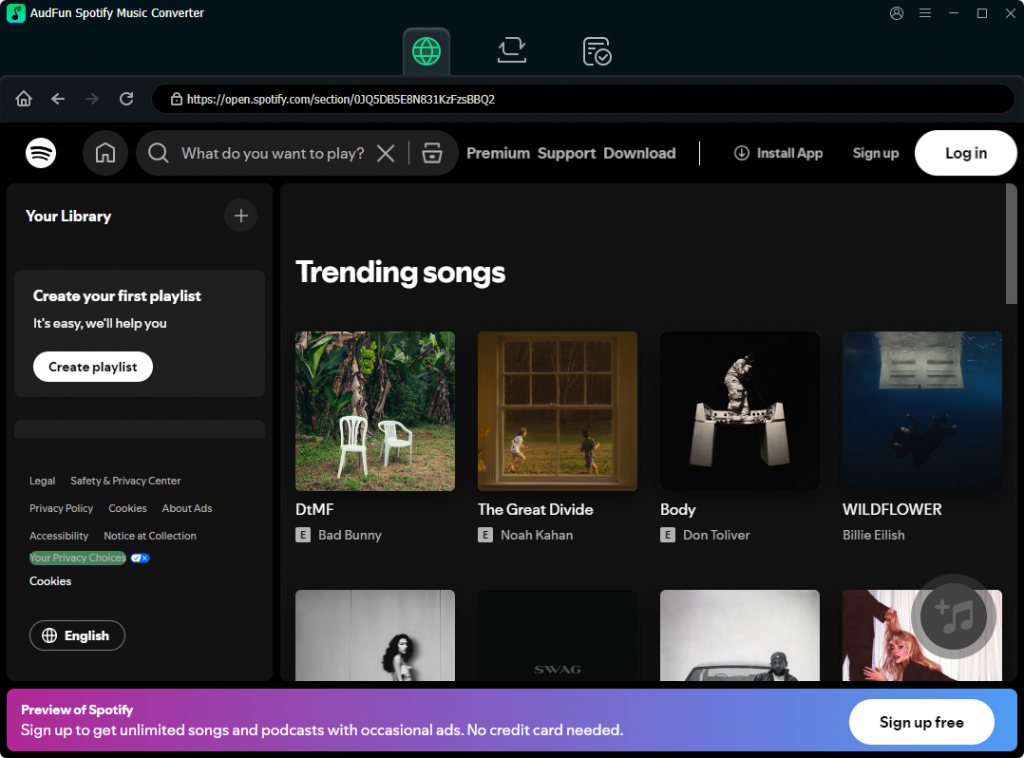
Download and install the AudFun software on your Mac or Windows PC. When you launch AudFun, you will see a built-in browser visiting the Spotify website. Following the onscreen instruction to login to your Spotify account.
Step 2: Add Spotify Songs to AudFun
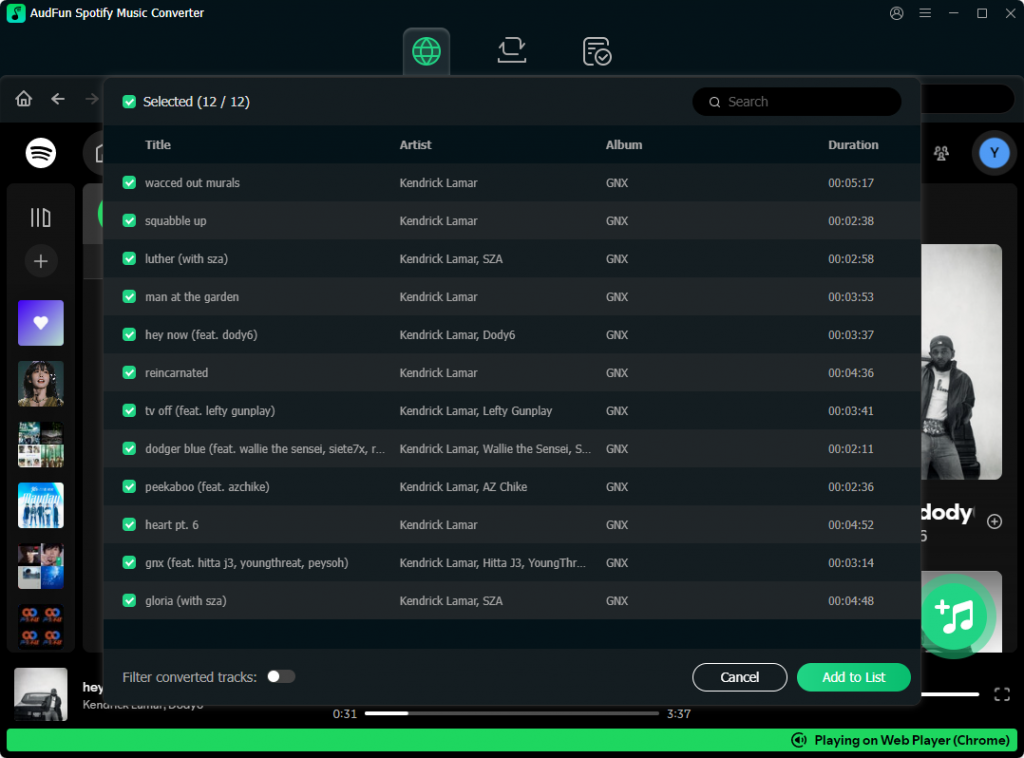
Navigate to the AudFun app and find the playlist or song you want to save. You can either drag and drop the tracks directly into the AudFun interface, or click the three dots next to a song, select Share, copy the song link, and click the “+” icon.
Step 3: Choose Your Output Format
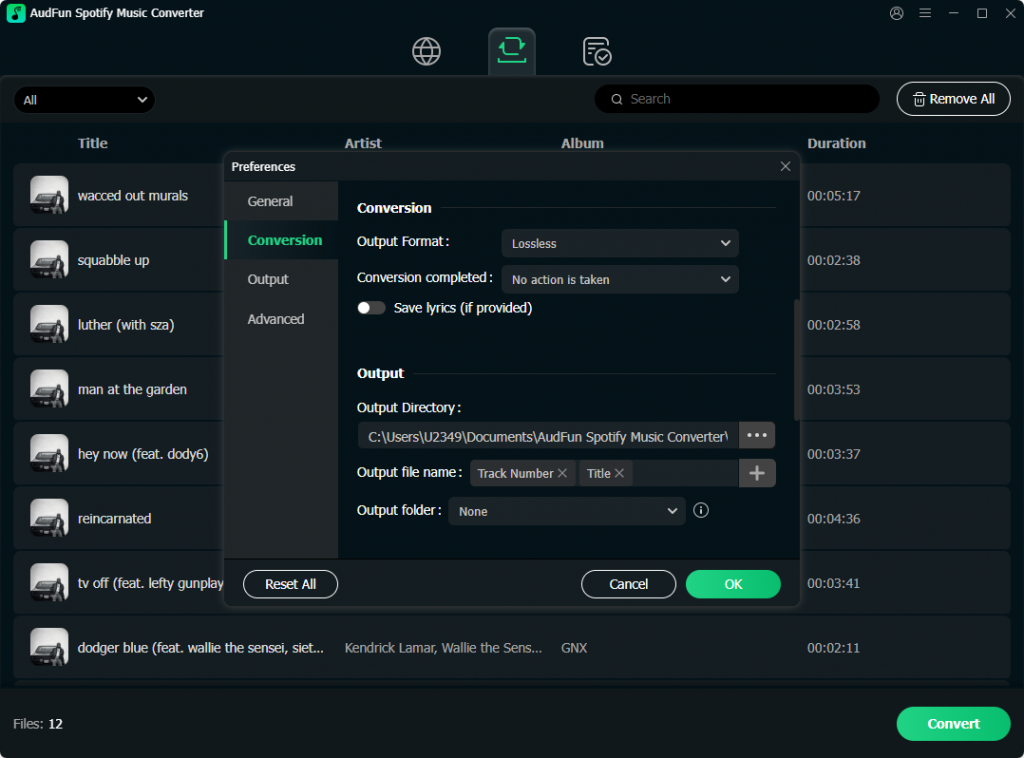
Click on the menu icon in the top right corner of AudFun and select Preferences. Go to the Convert tab. Here, select MP3 as your output format for maximum compatibility across all your devices. You can also adjust the bit rate to 320 kbps for the best audio quality.
Step 4: Convert and Download
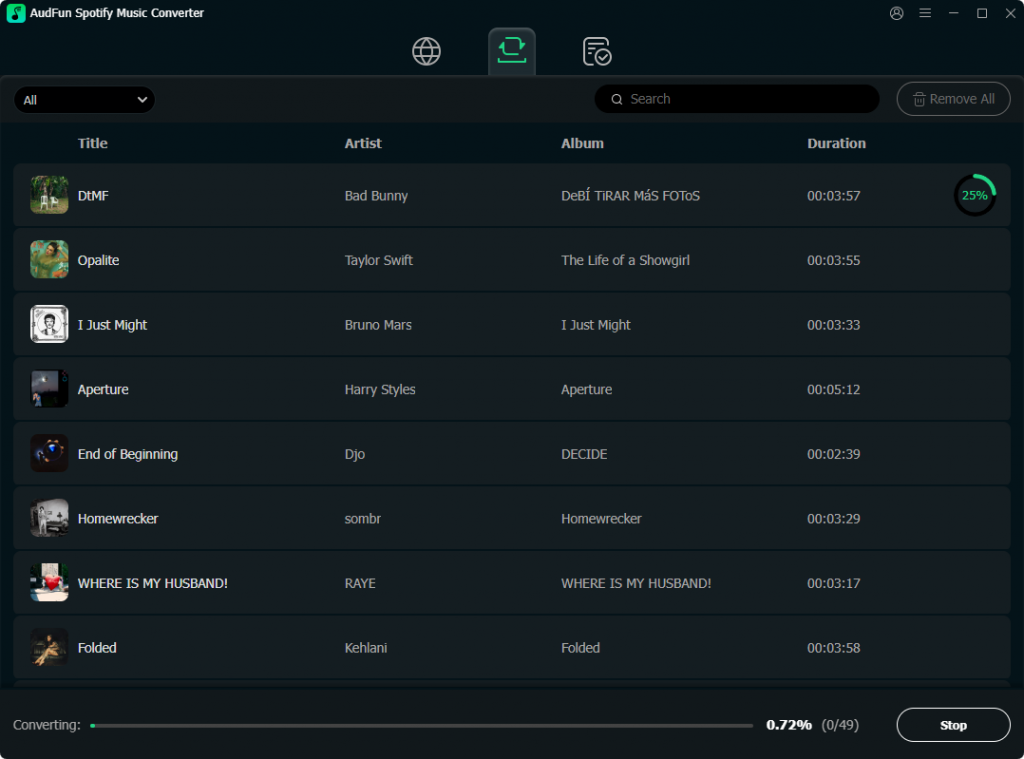
Click the Convert button at the bottom right corner. AudFun will begin downloading the Spotify songs directly to your computer’s local drive.
Once the conversion is complete, you can transfer these MP3 files to your smartphone, tablet, or MP3 player. You can now enjoy your entire Spotify library completely crash-free, as you no longer need the Spotify app to play your music.
Final Thoughts
Dealing with an app that refuses to stay open is highly annoying, but the solutions are usually straightforward. In the vast majority of cases, clearing your app cache or performing a clean reinstall will permanently fix the issue if Spotify keeps crashing.
However, if your device simply refuses to cooperate with the app, utilizing tools like the AudFun Spotify Music Converter ensures you never lose access to your music. To prevent future crashes, always ensure that both your Spotify app and your device’s operating system are updated to the latest versions, as these updates frequently contain vital bug fixes.
