
If you have noticed random songs appearing in your playlists that you didn’t add, or if your shuffle icon has suddenly sprouted little sparkles, you have encountered Spotify’s Smart Shuffle feature. While Spotify intends for this feature to help you discover new music by mixing recommendations into your listening session, many users find it intrusive when they simply want to listen to their own curated library.
Whether you are looking to temporarily turn off smart shuffle on Spotify, disable it completely from your settings, or download your tracks to escape Spotify’s playback restrictions entirely, this guide will walk you through exactly how to regain control of your music.
- Part 1. What Is Smart Shuffle?
- Part 2. How to Turn Off Smart Shuffle (Premium Users)
- Part 3. Can You Turn Off Smart Shuffle on Spotify Free?
- Part 4. How to Convert Spotify Songs for Offline Listening🔥
- Part 5. Troubleshooting: Why Is Smart Shuffle Stuck?
- Part 6. FAQs about Spotify Smart Shuffle
Part 1. What Is Smart Shuffle?
Before we dive into the solution, it is helpful to understand what is happening. Smart Shuffle is an enhanced version of the traditional shuffle mode. Instead of just randomizing the order of the songs you selected, it uses Spotify’s algorithm to inject “suggested tracks” that match the vibe of your current playlist or album.
You can instantly tell if Smart Shuffle is active by looking at the shuffle icon in your Now Playing bar.
- Standard Shuffle: Two intersecting arrows that turn green.
- Smart Shuffle: Two intersecting arrows that turn green and have little stars (sparkles) in the top left corner.
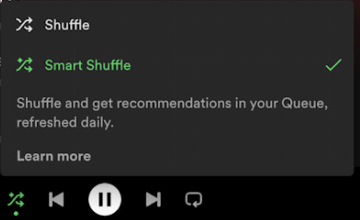
If you see the sparkles, Spotify is adding extra songs to your queue. Here is how to turn it off.
Part 2. How to Turn Off Smart Shuffle (Premium Users)
If you have a Spotify Premium subscription, you have full control over this feature. There are two ways to handle it: you can toggle it off temporarily from the player, or you can disable it in your settings so you don’t accidentally turn it on again.
Method 1: The Quick Toggle
Spotify designed the shuffle button to function as a three-way toggle cycle. This is often where the confusion arises—users tap the button once expecting to turn shuffle off, but instead, it switches from Shuffle to Smart Shuffle.
To turn it off, you need to tap through the cycle.
- Open the Spotify app on your mobile device (iOS or Android).
- Tap on the Now Playing bar at the bottom of the screen to expand the album art and controls.
- Locate the Shuffle icon (the crossed arrows) on the left side of the playback controls.
- Tap the icon repeatedly to cycle through the modes:
- Tap 1: Switches from Off (Grey) to Shuffle (Green).
- Tap 2: Switches from Shuffle to Smart Shuffle (Green with Sparkles).
- Tap 3: Switches from Smart Shuffle back to Off (Grey).

If you are currently stuck on Smart Shuffle (the icon with sparkles), simply tap the icon once to turn shuffle off completely, or tap it twice to return to standard Shuffle mode.
Method 2: How to Permanently Disable Smart Shuffle on Spotify
For many users, the three-way toggle is frustrating because it makes it easy to accidentally activate Smart Shuffle when you just want normal randomization. Fortunately, Spotify recently added a specific setting to remove Smart Shuffle from the cycle entirely.
Note: This setting effectively “hides” Smart Shuffle, so your shuffle button will only toggle between “Shuffle On” and “Shuffle Off.”
- Open the Spotify app and go to the Home tab.
- Tap your Profile Picture in the top-left corner.
- Select Settings and privacy.
- Tap on Playback.
- Scroll down until you see the option labeled Include Smart Shuffle in play modes.
- Toggle the switch to Off (the switch should turn grey).
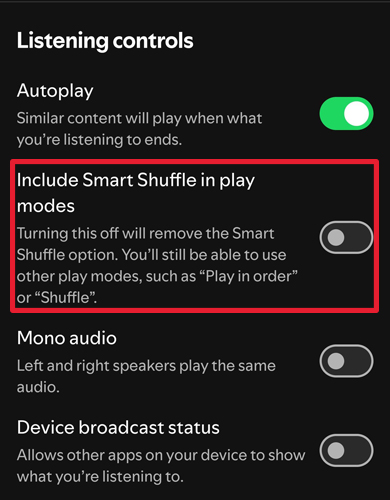
Once you have done this, you will never see the “sparkle” icon again unless you manually go back into settings and re-enable it. This is the best solution for purists who only want to hear the music they saved.
Part 3. Can You Turn Off Smart Shuffle on Spotify Free?
If you are using the free version of Spotify on a mobile device, the answer is unfortunately no.
On the free tier, Spotify restricts playback controls significantly. Smart Shuffle is the default play mode for many playlists on the mobile free version. Spotify uses this to insert sponsored tracks and recommendations, which is part of the trade-off for the free service.
The “Free” Tier Limitations:
- Mobile: You cannot turn off Smart Shuffle for most playlists. You are forced to listen to a mix of your songs and Spotify’s recommendations.
- Desktop/Tablet: Interestingly, the desktop and tablet versions of the Spotify Free app often have more lenient controls. If you are desperate to listen to a playlist without random insertions, try playing it from the Spotify desktop app on your computer.
However, if you want to bypass these restrictions entirely without paying for a monthly subscription, there is a powerful third-party solution.
Part 4. How to Convert Spotify Songs for Offline Listening via AudFun Spotify Music Converter
If you are a Free user tired of forced Smart Shuffle, or a Premium user who wants to back up playlists to play on devices that don’t support the Spotify app (like older MP3 players), AudFun Spotify Music Converter is the ideal tool.
AudFun allows you to download Spotify podcasts, tracks, playlists, and albums as local files (MP3, FLAC, WAV, etc.). Once converted, you can play these songs on any media player without internet, ads, or forced shuffle modes.

AudFun Spotify Music Converter
- Preserves high audio quality output Spotify songs, albums, playlists, etc.
- Supports the conversion of Spotify music files at a high speed of X5 rate
- Listen to Spotify offline without premium on multiple devices and platforms
- Converts Spotify music to several formats like FLAC, M4A, MP3, etc.
Step-by-Step Guide to Using AudFun
Follow these steps to download your Spotify library for unrestricted offline listening.
Step 1: Install and Launch AudFun
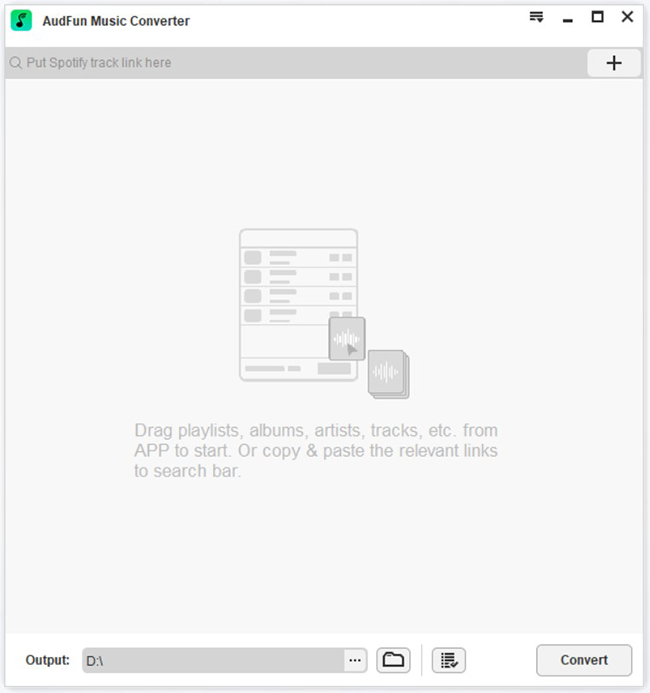
First, download and install the AudFun Spotify Music Converter on your Mac or Windows computer. When you launch the program, the Spotify desktop app will automatically open alongside it.
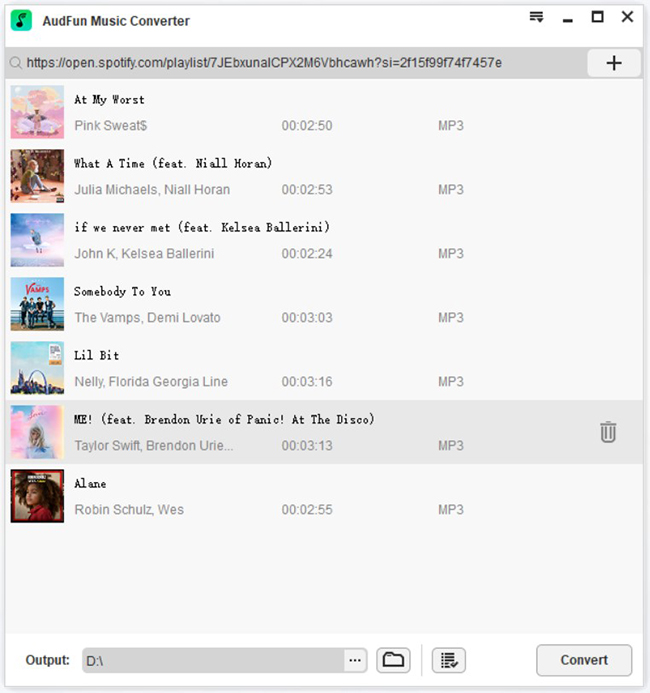
Step 2: Add Spotify Songs to AudFun
Browse your Spotify app to find the songs or playlists you want to convert. You have two ways to import them:
- Drag and Drop: Simply drag a song or playlist from Spotify and drop it into the AudFun main window.
- Copy URL: Click the “…” (three dots) next to the song/playlist on Spotify, select Share > Copy Song Link, paste it into the search bar in AudFun, and click the “+” button.
Step 3: Customize Output Settings
Before converting, ensure the files will be in your preferred format.
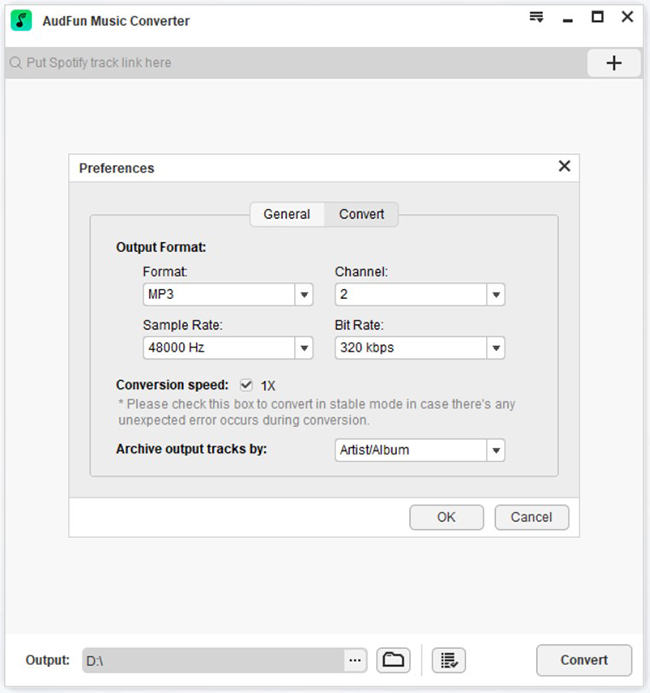
- Click the Menu icon (three lines) in the top-right corner of AudFun.
- Select Preferences and switch to the Convert tab.
- Here, you can set the output format to MP3 (recommended for compatibility). You can also adjust the bit rate (up to 320kbps for high quality) and sample rate.
Step 4: Convert and Download
Once your settings are ready, click the large Convert button at the bottom-right corner. AudFun will begin downloading the tracks to your computer’s local storage.
When the process is finished, click the History icon (paper with a clock) to view your downloaded files. You can now transfer these MP3s to your phone or any other device and listen to them using any music player—completely free of Smart Shuffle or ads.
Part 5. Troubleshooting: Why Is Smart Shuffle Stuck?
Even Premium users sometimes report that they are “stuck” in Smart Shuffle mode. You might tap the icon, but the sparkles won’t go away, or the suggested songs keep playing even after the icon turns grey. This is usually a cache issue or a software bug.
Here is how to fix a stuck shuffle button:
1. Force Close and Restart the App
This is the classic “turn it off and on again.”
- iOS: Swipe up from the bottom of the screen, find the Spotify card, and swipe it up to close it.
- Android: Open your recent apps menu and swipe Spotify away. Reopen the app and try toggling the shuffle button again.
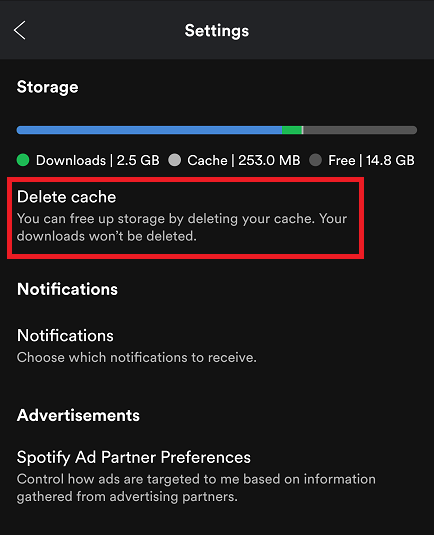
2. Clear Spotify Cache
Over time, Spotify stores temporary data that can sometimes cause playback glitches.
- Go to Settings and privacy.
- Scroll down to Storage.
- Tap Delete cache. (Don’t worry, this won’t delete your downloaded playlists, just temporary files).
3. Check Your Queue
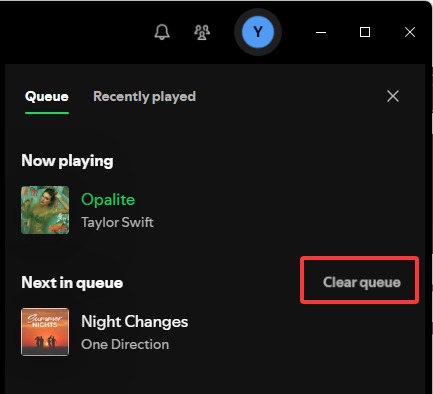
Sometimes, Smart Shuffle has already added 20+ recommended songs to your “Up Next” queue. Even if you turn the feature off, those songs might still be sitting in the line.
Step 1. Open the Now Playing screen.
Step 2. Tap the Queue icon (three horizontal lines with a small triangle) in the bottom right.
Step 3. Check if there are songs listed under “Next In Queue” that you didn’t add.
Step 4. Select and remove them manually, or hit the Clear queue button if available.
Part 6. FAQs about Spotify Smart Shuffle
Here are answers to the most common questions users have regarding Spotify’s shuffle mechanics and playback settings.
Q1: Does Smart Shuffle use more mobile data?
Yes. Because Smart Shuffle streams recommendations that are not in your library (and likely not downloaded to your device), it requires an active internet connection to fetch these new songs. If you are on a limited data plan, sticking to standard Shuffle with your downloaded “Liked Songs” is safer.
Q2: Why can’t I see the “Include Smart Shuffle in play modes” option in Settings?
If this option is missing, your app may be outdated. Go to the App Store (iOS) or Google Play Store (Android) and ensure you have the latest version of Spotify installed. Additionally, this feature is currently rolling out primarily to Premium users; Free users may not see this toggle as they cannot disable the feature on mobile.
Q3: Will AudFun work if I only have a Spotify Free account?
Yes. AudFun Spotify Music Converter works perfectly with both Spotify Free and Premium accounts. It allows Free users to download music as MP3s, effectively bypassing the “shuffle-only” restriction on mobile devices.
Q4: Is Smart Shuffle the same as “Enhance”?
They are very similar but function differently. The “Enhance” button (which used to be at the top of playlists) added recommendations visually into your playlist list. Smart Shuffle adds them temporarily into the playback queue. Spotify has largely replaced the “Enhance” button with the Smart Shuffle feature in recent updates.
Q5: Why does Spotify keep turning Smart Shuffle back on?
If you haven’t disabled it in the settings (Method 2 above), it is very easy to accidentally tap the shuffle icon twice, which activates Smart Shuffle. Furthermore, Spotify sometimes resets preferences after a major app update. If it keeps happening, double-check that the “Include Smart Shuffle in play modes” toggle in your settings is still switched off.
Summary
To recap, taking control of your listening experience depends on your subscription status and tools:
- Premium Users: Tap the shuffle icon twice to cycle past Smart Shuffle, or go to Settings > Playback and toggle off “Include Smart Shuffle in play modes” to disable it permanently.
- Free Users: On mobile, you are generally stuck with Smart Shuffle. However, by using AudFun Spotify Music Converter, you can download your tracks as MP3s and enjoy a truly offline, shuffle-free experience on any device.
By following these steps, you can ensure that the only DJ controlling your aux cord is you. Enjoy your music, exactly the way you curated it!
