
Is your Spotify app refusing to play anything that isn’t downloaded? You might be stuck in Offline Mode. While this feature is a lifesaver for saving data or listening on airplanes, it can be incredibly frustrating when you’re back on Wi-Fi and just want to stream new music.
Whether you accidentally toggled a switch or the app is glitching, this guide will show you exactly how to turn off offline mode on Spotify for Android, iOS, Mac, and Windows. We’ll also cover what to do if Spotify says it’s offline even when your internet is working perfectly.
- What is Spotify Offline Mode?
- How to Turn Off Offline Mode on Mobile (Android & iOS)
- How to Turn Off Offline Mode on Desktop (Mac & Windows)
- Troubleshooting: Why is Spotify Stuck in Offline Mode?
- Bonus: How to Download Spotify Songs for Offline Listening🔥
- FAQs About How to Turn Off Spotify Offline Mode
What is Spotify Offline Mode?
Before we fix it, it helps to know what’s happening. Spotify Offline Mode disconnects the app from the internet, allowing you to play only the songs and podcasts you have downloaded to your device.
- The Good: It saves mobile data and battery.
- The Bad: You cannot search for new songs, stream radio, or see what your friends are listening to.
- The Ugly: Sometimes, the app gets “stuck” in this mode, leaving you silent even with a full 5G signal.
How to Turn Off Offline Mode on Mobile (Android & iOS)
The process is slightly different depending on whether you are using an iPhone or an Android device, but the setting is generally found in the same area.
For iPhone and iPad Users (iOS)
- Open the Spotify app.
- Tap your Profile Picture in the top-left corner.
- Tap on Settings and privacy.
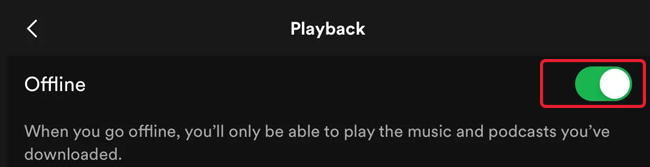
- Select Playback.
- Look for the Offline toggle switch.
- Turn it OFF (the switch should turn from green to grey).
For Android Users
- Open the Spotify app.
- Tap your Profile Picture in the top-left corner.
- Tap on Settings and privacy.
- Scroll down to the Playback section.
- Find the Offline mode toggle.
- Switch it OFF (greyed out means you are back online).
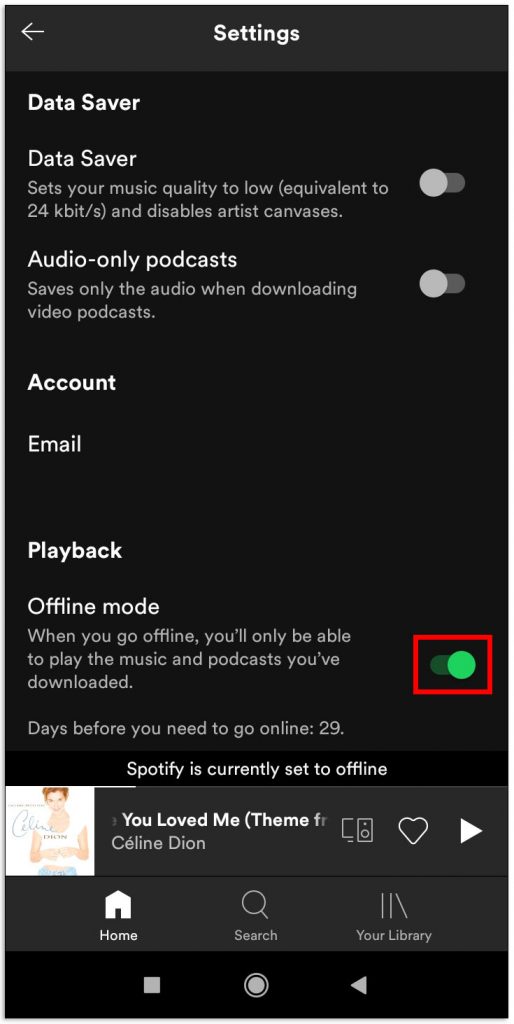
Pro Tip: Once you disable it, you should immediately see the “No internet connection” banner disappear, and your Home feed should refresh.
How to Turn Off Offline Mode on Desktop (Mac & Windows)
If you are seeing the “Spotify is offline” message on your computer, the fix is usually just a couple of clicks away.
On Mac (macOS)
- Open Spotify.
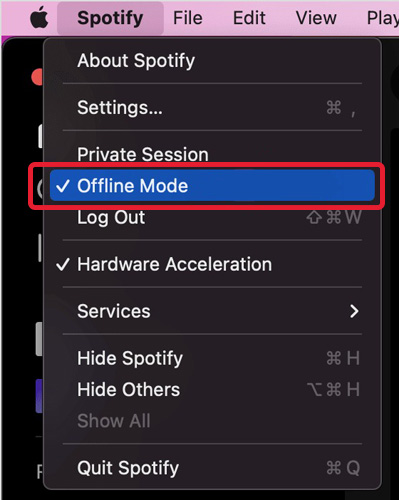
- In the Apple menu bar at the very top of your screen, click on Spotify.
- In the dropdown menu, look for Offline Mode.
- If there is a checkmark next to it, click it to uncheck it.
On Windows PC
- Open Spotify.
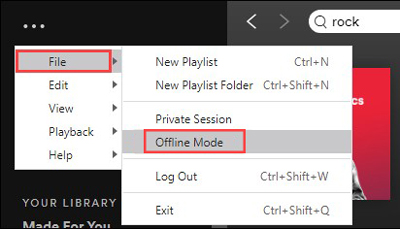
- Click the three dots (…) in the top-left corner of the app window.
- Hover over File.
- Click on Offline Mode to toggle it off.
- Alternatively, check if you see a blue “Offline” button near your profile name—sometimes clicking this directly prompts you to reconnect.
Troubleshooting: Why is Spotify Stuck in Offline Mode?
“I turned off the setting, but Spotify still says I’m offline!”
This is a common issue. If you have followed the steps above but can’t stream music, your app might be glitching or facing a connectivity block. Try these fixes in order.
1. The “30-Day Rule” (Premium Users)
If you have Spotify Premium, you can listen offline, but not forever. Spotify requires you to go online at least once every 30 days to verify your subscription status and pay artists for the plays.
- Fix: Ensure your device is connected to the internet and open the app. If it’s been more than 30 days, you might need to log out and log back in.
2. Check for “Data Saver” Restrictions
Sometimes, your phone’s operating system restricts Spotify from using data in the background, forcing it into a pseudo-offline state.
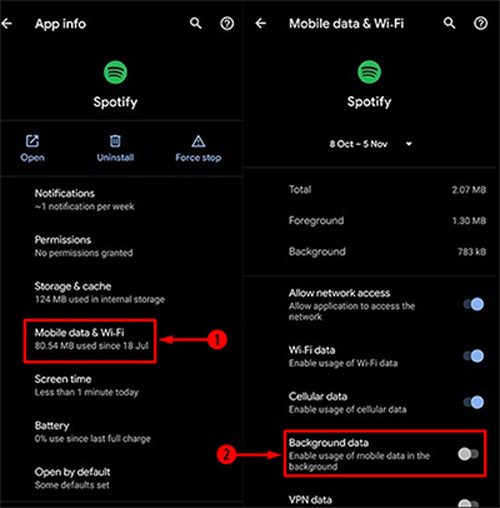
- On Android: Go to Settings > Apps > Spotify > Mobile data & Wi-Fi. Ensure “Background data” is ON.
- On iOS: Go to Settings > Spotify. Ensure Mobile Data is toggled ON (green).
3. Clear the Spotify Cache
Corrupted temporary files can trick the app into thinking it has no connection.
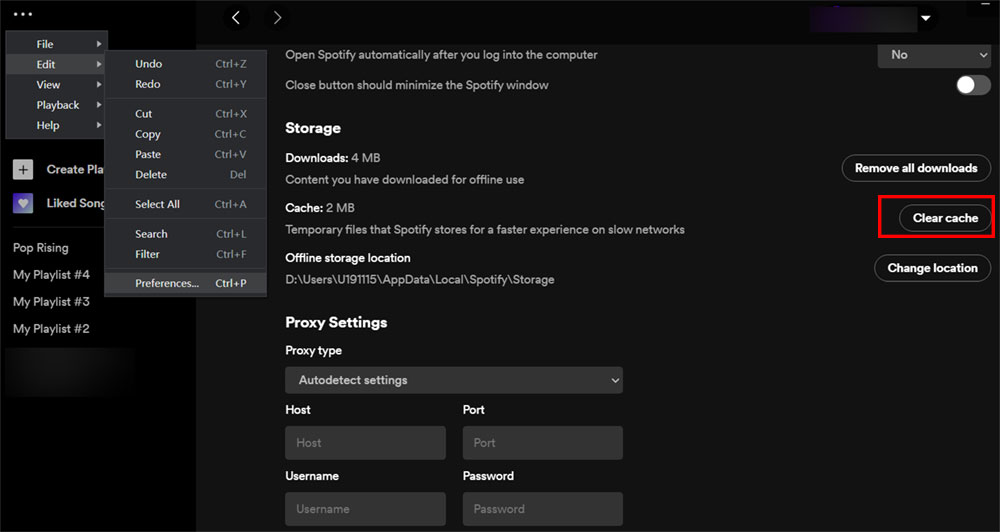
- Go to Spotify Settings.
- Scroll down to Storage.
- Tap Clear cache.
- Note: This will NOT delete your downloaded songs, only temporary data.
4. Check Firewall Settings (Desktop Only)
If you are at work or school, or using a strict antivirus on your PC, a firewall might be blocking Spotify.
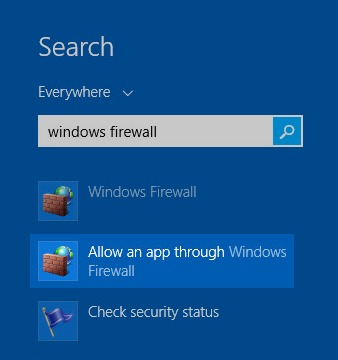
- Windows: Search for “Allow an app through Windows Firewall” and ensure Spotify.exe is checked for both Private and Public networks.
- Mac: Check your System Settings > Network > Firewall to ensure Spotify isn’t on the block list.
5. The “Re-Login” Refresh
If all else fails, force the app to re-sync with the server.
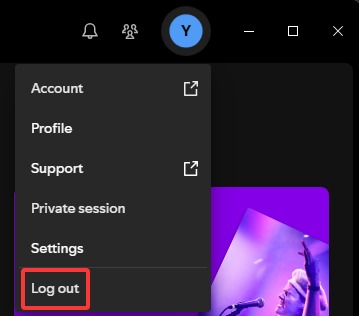
- Log out of Spotify (Settings > Log out).
- Restart your device.
- Log back in. This often clears persistent “offline” bugs.
Bonus: How to use AudFun Spotify Converter to Download Spotify Songs for Offline Listening
While Spotify’s native offline mode is useful, it comes with annoying limitations: you must go online every 30 days, the songs are DRM-protected (meaning you can’t play them on other MP3 players), and if your Premium subscription expires, you lose all your downloads.
If you want a permanent offline listening solution that works on any device without these restrictions, AudFun Spotify Music Converter is the ideal tool. It allows you to download Spotify playlists, tracks, and albums as local files (MP3, FLAC, WAV, etc.) with 100% lossless quality.

AudFun Spotify Music Converter
- Preserves high audio quality output Spotify songs, albums, playlists, etc.
- Supports the conversion of Spotify music files at a high speed of X5 rate
- Listen to Spotify offline without premium on multiple devices and platforms
- Converts Spotify music to several formats like FLAC, M4A, MP3, etc.
Step-by-Step Guide to Downloading Spotify Songs with AudFun
Follow this tutorial to save your favorite tracks forever.
Step 1: Install and Launch AudFun
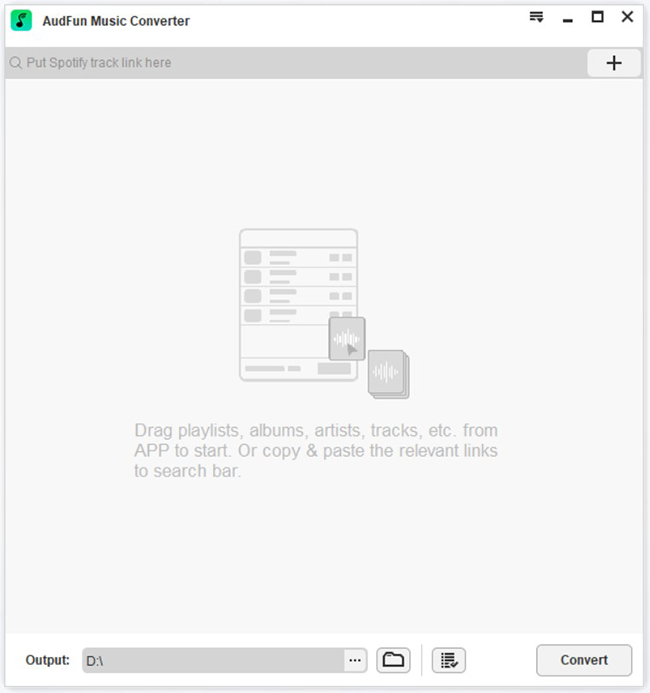
First, download and install the AudFun Spotify Music Converter on your Mac or Windows computer. When you launch the program, the Spotify app will automatically open alongside it.
Step 2: Add Spotify Songs to AudFun
There are two easy ways to import music:
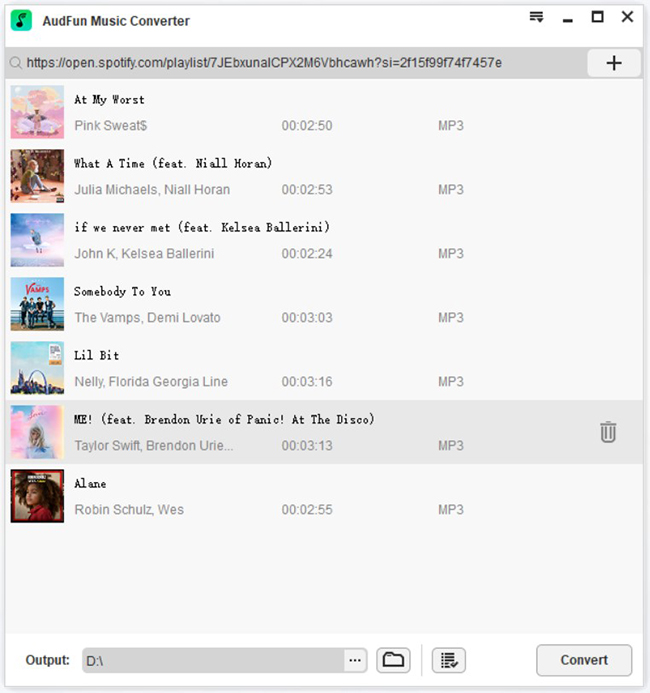
- Drag and Drop: Simply drag a song, playlist, or album from the Spotify app and drop it directly into the AudFun main window.
- Copy URL: In Spotify, click the three dots (…) next to a song > Share > Copy Song Link. Paste this link into the address bar at the top of the AudFun interface and click the “+” button.
Step 3: Customize Output Format (Optional)
By default, AudFun may convert to MP3, but you can customize this for better quality.
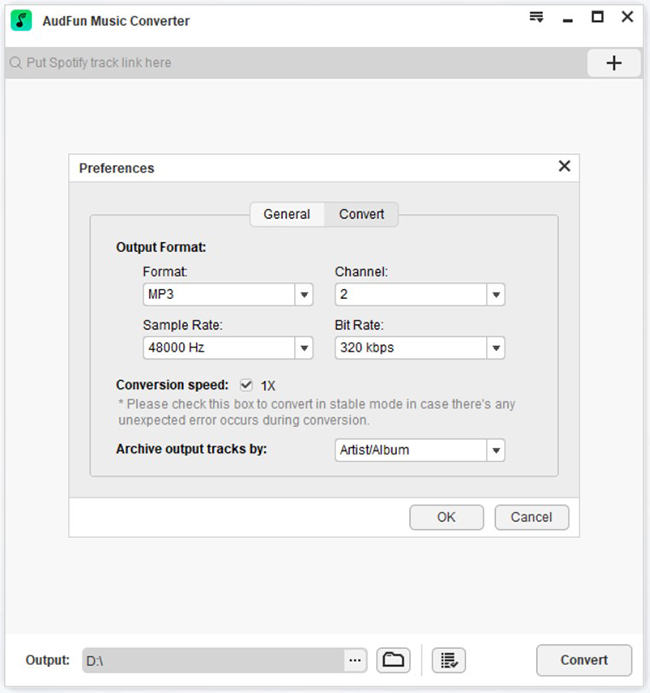
- Click the Menu icon (three lines) in the top-right corner (Windows) or the “AudFun Spotify Music Converter” menu (Mac).
- Select Preferences and switch to the Convert tab.
- Here, you can choose the output format (MP3, FLAC, WAV, M4A).
- You can also adjust the Bit Rate (up to 320kbps for high quality) and Sample Rate.
Step 4: Convert and Download
Once your songs are added and settings are tweaked:
- Click the large Convert button at the bottom-right corner.
- AudFun will begin downloading the tracks at high speed.
- Once finished, click the History icon (paper with a clock) to view your downloaded files.
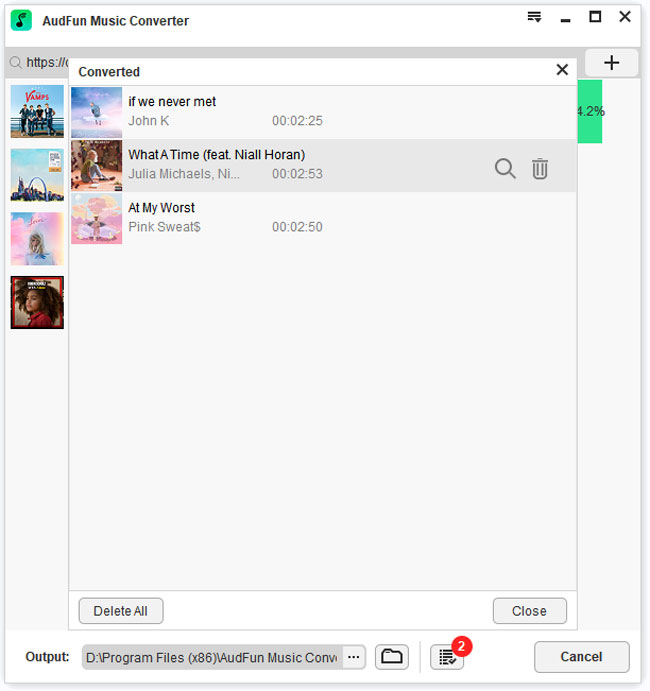
You now have these songs saved locally on your computer! You can transfer them to your phone, USB drive, or MP3 player and listen offline forever, without ever needing to toggle “Offline Mode” in Spotify again.
FAQs About How to Turn Off Spotify Offline Mode
Q: Will turning off offline mode delete my downloaded songs?
A: No. Turning off offline mode simply allows you to stream music from the internet again. Your downloads remain safe on your device unless you manually remove them or uninstall the app.
Q: Why does Spotify go offline automatically?
A: This usually happens if your internet connection drops, if you enter a “Data Saver” mode on your phone, or if your battery is critically low (triggering battery saver modes that cut background data).
Q: Can I use Spotify offline without Premium?
A: With the native Spotify app, no—only Premium users can download music. However, using a tool like AudFun Spotify Converter allows even Free users to download songs to MP3 for offline listening.
Conclusion
Getting stuck in Spotify offline mode kills the vibe, but it’s usually an easy fix. Remember to check the Playback settings first. If that switch is already off, the problem likely lies in your device’s data permissions or cache.
For those who want total control over their music library without worrying about internet connection drops or subscription checks, tools like AudFun Spotify Converter offer a robust alternative. By converting your favorite playlists to MP3, you ensure the music never stops—whether you are in a tunnel, on a plane, or simply saving data.
Did this guide help you get back online? Share it with a friend who’s always complaining about their music app not working!
